How to Add Apps to CarPlay: Expert Tips & Complete Guide
Apple CarPlay has revolutionized how drivers interact with their vehicles, transforming your car’s infotainment system into a seamless extension of your iPhone. Whether you’re commuting daily or embarking on a cross-country road trip, having the right apps accessible on your dashboard can dramatically improve safety and convenience. However, many drivers remain confused about the process of adding apps to CarPlay, assuming it’s complicated or restricted to a limited selection. The truth is that adding apps to CarPlay is straightforward once you understand the fundamental mechanics and requirements.
The key to successfully expanding your CarPlay experience lies in understanding that apps aren’t technically “added” to CarPlay in the traditional sense. Instead, compatible apps are made visible and accessible through CarPlay’s interface directly from your iPhone. This distinction is crucial because it means you’re not installing separate versions of applications—you’re simply enabling apps that already support CarPlay functionality to display on your vehicle’s screen. In this comprehensive guide, we’ll walk you through every step of the process, troubleshoot common issues, and help you optimize your CarPlay setup for maximum safety and usability while driving.
Understanding CarPlay Compatibility and Requirements
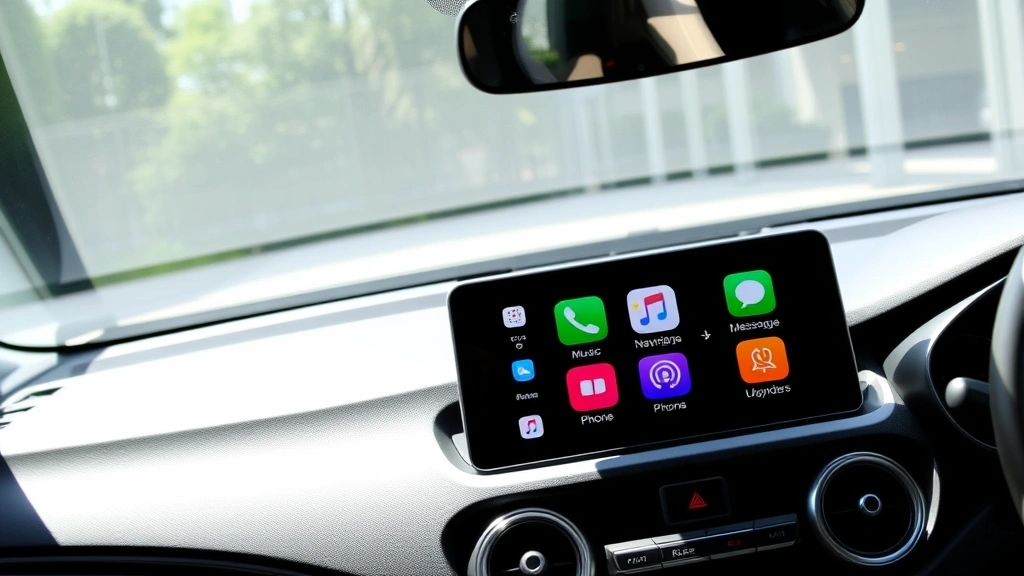
Before you can add apps to CarPlay, you need to ensure your setup meets the basic requirements. First and foremost, your vehicle must have a compatible infotainment system that supports Apple CarPlay. Most modern vehicles from 2016 onward include CarPlay capability, but it’s worth checking your vehicle’s manual or manufacturer’s website to confirm. Additionally, your iPhone must be running iOS 7.1 or later, though most recent iOS versions are recommended for optimal performance and access to the latest CarPlay features.
The critical factor that many users overlook is that not all apps available on the App Store support CarPlay functionality. Apple has specific guidelines that apps must meet to be CarPlay-compatible. According to Apple’s official CarPlay documentation, supported app categories include navigation, music streaming, audio books, podcasts, messaging, calling, and parking. This means you won’t be able to add social media apps or games to your CarPlay display, as these don’t meet Apple’s safety and distraction-reduction standards. Understanding these limitations upfront will save you frustration when searching for specific apps.
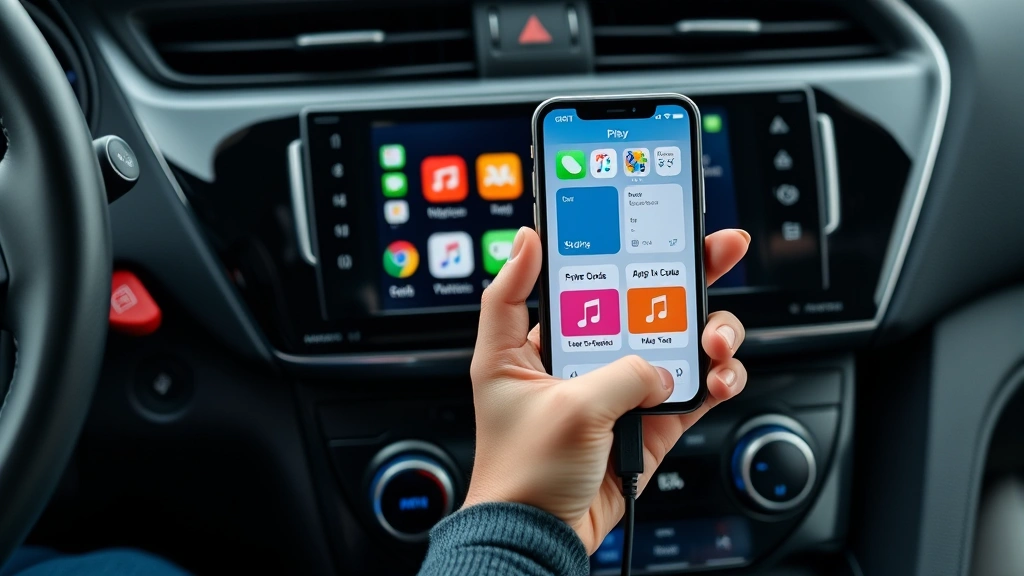
Your iPhone’s CarPlay settings act as the control center for all app management. When you connect your iPhone to your vehicle via USB cable or wireless connection, CarPlay automatically syncs with your vehicle’s display. The apps that appear on your CarPlay home screen are determined by your iPhone’s settings, not your vehicle’s system. This is why properly configuring your iPhone is the first and most important step in the process.
Step-by-Step Instructions for Adding Apps to CarPlay
The process of adding apps to CarPlay begins on your iPhone, not in your vehicle. Start by unlocking your iPhone and navigating to the Settings app. From the home screen, tap Settings, then scroll down to find “CarPlay.” Depending on your iOS version, this might be located under “General” → “CarPlay” or directly as a standalone option. Once you’ve accessed the CarPlay settings, you’ll see your vehicle listed if it has previously connected to your iPhone.
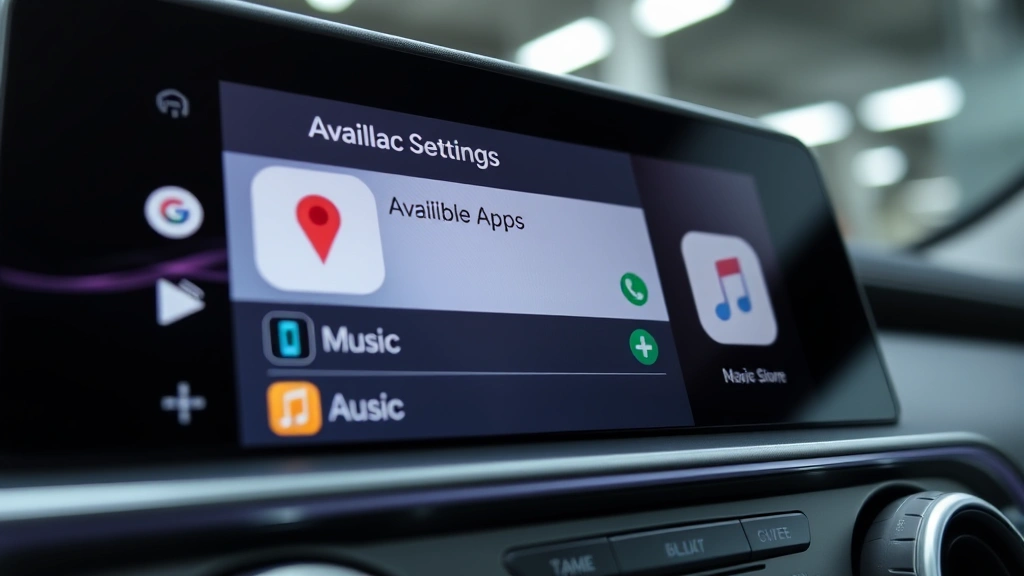
Tap on your vehicle’s name to access the CarPlay configuration screen specific to that vehicle. This is where the magic happens. You’ll see two sections: “Appears on Screen” and “Available Apps.” The “Appears on Screen” section shows all apps currently displayed on your CarPlay home screen, while “Available Apps” displays all compatible apps installed on your iPhone that support CarPlay but aren’t yet visible on your vehicle’s display.
To add an app to CarPlay, locate it in the “Available Apps” section and tap the green plus button next to it. The app will immediately move to the “Appears on Screen” section. You can customize the order of these apps by tapping the three horizontal lines (hamburger menu) next to each app name and dragging them to your preferred position. This organizational flexibility allows you to prioritize the apps you use most frequently, placing navigation at the top and lesser-used apps below.
If you don’t see an app in either section, it’s because that particular app doesn’t support CarPlay. In this case, you have two options: check the App Store listing to confirm whether the developer has released a CarPlay-compatible version, or look for alternative apps that offer similar functionality with CarPlay support. Many app developers continue adding CarPlay compatibility, so checking back periodically is worthwhile.
For users without a connected vehicle, Apple provides a CarPlay simulator in Xcode for developers, but standard users can manage their CarPlay settings through the iPhone’s Settings app even without an active vehicle connection. Your configured apps will sync automatically the next time you connect to your vehicle.
Popular Apps Compatible with CarPlay
Navigation apps form the backbone of most CarPlay setups. Apple Maps comes pre-installed and fully integrated, but many users prefer Google Maps, Waze, or other third-party navigation solutions. When comparing navigation options, consider factors like real-time traffic updates, voice guidance quality, and offline map availability. Waze, for example, excels at crowdsourced traffic reporting, while Google Maps offers comprehensive business information and detailed street views.
Music and audio streaming represents another major CarPlay category. Spotify, Apple Music, Amazon Music, and YouTube Music all support CarPlay, allowing you to control playback directly from your vehicle’s touchscreen. Podcast apps like Podcasts, Pocket Casts, and Overcast enable hands-free listening and automatic episode management. For audiobook enthusiasts, Audible and Apple Books provide extensive libraries with CarPlay integration.
Communication apps are essential for safe driving. While your iPhone’s native Phone and Messages apps are automatically available, third-party options like WhatsApp, Telegram, and Viber offer CarPlay support for text-based messaging. These apps utilize voice-to-text functionality, ensuring you can respond to messages without taking your eyes off the road.
Parking and EV charging apps have become increasingly important. Apps like ParkWhiz, SpotHero, and ChargePoint help you locate and reserve parking spots or charging stations before arriving at your destination. When combined with your navigation app, these utilities create a comprehensive travel solution that addresses common pain points during longer journeys.
For those interested in vehicle maintenance and diagnostics, apps like CarMD and Automatic provide insights into your vehicle’s health and performance. These apps can alert you to potential issues before they become serious problems, ultimately saving money on repairs.
Customizing Your CarPlay Home Screen
Creating an efficient CarPlay home screen layout significantly impacts your driving experience. The key principle is accessibility—your most-used apps should be easily reachable without requiring multiple taps or scrolling. Most CarPlay displays accommodate 5-7 apps on the primary home screen before requiring scrolling.
A recommended layout places your primary navigation app in the first position, followed by your preferred music streaming service, messaging app, and phone app. Below this primary tier, add less frequently accessed apps like parking, EV charging, or weather applications. Remember that you can access additional apps by swiping left on the CarPlay home screen, revealing additional pages of applications.
The dock at the bottom of your CarPlay display typically shows your four most essential apps. This prime real estate should be reserved for your navigation app, primary communication method, music service, and either phone or another critical utility. You can customize the dock by accessing your iPhone’s CarPlay settings and dragging apps to the dock area.
Seasonal customization is often overlooked but highly practical. During winter months, you might prioritize weather and road condition apps, while summer road trips benefit from parking and EV charging apps taking prominent positions. iOS allows you to manage multiple vehicle profiles, so if you drive different cars, you can maintain separate CarPlay configurations optimized for each vehicle’s specific features and your usage patterns.
Troubleshooting Common CarPlay App Issues
When apps fail to appear on CarPlay despite being installed on your iPhone, the first troubleshooting step is to ensure your iOS version is current. Apple regularly releases updates that improve CarPlay compatibility and fix bugs. Check Settings → General → Software Update and install any available updates before proceeding.
If an app still doesn’t appear after updating iOS, verify that the app itself has been updated to the latest version. Open the App Store, navigate to the Updates tab, and ensure all your apps are running their most recent versions. Developers frequently add or improve CarPlay support through app updates, so this step is crucial.
Connection issues frequently cause app-related problems. If apps appear to freeze or become unresponsive on CarPlay, try disconnecting your iPhone from your vehicle and reconnecting it. If using a USB cable, try a different cable or USB port. For wireless connections, forget the vehicle from your iPhone’s Bluetooth settings (Settings → Bluetooth → select your vehicle → Forget This Device) and re-pair the devices.
Sometimes the CarPlay cache becomes corrupted, causing apps to misbehave. To resolve this, access Settings → General → CarPlay, select your vehicle, and toggle off “Allow Siri” and other toggles, then toggle them back on. This action refreshes your CarPlay configuration without removing your customizations.
If a specific app consistently crashes on CarPlay, contact the app developer’s support team. They can provide guidance specific to your device and vehicle configuration. Many app developers maintain active support communities where other users may have encountered and solved similar issues.
Safety Considerations and Best Practices
While CarPlay significantly enhances driving convenience, safety must remain your paramount concern. Apple designed CarPlay with distraction reduction as a core principle, limiting functionality while the vehicle is in motion. Never attempt to circumvent these safety features or perform complex app interactions while driving.
Voice control through Siri should be your primary method of controlling apps while driving. Press and hold the voice button on your steering wheel or on the CarPlay display to activate Siri, then use voice commands to navigate, play music, or send messages. This hands-free approach keeps your attention on the road and your hands on the wheel.
If you’re implementing a home automation system or considering DIY home security enhancements, some apps may integrate with your vehicle for remote access. Ensure any such integrations don’t distract you while driving. Save home automation tasks for when you’re parked and your vehicle is safely secured.
When adding navigation apps, pre-program your destination before departing or ask a passenger to handle navigation input. Never enter addresses or adjust route settings while actively driving. Similarly, music and podcast selection should be completed before driving or delegated to passengers.
For those who also enjoy DIY car repairs, remember that vehicle diagnostics apps should be reviewed at home or during scheduled maintenance stops, never while the vehicle is in motion. These apps provide valuable information about your vehicle’s health but require focused attention to interpret properly.
Regular maintenance of your CarPlay setup ensures optimal performance and safety. Periodically review your app list and remove apps you no longer use. This decluttering reduces cognitive load when searching for needed apps and keeps your CarPlay interface clean and organized.
FAQ
Can I add apps to CarPlay that aren’t in the App Store’s CarPlay category?
No, you can only add apps that developers have specifically optimized for CarPlay. Apps must meet Apple’s safety and functionality guidelines. If an app you want isn’t CarPlay-compatible, check the App Store listing to see if the developer has plans to add support, or look for alternative apps that offer similar features with CarPlay compatibility.
Why does my vehicle not appear in CarPlay settings on my iPhone?
Your vehicle will only appear in CarPlay settings after successfully connecting at least once. Connect your iPhone via USB cable or wireless Bluetooth, then check Settings → CarPlay. If it still doesn’t appear, ensure your vehicle’s infotainment system is updated to the latest firmware version and that your iPhone is running current iOS.
Can I have different app configurations for different vehicles?
Yes, Apple allows you to manage separate CarPlay profiles for multiple vehicles. Each vehicle you connect to will have its own configuration settings. Simply select the vehicle from your CarPlay settings to customize its app layout independently.
Do I need an internet connection for all CarPlay apps to function?
Most CarPlay apps require an internet connection to function fully. Navigation apps like Google Maps need cellular or Wi-Fi connectivity for real-time traffic updates. However, some navigation apps offer offline map downloads. Check your specific app’s requirements, and consider your vehicle’s connectivity options when selecting apps.
What should I do if an app keeps crashing on CarPlay?
First, ensure both your iOS and the specific app are updated to the latest versions. If crashes persist, try removing and re-adding the app to CarPlay through your iPhone settings. If the problem continues, contact the app developer’s support team with details about your vehicle model and iOS version.
Can I reorder apps on CarPlay while driving?
No, app reordering can only be done through your iPhone’s Settings app when the vehicle is not in motion. This safety restriction prevents distraction while driving. Plan your app layout before departing on your journey.
Are there limitations on how many apps I can add to CarPlay?
While technically you can add many apps, practical limitations exist. Most CarPlay displays comfortably accommodate 5-7 apps per page. Adding too many apps makes navigation cumbersome. It’s best practice to keep your most-used apps readily accessible and organize others into secondary pages.


