How to Appear Offline on Xbox: A Gamer-Approved Guide
Whether you’re taking a break from multiplayer sessions, avoiding interruptions during story-driven campaigns, or simply want some uninterrupted gaming time, knowing how to appear offline on Xbox is an essential skill for any console player. Unlike logging out completely, the offline appearance feature lets you stay connected to Xbox Live while remaining invisible to your friends and contacts. This privacy setting gives you complete control over your gaming visibility without sacrificing access to online services and features.
The process of going offline on Xbox varies slightly depending on your console model—whether you’re using an Xbox Series X|S, Xbox One, or older generation hardware—but the fundamental principle remains consistent across all platforms. Understanding these methods ensures you can manage your online presence effortlessly whenever needed, whether you’re playing competitively, exploring single-player content, or simply want to maintain your privacy during gaming sessions.
Understanding Xbox Offline Status
Before diving into the technical steps, it’s important to understand what “appearing offline” actually means on Xbox platforms. When you set your status to offline, Xbox Live still recognizes you as logged in and maintains your connection to Microsoft’s servers. However, your friends list won’t show your presence, and other players won’t see you as available for invitations or party chats. This differs fundamentally from completely powering down your console or disconnecting from the internet entirely.
The offline appearance feature operates within Xbox’s sophisticated privacy and social settings framework, which has been refined over decades of console gaming evolution. This system respects user preferences while maintaining backend connectivity that allows you to receive messages, access cloud saves, and download game updates even while appearing offline. Understanding this distinction helps you make informed decisions about when and how to use this feature effectively.
Your visibility status appears across all Xbox platforms where your account is active. When you appear offline on your primary console, friends on other devices—whether they’re using mobile apps, PC, or other Xbox systems—will also see you as offline. This unified approach ensures consistent privacy management across your entire gaming ecosystem, similar to how comprehensive home security systems provide integrated protection across multiple entry points.

How to Appear Offline on Xbox Series X|S
The Xbox Series X and Series S represent the latest generation of Microsoft’s console hardware, featuring streamlined interfaces and improved social features. To appear offline on these next-gen systems, begin by pressing the Xbox button on your controller to open the guide menu. This action brings up the quick access panel that contains your profile information and system settings.
Navigate to your profile card by highlighting your gamertag in the upper left portion of the guide menu. Press A to select your profile, which opens a detailed view of your account status and settings. Look for the “Set Status” option within this menu. This option appears prominently in your profile card interface and provides quick access to your visibility preferences.
When you select “Set Status,” a dropdown menu appears with several options: Online, Away, Do Not Disturb, and Offline. Choose the “Offline” option to immediately change your status. Your console will confirm the status change, and your friends will no longer see you as available for gaming sessions. The entire process takes fewer than thirty seconds once you’re familiar with the menu navigation.
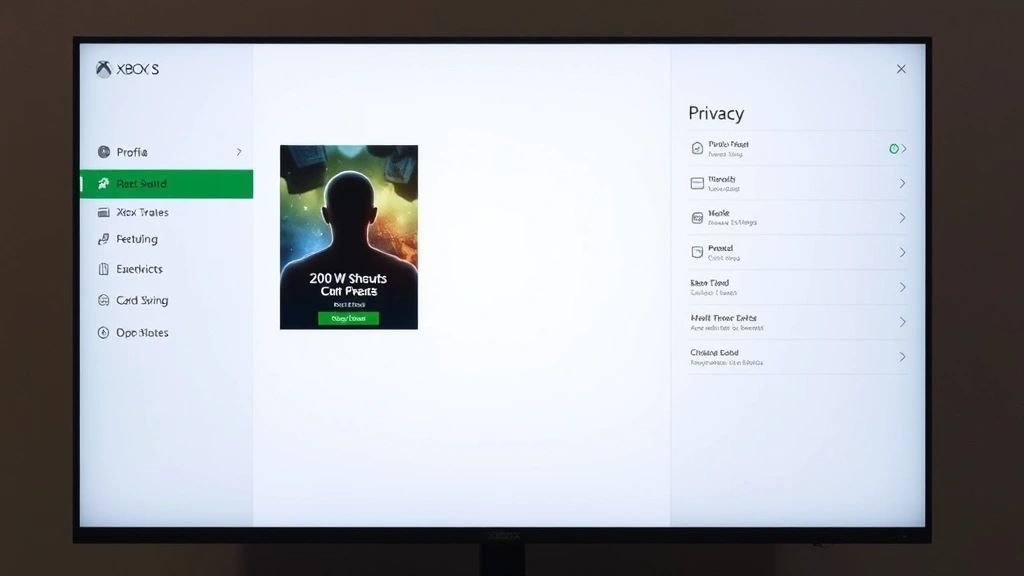
For those who prefer more detailed control, you can access extended privacy settings through the full Settings menu. Press the Xbox button, navigate to Settings, then select Account, followed by Privacy & Online Safety. This comprehensive interface allows you to customize not just your offline status but also who can see your achievements, view your profile, and send you party invitations. These granular controls provide sophisticated privacy management for players who want precise control over their social visibility.
Xbox One Offline Method
The Xbox One generation, which includes the Xbox One X and Xbox One S models, uses a slightly different interface than the newer Series X|S consoles, though the underlying logic remains identical. To appear offline on Xbox One, press the Menu button (the three horizontal lines) on your controller to access the guide. This action opens the same quick access panel that contains your primary account and system options.
Locate your profile tile at the top of the guide menu. Select it by pressing A on your controller, which opens your detailed profile card showing your current status, achievements, and recent activity. Within this profile card interface, you’ll find the “Manage profile” option. Select this to access your account management features.
Once in the profile management section, look for “Online status and visibility” or similar privacy-related options. Xbox One organizes these settings slightly differently than newer consoles, but they serve the identical function. Select your desired status from the available options: Online, Away, Do Not Disturb, or Offline. Confirm your selection, and your status updates immediately across Xbox Live.
An alternative method for Xbox One involves accessing the Settings application directly. Navigate to Settings > Account > Privacy & Online Safety > Xbox Live Preferences. This path leads to more detailed privacy controls where you can manage your visibility, communication preferences, and social settings comprehensively. This method provides access to the same offline functionality while offering additional customization options for players who want deeper control over their account behavior.
Legacy Console Instructions
Older Xbox 360 and original Xbox systems handle offline status differently due to their different architecture and user interface design. If you’re still using Xbox 360 hardware, access your offline status through the Dashboard menu. Press the Guide button on your controller, then navigate to Settings. Select Account, then select “Sign Out,” which removes your active status from Xbox Live while keeping your profile available.
For the original Xbox console, the offline feature works similarly through the main menu. Navigate to Settings, then look for Network or Online options depending on your specific system version. The exact menu structure varies by console revision, but the fundamental principle of accessing account settings remains consistent. If you’re unsure about your specific system’s capabilities, check Xbox’s official support documentation for detailed instructions specific to your hardware.
Many legacy console players find that the offline feature works differently on older hardware because the social infrastructure wasn’t as integrated as modern systems. However, the privacy principle remains the same: you want to disconnect from visible availability while maintaining your account connection. For players with multiple console generations, understanding each system’s unique approach ensures consistent privacy management across your entire collection, much like how comprehensive basement finishing projects require understanding different structural systems in your home.
Privacy Settings and Account Control
Beyond simply appearing offline, Xbox provides granular privacy controls that allow you to customize your entire social experience. These settings go far beyond basic visibility and touch on fundamental aspects of how your account interacts with other players and the broader Xbox community. Understanding these controls helps you create a personalized gaming environment that matches your preferences and comfort level.
The “Who can communicate with me” setting controls whether strangers, friends only, or nobody can send you messages and party invitations. This setting operates independently from your offline status, meaning you can appear online while blocking unsolicited communications, or appear offline while maintaining messaging capabilities. The flexibility of these independent settings ensures you can customize your social experience precisely to your needs.
Your profile visibility settings determine who can see your achievements, game history, and personal information. You can restrict visibility to friends only, block specific players, or maintain public visibility while appearing offline. This separation of visibility and status allows sophisticated social management: you might want your achievements visible to friends while remaining invisible for gameplay availability.
The “Who can see your real name” option provides additional privacy protection by keeping your actual identity separate from your gamertag. This feature proves particularly valuable for players concerned about privacy or harassment. Combined with offline status, it creates a robust privacy framework that protects your identity while allowing selective social connection.
Activity and broadcast settings deserve equal attention. You can disable activity tracking, which prevents your console from reporting what games you’re playing or what you’re currently doing. This setting complements offline status by preventing friends from seeing your activities through other means. For DIY enthusiasts and home improvement focused gamers, maintaining privacy during personal time becomes especially important when balancing gaming with household projects and responsibilities.
Troubleshooting Connection Issues
Sometimes your offline status won’t change despite following the correct steps. This typically occurs due to temporary network connectivity issues or account synchronization delays. If you attempt to change your status and it reverts to online within moments, disconnect your console from the internet briefly, then reconnect. This action forces a fresh connection to Xbox Live servers and often resolves synchronization issues.
Ensure your console is fully updated with the latest system software. Microsoft regularly releases updates that improve social features and stability. Navigate to Settings > System > Updates to check for pending updates. Installing the latest version often resolves status-related bugs that prevent proper offline appearance functionality.
If you’re experiencing persistent connection problems, try signing out completely, then signing back in. This action refreshes your account session and reestablishes your connection to Xbox Live services. After signing back in, immediately set your status to offline. This sequence often resolves stubborn status issues that simple menu changes don’t address.
For accounts with parental controls or restrictions, some status options may be unavailable depending on account settings. Check your Account > Privacy & Online Safety settings to verify that your account has permission to change visibility status. If restrictions exist, you may need to adjust parental control settings or use a parent account to modify privacy options. Understanding these restrictions helps you troubleshoot why certain features appear unavailable.
If you’re still experiencing issues after trying these solutions, contact Xbox Support directly. Their technical team can investigate account-specific issues and help restore full functionality to your social features. Providing them with your console model, system software version, and a description of the problem helps them provide targeted assistance.
Network configuration sometimes affects offline status functionality. If you’re using a VPN or proxy connection, temporarily disable it and attempt to change your status again. Some network configurations can interfere with Xbox’s ability to properly register status changes. Additionally, ensure your console isn’t behind an overly restrictive firewall that might prevent proper communication with Xbox Live servers. For network troubleshooting guidance, consult Xbox’s comprehensive network troubleshooting guide.
Frequently Asked Questions
Can I appear offline while still playing online?
Yes, absolutely. The offline appearance feature is specifically designed to let you play online games while remaining invisible to your friends list. You’ll maintain full access to multiplayer functionality, achievements, and online services while appearing offline to other players. This feature proves particularly useful when you want to focus on gameplay without interruptions from party invitations or social notifications.
Will my friends know I’m appearing offline?
No, your friends won’t see any indication that you’re deliberately appearing offline. They’ll simply see you as offline, identical to how you’d appear if you were completely disconnected from Xbox Live. There’s no notification system that alerts friends to your status changes, so your privacy remains completely protected.
Can I schedule automatic offline status?
Standard Xbox features don’t include automatic scheduling, but you can manually change your status whenever you need privacy. Some third-party applications and tools claim to offer scheduling functionality, but Microsoft doesn’t officially support these, and using them may violate terms of service. For reliable scheduling, consider manually setting your status when you begin gaming sessions.
Does appearing offline affect my game saves or achievements?
No, your offline status has absolutely no impact on game saves, achievements, or progress. All your data remains safely stored in the cloud and continues syncing normally. Achievements you earn while appearing offline will be recorded and displayed on your profile once you return to online status. The offline feature purely affects social visibility, not your gaming data or account functionality.
Can I receive messages while appearing offline?
This depends on your specific privacy settings. You can configure your account to receive messages from friends while appearing offline, or block all communications. These settings operate independently, giving you precise control over who can contact you regardless of your visibility status. Check your Privacy & Online Safety settings to customize these options to your preferences.
What’s the difference between offline and away status?
The “Away” status indicates you’re logged in but not actively playing, while “Offline” means you’re completely invisible to other players. Away status still shows you as present on Xbox Live, just inactive. Offline provides complete invisibility. Choose away when you’re taking brief breaks but want to remain contactable, and offline when you need complete privacy.
Will my offline status sync across multiple consoles?
Yes, your status synchronizes across all devices where your account is active. Setting yourself offline on your primary console will also show you as offline on secondary consoles, mobile apps, and web interfaces. This unified approach ensures consistent privacy across your entire Xbox ecosystem.
Can I appear offline for specific friends only?
Xbox doesn’t offer granular blocking by individual friend, but you can block specific players entirely, which prevents them from seeing any of your information or status. For more selective blocking, you might consider removing certain people from your friends list or adjusting your overall privacy settings to friends-only visibility.


