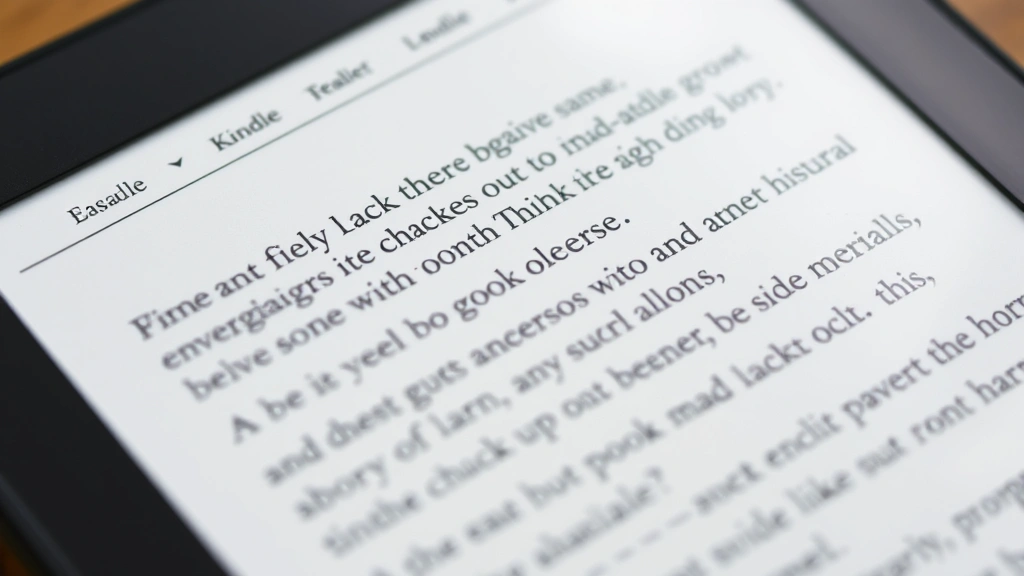
How to Change Kindle Font: A Reader’s Complete Customization Guide
Your Kindle device is designed to adapt to your reading preferences, and adjusting the font is one of the most impactful customizations you can make. Whether you’re struggling with small text, prefer a different aesthetic, or need accessibility features, Kindle offers multiple font options that enhance your reading experience. Understanding how to navigate these settings takes just minutes and can transform how you enjoy your digital library.
Font customization on Kindle devices isn’t just about preference—it’s about creating an environment where reading feels natural and comfortable. Different fonts affect readability, eye strain, and how quickly you can process text. This guide walks you through every method available across Kindle devices and apps, ensuring you find the perfect font settings for your needs.
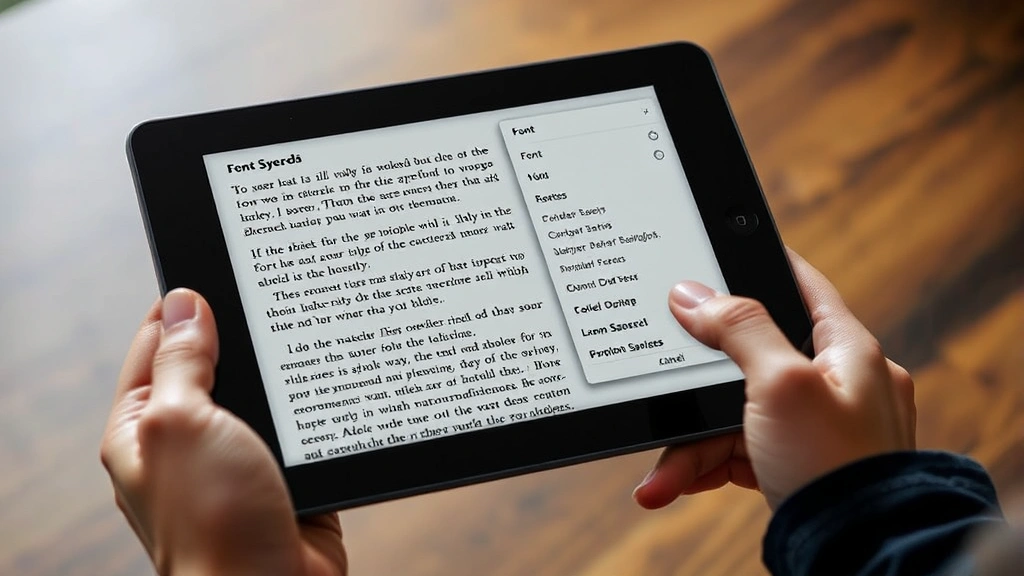
Understanding Kindle Font Options
Amazon provides several built-in fonts across all Kindle platforms, each designed with specific reading experiences in mind. The available fonts include OpenDyslexic (designed for readers with dyslexia), Caecilia, Courier, Georgia, and several others depending on your device model. Each font has distinct characteristics—some feature serifs for traditional book aesthetics, while others use sans-serif designs for modern, clean appearances.
Before diving into how to change the font on Kindle, it’s helpful to understand what makes each option unique. Serif fonts like Caecilia include small decorative lines at letter ends, which many find easier to follow during extended reading sessions. Sans-serif fonts like the default options offer cleaner, more contemporary designs that work well for technical content. The OpenDyslexic font, meanwhile, uses specialized letter shapes that help readers with dyslexia distinguish between similar characters.
Font size works independently from font selection, allowing you to customize both simultaneously. This dual-control system means you can use a smaller, elegant font for comfortable reading or enlarge text while maintaining your preferred typeface. Understanding these foundational concepts helps you make informed choices about which adjustments suit your reading style best.
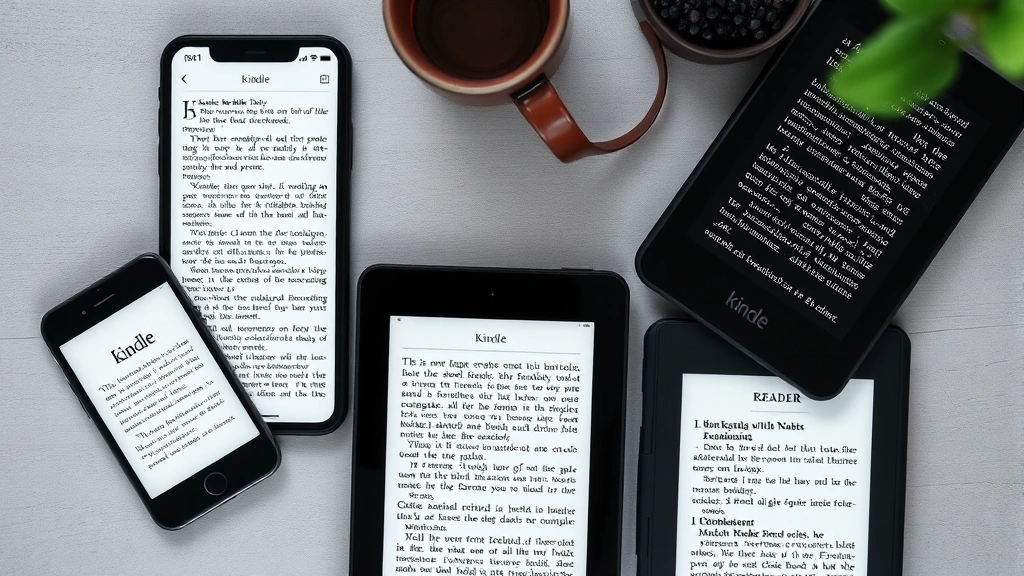
Changing Fonts on Kindle E-Readers
The process for changing fonts on physical Kindle devices is straightforward and consistent across most models. Start by opening any book on your Kindle device. Once you’re actively reading, tap or press the center of the screen to reveal the reading toolbar at the top and bottom of the display. On newer touchscreen models, this menu appears automatically; on older devices with physical buttons, you may need to press the Menu button.
Look for the font icon, typically represented by an “A” with adjustable sizing indicators. Selecting this icon opens your font customization panel. From here, you’ll see a list of available fonts specific to your device model. Older Kindle Paperwhite models might offer 4-5 font choices, while newer generations provide expanded selections. Simply highlight your preferred font and confirm the selection—the change applies immediately to your current book and future reading sessions.
For Kindle devices, the font selection persists across all content unless you manually change it again. This means once you’ve found your ideal font, you won’t need to adjust it for each new book. However, some users prefer experimenting with different fonts for different genres—using a serif font for literary fiction and a sans-serif option for technical reading.
If you’re exploring DIY improvements to your reading space, consider how your Kindle’s font settings work with your environment. Better lighting and proper font selection work together to reduce eye strain during extended reading sessions.
Device-specific instructions: On Kindle Paperwhite, Keyboard, and Voyage models, access the font menu by tapping the top of the screen during reading. On Kindle Basic models, press the Menu button and navigate to Text. For Kindle Oasis, swipe down from the top of the screen to access reading options including fonts.
Adjusting Fonts in Kindle Apps
Kindle apps on smartphones, tablets, and computers offer similar font customization options, though the interface varies slightly depending on your platform. Whether you’re using the Kindle app on iOS, Android, Windows, or macOS, the fundamental process remains consistent: open a book, access the reading settings, and select your preferred font.
On iOS devices, tap the small “Aa” button in the upper right corner of your reading screen. This opens the text settings menu where fonts appear alongside font size and line spacing options. Android users follow a similar path—tap the menu icon (three dots) and select “Text” to access font choices. The Kindle app for tablets provides larger preview areas, making it easier to evaluate how different fonts appear on your specific screen size.
Desktop and web-based reading through Amazon’s Kindle Cloud Reader offers the same font flexibility. Click the gear icon to access preferences, then select your font from the available options. This consistency across platforms means you can switch between devices while maintaining your preferred reading experience.
One advantage of Kindle apps is the ability to switch fonts mid-book if you find yourself struggling with readability in specific sections. Perhaps a dense technical chapter feels more manageable in a larger, simpler font, while lighter narrative passages work well with your standard preference. This flexibility is particularly useful for academic or professional reading where content density varies significantly.
Advanced Customization Settings
Beyond basic font selection, Kindle offers several advanced customization options that work alongside your font choice to optimize readability. Font weight—the thickness of letters—can be adjusted on many devices, allowing you to darken text for improved contrast on e-ink displays. This setting proves particularly valuable for readers with low vision or those reading in less-than-ideal lighting conditions.
Line spacing affects the vertical distance between text lines, influencing how your eyes track across the page. Wider line spacing can reduce eye strain during extended reading sessions and helps readers with certain visual processing differences. Paragraph spacing works similarly, creating more white space between text blocks to prevent the page from feeling visually crowded.
Margins—the white space surrounding text—can be adjusted on most Kindle devices. Wider margins create a more spacious reading environment and can psychologically enhance the reading experience by mimicking physical book layouts. Some readers find that adjusting margins in combination with font changes creates their ideal reading setup.
The combination of these settings creates a highly personalized reading environment. A reader might use OpenDyslexic font at a larger size with increased line spacing and wider margins, while another prefers a compact, elegant setup with Georgia font at standard sizing. The beauty of Kindle customization is that no single configuration suits everyone—your preferences are uniquely yours.
If you’re interested in making other home improvements for comfort, the same principle applies: customization creates spaces that work better for you. Your reading environment deserves the same attention to detail.
Troubleshooting Font Issues
Occasionally, font changes don’t apply as expected, or you might experience display issues after selecting a new typeface. If your font selection doesn’t seem to take effect, first try closing and reopening your book. Sometimes the app or device needs to refresh to properly render the new font selection. For Kindle devices, try putting your device to sleep and waking it again.
If certain fonts appear corrupted, display incorrectly, or cause text to overlap, you may have encountered a rendering issue. Try selecting a different font to confirm the problem isn’t device-wide. If the issue persists across multiple fonts, restart your Kindle device completely. For e-readers, this typically means holding the power button for 20-30 seconds. For apps, close the application entirely and reopen it.
Some users report that custom fonts don’t persist after device updates. If you notice this happening, simply reselect your preferred font after updating. Amazon occasionally modifies font libraries or rendering systems, which can reset user preferences as a side effect.
For accessibility concerns, ensure you’re using the most current version of your Kindle app or device firmware. Amazon regularly releases updates that improve font rendering and add new accessibility options. Visit Amazon’s Kindle Help page for device-specific troubleshooting steps.
If you’re experiencing eye strain despite font adjustments, consider environmental factors. Proper lighting, screen brightness settings, and reading distance all contribute to comfort. This holistic approach—combining font selection with proper home setup optimization—creates the most comfortable reading experience.
FAQ
Can I use custom fonts not provided by Amazon?
Standard Kindle devices and apps are limited to Amazon’s built-in font library. However, if you convert ePub files to Kindle format using Calibre, you can embed custom fonts in personal documents. This process requires technical knowledge but allows font flexibility for self-created content.
Will changing fonts affect my reading progress or bookmarks?
No. Font changes are purely visual and don’t impact your reading position, bookmarks, highlights, or notes. You can switch fonts as often as you like without affecting your reading data.
Why does the same font look different on my phone versus my e-reader?
E-ink displays render fonts differently than LCD screens. E-readers use grayscale technology that creates slightly different visual characteristics. Additionally, screen size and resolution differences affect how fonts appear. A font perfectly sized on a 6-inch e-reader might need adjustment on a 10-inch tablet.
Is OpenDyslexic available on all Kindle devices?
OpenDyslexic is available on most modern Kindle devices and apps, but older models may not support it. Check your device’s specifications or access the font menu to confirm availability. If you don’t see it listed, your device model may predate its inclusion in Amazon’s font library.
Can I set different fonts for different books?
Your font selection applies globally across all Kindle content. You cannot assign different fonts to individual books automatically. However, you can manually change fonts whenever you switch between books—a simple process that takes seconds.
What’s the best font for reducing eye strain?
Research suggests that serif fonts like Caecilia may reduce eye strain during extended reading for some people, while others prefer sans-serif options. The “best” font is personal—experiment with different options while adjusting size, spacing, and brightness to find your ideal setup. Consider reading for 20-30 minutes with each font to make a fair assessment.
Will my font preferences sync across multiple devices?
Unfortunately, font preferences don’t automatically sync across devices. If you use Kindle on multiple devices, you’ll need to set your preferred font on each one individually. This is a known limitation that many users wish Amazon would address.
Understanding how to customize your Kindle experience transforms reading from a passive activity into a personalized practice. Whether you’re adjusting fonts for accessibility, comfort, or aesthetic preference, these tools put control firmly in your hands. Spend time experimenting with different combinations—the investment in finding your ideal setup pays dividends across every book you read.
For more information on accessibility features, consult the Web Accessibility Initiative and Nielsen Norman Group’s typography accessibility guidelines. These resources provide deeper insights into how font choices impact readability for diverse audiences. Your Kindle device is built to adapt to you—take full advantage of that flexibility.


