
How to Clear Format in Word: Expert Tips for Perfect Document Formatting
Microsoft Word formatting can quickly become cluttered with mixed fonts, colors, spacing, and styles that make your documents look unprofessional. Whether you’ve inherited a poorly formatted document or accidentally applied inconsistent formatting while editing, knowing how to clear format in Word is essential for anyone working with documents regularly. This comprehensive guide walks you through multiple methods to reset formatting, from simple keyboard shortcuts to advanced techniques that professional editors use daily.
Clearing formatting in Word isn’t just about aesthetics—it’s about creating documents that are readable, maintainable, and compatible across different systems and devices. When you remove unwanted formatting, you’re essentially stripping away the visual clutter and returning text to a clean slate where you can apply consistent, intentional styling. Let’s explore the most effective strategies to master this critical skill.
Understanding Word Formatting Layers
Before you can effectively clear formatting in Word, it’s important to understand that formatting operates on multiple layers. Direct formatting is what you apply manually—bold, italic, color changes, or font selections made directly to text. Character styles are predefined formatting sets applied to individual characters or words. Paragraph styles control how entire paragraphs appear, including indentation, spacing, and alignment. Finally, themes provide document-wide color schemes and font families.
When you paste text from web pages, PDFs, or other Word documents, you often inherit all these formatting layers simultaneously. This creates the common problem where a simple copy-paste operation results in mismatched fonts, unexpected colors, and irregular spacing throughout your document. Understanding these layers helps you choose the right clearing method for your specific situation.
Direct formatting is the most common culprit behind messy documents. It overrides style settings and creates inconsistencies that can be difficult to track down manually. The good news is that Word provides several straightforward methods to strip away these unwanted formatting layers and restore clean, consistent text.
The Clear Formatting Button Method
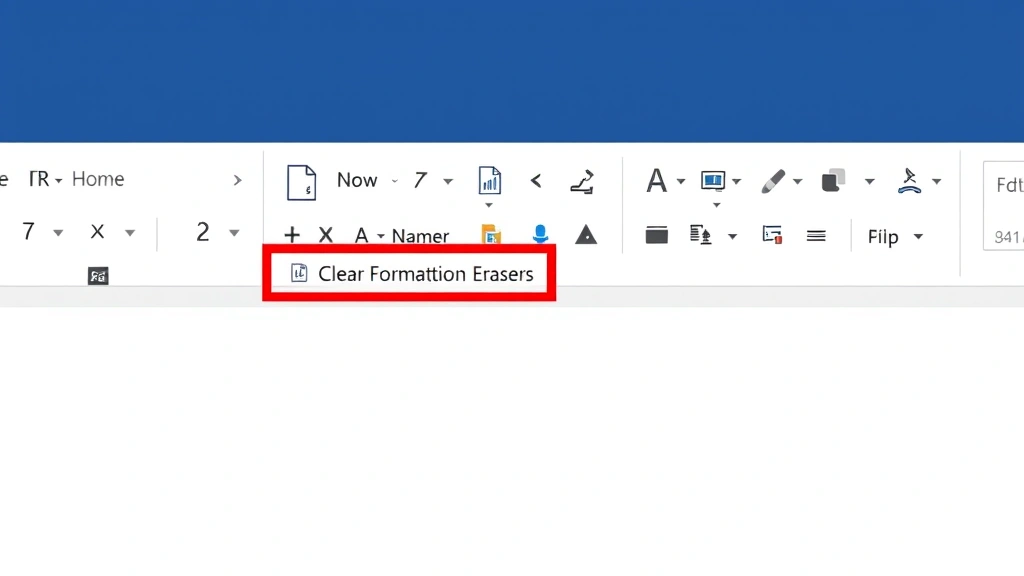
The most straightforward way how to clear format in Word is using the Clear Formatting button in the ribbon. This method works for Windows and Mac versions of Word, though the exact location varies slightly between versions. In Word 2019 and later for Windows, navigate to the Home tab on the ribbon. Look for the eraser icon labeled “Clear Formatting” in the Font group—it typically appears near the font color and highlighting options.
To use this method effectively, follow these steps: First, select the text that contains unwanted formatting. You can click and drag to highlight specific words, triple-click to select an entire paragraph, or use Ctrl+A to select all content in your document. Once your text is highlighted, click the Clear Formatting button (the eraser icon). Word immediately removes all direct formatting from the selected text, returning it to the default style applied to that paragraph.
On Mac versions of Word, the Clear Formatting button is also located in the Home tab, though the ribbon layout differs slightly from Windows. Look for the eraser icon in the Font section and click it after selecting your text. The functionality remains identical—Word strips away direct formatting while preserving the underlying paragraph style.
One important distinction: the Clear Formatting button removes direct formatting but preserves style-based formatting. This means if your text is styled with a particular paragraph style, those style settings remain intact. This is actually beneficial because it maintains document structure while removing the visual clutter of manual formatting adjustments.
Keyboard Shortcuts for Quick Clearing
For users who prefer keyboard navigation, Word offers powerful shortcuts that clear formatting instantly. The most universal shortcut is Ctrl+M on Windows, which removes all direct paragraph formatting from selected text. This works across virtually all Word versions and is often faster than clicking through the ribbon, especially when you’re clearing formatting from multiple sections.
To use Ctrl+M effectively, select your text first, then press Ctrl+M. Word removes paragraph-level direct formatting like indentation, spacing, and alignment. For character-level formatting like bold, italic, or color, use Ctrl+Spacebar. This shortcut removes all direct character formatting from selected text while preserving paragraph formatting.
On Mac, the equivalent shortcuts are slightly different. Press Command+M to clear direct paragraph formatting, and Command+Spacebar to clear character formatting. Mac users should note that Command+Spacebar might conflict with Spotlight search, so you may need to adjust system preferences if this shortcut doesn’t work.
Many experienced Word users combine these shortcuts for maximum efficiency. Select problematic text, press Ctrl+M to remove paragraph formatting, then Ctrl+Spacebar to remove character formatting. This two-step process ensures comprehensive clearing while maintaining the document’s underlying structure and styles. For those working with similar formatting challenges in Excel, Word’s approach differs significantly in implementation.
Pro tip: Create a custom keyboard shortcut for Clear Formatting if you find yourself using it frequently. Access this through File > Options > Customize Ribbon > Keyboard Shortcuts, then search for “ClearFormatting” to assign your preferred shortcut.
Advanced Clearing Techniques
For complex documents with deeply nested formatting or multiple style conflicts, advanced techniques become necessary. One powerful method involves using Find and Replace with formatting options. Open the Find and Replace dialog (Ctrl+H), then click “More” to expand options. You can search for text with specific formatting and replace it with the same text but different formatting—or no formatting at all.
Another advanced technique uses the Format Painter in reverse. While most people use Format Painter to copy formatting from one location to another, you can also use it strategically to clear formatting. Select text with clean formatting, click Format Painter, then apply that clean formatting to problem areas. This effectively overwrites unwanted formatting with your desired formatting.
For document-wide formatting issues, consider using Styles more deliberately. Open the Styles pane (Ctrl+Alt+Shift+S), then right-click any style that has unwanted formatting and select “Modify.” Adjust the style settings to match your preferences, and Word automatically updates all text using that style throughout your document. This approach is far more efficient than manually clearing formatting from dozens or hundreds of instances.
When dealing with pasted content from web pages or PDFs, use Paste Special (Ctrl+Alt+V) immediately after copying. Select “Unformatted Text” or “Text Only” to paste content without any formatting whatsoever. This prevents formatting problems before they start, which is always preferable to cleaning up afterward. The Paste Special dialog also offers options to paste text only, remove extra spaces, or apply specific formatting rules.
Clearing Formatting from Entire Documents
Sometimes the most efficient solution is clearing formatting from your entire document at once, then reapplying consistent styles. Select all content using Ctrl+A, then apply Clear Formatting. Your entire document returns to the default Normal style, giving you a clean foundation for rebuilding consistent formatting.
After clearing everything, take time to establish a consistent style hierarchy. Use built-in styles like Heading 1, Heading 2, Normal, and others. Apply these styles consistently throughout your document rather than using direct formatting. This approach creates documents that are easier to maintain, format, and convert to other file types.
The Find and Replace feature becomes particularly powerful for document-wide formatting tasks. You can search for multiple formatting patterns and replace them systematically. For example, search for all text in Arial font and replace it with Calibri, or find all red text and change it to black. These batch operations save enormous amounts of time compared to manual formatting adjustments.
When working with particularly problematic documents, consider creating a new blank document and copying your content into it using Paste Special > Unformatted Text. This nuclear option removes all formatting, but sometimes it’s the fastest path to a clean document. Once you have clean text, apply your desired styles and formatting intentionally.
Preventing Formatting Problems
Prevention is always superior to correction. Establish consistent practices that minimize formatting problems from the start. Always use styles rather than direct formatting when possible. Create a document template with your preferred styles already configured, then use this template for all new documents. This ensures consistency and dramatically reduces time spent on formatting cleanup.
When collaborating with others, establish clear formatting guidelines and share your template. Encourage team members to use styles consistently and avoid direct formatting. This single practice prevents most formatting problems that plague collaborative documents. If you’re managing complex document projects, consistent formatting becomes even more critical.
Always use Paste Special when importing content from external sources. Make a habit of pressing Ctrl+Alt+V instead of Ctrl+V when pasting from web pages, emails, or other documents. This single habit prevents most formatting inheritance problems and maintains your document’s visual consistency.
Keep your documents organized by using outline view to understand document structure. This helps you identify formatting inconsistencies quickly and understand why certain formatting problems occurred. For large documents, periodic formatting audits catch problems early before they become systemic issues.
Consider using Microsoft Word’s built-in accessibility checker and formatting consistency tools. These features can identify formatting problems automatically and suggest corrections. Additionally, Microsoft’s official formatting guides provide authoritative information on maintaining consistency.
Understanding document protection features also helps prevent formatting corruption. Use Track Changes when editing documents collaboratively, which helps maintain formatting integrity and creates an audit trail of all modifications. For sensitive documents, enable protection that restricts editing while allowing comments, preventing accidental formatting changes.

FAQ
What’s the difference between Clear Formatting and Ctrl+M?
Clear Formatting removes both direct paragraph and character formatting from selected text. Ctrl+M removes only direct paragraph formatting like indentation and spacing. For complete formatting removal, use Clear Formatting or combine Ctrl+M with Ctrl+Spacebar.
Will clearing formatting delete my text?
No, clearing formatting removes only visual styling—bold, italics, colors, fonts, spacing, etc. Your actual text content remains completely intact. This is one of the safest operations you can perform in Word.
How do I clear formatting from just one word?
Click directly on the word (or double-click to select it), then click Clear Formatting or press Ctrl+M. You can also select multiple non-adjacent words by holding Ctrl while clicking on each word, then clear their formatting simultaneously.
Can I undo clearing formatting if I change my mind?
Yes, press Ctrl+Z immediately after clearing formatting to undo the action. Word maintains an extensive undo history, so you can typically go back multiple steps if needed. However, the more operations you perform after clearing, the further back you’ll need to undo.
Why does my pasted text have weird formatting?
When you copy content from web pages, PDFs, or other documents, you inherit all their formatting styles. The solution is using Paste Special (Ctrl+Alt+V) and selecting “Unformatted Text” to paste only the text content without any formatting.
How do I prevent formatting problems when collaborating?
Share a document template with consistent styles already configured. Establish clear guidelines that team members should use styles rather than direct formatting. Use Track Changes to monitor modifications and maintain formatting integrity throughout the collaboration process. Check out our guide on project organization for similar principles applied to other domains.
Is there a way to see what formatting is applied to text?
Yes, use the Format Painter to reveal formatting. Click Format Painter (the brush icon in the ribbon), then click on your text. The status bar shows the formatting applied to that text. Alternatively, open the Styles pane (Ctrl+Alt+Shift+S) to see which style is applied.
What if Clear Formatting doesn’t remove all formatting?
This usually means the formatting is style-based rather than direct formatting. Clear Formatting removes only direct formatting, not style-based formatting. To change style-based formatting, modify the style itself through the Styles pane rather than trying to clear it.
Additional Resources: For comprehensive information on professional document formatting standards, consult industry publications. The Chicago Manual of Style provides authoritative guidance on formatting conventions. For technical documentation, ISA standards offer detailed specifications on formatting requirements for technical documents.


