
Compare Excel Spreadsheets: Expert Techniques for Data Accuracy
Excel spreadsheets form the backbone of countless business operations, project management systems, and data analysis workflows. Whether you’re tracking renovation budgets, comparing supplier quotes, or auditing financial records, the ability to accurately compare Excel spreadsheets is a critical skill. Differences between versions can range from minor data entry errors to significant discrepancies that impact decision-making. Mastering comparison techniques ensures you catch these variations before they cause problems downstream.
This comprehensive guide explores multiple methods for comparing Excel spreadsheets, from basic manual approaches to advanced automated solutions. You’ll learn when to use each technique, how to implement them effectively, and best practices for maintaining data integrity throughout the comparison process. Whether you’re working with small datasets or massive databases, these expert strategies will streamline your workflow and improve accuracy.
Why Comparing Spreadsheets Matters
Data accuracy directly impacts project success, financial reporting, and operational decisions. When you’re managing DIY projects or home improvement initiatives, spreadsheets often track budgets, timelines, and material inventories. Discrepancies between versions can lead to overspending, missed deadlines, or duplicated efforts. In professional environments, spreadsheet comparisons are essential for regulatory compliance, audit trails, and quality assurance.
Consider a scenario where you maintain multiple versions of a budget spreadsheet—one for planning, one for tracking actual expenses, and one for stakeholder reporting. Without proper comparison methods, you might miss when actual costs diverge significantly from projections. Or imagine comparing supplier quotations where a single overlooked price difference affects your procurement decisions. These situations illustrate why systematic comparison approaches matter.
The stakes are particularly high when spreadsheets contain sensitive information like financial data, personal details, or proprietary formulas. Comparing versions helps you identify unauthorized changes, track modifications over time, and maintain version control. This accountability becomes increasingly important as teams grow larger and more people access shared files.
Manual Comparison Methods
For small datasets or quick spot-checks, manual comparison remains effective and requires no special tools. This approach works well when you have fewer than 50 rows and a handful of columns. Start by opening both spreadsheet versions side-by-side using Excel’s View menu to arrange windows horizontally or vertically. This layout allows you to scan corresponding cells simultaneously.
When performing manual comparisons, establish a systematic approach: work row-by-row from left to right, checking each cell’s value against its counterpart in the other version. Pay attention not just to numbers but also to formatting, formulas, and hidden rows or columns. A cell might display the same value while containing a different formula—an important distinction you’d miss with surface-level comparison.
Create a checklist of comparison elements: cell values, formula integrity, formatting consistency, named ranges, conditional formatting, and data validation rules. Document any differences you find using a separate tracking sheet. Include columns for the cell location, old value, new value, and notes about what changed. This documentation becomes invaluable if you need to understand why modifications were made or trace errors back to their source.
For larger datasets, manual comparison becomes impractical and error-prone. Human eyes naturally tire during repetitive tasks, and important differences get overlooked. This is where automated tools become essential for maintaining accuracy and efficiency.
Using Excel’s Built-In Tools
Excel offers several native features designed specifically for comparing spreadsheet data. The Find & Replace function (Ctrl+H) helps locate specific variations between versions. You can search for particular values, formatting attributes, or formula patterns that might differ. While not a comprehensive comparison tool, it’s useful for targeted searches when you suspect specific types of changes.
The Go To Special feature (available via Edit menu or through Find & Replace dialog) identifies cells with specific characteristics. You can select cells containing formulas, constants, blank cells, or cells with particular formatting. This helps you isolate areas that might contain differences worth investigating further.
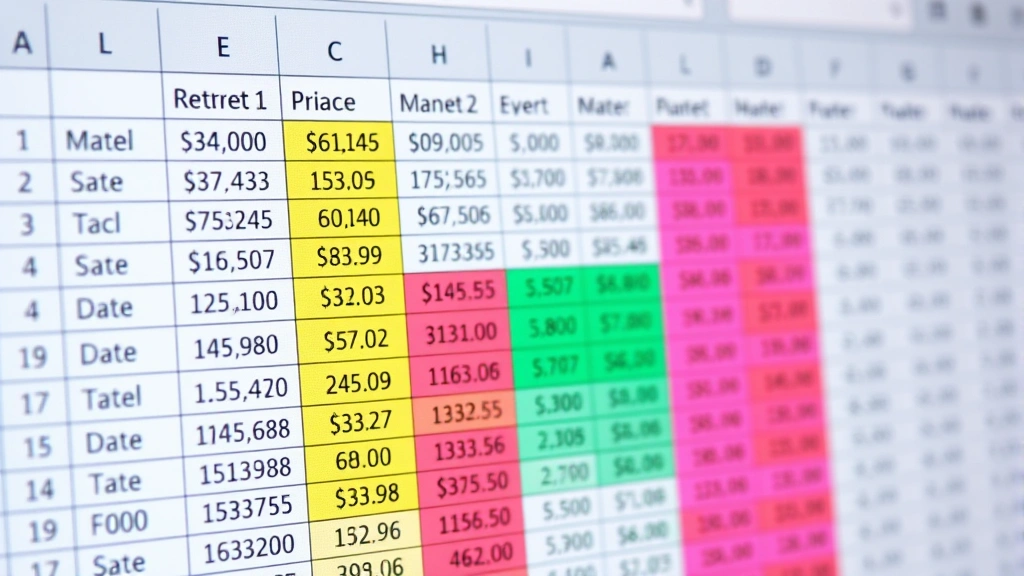
Excel’s Conditional Formatting can highlight discrepancies when comparing two ranges. If your versions contain the same structure, you can create a formula-based rule that flags cells where values don’t match. For example, use a formula like =A1<>Sheet2!A1 to highlight cells in Sheet1 that differ from corresponding cells in Sheet2. Apply this rule to the entire data range, and mismatches immediately become visible through color highlighting.
The EXACT function provides a case-sensitive comparison of text values. Create a helper column with the formula =EXACT(A1,Sheet2!A1) to identify whether cells match exactly. This catches differences that simple equality checks might miss, such as extra spaces or different letter cases. The TRUE/FALSE results clearly show which cells align perfectly and which contain variations.
For more sophisticated comparisons, Excel’s Data Tools menu includes consolidation features. When combining data from multiple spreadsheets, consolidation can sum, average, or count values by position or category. While primarily designed for aggregation, these tools help identify structural differences between versions that would prevent proper consolidation.
Advanced Comparison Techniques
When dealing with complex spreadsheets or large datasets, advanced techniques become necessary. The VLOOKUP or INDEX/MATCH combination allows you to match records between spreadsheets based on key identifiers. If both versions contain unique IDs, you can look up corresponding values and compare them directly. This approach works especially well when rows might be in different orders between versions.
Create a comparison worksheet that pulls data from both sources using lookup formulas. For each record in the first spreadsheet, retrieve the matching record from the second spreadsheet, then compare field-by-field. Use formulas to calculate differences (for numeric data) or create comparison matrices showing which fields match and which don’t. This systematic approach catches discrepancies that manual scanning would miss.
For those comfortable with formulas, consider using SUMPRODUCT to count total differences between ranges. The formula =SUMPRODUCT((Range1<>Range2)*1) tells you exactly how many cells differ between two identical-sized ranges. This gives you a quantitative measure of how much variation exists between versions—useful for understanding the scope of changes.
Advanced users can leverage Power Query (available in Excel 2016 and later) to automate comparison workflows. Power Query lets you import, transform, and compare data from multiple sources. You can merge tables based on key columns, identify new records, removed records, and changed values—all within a structured query workflow that’s repeatable and auditable.
Excel’s Track Changes feature (Review tab) monitors modifications made to shared workbooks. While primarily designed for collaborative editing, it provides a historical record of what changed, who changed it, and when. Enable this feature before sharing spreadsheets to maintain a complete audit trail. You can then review all tracked changes at once to understand exactly what differs between versions.
For ultimate precision, VBA macros enable custom comparison logic tailored to your specific needs. A macro can iterate through cells, compare values using custom rules, and generate detailed reports. While creating VBA code requires programming knowledge, the investment pays dividends for repetitive comparison tasks. Many Excel experts maintain libraries of comparison macros for different spreadsheet types they regularly work with.
Best Practices for Spreadsheet Comparison
Establish a standardized comparison protocol before you need it. Document your approach, tools, and workflows so comparisons remain consistent across projects and team members. Create templates for comparison worksheets that include all necessary checks and documentation fields. This standardization reduces errors and makes results more reliable.
Always work with copies of original files when performing comparisons. Never modify source data during the comparison process. Keep original versions in a protected archive so you can always return to them if needed. This practice protects against accidental changes and maintains a clear audit trail.
Implement version control discipline by using consistent naming conventions. Include dates and version numbers in filenames (e.g., BudgetV2_2024-01-15.xlsx). Store versions in organized folder structures that make it easy to locate specific iterations. Some teams use shared drives with version history enabled, while others prefer dedicated version control systems for critical spreadsheets.
Document your comparison results comprehensively. Beyond just identifying differences, record why changes occurred and who authorized them. Create a change log that tracks what modified, when it changed, and the business justification. This documentation supports future audits and helps team members understand the evolution of important spreadsheets.
When comparing spreadsheets involves sensitive data, implement appropriate security measures. Restrict access to comparison worksheets containing full datasets. Consider anonymizing or redacting sensitive information in comparison reports shared with broader audiences. Use password protection for files containing confidential information.

For ongoing comparison needs, automate repetitive processes using macros, Power Query, or third-party tools. Automation reduces human error, saves time, and makes comparison faster. Invest in learning these tools if you regularly compare spreadsheets—the productivity gains justify the learning curve. Additionally, consider how these skills relate to other Excel techniques like combining cells in Excel or combining text from two cells, which often appear in data consolidation workflows.
Establish quality assurance checkpoints in your comparison process. Have a second person review comparison results independently, especially for high-stakes decisions. Use multiple comparison methods for critical datasets—if manual spot-checking and automated comparison reach the same conclusions, you can be more confident in accuracy.
Common Comparison Challenges
One frequent challenge involves comparing spreadsheets with different structures or sort orders. If one version reorganized rows or added columns, direct cell-to-cell comparison fails. Solve this by identifying unique key fields present in both versions, then using lookup formulas to match records regardless of position. This approach requires more setup but handles structural variations gracefully.
Dealing with formatting differences presents another common issue. Two cells might contain identical values but different number formats, fonts, or colors. Decide whether formatting variations matter for your purposes. If they do, use formulas that check both content and formatting properties. Excel’s official documentation provides functions for examining cell properties beyond visible values.
Spreadsheets containing formulas versus static values create comparison complications. A cell might display the same number but contain either a formula or a hardcoded value. Use the Show Formulas feature (Ctrl+`) to view underlying formulas alongside values. Compare formula structures, not just results, when accuracy requires understanding data dependencies.
Handling merged cells, hidden rows, and hidden columns requires extra attention. These elements don’t appear in standard comparisons but can contain important data. Unhide all rows and columns before comparing, and be aware that merged cells might cause alignment issues when copying comparison results. Document any hidden elements you discover so others understand the full spreadsheet structure.
Managing large file comparisons can slow down Excel and make manual verification impractical. For massive datasets, consider splitting files into logical sections or using external comparison tools specifically designed for large-scale data analysis. Specialized Excel comparison software handles huge files more efficiently than Excel’s native tools.
Comparing spreadsheets with dynamic data sources (like those connected to databases or online sources) presents unique challenges. Values change automatically, making point-in-time comparisons difficult. Establish clear snapshots by exporting static copies at specific moments, then compare those static versions. Document when each snapshot was taken to provide context for comparisons.
FAQ
What’s the fastest way to compare two large Excel files?
For files with thousands of rows, automated approaches significantly outpace manual methods. Enable conditional formatting with comparison formulas for visual identification of differences, or use Power Query to automate the comparison workflow. If you need even faster processing, dedicated comparison software like XL Compare or similar tools specializes in handling large spreadsheets efficiently.
Can I compare Excel spreadsheets without opening both files simultaneously?
Yes, you can consolidate both spreadsheets into a single workbook with separate sheets, then compare them within that single file. Alternatively, use Power Query to import both datasets, then apply comparison logic within Power Query. This approach works well when you want a permanent record of the comparison alongside your source data.
How do I handle comparing spreadsheets with different column orders?
Use lookup formulas based on column headers rather than relying on position. The VLOOKUP or INDEX/MATCH functions can find values by column name, regardless of position. Create a master list of column headers and use formulas to dynamically reference the correct columns in each spreadsheet. This adds setup time but handles structural variations automatically.
What should I do if I find significant discrepancies between spreadsheet versions?
First, verify that you’re comparing the correct versions and that both files loaded properly. Then trace back through change logs or version history to understand when and why discrepancies originated. Investigate whether the differences reflect intentional updates or errors. Document your findings and communicate them to relevant stakeholders before making decisions based on potentially incorrect data.
Is there a way to automatically flag suspicious changes in shared spreadsheets?
Enable Track Changes before sharing the file, then review all modifications before accepting or rejecting them. For ongoing monitoring, use conditional formatting to highlight cells that recently changed values. Some organizations implement VBA macros that email alerts when specific cells are modified. These proactive approaches help catch unauthorized or erroneous changes quickly.
How often should I compare spreadsheet versions?
Establish comparison schedules based on how frequently spreadsheets change and how critical accuracy is. Daily comparisons might be appropriate for financial tracking spreadsheets, while weekly or monthly comparisons suffice for less volatile data. High-stakes spreadsheets warrant more frequent verification, while stable reference data might only need quarterly checks.


