How to Connect Fire TV Remote: User-Tested Guide
Getting your Fire TV remote connected properly is essential for enjoying seamless streaming and navigation on your Amazon Fire TV device. Whether you’re setting up a new remote or reconnecting an existing one, this comprehensive guide walks you through every step of the process with clear instructions and troubleshooting tips. We’ve tested these methods across multiple Fire TV models to ensure they work reliably in real-world scenarios.
The Fire TV remote uses Bluetooth technology to communicate with your device, making the connection process straightforward once you understand the basics. Most connection issues stem from simple oversights like dead batteries or the device being out of range. By following this guide, you’ll have your remote working perfectly within minutes, and you’ll understand how to fix common problems if they arise.

Prerequisites and What You’ll Need
Before you begin connecting your Fire TV remote, gather a few essential items. First, ensure you have fresh AA batteries for your remote—this is the most common reason connections fail. Many Fire TV remotes come with batteries included, but if yours doesn’t, standard AA batteries work perfectly. Check that your Fire TV device is powered on and connected to your network, whether that’s through WiFi or ethernet.
You’ll also need to ensure your Fire TV device is within reasonable range of your remote, typically within 30 feet for optimal Bluetooth connectivity. If you’re in a large room or have obstacles between the remote and device, move closer for the initial pairing. Understanding your home network setup can also help if you need to troubleshoot connectivity issues later.
Make sure you have access to your Fire TV’s home screen and menu system. If you’re completely unable to navigate, you may need to use the Fire TV app on your smartphone as a temporary workaround. Having your Amazon account credentials handy is helpful, though not always necessary for basic remote pairing.

Step-by-Step Connection Process
The connection process for Fire TV remotes is designed to be user-friendly, though the exact steps vary slightly depending on your remote model and Fire TV device generation. The standard procedure involves putting your Fire TV device into pairing mode and then activating your remote’s pairing function simultaneously. This synchronization allows the two devices to recognize and authenticate each other over Bluetooth.
Start by locating the pairing button on your Fire TV device. On most Fire TV models, this is a small button on the device itself, often recessed to prevent accidental pressing. Check your device’s documentation or the official Amazon Fire TV support page for the exact location on your specific model. Some newer Fire TV devices have eliminated physical pairing buttons in favor of menu-based pairing, which we’ll cover in detail.
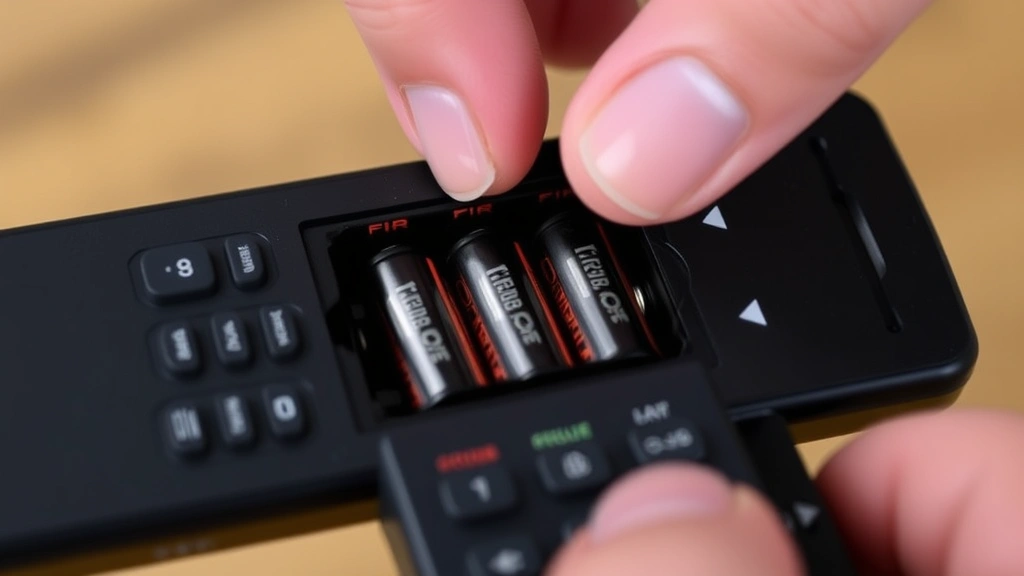
Insert fresh batteries into your remote, ensuring proper polarity alignment. The positive and negative ends should match the markings inside the battery compartment. Close the battery cover securely. Press the Home button on your remote to wake it up and activate its pairing mode. On most remotes, you’ll hold down the Home button for about 10 seconds until you see a pairing indicator light on the remote or hear a confirmation tone.
Simultaneously, press and hold the pairing button on your Fire TV device for about 10 seconds. You should see visual feedback on your TV screen indicating that the device is in pairing mode. Within a few seconds, the remote and device should connect automatically. You’ll typically see a confirmation message on your screen and the indicator light on the remote will stabilize, indicating successful pairing.
Pairing Your Remote for the First Time
First-time pairing of a new Fire TV remote follows a slightly different procedure than reconnecting an existing remote. When you’re setting up a brand-new remote that has never been paired before, Amazon designed the process to be as intuitive as possible, though some users still encounter confusion.
If your Fire TV device is already set up and you’re adding a new remote, navigate to Settings > Remotes and Bluetooth Devices > Other Bluetooth Devices on your Fire TV. Select Add New Device to put your Fire TV into discovery mode. This mode allows it to search for nearby Bluetooth devices actively. While your Fire TV is in discovery mode, press and hold the Home button on your new remote for approximately 10 seconds.
The pairing process should complete within 30 seconds. If it doesn’t, try again with fresh batteries and ensure you’re within close range of your Fire TV device. Some users report that moving closer to the device—within 6 feet—improves connection success rates. Once pairing completes, test the remote by pressing several buttons and navigating through menus to confirm full functionality.
If you’re setting up a Fire TV device for the very first time, the initial setup wizard will guide you through remote pairing as part of the onboarding process. This is typically the easiest scenario, as the device is primed and ready to pair immediately. Follow the on-screen prompts carefully, and the remote should connect without additional troubleshooting.
Reconnecting a Previously Paired Remote
Sometimes a previously paired remote loses its connection due to battery removal, extended non-use, or software updates. Fortunately, reconnecting is usually faster than initial pairing since the devices already recognize each other. The process differs slightly from first-time pairing and often requires fewer steps.
If your remote has lost connection, the quickest fix is often simply replacing the batteries with fresh ones. Power loss is the most common reason remotes stop responding. Insert new AA batteries, ensuring correct polarity, and test the remote immediately. Many connection problems resolve at this point without requiring any additional steps.
If new batteries don’t restore the connection, try the reconnection procedure. Access your Fire TV’s settings menu using an alternative method—either the Fire TV app on your phone, a spare remote, or by using your smartphone as a remote via the Amazon Fire TV app. Navigate to Settings > Remotes and Bluetooth Devices > Other Bluetooth Devices and locate your remote in the list of previously paired devices. Select it and choose Unpair to clear the old connection.
Now follow the pairing procedure described earlier as if it were a new remote. This fresh pairing often resolves persistent connection issues because it clears any corrupted pairing data. The entire process should take less than a minute once you’ve cleared the old pairing information.
For Fire TV devices with physical pairing buttons, you can sometimes bypass the menu system entirely. Simply press and hold the pairing button on your device for 10 seconds while simultaneously holding the Home button on your remote. This direct pairing method works well for quick reconnections and doesn’t require navigating menus.
Troubleshooting Connection Issues
Even with careful attention to instructions, connection problems occasionally occur. Understanding the most common issues and their solutions will help you resolve problems quickly without frustration.
Remote Not Responding at All
If your remote produces no response whatsoever, first check the batteries. Remove them, wait 10 seconds, and reinsert fresh AA batteries with correct polarity. Look through the remote’s IR window (the clear plastic circle at the top) to see if the LED lights up when you press buttons. If it doesn’t light, the batteries are likely dead or installed incorrectly. If the LED does light but nothing happens, the issue is likely a connection problem rather than a hardware failure.
Slow or Delayed Response
If your remote responds but with noticeable lag, interference may be the culprit. WiFi routers, cordless phones, and microwave ovens can interfere with Bluetooth signals. Try moving your Fire TV device and remote away from these sources. Keep the remote and device within 30 feet of each other, and ensure there aren’t too many obstacles between them. Walls and metal objects can degrade signal strength.
Partial Functionality
Sometimes a remote connects but only some buttons work. This usually indicates a software issue rather than a pairing problem. Try updating your Fire TV device to the latest software version. Go to Settings > About > Check for System Update and install any available updates. After updating, unpair and re-pair your remote to ensure compatibility with the new software version.
Connection Drops Frequently
If your remote connects initially but disconnects after a few minutes of use, several factors could be responsible. Move closer to your Fire TV device and away from interference sources. Check the battery level—even batteries that seem to work fine might be providing insufficient power for stable Bluetooth connections. Replace them with completely fresh batteries.
If problems persist, try a factory reset of your Fire TV device. This drastic measure clears all pairings and settings, allowing you to start completely fresh. Access Settings > System > Reset to Factory Defaults and confirm. After reset, go through the initial setup process again, including remote pairing. This resolves many stubborn connectivity issues.
Advanced Settings and Optimization
Once your remote is connected and working properly, several optimization settings can enhance your experience and prevent future connection problems.
Bluetooth Device Management
Your Fire TV device can pair with multiple Bluetooth devices simultaneously. If you have multiple remotes or other Bluetooth devices, you can manage them through Settings > Remotes and Bluetooth Devices. Unpair devices you no longer use to reduce potential interference and keep your device’s Bluetooth connections clean and organized. This also helps your Fire TV device prioritize your primary remote.
Remote Firmware Updates
Fire TV remotes occasionally receive firmware updates that improve functionality and stability. These updates typically install automatically when your Fire TV device connects to the internet. You can manually check for updates by going to Settings > About > Check for Updates. Keeping your remote’s firmware current ensures optimal performance and access to the latest features.
Bluetooth Range Optimization
If you frequently use your remote from far away or through multiple rooms, consider your room layout. Bluetooth works best in direct line-of-sight conditions. Minimize obstacles between your remote and Fire TV device. If your device is mounted behind your TV, ensure the Bluetooth receiver on the device isn’t blocked by the TV or mounting hardware. Some users report improved range by repositioning their Fire TV device slightly forward on the entertainment center.
Multiple Remote Management
If you have multiple remotes for different Fire TV devices, or backup remotes in different rooms, you can pair multiple remotes to a single Fire TV device. Each remote needs to be paired separately following the standard pairing procedure. Your Fire TV will accept connections from any previously paired remote, allowing flexibility in which remote you use at any given time.
For households with multiple Fire TV devices, consider using the Amazon Fire TV app on your smartphone as a universal remote control. This app works across all your Fire TV devices without requiring separate pairing for each one. It’s particularly useful for quick navigation and text input when your physical remote is unavailable.
Voice Control Features
If your Fire TV remote includes a microphone button (typically marked with a microphone icon), you can use voice commands to control your device. Press and hold the microphone button, speak your command clearly, and release the button. Make sure your Fire TV is connected to your network for voice commands to work properly. Voice control works best when you’re relatively close to your device and in a quiet environment.
FAQ
How long does it take to connect a Fire TV remote?
The connection process typically takes 30 seconds to 2 minutes from start to finish. Initial pairing may take slightly longer than reconnecting a previously paired remote. If the process takes more than 5 minutes, troubleshoot by checking batteries, moving closer to your device, and trying the pairing procedure again.
Can I use my Fire TV remote with multiple Fire TV devices?
Yes, you can pair the same remote with multiple Fire TV devices. Simply go through the pairing procedure for each device separately. The remote will connect to whichever device is closest or most recently used. However, you’ll need to re-pair if you want to switch between devices, or use the Fire TV app on your phone for easier multi-device control.
What should I do if my remote is lost or damaged?
You can purchase replacement Fire TV remotes directly from Amazon. Alternatively, use the Fire TV app on your smartphone as a temporary remote while waiting for a replacement. The app provides full remote functionality including navigation, text input, and voice commands. You can also use compatible third-party Bluetooth remotes, though Amazon remotes provide the best integration and feature support.
Why does my remote work sometimes but not other times?
Inconsistent remote performance usually stems from battery issues, interference, or being out of range. Replace batteries with fresh ones immediately, as partially dead batteries often work intermittently. Move away from WiFi routers and other interference sources. Ensure your remote and Fire TV device are within 30 feet of each other with minimal obstacles between them.
Do I need internet to pair my Fire TV remote?
No, Bluetooth pairing doesn’t require an internet connection. The remote and Fire TV communicate directly via Bluetooth, which operates independently of WiFi or ethernet. However, your Fire TV device should be powered on and in pairing mode. Internet is only needed for voice commands, app streaming, and software updates.
Can I pair my Fire TV remote without the pairing button?
Yes, if your Fire TV device doesn’t have a physical pairing button, navigate to Settings > Remotes and Bluetooth Devices > Other Bluetooth Devices > Add New Device to enter pairing mode. Then follow the standard pairing procedure with your remote. This menu-based method works on newer Fire TV models that eliminated physical pairing buttons.
How do I know if my remote is actually paired?
A successfully paired remote will respond immediately to button presses, navigating your Fire TV menus without lag. You’ll typically see a confirmation message on your TV screen during the pairing process. Check your Fire TV’s Bluetooth device list to verify the remote appears as a connected device. If you see the remote listed under Other Bluetooth Devices, it’s successfully paired.


