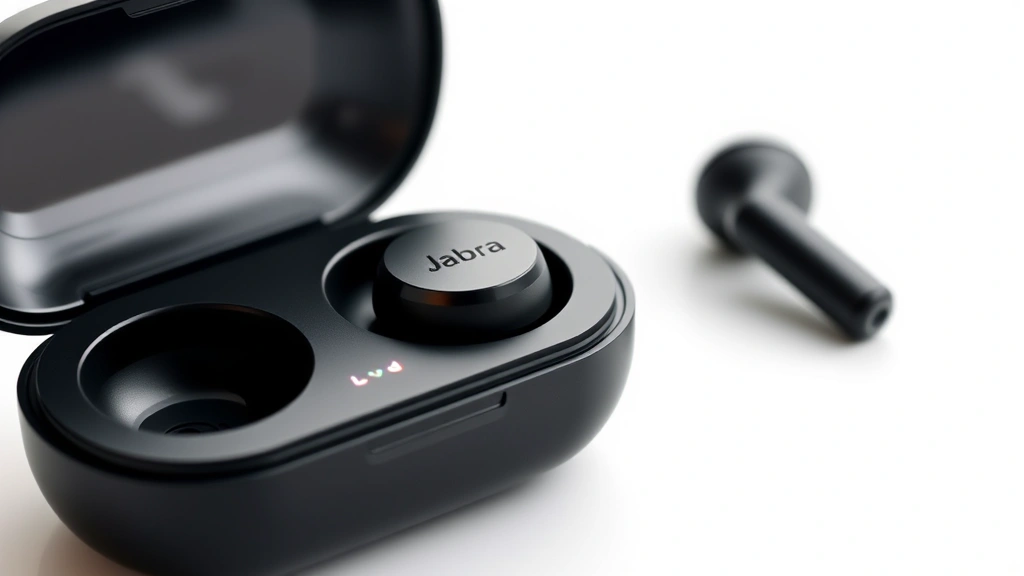
How to Connect Jabra Earbuds: Expert-Verified Steps for Seamless Pairing
Jabra earbuds represent a significant investment in personal audio technology, offering premium sound quality and advanced connectivity features for work and leisure. Whether you’re setting up your first pair or troubleshooting connection issues, understanding the proper pairing procedure ensures optimal performance and longevity of your device. This comprehensive guide walks you through every step of connecting your Jabra earbuds to your smartphone, tablet, computer, or other Bluetooth-enabled devices.
The connection process for Jabra earbuds varies slightly depending on your specific model, but the fundamental Bluetooth pairing principles remain consistent across their product lineup. By following these expert-verified steps, you’ll establish a stable connection within minutes and unlock the full potential of your wireless audio experience. We’ll cover initial setup, troubleshooting common issues, and best practices for maintaining reliable connections across multiple devices.

Understanding Jabra Earbud Models and Their Features
Jabra manufactures several earbud lines, each with distinct connection capabilities and features. The Elite series represents their premium offering, featuring advanced noise cancellation and multi-device connectivity. The Evolve series targets professionals requiring reliable communication in office and remote settings. The Talk series provides simplified functionality for users prioritizing basic calling and music streaming. Understanding which model you own helps you navigate the specific connection requirements and available features.
Most modern Jabra earbuds utilize Bluetooth 5.0 or 5.2 technology, enabling faster pairing and more stable connections than earlier Bluetooth versions. Some premium models include multi-device connectivity, allowing you to seamlessly switch between your smartphone, laptop, and tablet. The Jabra Sound+ app, available on iOS and Android platforms, enhances the connection experience by providing firmware updates, customization options, and connection management tools. Checking your model number on the charging case or in your product documentation ensures you’re following the appropriate setup procedure.

Initial Setup and Charging Requirements
Before attempting to connect your Jabra earbuds, ensure they’re properly charged. Remove the earbuds from their charging case and verify that both earbuds have sufficient battery power. Most Jabra earbuds require at least 20% battery capacity to establish Bluetooth connections. The LED indicators on the earbuds and charging case display battery status—typically green indicates full charge, amber indicates medium charge, and red indicates low battery requiring immediate charging.
Charge your earbuds fully for the first time by placing them in the charging case and connecting the case to a power source using the included USB cable or wireless charging pad (depending on your model). Initial charging typically takes 60-90 minutes. While charging, check your device’s Bluetooth settings to ensure Bluetooth is enabled and your device is discoverable. For setting up your home network and connected devices, proper Bluetooth management is essential.
Step-by-Step Connection Guide for Jabra Earbuds
Step 1: Enable Pairing Mode
Most Jabra earbuds enter pairing mode automatically when removed from the charging case for the first time. If your earbuds don’t automatically enter pairing mode, press and hold the button on one earbud (typically the right earbud) for 3-5 seconds until you see a flashing blue and purple LED light. This LED pattern indicates the earbuds are discoverable and ready to pair with your device. Some models use different button combinations—consult your user manual if the standard method doesn’t work.
The pairing mode window typically remains active for 5-10 minutes, providing adequate time to locate and connect your device. If the LED lights stop flashing or change color, the pairing mode has expired, and you’ll need to repeat the activation process. Keep your Jabra earbuds within 10 feet of your device during pairing to ensure a strong Bluetooth signal and successful connection.
Step 2: Access Your Device’s Bluetooth Settings
Navigate to your device’s Bluetooth settings menu. On smartphones and tablets, this is typically found in the Settings app under “Bluetooth” or “Connected Devices.” On computers, Bluetooth settings are usually located in System Settings (Mac) or Settings > Devices > Bluetooth (Windows). Ensure Bluetooth is toggled on and your device is in discoverable mode. Most devices remain discoverable for 5 minutes after enabling Bluetooth, so timing your connection attempt appropriately is important.
Step 3: Select Jabra Earbuds from Available Devices
Once your device’s Bluetooth is active, a list of available devices should appear. Look for an entry labeled “Jabra Elite [model number]” or simply “Jabra” depending on your earbud model. Tap or click on this entry to initiate the pairing process. Your device will send a pairing request to the earbuds, which will automatically accept it since they’re in pairing mode. The connection process typically completes within 10-15 seconds.
Step 4: Confirm Successful Pairing
Once pairing is complete, your device will display a confirmation message, and the Jabra earbuds will emit an audio confirmation tone. The LED lights on the earbuds will change from flashing blue and purple to solid blue, indicating an active Bluetooth connection. Your device’s Bluetooth menu should now list the Jabra earbuds as “Connected” rather than “Available.” Test the connection by playing audio—sound should stream through the earbuds without distortion or interruption.
Connecting to Multiple Devices
One of the advantages of premium Jabra earbuds is their ability to connect to multiple devices simultaneously. This feature allows you to answer calls from your smartphone while listening to music on your tablet, with automatic audio switching based on which device has active audio. To connect your Jabra earbuds to additional devices, repeat the pairing steps on each new device while the earbuds are in pairing mode.
Most Jabra models support simultaneous connection to 2-4 devices, though only one can stream audio at a time. When you receive a call on a paired device while listening to music on another, the earbuds automatically pause the music and switch to the incoming call. After the call ends, audio resumes on your original device. This multi-device capability requires that all paired devices have Bluetooth enabled and be within range of the earbuds.
The Jabra Sound+ app provides an interface for managing your paired devices. You can view all connected devices, rename them for easier identification, and set device priorities. For example, you might prioritize your work phone for calls while keeping your personal tablet as a secondary device. Understanding how to manage multiple connections prevents confusion and ensures your earbuds behave as expected when switching between devices.
Troubleshooting Connection Problems
Earbuds Won’t Enter Pairing Mode
If your Jabra earbuds won’t enter pairing mode using the standard button hold method, try resetting them. Most models reset by pressing and holding the button for 10-15 seconds until you see a specific LED pattern (often red and blue alternating). Consult your user manual for the exact reset procedure for your model. After resetting, the earbuds will forget all previously paired devices and return to factory settings, requiring you to pair them again with your devices.
Device Doesn’t Detect Earbuds
If your device can’t find the Jabra earbuds in its Bluetooth menu, verify that pairing mode is active by checking the LED indicators. Ensure your device’s Bluetooth is enabled and set to discoverable mode. Move closer to the earbuds to strengthen the Bluetooth signal, as distance can prevent successful detection. If the problem persists, try restarting your device’s Bluetooth by toggling it off and on again. For comprehensive guidance on device connectivity issues, explore our article on connecting wireless devices.
Connection Drops Frequently
Frequent disconnections indicate weak Bluetooth signal or interference from other wireless devices. Keep your Jabra earbuds within 30 feet of your connected device and away from obstacles like walls or metal objects that block Bluetooth signals. Other wireless devices operating on the 2.4GHz frequency (WiFi routers, microwaves, cordless phones) can interfere with Bluetooth. Identify and relocate these devices if possible. Check that your Jabra earbuds have sufficient battery power—low battery often causes connection instability.
Audio Quality Issues
If you experience audio cutting out, stuttering, or low volume, first check your device’s volume settings and the earbuds’ volume level (usually adjusted via physical buttons or the Jabra Sound+ app). Ensure no other applications are attempting to use Bluetooth simultaneously. Disconnect and re-pair your earbuds to refresh the connection. Update your earbuds’ firmware through the Jabra Sound+ app, as updates often improve connection stability and audio quality.
Optimizing Your Jabra Earbud Connection
Download and Install the Jabra Sound+ App
The Jabra Sound+ app, available on iOS and Android platforms, provides essential tools for managing your connection and customizing your audio experience. The app enables firmware updates, which improve connection stability and add new features. It also provides detailed battery status information, equalizer adjustments, and device management features. Install the app immediately after pairing your earbuds to access these optimization tools.
Update Firmware Regularly
Firmware updates address connection issues, improve battery life, and introduce new features. The Jabra Sound+ app notifies you when updates are available and guides you through the installation process. Connect your earbuds to a power source before updating, as interruptions during the update can damage the device’s software. Allow 10-15 minutes for the update process to complete without interruption. After updating, your earbuds may automatically reset and require re-pairing with your devices.
Manage Bluetooth Range and Interference
Position your Bluetooth router and connected devices to minimize interference with your Jabra earbuds’ signal. Maintain a clear line of sight between your earbuds and device when possible. Move away from areas with high concentrations of wireless devices, such as busy office environments or public venues where many people use Bluetooth headphones simultaneously. The Jabra Sound+ app sometimes displays signal strength, helping you identify optimal positioning for your devices.
Establish Connection Priorities
If you regularly use multiple devices, establish connection priorities in the Jabra Sound+ app. Designate your primary device (usually your smartphone) as the priority device, ensuring the earbuds connect to it first when powering on. Secondary devices will only connect when your primary device is unavailable or Bluetooth is disabled. This prevents your earbuds from randomly connecting to the wrong device when multiple Bluetooth devices are in range.
Maintain Regular Charging Habits
Consistent charging maintains optimal connection performance. Charge your earbuds daily if you use them regularly, and always charge them before extended use periods. Allow the charging case to charge fully as well—a depleted case battery can’t charge your earbuds even if physically connected. Store your earbuds in the charging case when not in use to maintain battery charge and protect them from damage.
FAQ
How long does it take to pair Jabra earbuds with a device?
The pairing process typically takes 10-15 seconds once you’ve located the Jabra earbuds in your device’s Bluetooth menu and initiated the connection. Entering pairing mode and accessing Bluetooth settings may take an additional 1-2 minutes depending on your device and familiarity with the process. If pairing takes longer than 30 seconds, disconnect and try again, ensuring both devices are close together and have strong Bluetooth signals.
Can I use Jabra earbuds with multiple devices simultaneously?
Yes, most Jabra earbuds support simultaneous connection to 2-4 devices, though only one device can stream audio at a time. You can pair your earbuds with your smartphone, tablet, and laptop, and they’ll automatically switch audio when you initiate playback or receive calls on different devices. This multi-device capability requires all paired devices to have Bluetooth enabled and be within range of the earbuds.
What should I do if my Jabra earbuds won’t connect to my device?
First, ensure your earbuds are charged and in pairing mode (check LED indicators). Verify your device’s Bluetooth is enabled and set to discoverable mode. Move closer to your earbuds to strengthen the Bluetooth signal. If the problem persists, reset both your earbuds and device’s Bluetooth settings, then attempt pairing again. Consult the Jabra Sound+ app or your user manual for model-specific troubleshooting steps.
How do I reset my Jabra earbuds?
Most Jabra earbuds reset by pressing and holding the button for 10-15 seconds until you see a specific LED pattern (usually red and blue alternating). The exact reset procedure varies by model—check your user manual for precise instructions. Resetting erases all paired devices and returns the earbuds to factory settings. After resetting, you’ll need to pair your earbuds with your devices again using the standard pairing procedure.
Why do my Jabra earbuds keep disconnecting?
Frequent disconnections typically result from weak Bluetooth signal, low battery power, or interference from other wireless devices. Keep your earbuds within 30 feet of your device and away from obstacles. Ensure your earbuds have sufficient battery charge. Identify and relocate other wireless devices operating on the 2.4GHz frequency (WiFi routers, microwaves, cordless phones). Disconnect and re-pair your earbuds to refresh the connection. Update your firmware through the Jabra Sound+ app to address known connection issues.
Do I need the Jabra Sound+ app to use my earbuds?
No, you can use Jabra earbuds without the Sound+ app—basic Bluetooth pairing and audio streaming work independently. However, the app provides valuable features including firmware updates, equalizer adjustments, battery status monitoring, and device management. Many users find these features significantly enhance their experience, so downloading the app is highly recommended even if not strictly necessary.
How do I update my Jabra earbuds’ firmware?
Download the Jabra Sound+ app on your smartphone or tablet, pair your earbuds, and open the app. Navigate to your device settings within the app and check for available updates. If an update is available, follow the on-screen instructions to install it. Ensure your earbuds are charged and remain connected throughout the update process. Allow 10-15 minutes for the update to complete without interruption. Your earbuds may reset after updating.
Can I connect my Jabra earbuds to a Windows or Mac computer?
Yes, Jabra earbuds work with Windows PCs and Mac computers through standard Bluetooth pairing. Access your computer’s Bluetooth settings, enable Bluetooth, set it to discoverable mode, and follow the standard pairing procedure with your earbuds in pairing mode. Once paired, your computer will automatically connect to your earbuds when they’re powered on and in range. The Jabra Sound+ app is available on both platforms for enhanced functionality.
For similar wireless connectivity guidance, explore our comprehensive guide on connecting wireless audio devices and our resource on home network setup for broader device connectivity strategies. These resources complement your Jabra earbud setup with additional wireless technology expertise.


