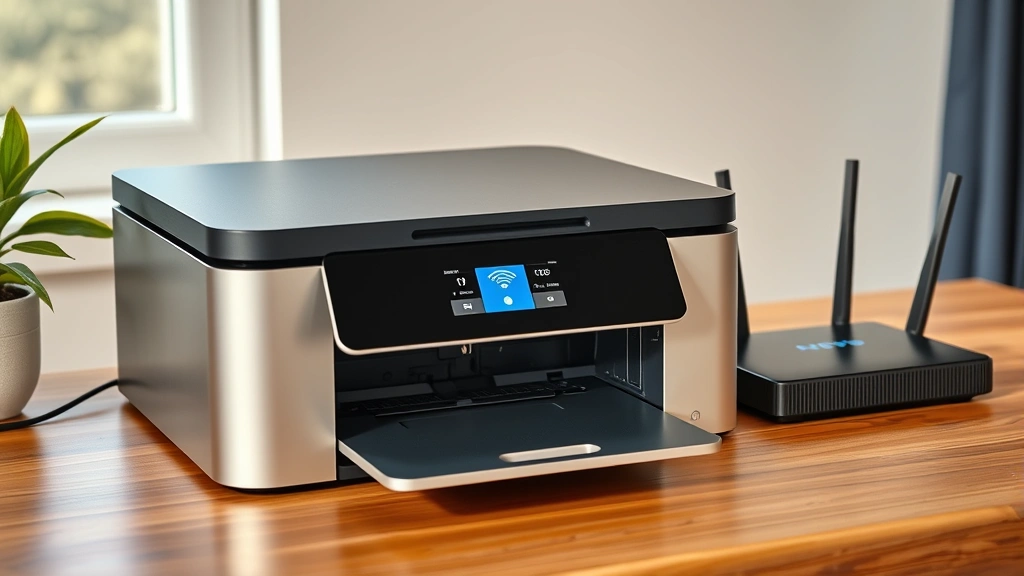
Connect Printer to WiFi: Tech Expert Tips
Connecting your printer to WiFi eliminates cable clutter and enables printing from anywhere in your home or office. Whether you’re working from your bedroom, kitchen, or outdoor patio, a wireless printer provides unmatched convenience. However, the setup process can seem intimidating if you’ve never done it before. This guide walks you through everything you need to know to get your printer connected and printing wirelessly in minutes.
Modern printers come equipped with built-in WiFi capabilities, making wireless connectivity easier than ever. Understanding the fundamentals of printer networking, troubleshooting common connection issues, and maintaining optimal performance will ensure your device works smoothly for years to come. We’ll cover step-by-step instructions, security considerations, and expert tips to maximize your wireless printing experience.

Understanding WiFi-Enabled Printers
A WiFi-enabled printer contains a wireless network adapter that communicates with your home or office network using standard 802.11 protocols. These devices operate on either the 2.4GHz or 5GHz frequency bands, with most modern printers supporting both. The 2.4GHz band offers better range and wall penetration, while 5GHz provides faster speeds but shorter distances. Understanding these technical specifications helps you position your printer optimally and troubleshoot connectivity issues effectively.
When your printer connects to WiFi, it receives an Internet Protocol (IP) address from your router’s DHCP server. This unique identifier allows your computer, smartphone, and other devices to locate and communicate with the printer across your network. Unlike USB connections that require physical proximity, wireless printing enables you to send documents from multiple rooms or even outside your home if you have a strong signal.
Before attempting connection, verify your printer model supports wireless networking. Check the device specifications on the manufacturer’s website or consult your user manual. Most printers manufactured in the last five years include WiFi capability, but older models may require a separate wireless print server or may not support wireless connectivity at all. If you’re purchasing a new printer, look for models that support both traditional and mobile printing protocols.
As part of your broader DIY networking setup, understanding printer connectivity ensures seamless integration with your entire home network infrastructure. This knowledge becomes especially valuable when managing multiple connected devices across your living space.

Pre-Connection Requirements and Preparation
Successful printer WiFi connection requires careful preparation and attention to detail. Before beginning the setup process, gather essential information and ensure all prerequisites are met. Having everything ready prevents frustration and reduces connection failures.
Information You’ll Need:
- Your WiFi network name (SSID)
- WiFi password (ensure correct capitalization and special characters)
- Router location and signal strength in your printer’s intended location
- Printer model number and default admin password
- Driver software and installation media or download links
- Latest firmware version for your printer model
Start by verifying your router broadcasts WiFi signals and operates on a stable 2.4GHz or 5GHz band. Some modern routers offer both simultaneously, allowing you to choose the optimal frequency for your printer. Position your printer within reasonable range of your router—typically 30-50 feet for 2.4GHz signals in open spaces, with reduced range through walls and obstacles.
Ensure your printer has sufficient power and battery backup if it includes a wireless setup button. Charge any batteries completely before starting the connection process. Restart your router 5-10 minutes before attempting printer connection to refresh the network and clear any temporary issues.
Download the latest printer drivers and management software from the manufacturer’s official website. This software simplifies the connection process and includes essential utilities for managing print queues, checking ink levels, and accessing advanced features. Having current software prevents compatibility issues and ensures security patches are applied.
Step-by-Step Connection Guide
The connection process varies slightly between printer brands and models, but the fundamental approach remains consistent. Most manufacturers provide multiple connection methods to accommodate different preferences and technical comfort levels.
Initial Printer Setup:
- Unpack your printer and remove all protective materials and tape from moving parts
- Install ink cartridges or toner according to manufacturer instructions
- Load paper into the input tray
- Power on the printer and wait for initialization to complete (typically 1-2 minutes)
- Press the menu or settings button on your printer’s control panel
- Navigate to Network Settings or Wireless Settings
- Select your WiFi network from the available networks list
- Enter your WiFi password using the control panel keypad
- Wait for the printer to authenticate and obtain an IP address
- Confirm successful connection when the printer displays a confirmation message
This fundamental process applies to most printer models. However, specific menu names and button locations vary by manufacturer. Consult your printer’s quick-start guide for exact navigation steps for your particular device.
Connecting via WPS Method
WiFi Protected Setup (WPS) provides a simplified connection method that eliminates the need to manually enter your WiFi password. This technology uses an 8-digit PIN or physical button press to establish secure connections between devices and routers.
WPS Button Method:
- Locate the WPS button on your router (usually labeled with a WiFi icon)
- Press and hold the WPS button for 2-3 seconds until the indicator light blinks
- Within two minutes, press the WPS button on your printer (or select WPS option in printer menu)
- Wait 30-60 seconds for the devices to communicate and establish connection
- Confirm successful connection when both devices display confirmation lights or messages
WPS PIN Method:
Some routers and printers support PIN-based WPS connection. Your printer displays an 8-digit code on its screen. Log into your router’s web interface, navigate to WPS settings, and enter the PIN provided by your printer. This method provides additional security while maintaining simplicity.
WPS offers significant advantages for users uncomfortable with technical details, as it automates security configuration and eliminates password entry errors. However, security experts note that WPS has known vulnerabilities. If you prioritize security over convenience, use manual network configuration instead.
Manual Network Configuration
Manual configuration provides maximum control and security for printer WiFi connection. This method requires navigating your printer’s settings menu and entering network information directly.
Accessing Network Settings:
- Press the Menu or Settings button on your printer
- Select “Network” or “Wireless” options
- Choose “Manual Configuration” or “Connect to Network”
- Select your WiFi network name (SSID) from the displayed list
- Enter your WiFi password carefully, noting that passwords are case-sensitive
- Select security type (typically WPA2 or WPA3 for modern networks)
- Confirm settings and allow the printer to connect
After successful connection, your printer displays its assigned IP address on the control panel or confirmation page. Write down this address—you’ll need it for accessing printer settings and troubleshooting later.
For enhanced security, consider creating a separate WiFi network specifically for IoT devices like printers. Many modern routers support guest networks or IoT-specific networks, isolating these devices from computers containing sensitive files. This approach significantly reduces security risks while maintaining full functionality.
Printer Setup Software Installation
Installing manufacturer-provided software completes your printer setup and enables full functionality across all your devices. This software manages driver installation, network configuration, and device maintenance.
Windows Installation:
- Download the latest printer driver from the manufacturer’s website
- Run the installation file and follow on-screen prompts
- Select “Network Printer” when prompted for connection type
- Allow the software to search for and detect your printer
- Complete installation and restart your computer
- Print a test page to verify successful installation
macOS Installation:
Mac systems typically auto-discover network printers without requiring driver installation. Go to System Preferences > Printers & Scanners, click the plus button, and select your printer from the available devices list. If your printer doesn’t appear, download drivers from the manufacturer’s website and follow installation instructions.
Installation software also provides utilities for managing your printer remotely. These applications display ink or toner levels, allow print job scheduling, and provide access to advanced printing options like duplex printing or color calibration. Familiarize yourself with these tools to maximize your printer’s capabilities.
For comprehensive home technology setup, consider reviewing our guide on DIY home security, which includes network protection recommendations applicable to printer connectivity.
Troubleshooting Connection Problems
Even with careful preparation, connection issues sometimes occur. Understanding common problems and their solutions enables rapid resolution.
Printer Not Found on Network:
If your computer cannot detect the printer, verify the printer is powered on and connected to WiFi. Check that both devices connect to the same network—some routers separate 2.4GHz and 5GHz bands with different SSIDs. Restart both the printer and router, waiting 2-3 minutes between power-offs. If the problem persists, reset your printer to factory settings and attempt connection again.
Connection Drops Frequently:
Intermittent disconnection suggests signal strength issues or interference. Move your printer closer to the router or relocate the router to a more central location. Avoid placing the printer near microwave ovens, cordless phones, or other 2.4GHz devices that cause interference. Switch to the 5GHz band if available—fewer devices typically use this frequency.
Authentication Failures:
Password entry errors are the most common cause of authentication failures. Carefully re-enter your WiFi password, paying attention to capitalization and special characters. Most printers display asterisks rather than actual characters, making errors easy to make. If unsure about password correctness, temporarily change it to a simple string without special characters, connect the printer, then restore your original password.
Slow Print Speeds:
Wireless printing naturally operates slower than USB connections. However, excessive delays indicate signal problems or network congestion. Check signal strength on your printer’s network settings page—aim for at least three bars. Reduce network traffic by temporarily disconnecting other devices. Update printer firmware to the latest version, which often includes performance improvements.
For broader connectivity challenges, explore our guide on connecting wireless devices, which covers similar troubleshooting principles applicable across multiple device types.
Network Security Best Practices
Connected printers represent potential security vulnerabilities in your home network. Implementing proper security measures protects your personal information and prevents unauthorized access to your devices.
WiFi Security Configuration:
- Use WPA3 encryption if available; otherwise use WPA2
- Avoid WEP or open networks—these provide minimal security
- Create a strong WiFi password with at least 16 characters combining uppercase, lowercase, numbers, and symbols
- Change default printer admin passwords immediately after setup
- Disable remote management features unless specifically needed
- Update printer firmware regularly to patch security vulnerabilities
Most printer vulnerabilities stem from default credentials remaining unchanged after purchase. Manufacturers often set default usernames and passwords that are widely known. Access your printer’s web interface (using its IP address in a browser) and change all default passwords to unique, strong credentials. This simple step prevents unauthorized access to your printer and network.
Consider your printer’s network location carefully. If possible, isolate it on a guest network separate from computers containing sensitive files. This approach contains potential breaches and prevents compromised printers from accessing your main network.
Disable features you don’t use. Many printers include email printing, cloud connectivity, and remote management capabilities. Disable any feature you don’t actively use to reduce potential attack vectors. Review your printer’s settings regularly to ensure unwanted features remain disabled.
Optimizing Wireless Print Performance
After successful connection, optimize your setup for reliable, fast printing. Performance optimization extends printer lifespan and ensures consistent output quality.
Network Optimization:
- Position your printer within 30 feet of your router for optimal signal strength
- Ensure clear line-of-sight between printer and router when possible
- Use 5GHz band if available and your printer supports it
- Monitor network traffic and printing during off-peak hours when possible
- Reduce interference by moving the printer away from microwave ovens and cordless phones
Printer-Specific Settings:
Access your printer’s web interface by entering its IP address into a browser. Configure print settings to match your typical usage patterns. Enable duplex printing by default to reduce paper consumption. Set appropriate quality levels—draft mode for everyday documents, high quality for photos and important materials. These settings reduce print times and extend consumable lifespan.
Enable printer sleep mode to reduce power consumption during idle periods. Most modern printers support this feature, automatically waking when receiving print jobs. Configure sleep timeout to balance convenience with energy savings—typically 10-15 minutes works well for most users.
Regularly clean your printer’s internal components to maintain optimal performance. Dust accumulation interferes with paper feeding and print quality. Consult your user manual for specific cleaning instructions for your model.
Mobile Printing Solutions
WiFi connectivity enables convenient mobile printing from smartphones and tablets. Multiple technologies support this functionality, each offering different advantages.
AirPrint (Apple Devices):
AirPrint enables seamless printing from iPhones, iPads, and Macs to any compatible printer on the same network. No additional software or configuration is required—simply select your printer from the print menu in any app. Most modern printers support AirPrint, making this the simplest solution for Apple users.
Google Cloud Print:
Google Cloud Print allows printing from any device with internet access, even outside your home network. While Google retired the original Cloud Print service, many manufacturers now offer similar cloud-based printing through their own apps and services. Check your printer manufacturer’s website for available cloud printing options.
Manufacturer Mobile Apps:
Most printer manufacturers provide dedicated mobile applications that unlock advanced features including remote printing, job status monitoring, and supplies management. Download your printer’s app from the Apple App Store or Google Play Store. These apps often provide superior functionality compared to generic printing solutions.
For similar mobile connectivity guidance, review our articles on connecting wireless devices to Mac, which covers related network connectivity principles.
Printer-Specific Connection Guides
Different printer brands implement slightly different connection procedures. If you own a Canon printer, our detailed guide on connecting Canon Pixma printers to WiFi provides manufacturer-specific instructions that complement this general guide.
Consult your printer’s user manual or manufacturer’s support website for brand-specific guidance. Most manufacturers provide video tutorials and interactive setup wizards that simplify the connection process for their particular models.
Maintenance and Ongoing Management
After successfully connecting your printer to WiFi, ongoing maintenance ensures continued reliable operation.
Regular Maintenance Tasks:
- Update firmware quarterly or when updates become available
- Clean paper feed rollers monthly to prevent jams
- Replace consumables (ink, toner, drums) before they run completely empty
- Run cleaning cycles monthly to maintain print quality
- Check network connectivity monthly by printing a test page
- Review and update security settings quarterly
Monitor your printer’s supplies status through its web interface or mobile app. Most modern printers warn before supplies run completely empty, but proactive monitoring prevents unexpected outages. Keep spare cartridges or toner on hand to avoid printing delays.
Document your printer’s network settings, including its IP address, SSID, and password. Store this information securely in case you need to troubleshoot or reconfigure the device later. If you maintain multiple printers, create a spreadsheet tracking each device’s settings and maintenance history.
FAQ
How do I find my printer’s IP address?
Check your printer’s display panel—most devices show the IP address in network settings. Alternatively, print a network configuration page by holding the Menu button for several seconds, or access your router’s connected devices list to locate your printer’s IP address.
Can I connect my printer to WiFi if it’s an older model?
Older printers without built-in WiFi can connect using a wireless print server—a device that bridges your printer and network. These devices cost $30-60 and support most USB printers. Check compatibility with your specific printer model before purchasing.
Is it safe to connect my printer to WiFi?
Yes, when properly configured. Use strong passwords, enable WPA2/WPA3 encryption, change default credentials, and keep firmware updated. Consider using a separate guest network for IoT devices like printers to enhance security.
Why is my printer printing slowly over WiFi?
Slow performance typically results from weak signal strength, network congestion, or interference. Move your printer closer to the router, reduce interference from other 2.4GHz devices, and check your network speed using online speed test tools.
How do I reset my printer’s network settings?
Most printers include a factory reset option in the settings menu. Select Settings > Network > Reset Network Settings. This removes all network configuration and returns the printer to default settings, allowing you to set up the connection fresh.
Can multiple computers print to the same WiFi printer?
Yes, this is one of WiFi printing’s primary advantages. Install printer drivers on each computer, and all devices on your network can print to the same printer simultaneously. The printer manages print queues automatically.
What security features should I enable on my printer?
Enable WPA2/WPA3 encryption, change default passwords, disable remote management if unused, and keep firmware updated. Some printers offer additional security like IP filtering and user authentication—enable these if your printer supports them and your needs require them.


