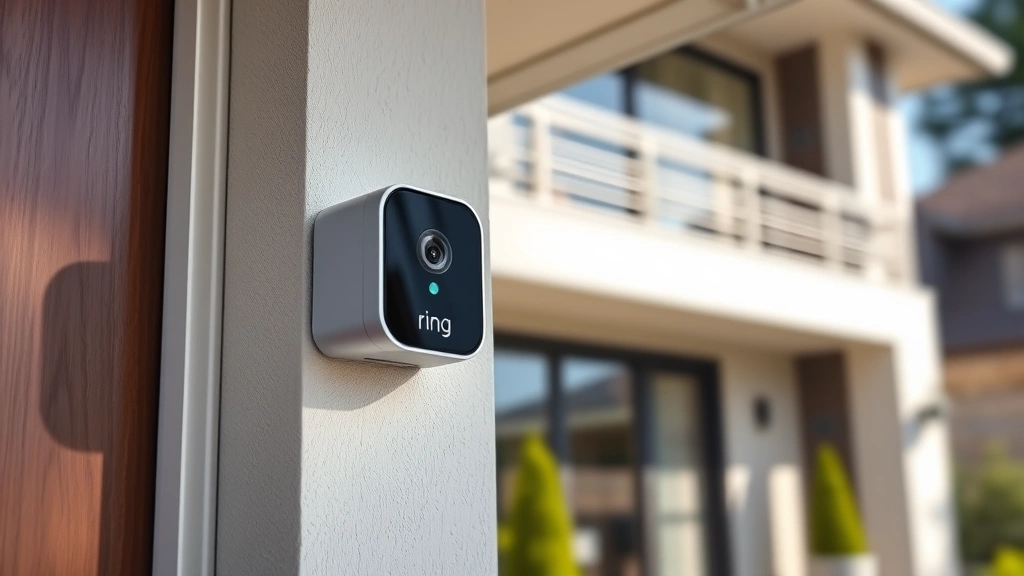
Connect Ring to WiFi: Expert Tips Inside
Ring doorbells and security cameras have revolutionized home security by providing real-time video monitoring accessible from your smartphone. However, getting your Ring device properly connected to your WiFi network is essential for reliable performance and security alerts. Whether you’re installing your first Ring device or troubleshooting a connection issue, understanding the proper setup process ensures your system operates at peak efficiency with consistent connectivity and video streaming capability.
This comprehensive guide walks you through every step of connecting your Ring device to WiFi, from initial preparation through advanced troubleshooting. We’ll cover common connectivity challenges, optimization techniques, and security best practices to keep your home monitoring system running smoothly. By following these expert tips, you’ll achieve a stable connection that delivers the protection and peace of mind your Ring system promises.

Preparing Your Ring Device for WiFi Connection
Before attempting to connect your Ring device to WiFi, proper preparation significantly increases your success rate. Begin by ensuring your Ring device is fully charged or plugged into power, as low battery levels can interrupt the connection process and cause setup failures. Check that your device’s firmware is current by visiting the Ring app on your smartphone—outdated firmware may lack compatibility with your router or contain connectivity bugs that prevent successful pairing.
Gather essential information before starting: your WiFi network name (SSID), WiFi password, and your smartphone with the Ring app installed. Download the latest version of the Ring app from your device’s app store to ensure you have all current features and security patches. Create a dedicated space near your installation location where you can complete the setup process without interruptions, as connection attempts may fail if you move too far from the WiFi router during pairing.
Verify your WiFi network operates on a 2.4GHz frequency, as most Ring devices only support 2.4GHz connectivity rather than 5GHz bands. Dual-band routers automatically broadcast both frequencies, but if your router has separate SSIDs for each band, select the 2.4GHz network specifically. Check that your WiFi network is broadcasting its SSID publicly rather than being hidden, which can complicate the connection process for smart home devices.

Step-by-Step WiFi Connection Process
Launch the Ring app on your smartphone and tap the three-line menu icon in the upper left corner. Select “Set Up a Device” and choose “Ring Doorbells” or “Ring Cameras” depending on your device type. The app displays a QR code and setup instructions—keep your phone accessible as you’ll reference this throughout the process.
Locate the setup button on your Ring device, typically a small button on the back or bottom. Press and hold this button for 15-20 seconds until the LED light begins flashing blue and white, indicating the device has entered pairing mode. This blue and white flashing pattern signals that your Ring device is searching for available WiFi networks and ready to accept connection credentials.
Return to the Ring app and select your WiFi network from the available list. Enter your WiFi password carefully, as incorrect credentials are the most common reason for connection failures. Ring devices are case-sensitive regarding passwords, so verify that capitalization and special characters match your actual WiFi password exactly. The app will attempt to connect your Ring device to the network—this process typically takes 2-3 minutes.
Once connected successfully, the LED light on your Ring device changes from flashing blue and white to solid blue, then turns off completely. The Ring app displays a confirmation message and prompts you to complete additional setup steps like naming your device and adjusting notification preferences. Don’t skip these final configuration steps, as they optimize your device’s functionality and ensure you receive proper alerts.
Understanding WiFi Network Requirements
Ring devices require a minimum download speed of 1 Mbps to function properly, though speeds between 2-4 Mbps provide optimal performance for smooth video streaming and quick alert notifications. Conduct a speed test using a WiFi speed testing app near your Ring device’s installation location to ensure adequate bandwidth. If speeds fall below 1 Mbps, contact your internet service provider or reposition your router to strengthen signal coverage in that area.
Your router should operate on the 2.4GHz frequency exclusively or broadcast dual-band capabilities that include 2.4GHz. Modern routers often default to 5GHz for faster speeds, but Ring devices cannot connect to 5GHz networks. Access your router’s settings through your computer or router app to verify frequency settings and ensure 2.4GHz broadcasting is enabled. Some routers allow you to disable 5GHz temporarily during Ring setup, then re-enable it afterward for other devices.
Network security settings affect Ring connectivity more than many users realize. If your router uses WEP or WPA security protocols (outdated standards), upgrade to WPA2 or WPA3 encryption for both security and compatibility. Open networks without passwords pose significant security risks for your home surveillance system and should be avoided entirely. Ensure your router’s SSID broadcast is enabled, as hidden networks complicate smart device connections and may require manual SSID entry rather than network selection from a list.
Consider your router’s distance from the Ring device installation location. Ring devices typically maintain reliable connections within 100-150 feet of your router, though walls, metal structures, and other obstacles reduce effective range significantly. A Ring device 50 feet away with three walls between it and the router may perform worse than one 100 feet away with clear line-of-sight. Plan your router positioning with WiFi coverage in mind, not just Ring devices but all smart home equipment you intend to install.
Troubleshooting Common Connection Issues
If your Ring device refuses to connect initially, restart your router by unplugging it for 30 seconds, then plugging it back in. Wait 2-3 minutes for the router to fully boot before attempting Ring connection again. Simultaneously restart your smartphone by powering it off completely, then powering it back on. These simultaneous restarts often resolve temporary connectivity glitches that prevent successful pairing.
Verify you’re entering the correct WiFi password by temporarily connecting another device like a laptop or tablet to confirm credentials. Many password entry errors stem from similar-looking characters (O vs. 0, l vs. 1) or accidental capitalization of letters that should be lowercase. Reset your Ring device by holding the setup button for 30 seconds until the LED flashes orange, indicating a factory reset. After reset, repeat the connection process from the beginning with verified credentials.
Check if your router has MAC address filtering enabled, which blocks unrecognized devices from connecting. Access your router settings and add your Ring device’s MAC address to the approved list, or temporarily disable MAC filtering during setup. Similarly, verify your router isn’t using a feature called “Band Steering” that forces devices to 5GHz networks—disable this feature if available, as it prevents 2.4GHz-only devices from connecting.
If your Ring device connects but immediately disconnects, your WiFi network may be experiencing interference from neighboring networks or other 2.4GHz devices. Use a WiFi analyzer app to identify which channels other networks use, then configure your router to use a less congested channel. Most routers default to channels 1, 6, or 11—try different channels to find the one with least interference in your area.
Firewall settings on your home network can prevent Ring connectivity even when passwords and frequencies are correct. Check your router’s firewall settings and ensure it’s not blocking ports required for Ring communication. Some routers offer a “guest network” feature that bypasses certain firewall restrictions—try connecting your Ring device to a guest network if available. If successful, you can then reconfigure your main network’s firewall settings to allow Ring devices.
Optimizing Your Ring WiFi Signal
Signal strength determines whether your Ring device maintains consistent connectivity or experiences frequent disconnections and video lag. Position your WiFi router in a central location at an elevated height—routers broadcast signals more effectively from higher positions rather than on the floor. Avoid placing routers inside cabinets, closets, or behind appliances, as these locations trap the signal and reduce coverage area significantly.
Minimize obstacles between your router and Ring device installation location. Each wall, especially those containing metal studs or plumbing, reduces signal strength by approximately 5-10 decibels. Metal filing cabinets, refrigerators, and microwave ovens create severe interference—position your router away from these appliances. If your Ring device is on an exterior wall, position your router on the interior side of that wall facing outward to maximize signal penetration.
Consider installing a WiFi mesh system or range extender if your Ring device location exceeds 100 feet from your primary router or has multiple walls between them. Mesh systems create multiple access points throughout your home, ensuring consistent signal coverage. Choose mesh systems that explicitly support 2.4GHz frequency and smart home devices—not all mesh systems are created equal. Range extenders work similarly but typically require reconfiguration of your WiFi network name and may introduce slight latency delays.
Reduce interference from other 2.4GHz devices in your home. Cordless phones, baby monitors, and older wireless devices operate on the same frequency as Ring systems and can cause connectivity problems. Move these devices away from your router and Ring installation area, or upgrade to devices using different frequencies like 5GHz cordless phones. Microwave ovens, while not WiFi devices, emit electromagnetic radiation that interferes with 2.4GHz signals during operation—avoid placing routers near kitchens if possible.
Review your router’s antenna configuration if it offers adjustable antennas. Position antennas vertically for horizontal coverage and horizontally for vertical coverage. Many routers with multiple antennas benefit from positioning some antennas vertically and others at 45-degree angles to cover multiple planes simultaneously. Experiment with antenna positioning and monitor your Ring device’s signal strength indicator in the app to find optimal configuration.
Security Considerations for Your Ring Network
Your Ring device connects to your home network and accesses internet services—securing this connection protects both your video feeds and home network integrity. Change your router’s default admin password immediately if you haven’t already, as default credentials are publicly documented and allow unauthorized access to network settings. Access your router’s settings through its IP address (typically 192.168.1.1) using a web browser and change the admin username and password to unique, strong credentials.
Enable WPA3 encryption on your router if available, with WPA2 as a fallback if your devices don’t support WPA3. Never use WEP or WPA encryption, which security researchers have compromised. Create a strong WiFi password using uppercase letters, lowercase letters, numbers, and special characters—aim for at least 16 characters. Avoid dictionary words or personal information that could be guessed, as weak passwords compromise your entire network security.
Disable WPS (WiFi Protected Setup) on your router, as this feature contains known security vulnerabilities that allow attackers to bypass WiFi encryption. While WPS offers convenience for device connection, the security risks outweigh the benefits. Instead, manually enter WiFi credentials when connecting Ring devices—it takes slightly longer but provides significantly better security.
Update your Ring device firmware regularly through the Ring app, as updates patch security vulnerabilities and improve connectivity. Enable two-factor authentication on your Ring account through the app settings, adding an extra security layer beyond your password. This prevents unauthorized access even if someone obtains your Ring account password. Review your Ring device’s sharing settings periodically—remove access from people who no longer need to view your camera feeds.
Consider creating a separate WiFi network specifically for smart home devices if your router supports multiple networks. This isolates your Ring device and other smart home equipment from computers and personal devices, limiting damage if a smart device becomes compromised. Many modern routers offer guest network functionality that serves this purpose without complex configuration.
FAQ
Can Ring devices connect to 5GHz WiFi networks?
No, Ring devices exclusively support 2.4GHz WiFi frequencies. If your router broadcasts only 5GHz or you have 5GHz and 2.4GHz on separate SSIDs, you must select the 2.4GHz network specifically. Check your router settings to ensure 2.4GHz broadcasting is enabled, or contact your internet service provider if your router doesn’t support dual-band operation.
How far can a Ring device be from my WiFi router?
Ring devices maintain reliable connections within 100-150 feet of your router under ideal conditions. However, walls, metal structures, and other obstacles significantly reduce this range. If your Ring device is more than 50 feet away with multiple walls between it and the router, consider installing a WiFi range extender or mesh system to strengthen the signal.
Why does my Ring device keep disconnecting from WiFi?
Frequent disconnections typically stem from weak signal strength, WiFi interference from neighboring networks, or router settings blocking the device. Check your signal strength in the Ring app—if it shows poor signal, reposition your router or install a range extender. Use a WiFi analyzer app to identify interference from neighboring networks and switch your router to a less congested channel.
Do I need to reconnect my Ring device to WiFi after a power outage?
Ring devices typically reconnect automatically after power restoration if they previously connected successfully. However, if your router takes longer to boot than your Ring device, the Ring may fail to find the network initially. Give your router 2-3 minutes to fully boot before expecting Ring reconnection. If automatic reconnection fails, manually restart your Ring device by holding the setup button for 10 seconds.
Can multiple Ring devices share the same WiFi network?
Yes, multiple Ring devices can connect to the same WiFi network simultaneously. Each device appears separately in the Ring app with its own name and settings. Ensure your WiFi network has sufficient bandwidth—each Ring device requires approximately 1-2 Mbps of bandwidth during active video streaming. If you have many Ring devices or other bandwidth-heavy smart home equipment, upgrade to a faster internet plan.
What should I do if the Ring app can’t find my WiFi network?
If your network doesn’t appear in the Ring app’s available networks list, verify that your router’s SSID broadcast is enabled—hidden networks don’t appear in device selection lists. Check that your router is powered on and broadcasting properly by connecting another device to confirm network availability. If the network appears on other devices but not in the Ring app, restart your smartphone and the Ring app, then try again.
Is it safe to use an open WiFi network without a password for my Ring device?
Never connect your Ring device to an open, unprotected WiFi network. Open networks allow anyone within range to intercept your video feeds and access your home network. Always use WPA2 or WPA3 encryption with a strong password. If you’re concerned about password sharing, create a separate guest network with different credentials specifically for smart home devices.


