Connect Printer to WiFi: Expert Tips Inside
Getting your printer connected to WiFi can seem daunting, but with the right guidance, it’s a straightforward process that most DIY enthusiasts can complete in minutes. Whether you’re setting up a new printer for your home office or troubleshooting an existing connection, understanding the fundamentals of wireless printer setup will save you time and frustration. Modern printers are designed with user-friendly connectivity options, and this guide walks you through every step of the process.
A WiFi-connected printer offers tremendous convenience for anyone working on DIY basement finishing projects or managing a home workspace. Instead of dealing with tangled cables or USB connections, you can print from any device on your network—your computer, tablet, or smartphone. This article provides expert tips and troubleshooting strategies to ensure your printer stays connected and operating smoothly.
Understanding Your Printer’s WiFi Capabilities
Before attempting to connect your printer to WiFi, you need to confirm it has wireless capability. Most modern printers include built-in WiFi functionality, but older models may not. Check your printer’s specifications in the user manual or visit the manufacturer’s website to verify WiFi support. Look for labels or indicators on the printer itself—many models display a WiFi symbol on the control panel or documentation.
There are typically two WiFi connection methods available: standard WiFi Direct and traditional network connection. WiFi Direct allows devices to connect directly to the printer without needing a router, making it ideal for quick printing tasks. Traditional network connection integrates your printer into your home or office network, enabling printing from multiple devices simultaneously. Understanding which method suits your needs will help you choose the most efficient setup approach.
Your printer’s control panel is your primary interface for WiFi setup. Most modern printers feature a touchscreen display or button-based menu system. Familiarize yourself with navigation options before starting the connection process. If your printer lacks a display panel, you may need to use the manufacturer’s software or mobile app to establish the connection.

Pre-Connection Setup Requirements
Gathering the necessary information before you begin ensures a smooth connection process. You’ll need your WiFi network name (SSID) and password readily available. Your SSID is the name that appears when you search for available networks on your device. Write down both pieces of information to avoid typing errors during setup.
Ensure your printer is powered on and positioned within reasonable range of your WiFi router. Most modern routers have a range of 100-150 feet in open spaces, though walls and obstacles can reduce this distance. For optimal signal strength, keep your printer within 30-50 feet of the router when initially establishing the connection. Once connected, you can move it farther away if needed, though signal strength may affect print speed and reliability.
Update your printer’s firmware before connecting to WiFi. Many manufacturers provide firmware updates that improve connectivity and security. Visit the manufacturer’s support website, download the latest firmware version, and follow their installation instructions. This step prevents connection issues caused by outdated software and ensures you have the latest security patches.
Check that your router supports the WiFi standards your printer uses. Most modern printers work with 2.4GHz WiFi networks, which is standard on virtually all routers. Some newer models support dual-band (2.4GHz and 5GHz) connectivity. If your router broadcasts on both bands, connect your printer to the 2.4GHz network for best compatibility and range.
Step-by-Step Connection Process
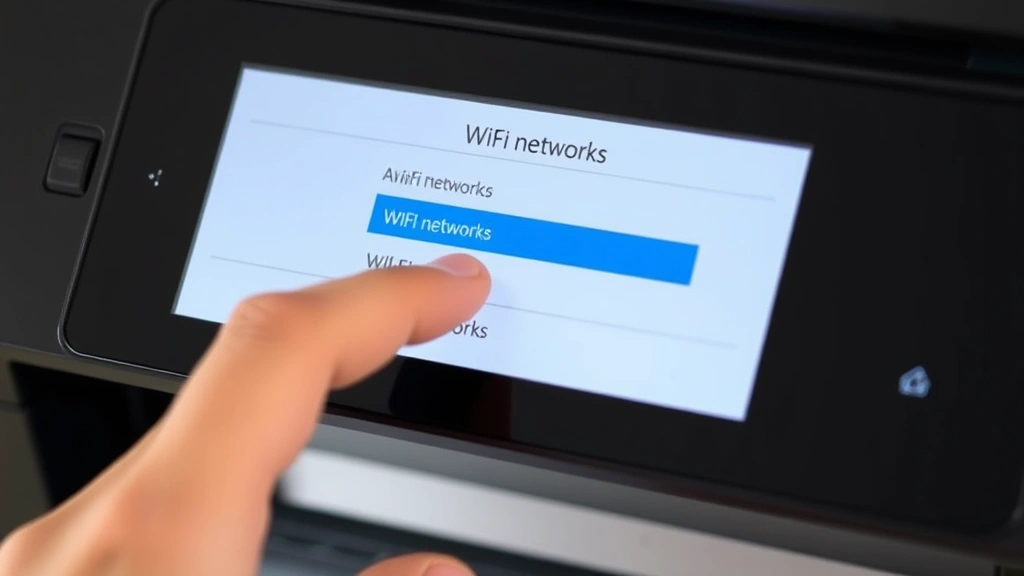
Begin by accessing your printer’s WiFi setup menu. On most models, this involves pressing a dedicated WiFi button or navigating through the control panel menu. Look for wireless settings, network settings, or WiFi setup options. The exact path varies by manufacturer, so consult your user manual if you’re unsure. Many printers display a WiFi symbol on the screen when wireless setup is active.
Once in the WiFi menu, your printer will scan for available networks. This process typically takes 10-30 seconds. Select your home or office WiFi network from the list displayed on the printer’s screen. If you don’t see your network, verify that your router is powered on and broadcasting the SSID. Some routers have an option to hide the SSID; if yours is hidden, you may need to enter it manually.
Enter your WiFi password when prompted. Use the printer’s keypad or touchscreen to input the password precisely—passwords are case-sensitive and spacing matters. Take your time during this step, as incorrect password entry is the most common connection failure cause. Many printers display a password strength indicator or confirmation step before attempting connection.
Wait for the connection confirmation. Most printers display a success message or WiFi icon once connected. This process typically takes 30-60 seconds. If the printer displays an error message, double-check your password and ensure your router is functioning properly. Some printers print a network configuration page that confirms successful connection and displays your printer’s IP address.
Install the printer on your computer or mobile device after establishing WiFi connection. For Windows computers, go to Settings → Devices → Printers & Scanners and click “Add a printer.” The system will detect your WiFi-connected printer and allow you to install the necessary drivers. For Mac computers, go to System Preferences → Printers & Scanners and click the plus button to add your printer. Mobile devices typically auto-detect WiFi printers once connected to the same network.
Connecting Multiple Devices to Your Printer
One of the primary advantages of WiFi-connected printers is the ability to print from multiple devices simultaneously. Once your printer is connected to your WiFi network, any device on that network can access it. This is particularly useful when managing DIY home security systems or other projects requiring documentation from various devices.
For each new device, follow your operating system’s printer addition process. Most systems automatically discover WiFi printers on the network. Some devices may require you to enter the printer’s IP address manually if auto-discovery fails. Your printer’s configuration page displays this IP address, which typically appears as four numbers separated by periods (for example, 192.168.1.100).
Mobile app printing offers an additional convenience layer. Download your printer manufacturer’s mobile app from the App Store or Google Play Store. These apps often include wireless printing features, scanning capabilities, and printer status monitoring. Popular apps include HP Smart, Brother iPrint&Scan, Canon Print, and Xerox Print Service. These applications simplify printing directly from your smartphone or tablet without needing traditional device drivers.
Configure print settings for each device according to your preferences. Most operating systems allow you to set a default printer, choose paper size, select color or black-and-white printing, and adjust print quality. These settings apply to all applications on that device, streamlining your printing workflow.
Troubleshooting Common Connection Issues
If your printer doesn’t appear in the available networks list, restart both your printer and router. Power off each device, wait 30 seconds, and turn them back on in this order: router first, then printer. This simple reset often resolves temporary connectivity issues. If the problem persists, check that your router’s WiFi is enabled and broadcasting your SSID.
When connection fails after entering the correct password, verify the password one more time by checking your router’s settings. Ensure Caps Lock is off and there are no extra spaces. Some routers have a WiFi password reset button that allows you to create a new password. Consider resetting your printer to factory settings and attempting connection again if multiple password attempts fail.
Printers that connect initially but frequently disconnect usually have signal strength issues. Move your printer closer to the router or remove physical obstacles between them. If relocation isn’t possible, consider installing a WiFi range extender or mesh network system. These devices amplify your WiFi signal throughout your home, ensuring stable printer connectivity. Check out FCC guidance on wireless devices for additional information on optimizing WiFi performance.
Slow printing speeds despite good signal strength may indicate network congestion or printer issues. Restart your printer and check for firmware updates. Reduce the number of devices simultaneously using your network, as bandwidth competition affects print performance. If problems persist, check your printer’s network settings to ensure it’s connected to the 2.4GHz band rather than 5GHz, which has shorter range and weaker wall penetration.
Devices unable to find the printer despite successful WiFi connection usually have firewall issues. Temporarily disable your computer’s firewall to test if it’s blocking printer discovery. If printing works with the firewall disabled, configure your firewall to allow printer communication. Most firewall software includes settings for allowing specific applications or devices on your network.
Security Considerations for Wireless Printers
Wireless printers represent potential security vulnerabilities if not properly configured. Change your printer’s default admin password immediately after setup. Most printers ship with standard default credentials that hackers can easily exploit. Access your printer’s web interface by typing its IP address into a browser and update the password to something strong and unique.
Enable WPA2 or WPA3 encryption on your WiFi network. These security protocols protect data transmitted between your devices and router. Avoid using outdated WEP encryption, which cybersecurity experts consider compromised. For detailed information about WiFi security standards, consult the NIST guidelines on wireless network security.
Disable remote printing features if you don’t use them. Many printers include options for printing from internet-connected devices outside your home network. While convenient, this feature creates security risks. Disable these settings in your printer’s configuration menu unless you specifically need remote printing functionality.
Regularly update your printer’s firmware to patch security vulnerabilities. Manufacturers release firmware updates addressing discovered security issues. Check your printer manufacturer’s support website monthly for updates. Some printers include automatic update notifications, while others require manual checking.
Restrict access to your printer’s web interface. Most printers include IP-based access controls allowing you to specify which devices can modify settings. Configure these restrictions to prevent unauthorized changes to your printer’s configuration. Additionally, enable printer-specific security features like user authentication if your model supports it.
Maintaining Your WiFi Printer Connection
Regular maintenance ensures your WiFi printer connection remains stable and reliable. Perform monthly signal strength checks by accessing your printer’s network settings. Most printers display WiFi signal strength as a series of bars or percentage. If signal strength drops below 50%, consider repositioning your router or printer to improve connectivity.
Clean your printer’s WiFi antenna if it has an external one. Dust and debris accumulation can degrade signal reception. Use a soft, dry cloth to gently wipe the antenna. Never use liquids or harsh chemicals, as these damage sensitive components. Internal antennas, found on most modern printers, don’t require cleaning but benefit from maintaining clear space around the printer.
Monitor your printer’s network activity through its web interface. Most printers display connection history, device access logs, and network statistics. This information helps identify recurring connection patterns or potential issues. If you notice frequent disconnections at specific times, investigate network congestion or WiFi interference during those periods.
Update your WiFi router’s firmware alongside printer updates. Router manufacturers release security patches and performance improvements. Outdated router firmware can cause compatibility issues with newer devices. Check your router manufacturer’s website for available updates and follow their installation procedures.
If your printer connects through IEEE 802.11 WiFi standards, ensure your router supports the same standards your printer uses. Older routers may not fully support newer printer models, resulting in compatibility issues. When upgrading your printer, verify router compatibility before purchase.
Create a network documentation file recording your printer’s IP address, MAC address, and WiFi connection details. This information proves invaluable when troubleshooting problems or reinstalling connections after network changes. Store this documentation in a secure, easily accessible location.
Consider your printer’s role in your overall home network when planning upgrades. If you’re implementing DIY beginner woodworking projects requiring documentation and printing, ensure your printer can handle the increased demand. Older printers may struggle with high-volume printing or large file sizes. Newer models offer improved speed and reliability for demanding applications.
FAQ
Can I connect my printer to WiFi if it doesn’t have a display screen?
Yes, many printers without display screens include WiFi connectivity. Use the manufacturer’s software or mobile app to establish the connection. Some models include a WiFi button that puts the printer in pairing mode, allowing connection through your device’s network settings. Consult your printer’s manual for specific instructions if you’re unsure of your model’s capabilities.
What’s the difference between WiFi Direct and network printing?
WiFi Direct creates a direct connection between your device and printer without requiring a router. This method works well for one-off printing tasks but doesn’t integrate the printer into your network. Network printing connects your printer to your WiFi network, enabling multiple devices to access it simultaneously. Network printing is preferable for households with multiple users.
How far can my printer be from my router?
Most WiFi printers maintain reliable connections within 100-150 feet of the router in open spaces. Walls, metal objects, and other obstacles reduce this range. For best results, keep your printer within 50 feet of the router. If you need greater distance, install a WiFi range extender or upgrade to a mesh network system.
Why does my printer keep disconnecting from WiFi?
Frequent disconnections usually result from weak signal strength, network interference, or outdated firmware. Move your printer closer to the router, update the printer’s firmware, and check for WiFi interference from other devices. Microwaves, cordless phones, and baby monitors can interfere with 2.4GHz WiFi signals. If problems persist, restart your printer and router.
Is it safe to connect my printer to WiFi?
Yes, WiFi printing is safe when properly configured. Change your printer’s default password, enable WPA2 encryption on your network, update firmware regularly, and disable unnecessary remote features. These security measures protect your printer from unauthorized access and prevent potential data breaches through your network.
Can I print from my phone to a WiFi printer?
Yes, most modern WiFi printers support mobile printing. Download your printer manufacturer’s app, ensure your phone is on the same WiFi network as the printer, and follow the app’s printing instructions. Many phones also support AirPrint (Apple) or Google Cloud Print (Android) for universal printing compatibility across different printer brands.
What should I do if I forgot my printer’s WiFi password?
Most printers store connection history, allowing you to reconnect without re-entering the password. If you’ve forgotten your network password, access your router’s settings through a connected device and view your WiFi password in the router’s configuration menu. You can also reset your printer to factory settings and reconnect with the correct password, though this erases all saved settings.


