How to Attach an Email to an Email in Outlook: Expert Tips Inside
Managing multiple emails and organizing your correspondence can become overwhelming, especially when you need to forward or share entire email threads with colleagues or clients. Outlook provides several powerful methods to attach emails directly to other emails, creating a comprehensive communication trail that keeps all related messages together. Whether you’re consolidating project information, sharing client communications, or building a complete reference document, understanding how to properly attach emails in Outlook will streamline your workflow and ensure nothing gets lost in your inbox.
This comprehensive guide walks you through every method available in Outlook for attaching emails, from the straightforward drag-and-drop technique to more advanced options that preserve formatting and metadata. We’ll explore the differences between forwarding, attaching as an Outlook item, and converting emails to PDF attachments. By mastering these techniques, you’ll be able to organize your communications more effectively and maintain better documentation of important business exchanges.
Understanding Email Attachments in Outlook
Before diving into the technical steps, it’s important to understand what happens when you attach an email to another email in Outlook. Unlike regular file attachments, email attachments maintain their original formatting, links, images, and metadata. This means the recipient can open and interact with the attached email just as if they received it directly, making this feature invaluable for documentation and communication purposes.
Outlook recognizes email attachments as distinct objects, typically displayed with an envelope icon in the attachment pane. The file size of an attached email is generally smaller than you might expect because Outlook compresses the message data. This approach differs significantly from copying and pasting email content, which can sometimes lose formatting or interactive elements. When you attach an email properly, you preserve the complete communication context.
Understanding the difference between various attachment methods helps you choose the right approach for your specific situation. Some methods work better for archival purposes, while others are ideal for quick sharing. The method you select can impact how the recipient interacts with the attached email and whether they can easily reference specific details from the original message.
Method 1: Using Drag and Drop to Attach Emails
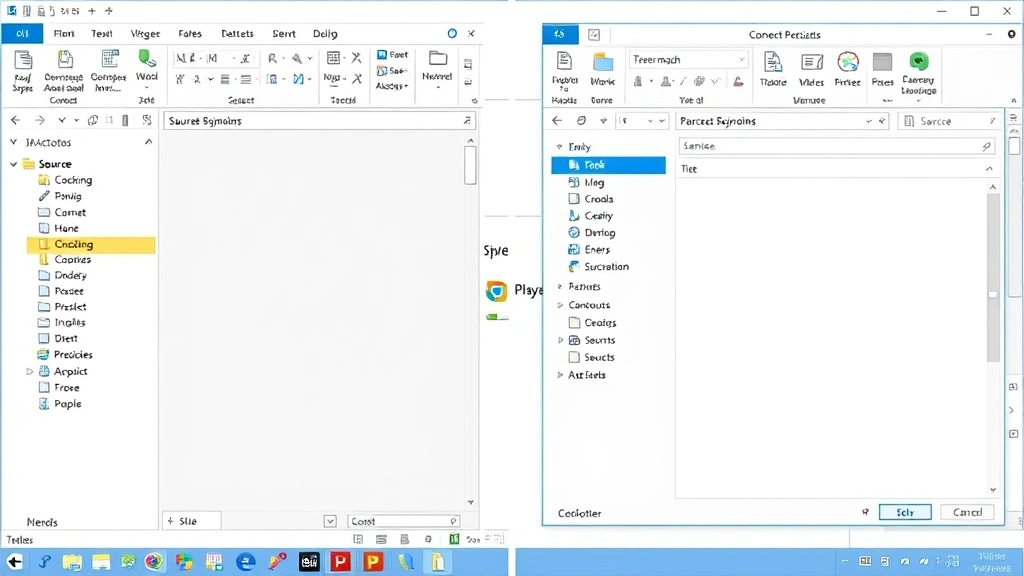
The simplest and most intuitive method for attaching an email to another email in Outlook is the drag-and-drop technique. This method works in both Outlook desktop applications and web-based versions, though the interface may vary slightly. Start by opening the email you want to attach in one window or pane, then open or create the email where you want to add the attachment in another window.
Step-by-step drag and drop process:
- Arrange your Outlook windows side by side so you can see both the source email and the destination email simultaneously
- Locate the email you want to attach in your inbox or folder
- Click and hold on the email message you want to attach
- Drag it directly into the message body or attachment area of your new email
- Release the mouse button to complete the attachment
- Verify the attachment appears in the attachment pane with an envelope icon
This method is particularly effective when you’re working with multiple emails from the same conversation or folder. The drag-and-drop approach preserves all email properties and makes it easy to attach multiple emails in succession. You can repeat the process to add additional emails to the same message. However, ensure you’re dragging the actual email message and not just the sender’s name or subject line, as this may not create a proper attachment.
One advantage of the drag-and-drop method is that it works seamlessly when you have your mailbox organized into custom folders. If you’re working on a DIY home organization project that involves extensive email documentation, this method allows you to quickly compile all relevant communications.
Method 2: Forward as Attachment
The forward-as-attachment method provides a more structured approach to attaching emails, particularly when you want to include additional context or comments. This method allows you to write your own message while keeping the original email intact and accessible to the recipient. To use this approach, open the email you want to attach and look for the forward options in the ribbon menu.
Steps for forwarding as an attachment:
- Open the email message you want to forward
- Click the “Forward” button in the ribbon menu
- In the compose window, add your recipient’s email address
- Type any introductory message or context you want to provide
- The original email will appear as an attachment or in the message body
- Click “Send” to deliver the message
This method differs slightly from attaching an email because it creates a new email that contains the original message. The original email appears either as an inline attachment or as a forwarded message in the body, depending on your Outlook settings. This approach is ideal when you want to add your own commentary or when you’re sending the email to someone who needs context about why you’re sharing it.
When you forward an email, you can also choose to forward it “as an attachment” specifically, which creates a separate MSG file. This option appears when you right-click the email and select “Forward as Attachment” from the context menu. This creates a distinct file that the recipient can open as a complete Outlook item, preserving all original formatting and properties.
Method 3: Insert as Outlook Item
The “Insert as Outlook Item” method offers the most professional and controlled approach to attaching emails. This feature is available in Outlook’s Insert menu and allows you to precisely select which email you want to attach to your current message. This method is particularly useful when you’re composing a new email and want to include one or more existing messages without leaving the compose window.
Using the Insert menu to attach emails:
- Open a new email or reply to an existing message
- Click on the “Insert” tab in the ribbon menu
- Look for the “Attach File” or “Attachment” option
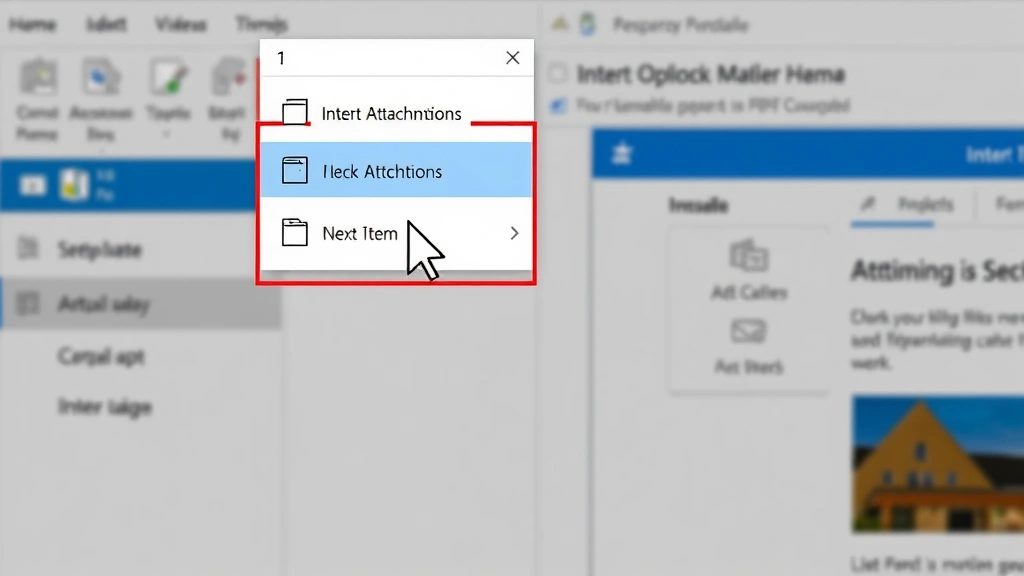
- Select “Item” or “Outlook Item” from the dropdown menu
- Navigate to the email you want to attach using the folder browser
- Select the email message and click “OK” to insert it
- The email will appear as an attachment in your message
This method is particularly powerful because it allows you to search through your entire mailbox to find the specific email you want to attach. You’re not limited to emails currently visible on your screen or in your active folder. The Insert as Outlook Item method also maintains the complete email structure, including all headers, formatting, and any attachments the original email contained.
This approach works exceptionally well when you’re building comprehensive documentation systems or creating email trails for compliance purposes. Many professionals use this method when they need to attach multiple emails to a single message for review or archival purposes.
Method 4: Save as PDF and Attach
Sometimes you may want to convert an email to a PDF file before attaching it to another email. This method is useful when you want to ensure the email maintains a specific appearance across different email clients or when you need to create a printable version. Converting to PDF also creates a more universal file format that any recipient can open, regardless of whether they use Outlook.
Steps to save an email as PDF and attach it:
- Open the email you want to convert to PDF
- Click “File” in the menu bar
- Select “Print” or “Save as PDF”
- Choose your PDF printer or “Print to File” option
- Select a location on your computer to save the PDF file
- Name the file appropriately and click “Save”
- In your new email, use “Attach File” to add the PDF to your message
The PDF conversion method offers several advantages over direct email attachments. PDF files are more secure because recipients cannot easily modify the content, making them ideal for sending official documents or communications that need to maintain their integrity. PDF attachments also tend to be slightly smaller than MSG files, which can be important when sending emails through systems with attachment size limitations.
However, this method has one significant drawback: the recipient cannot interact with the email as they would with a native Outlook attachment. They cannot click links, reply to the message, or access the original sender information in the same way. Use PDF conversion when the primary goal is preservation and documentation rather than maintaining interactivity.
Best Practices for Email Organization
Attaching emails effectively requires more than just knowing the technical steps; it also involves developing good organizational practices. When you attach multiple emails to a single message, consider adding a brief summary or index at the top of your email so the recipient understands the purpose and structure of the attachments. This practice is especially important when you’re attaching several related emails that form a complete communication thread.
Create a clear naming convention for emails you plan to attach frequently. If you’re documenting a specific project or client interaction, consider using date stamps or sequential numbering in your file names. This approach makes it easier to locate and reference specific attached emails later. Many professionals organize their attachments by date, project name, or communication purpose to maintain consistency across their email management system.
When attaching emails that contain sensitive information, take extra precautions to ensure you’re only sharing the necessary messages. Review each attached email to confirm it doesn’t contain information that shouldn’t be forwarded. Some emails may contain confidential details, personal information, or previous communications that were meant to be private. Always verify the content before attaching and sending.
Consider using email management best practices from our DIY Nests Hub Blog to develop a comprehensive system for organizing your correspondence. Proper email management extends beyond individual messages to encompass how you structure your entire mailbox and filing system. Implementing consistent practices across your email organization makes it easier to locate, attach, and reference important communications.
Use Outlook’s categories and flags to mark emails you frequently attach or reference. This visual system helps you quickly identify important messages and reduces the time spent searching through your mailbox. Color-coded categories can represent different projects, clients, or communication types, making your email organization more intuitive and efficient.
Troubleshooting Common Issues
Despite Outlook’s relative simplicity, users sometimes encounter issues when attaching emails. One common problem is that drag-and-drop doesn’t work as expected. This often occurs when windows aren’t properly sized or when the cursor doesn’t recognize the target area as a valid drop location. Try resizing your windows or using the Insert as Outlook Item method instead if drag-and-drop fails consistently.
Another frequent issue involves attachment size limitations. While individual emails are generally small, attaching multiple emails with large attachments of their own can create very large files. If you encounter size errors when sending, consider breaking your attachments into multiple emails or using the PDF conversion method to reduce file size. Check with your email administrator about your organization’s attachment size limits, as these vary significantly between systems.
Some users report that attached emails don’t display properly on the recipient’s end, particularly when using different Outlook versions or non-Outlook email clients. This issue usually occurs when the recipient uses a different email platform that doesn’t fully support Outlook-specific attachment formats. In these cases, converting to PDF or forwarding as a standard email may provide better compatibility.
If you’re unable to locate the Insert as Outlook Item option in your version of Outlook, check that you’re in the correct menu location. The exact menu structure varies between Outlook versions and between desktop and web applications. Consult your specific version’s documentation or use the search function to locate attachment options if the standard menus don’t match your interface.
When attachments fail to send, verify that your internet connection is stable and that the total email size doesn’t exceed your system’s limits. Large attachments sometimes cause temporary transmission failures, particularly when using slower connections. Try sending the email again or break it into multiple messages if the attachment is exceptionally large.
Common troubleshooting steps:
- Verify the email you’re trying to attach is actually selected and not just highlighted
- Ensure the destination email is in compose mode, not just opened for reading
- Check that your Outlook application is fully updated with the latest patches
- Restart Outlook if attachment features become unresponsive
- Try using a different attachment method if one method consistently fails
- Confirm the recipient’s email system supports the attachment format you’re using
FAQ
Can I attach multiple emails to a single message in Outlook?
Yes, you can attach as many emails as you need to a single message. Use drag-and-drop to add multiple emails in succession, or use the Insert as Outlook Item method to select several emails from the folder browser. There’s no practical limit to the number of emails you can attach, though the total file size may be restricted by your email system.
What’s the difference between forwarding an email and attaching it?
Forwarding an email creates a new message that includes the original email content, typically inline or as part of the message body. Attaching an email creates a separate file object that the recipient can open as a complete Outlook item. Attached emails preserve more of the original structure and metadata, while forwarded emails are more suitable for adding context and commentary.
Will the recipient be able to reply to an attached email?
When you attach an email as an Outlook item, the recipient can open it and view all the original content, but they typically cannot directly reply to it from within the attachment. They would need to open the attachment and use the standard reply function within that opened email. The exact functionality depends on their email client and settings.
Is there a file size limit for attached emails in Outlook?
Individual emails are typically small, but your email system usually has an overall message size limit (often 25-50 MB depending on your provider). Multiple email attachments can quickly approach this limit, especially if the original emails contained large file attachments. Check with your IT department or email provider about your specific limits.
Can I attach an email from my sent folder?
Yes, you can attach emails from any folder in your mailbox, including your sent folder, deleted items, or custom folders. The attachment method doesn’t differentiate between folders, so you can attach any email message regardless of where it’s stored. This is useful when you want to share previous correspondence or document your own communication history.
What happens to attachments within an attached email?
When you attach an email that itself contains attachments, those original attachments are preserved within the attached email file. The recipient can open the attached email and access all its original attachments. This creates a complete communication package that includes all related files and documents.
Does Outlook automatically compress attached emails?
Outlook handles email attachments efficiently, but the level of compression varies depending on the email content and format. Emails with mostly text are naturally small, while emails with embedded images or formatted content may be larger. Converting to PDF can sometimes reduce file size, but MSG files are already optimized for email transmission.
Can I attach emails using Outlook Web Access?
Yes, Outlook Web Access (now called Outlook on the web) supports attaching emails using the drag-and-drop method and the Insert option in the compose window. The interface is slightly different from the desktop version, but the functionality is equivalent. Look for the attachment icon in the compose toolbar to access file and item attachment options.


