
How to Autofit Excel Columns: Expert Tips for Perfect Formatting
Whether you’re managing a home renovation budget, tracking basement finishing costs, or organizing data for real estate documentation, Excel spreadsheets are essential tools for DIY enthusiasts and homeowners. One of the most frustrating issues when working with spreadsheets is dealing with columns that are too narrow to display your data properly. Text gets cut off, numbers appear as hashtags (#####), and your carefully organized information becomes difficult to read. Fortunately, Excel’s autofit feature solves this problem instantly.
Autofitting columns in Excel is a straightforward process that automatically adjusts column width to fit your content perfectly. This feature saves you time from manually dragging column borders and ensures your data is always readable and professionally formatted. In this comprehensive guide, we’ll explore multiple methods to autofit Excel columns, from basic techniques to advanced formatting strategies that will transform how you work with spreadsheets.

Understanding Excel Column Width Issues
Before diving into solutions, it’s important to understand why column width problems occur in Excel. When you create a new spreadsheet or import data from external sources, Excel assigns default column widths that may not accommodate your actual data. This is particularly common when working with project budgets, material lists, or any detailed documentation you might need when planning home security systems or other DIY projects.
The default column width in Excel is typically 8.43 characters wide. When your data exceeds this width, several issues emerge. Text in cells displays with ellipsis (…) truncating the visible content. Numbers appear as a series of hashtags (#####), indicating the column is too narrow. This not only makes your spreadsheet unprofessional-looking but also creates practical problems when you need to reference information quickly. Autofit solves these issues by calculating the optimal width based on your actual content.
Understanding column width becomes especially important when you’re organizing detailed information like material specifications for pallet projects or tracking expenses. Properly formatted spreadsheets help you maintain accurate records and make better decisions about your DIY investments.
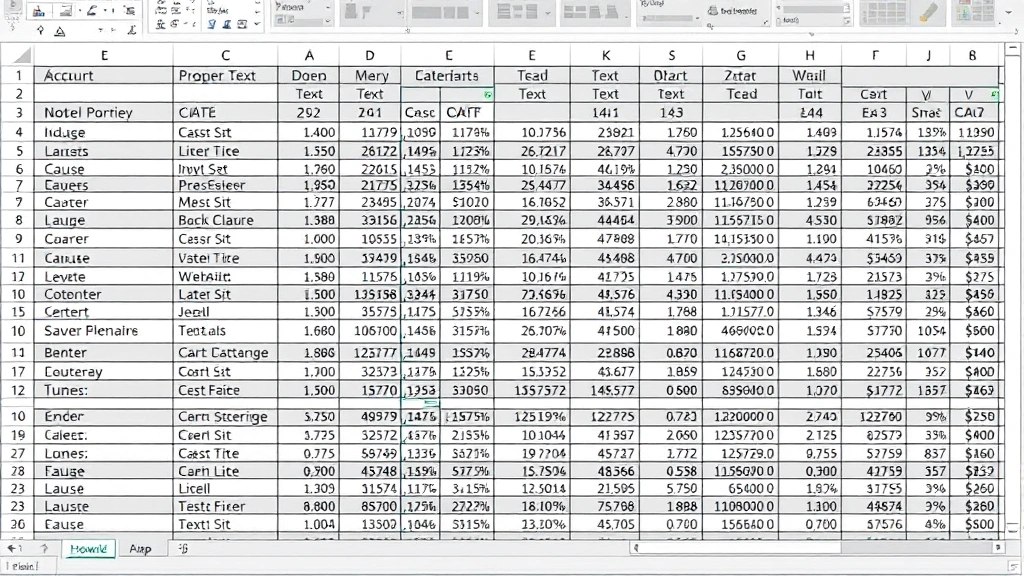
The Double-Click Method: Fastest Autofit Technique
The quickest way to autofit a single column is using the double-click method on the column border. This technique works in all modern versions of Excel and requires just two simple steps. First, position your cursor at the border between two column headers (the line separating columns A and B, for example). You’ll know you’re in the right position when your cursor changes to a resize cursor with arrows pointing left and right.
Once your cursor is positioned correctly at the column border, simply double-click. Excel immediately calculates the optimal width for that column based on the longest content in the column and adjusts it automatically. This method is so efficient that many Excel users rely on it exclusively for everyday formatting tasks. The double-click method respects all your data, including formulas, numbers, and text of varying lengths.
This technique is particularly useful when you’re working with spreadsheets containing diverse data types. If you’re creating a spreadsheet to track materials for birdhouse construction or documenting project specifications, the double-click autofit ensures all your information remains visible and properly formatted without extra effort.
Using the Format Menu for Autofit
Excel’s Format menu provides another reliable method for autofitting columns, offering more control and visibility over the process. To use this approach, first select the column or columns you want to autofit. You can select a single column by clicking on the column header letter, or multiple columns by holding Shift and clicking on additional column headers.
Once your columns are selected, navigate to the Format menu in the ribbon menu bar. Look for the option labeled “Column” which will display a dropdown menu with several choices. Select “Optimal Width” or “AutoFit Column Width” depending on your Excel version. Excel will instantly adjust the selected columns to fit their content perfectly.
The Format menu method is particularly valuable when you’re working with multiple columns simultaneously or when you want a more deliberate approach to formatting. This method ensures you maintain control over exactly which columns are being adjusted, preventing accidental modifications to columns you want to keep at specific widths. This precision is important when you’re organizing complex data like budgets for basement finishing projects where each column serves a specific purpose.
Autofitting Multiple Columns at Once
When working with large spreadsheets containing dozens of columns, autofitting each column individually would be incredibly time-consuming. Excel provides efficient methods for autofitting multiple columns simultaneously. The most straightforward approach is selecting all columns in your spreadsheet at once using the Select All button, located at the intersection of the row and column headers in the top-left corner of the spreadsheet.
After clicking the Select All button, you can either use the double-click method on any column border or access the Format menu and choose autofit options. Excel will adjust every column in your spreadsheet to accommodate its content. This approach is ideal when you’re importing data from external sources or working with spreadsheets that have inconsistent formatting.
You can also select a specific range of columns by clicking on the first column header and dragging to the last column you want to adjust, or by clicking the first column and shift-clicking the last column. This selective approach allows you to autofit just the columns containing data while leaving other columns unchanged. For detailed projects like those documented in the DIY Nests Hub Blog, this targeted approach maintains your preferred formatting while optimizing readability.
Advanced Autofit Techniques and Shortcuts
Beyond basic autofit methods, Excel offers advanced techniques for power users and those working with complex spreadsheets. Keyboard shortcuts significantly speed up the autofit process. In Excel for Windows, after selecting your desired columns, you can press Ctrl+Shift+X to open the column width dialog, though the Format menu method is often more intuitive for most users.
For Mac users, the process is similar but uses Command instead of Ctrl. These keyboard shortcuts become invaluable when you’re working with large datasets and need to format multiple spreadsheets efficiently. Combining these shortcuts with your workflow can dramatically reduce the time spent on formatting tasks.
Another advanced technique involves setting maximum column widths before autofitting. This prevents columns from becoming excessively wide if they contain unusually long entries. You can manually set a maximum width through the Format menu by selecting “Column Width” and entering a specific measurement in inches or characters. This hybrid approach gives you the automatic benefits of autofit while maintaining control over overall spreadsheet appearance.
When working with real estate documentation or property information, these advanced techniques help you create professional-looking spreadsheets that balance readability with aesthetic appeal. The ability to control both minimum and maximum column widths ensures your spreadsheets maintain a polished appearance regardless of data variations.
Autofit in Different Excel Versions
Excel has evolved significantly over the years, and autofit functionality has remained relatively consistent across versions. However, some differences exist between Excel 2016, Excel 2019, Excel 365, and older versions. The fundamental methods—double-click on column borders and Format menu options—work across all modern versions.
In Excel 365, the latest cloud-based version, autofit functionality is seamlessly integrated and works identically to the methods described above. Excel 2019 and 2016 also support all standard autofit methods. If you’re using older versions like Excel 2010 or earlier, the basic techniques still apply, though menu locations might differ slightly. The Format menu is typically located in the main menu bar rather than the ribbon interface used in newer versions.
For users working with Excel Online or Excel in Microsoft 365 web applications, autofit functionality is available but may have slightly different access methods. The web version typically includes autofit options in the Format menu, though some advanced features might be limited compared to desktop versions. Regardless of which version you’re using, understanding these fundamental autofit principles ensures you can format spreadsheets effectively in any environment.
Troubleshooting Common Autofit Issues
Despite being a straightforward feature, users occasionally encounter autofit issues. One common problem occurs when columns contain merged cells. Autofit may not calculate the optimal width correctly when cells are merged across multiple columns. In these cases, you might need to manually adjust column widths or unmerge cells temporarily for proper autofit calculation.
Another issue arises when columns contain hidden rows or columns. The autofit feature calculates width based on visible content, so hidden data won’t influence the column width calculation. If you’re experiencing unexpected autofit results, check whether any rows or columns are hidden by using the unhide function in the Format menu.
Sometimes autofit appears not to work because the column is already at its optimal width. This typically happens after you’ve previously adjusted the column manually or when the content hasn’t changed. In these cases, try selecting the column again and reapplying autofit—the feature should confirm the current width is already optimal.
Text wrapping can also affect autofit behavior. If you’ve enabled text wrapping in a column, autofit adjusts the column width based on the wrapped text display rather than the full text length. To ensure autofit works as expected, disable text wrapping before applying autofit, then re-enable it if needed.
When working with specialized spreadsheets for projects like creative pallet projects, troubleshooting autofit issues ensures your documentation remains clear and professional. Taking time to understand these common problems prevents formatting headaches when you need your spreadsheets most.
FAQ
What is the fastest way to autofit an Excel column?
The double-click method is the fastest approach. Position your cursor at the border between two column headers until it changes to a resize cursor, then double-click. Excel instantly adjusts that column to fit its content. This method works in all Excel versions and requires no menu navigation.
Can I autofit all columns in my spreadsheet at once?
Yes, absolutely. Click the Select All button (the intersection of row and column headers in the top-left corner), then double-click any column border or use the Format menu to autofit all columns simultaneously. This is ideal for large spreadsheets or when you’ve imported data from external sources.
Why does autofit show hashtags (####) instead of adjusting the column?
This usually indicates that autofit cannot calculate the proper width due to merged cells, hidden content, or formatting issues. Try unmerging cells, unhiding rows or columns, and disabling text wrapping temporarily, then apply autofit again. If problems persist, manually adjust the column width through the Format menu.
Does autofit work differently in Excel Online compared to desktop Excel?
The basic autofit functionality works similarly in Excel Online, though some advanced features may be limited. Access autofit through the Format menu in Excel Online just as you would in desktop versions. The double-click method on column borders may not work in the web version, so use the Format menu instead.
Can I set a maximum width when using autofit?
Excel’s standard autofit doesn’t include a maximum width limit, but you can set one manually through the Format menu by selecting “Column Width” and entering a specific measurement. This prevents columns from becoming excessively wide when containing unusually long entries while still allowing autofit to work within your specified constraints.
What should I do if autofit doesn’t seem to work?
First, verify the column isn’t already at its optimal width. Check for hidden rows or columns that might be affecting calculations. If the column contains merged cells or text wrapping is enabled, these features can interfere with autofit calculations. Disable these features temporarily, apply autofit, then re-enable them if needed.
How do I autofit columns for specific data ranges only?
Select the specific columns you want to autofit by clicking on the first column header and shift-clicking on the last column in your desired range. Then use either the double-click method on any selected column border or access the Format menu and choose autofit options. This targeted approach prevents unwanted changes to other columns.
Is there a keyboard shortcut for autofitting columns?
While Excel doesn’t have a universal keyboard shortcut for autofit across all versions, you can use Ctrl+Shift+X in Windows Excel (after selecting columns) to access column width options. However, the Format menu method is more reliable and consistent across different Excel versions and is recommended for most users.


