How to Block Someone on Twitch: Gamer-Approved Steps
Streaming on Twitch should be an enjoyable experience, but harassment, spam, and unwanted interactions can quickly turn your channel into a hostile environment. Whether you’re a streamer managing your chat or a viewer dealing with problematic users, knowing how to block someone on Twitch is essential for maintaining a positive community. This comprehensive guide walks you through every method available, from simple viewer blocks to advanced moderation tools that help you reclaim control of your streaming space.
Blocking functionality on Twitch has evolved significantly over the years, giving both streamers and viewers powerful options to curate their experience. The platform recognizes that harassment comes in many forms—from spam and hate speech to coordinated raids and targeted harassment campaigns. By understanding the full range of blocking and reporting features available, you can protect yourself and your community effectively. This guide covers desktop and mobile methods, explains the differences between blocking and reporting, and provides best practices for maintaining a healthy streaming environment.
Understanding Twitch Block Features
Twitch offers several distinct blocking mechanisms designed for different scenarios. The basic block feature prevents another user from viewing your profile, following you, sending whispers (direct messages), and appearing in your chat. However, blocking doesn’t prevent them from watching your streams anonymously—they simply won’t see your name or profile information. Understanding these limitations helps you choose the right tool for each situation.
The platform distinguishes between personal safety tools and community moderation tools. Personal blocks are individual actions you take against specific users, while channel-level restrictions (like timeouts and bans) apply to everyone in a streamer’s chat. Many streamers use both in combination with comprehensive safety strategies to maintain channel health. Twitch also integrates with third-party moderation bots that automate blocking and filtering based on customizable criteria.
How to Block Someone as a Viewer
Blocking someone as a regular viewer is straightforward and can be done in multiple ways. The most direct method involves visiting the user’s profile and selecting the block option. Navigate to their Twitch profile by clicking their username, then look for the three-dot menu icon in the upper right corner of their profile banner. Select “Block User” from the dropdown menu. This action is immediate and doesn’t notify the blocked user.
You can also block users directly from chat. When you see a message from someone you want to block, hover over their username and click the options menu (three dots). Select “Block [Username]” from the list. This method is particularly useful for blocking spammers or harassers mid-conversation without navigating away from the stream.
Another blocking method involves accessing your blocked users list through settings. Click your profile icon in the top right corner, navigate to Settings, then select “Privacy and Safety.” Under the “Blocked Users” section, you can view all blocked accounts and add new ones using the search function. This centralized approach helps you manage your entire blocklist in one location.
For viewers dealing with persistent harassment, combining blocks with site-level blocking solutions can provide additional protection. While Twitch blocks handle the platform specifically, understanding broader web safety principles helps you maintain security across all online activities.
Blocking Users as a Streamer
Streamers have enhanced blocking capabilities specifically designed for channel management. Beyond personal blocks, streamers can ban users from their channel, timeout users temporarily, and configure automated moderation settings. These tools are critical for maintaining channel safety and community standards.
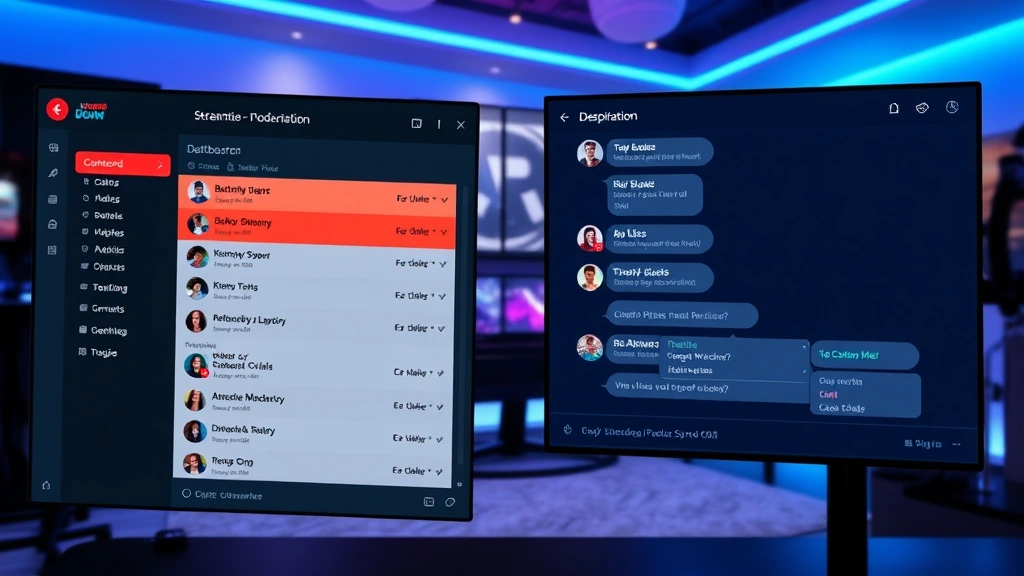
To block a user from your channel, navigate to your Creator Dashboard and select “Moderation” from the left sidebar. Click the “Banned Users” tab to see currently banned accounts. You can add new bans by searching for usernames or by banning users directly from chat. When a user is banned from your channel, they cannot view your chat, send messages, or interact with your stream in any way.
Temporary bans, known as timeouts, are another essential tool. Timeouts prevent users from chatting for a specified duration (from one second to two weeks) without permanently banning them. This graduated approach allows you to address problematic behavior while giving users a chance to improve. To timeout a user, click their username in chat and select the timeout duration from the menu.
Creating a moderation team exponentially increases your ability to enforce channel rules. Assign trusted community members as moderators, who receive tools to ban, timeout, and delete messages. Document your moderation policies clearly and apply them consistently. Many successful streamers maintain detailed moderation guidelines that align with community standards and platform policies.
Advanced Moderation Tools
Beyond basic blocking, Twitch offers sophisticated moderation features that automate harassment prevention. AutoMod is Twitch’s machine learning system that flags potentially harmful messages before they appear in chat. Streamers can adjust AutoMod’s sensitivity level and review flagged messages before they’re automatically removed. This proactive approach catches spam, hate speech, and harassment without requiring manual intervention for every message.
Third-party moderation bots like Nightbot, StreamElements, and MEE6 provide additional automation. These bots can automatically ban users based on account age, follow duration, or keyword filters. They maintain shared blocklists of known raiders and harassers, protecting your channel from coordinated attacks. Many bots also offer spam detection, advertisement filtering, and custom command functionality.
Twitch’s Creator Camp provides free resources on community management and moderation best practices. The platform also offers detailed documentation on configuring moderation settings, creating channel guidelines, and responding to reports. Understanding these tools helps you build a sustainable moderation strategy that scales with your channel growth.
For streamers managing large communities, implementing role-based permissions ensures consistent moderation. Assign different moderators responsibility for different aspects of chat management. Some might focus on spam, others on harassment, and others on rule enforcement. This distributed approach prevents moderator burnout and improves response times.
Mobile Blocking Methods
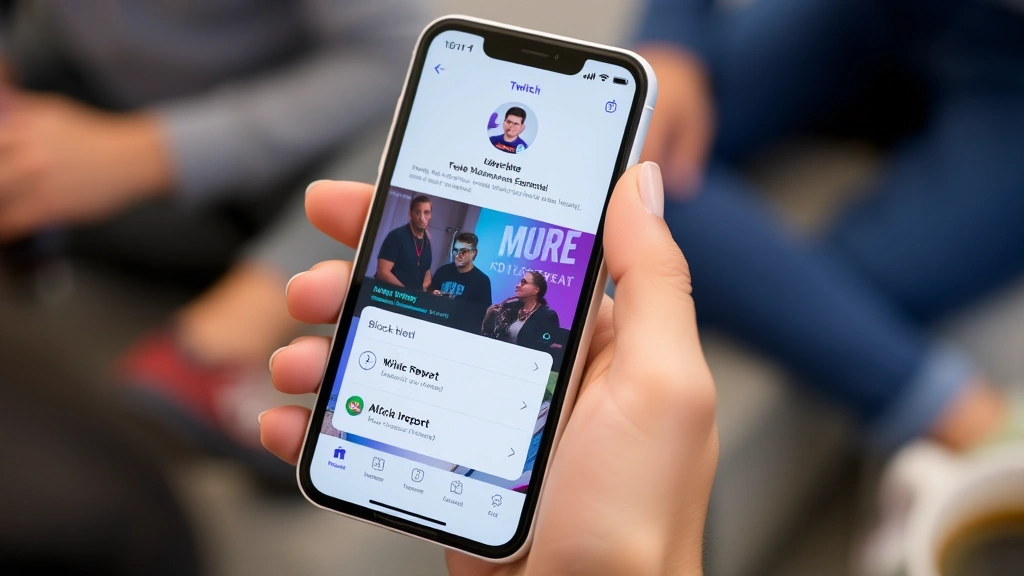
The Twitch mobile app provides full blocking functionality, though the interface differs slightly from desktop. To block someone on mobile, navigate to their profile by tapping their username, then tap the three-dot menu icon at the top of their profile screen. Select “Block User” from the options. The process completes immediately, and you’ll receive confirmation.
Blocking from chat on mobile works similarly to desktop. Long-press on a user’s message to reveal the options menu, then select “Block [Username].” This method is particularly useful when watching streams on your phone and encountering problematic users in real-time.
Managing your blocklist on mobile requires navigating to your account settings. Tap your profile icon, select “Settings,” then navigate to “Privacy and Safety.” Here you can view blocked users and add new blocks using the search function. The mobile interface is streamlined for quick management, making it easy to block multiple users rapidly if needed.
For streamers using mobile apps to manage their channels, the moderation interface provides essential banning and timeout functionality. While some advanced features require desktop access, the mobile app enables quick responses to chat violations, ensuring your channel remains safe even when you’re away from your computer.
What Happens When You Block
Understanding the mechanics of blocking helps you use the feature effectively. When you block someone, they immediately cannot see your profile, follow you, or send you whispers. Your profile becomes invisible to them—they cannot view your bio, streaming schedule, clips, or past broadcasts. If they try to navigate to your profile, they’ll see a message indicating they cannot view it.
Blocked users cannot send you direct messages through Twitch’s whisper system. Any attempted whispers are silently rejected without notification to either party. This prevents harassers from finding workarounds to contact you after being blocked. However, they can still watch your streams if they’re public, though they’ll see chat messages from other users but not yours.
Importantly, blocking is one-way. A blocked user doesn’t receive notification that they’ve been blocked, and they cannot unblock themselves. Only you can remove someone from your blocklist. This prevents retaliation or attempts to contact you after being blocked. If you change your mind, you can unblock users at any time through your settings.
For streamers, channel bans are more visible. When a banned user tries to send a message in your chat, they see an error indicating they’re banned. This transparency helps users understand why they cannot participate and what rules they violated. Providing clear ban reasons in your channel guidelines reduces confusion and supports channel growth by setting expectations.
Reporting vs Blocking
While blocking prevents interaction with a specific user, reporting alerts Twitch’s safety team to potential policy violations. Blocking is personal protection; reporting is community protection. You should use both tools in combination for comprehensive safety management. Reporting ensures that users violating Twitch’s community guidelines face platform-level consequences, not just individual channel restrictions.
To report a user on desktop, click the three-dot menu on their profile or message and select “Report User.” Choose the violation category—options include harassment, hate speech, sexual content, spam, and other infractions. Provide specific details about the violation, including relevant messages or context. Twitch’s Trust & Safety team reviews all reports and takes action according to their findings.
Reporting streams follows a similar process. Click the three-dot menu in the upper right corner of the video player and select “Report Channel.” This escalates concerns about stream content to Twitch’s moderation team. Reports are confidential, and you won’t be contacted about outcomes due to privacy considerations, but Twitch takes all reports seriously.
Many users block and report simultaneously, ensuring both personal protection and community accountability. This combined approach removes the harasser from your immediate experience while contributing to platform-wide safety efforts. For ongoing harassment campaigns, detailed reporting with screenshot evidence significantly increases the likelihood of platform action.
Understanding the distinction between these tools helps you respond proportionally to different situations. A single rude comment might warrant a block; coordinated harassment or hate speech should be reported to Twitch’s safety team. Channel moderators should maintain records of serious violations to support reports and identify patterns of problematic behavior.
For additional protection strategies beyond Twitch, consider reviewing how to secure your connected devices and maintain overall digital safety. Comprehensive security practices across all your online accounts provide layered protection against harassment that extends beyond individual platforms.
FAQ
Can blocked users see my streams?
Yes, blocked users can still watch your public streams if they navigate to your channel directly or through search results. However, they cannot see your profile, comments, or interact with you in any way. They see an empty chat if you’re streaming, as chat messages appear disabled for them. This limitation prevents them from participating in your community while still allowing passive viewing.
Will blocked users know they’re blocked?
Twitch doesn’t notify users when they’re blocked, and blocked users don’t receive explicit notification. However, they may infer they’re blocked if they cannot access your profile or send whispers. Blocking remains relatively discreet, though determined users might create new accounts to circumvent blocks. For this reason, reporting serious violations ensures platform-level action.
Can I block someone without them knowing?
Blocking is confidential—the blocked user receives no notification from Twitch. However, if you’ve had public interactions, they might notice you’re unavailable. The blocked user cannot see your profile or messages, but they won’t receive an explicit “you’ve been blocked” message. This privacy protection helps users set boundaries without confrontation.
How do I unblock someone on Twitch?
Navigate to your account settings, select “Privacy and Safety,” and find “Blocked Users.” Locate the user you want to unblock and click the “Unblock” button next to their name. Unblocking immediately restores their ability to view your profile, send whispers, and interact with you. You can block and unblock users as many times as needed.
What’s the difference between timeout and ban?
Timeouts are temporary chat restrictions lasting from one second to two weeks. Users can chat again once the timeout expires. Bans are permanent removals from your channel—banned users cannot chat or interact until you manually remove them from the banned users list. Timeouts are useful for enforcing rules; bans are for serious or repeat violations.
Can streamers see who blocked them?
Twitch doesn’t provide streamers with a list of users who blocked them personally. However, streamers can see their banned users list and moderator activity logs. This privacy protection prevents streamers from retaliating against users who block them. The asymmetry ensures that blocking remains a safe tool for personal protection.
Does blocking affect my recommendations or content?
Blocking a user doesn’t affect the content Twitch recommends to you. Twitch’s recommendation algorithm considers your watch history, followed channels, and interests, not your blocklist. However, blocking prevents blocked users’ content from appearing in your notifications or recommendations if Twitch was suggesting their content to you. This subtle effect helps you avoid unwanted creators.
Can I block an entire channel as a viewer?
You cannot block an entire channel directly, but you can block the channel owner (the streamer). This prevents you from seeing their profile, notifications, or interactions with them. For more comprehensive filtering, you can use browser extensions or Twitch’s “Do Not Recommend” feature available on channel pages. These tools provide additional customization beyond basic blocking.


