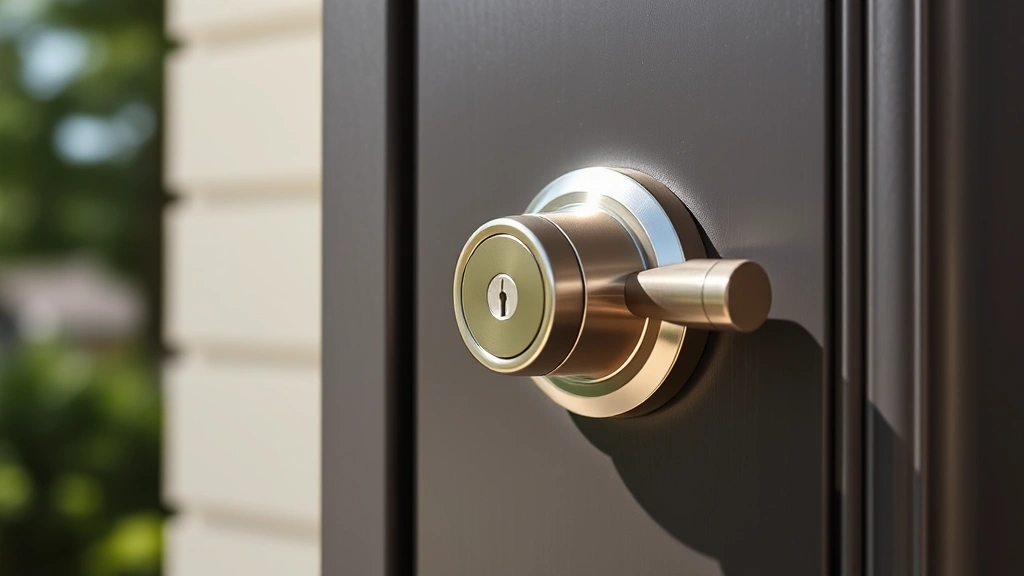
How to Change Code for Schlage: Expert Guide for Beginners
Changing the access code on your Schlage smart lock is one of the most practical and essential security tasks you can perform as a homeowner. Whether you’re rekeying after a tenant moves out, updating your security following a breach, or simply refreshing your entry system, understanding how to change the code on your Schlage lock puts you in control of your home’s security. This comprehensive guide walks you through every step of the process, from pre-change preparation to post-change verification, ensuring you can confidently manage your lock’s security settings without calling a locksmith.
Schlage manufactures several different models of smart and keypad locks, each with slightly different procedures for code changes. The good news is that the fundamental principles remain consistent across most models, and the process is far simpler than many homeowners expect. With just a few minutes and the right knowledge, you’ll have updated your access code and strengthened your home security. Let’s explore the details so you can complete this task with confidence.
Understanding Your Schlage Lock Model
Before you begin the process of changing your code, you need to identify which Schlage lock model you own. Schlage produces several distinct categories of locks, and each may have different code-change procedures. The primary models include the Schlage Encode Smart WiFi Deadbolt, the Schlage Connect Smart Deadbolt, the Schlage BE series keypad locks, and the Schlage FE series locks. Each of these represents a different generation of technology and functionality.
Smart WiFi-enabled models like the Encode allow you to change codes remotely through a mobile app, making the process incredibly convenient. Conversely, older keypad models require you to physically interact with the lock’s exterior panel to input commands. Check your lock’s model number, typically found on the interior side of the lock or in your documentation. You can also visit Schlage’s official support page to identify your specific model and access manufacturer documentation.
Understanding your lock’s communication protocol—whether it uses Bluetooth, WiFi, Z-Wave, or requires manual keypad entry—will determine whether you need your smartphone, a bridge device, or just your physical presence at the door. This foundational knowledge prevents frustration and ensures you follow the correct procedure for your particular lock.
Preparing to Change Your Code
Proper preparation is crucial before you attempt to change your Schlage lock code. Start by gathering all necessary materials and information. You’ll need your current master code (if you’ve changed it from the default), your smartphone if you own a smart model, and ideally your lock’s user manual. If you don’t have the manual, most Schlage documentation is available as free PDFs on their website.
Next, decide on your new code. Security experts recommend codes that are:
- Between 4 and 8 digits long (check your specific model’s requirements)
- Unique and unpredictable—avoid birthdays, anniversaries, or sequential numbers like 1234
- Different from your WiFi password, PIN, or other security codes
- Easy for authorized users to remember but difficult for outsiders to guess
- Not based on your address or phone number
If you’ve forgotten your current master code, don’t worry—most Schlage locks have a factory reset procedure, though this varies by model. For detailed security information about protecting your home, consider reviewing our DIY Home Security: A Comprehensive Guide, which covers multiple aspects of residential security beyond just smart locks.
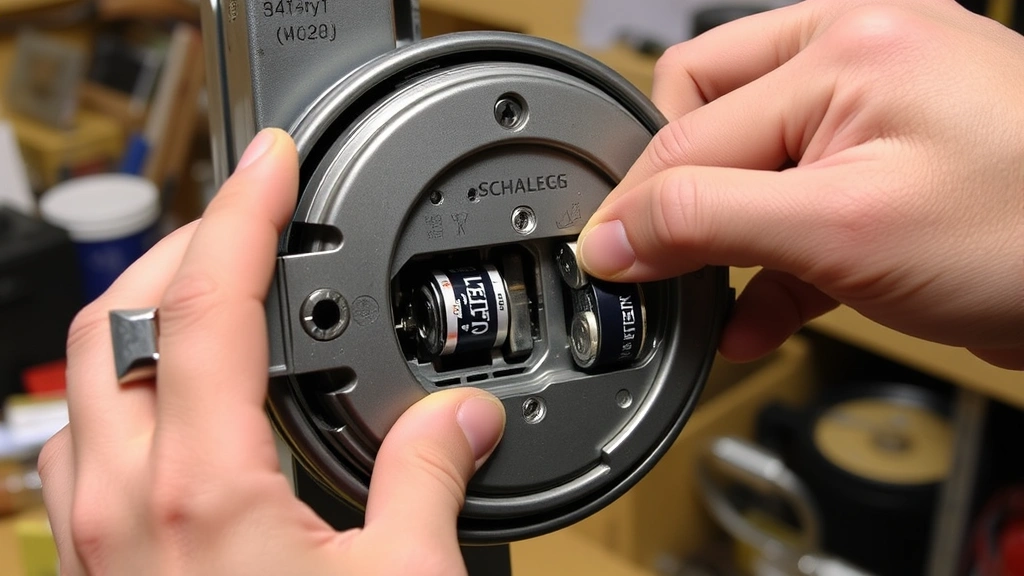
Check your lock’s battery level if it’s battery-powered. A low battery might prevent code changes from saving properly. Most Schlage locks will alert you when battery is low, but it’s worth verifying before you begin. Document your current settings—note any existing user codes you want to keep and any you want to remove.
Step-by-Step Code Change Instructions
For Schlage Encode Smart WiFi Deadbolts
The Schlage Encode is one of the most user-friendly smart locks for code management. If you own this model, follow these steps:
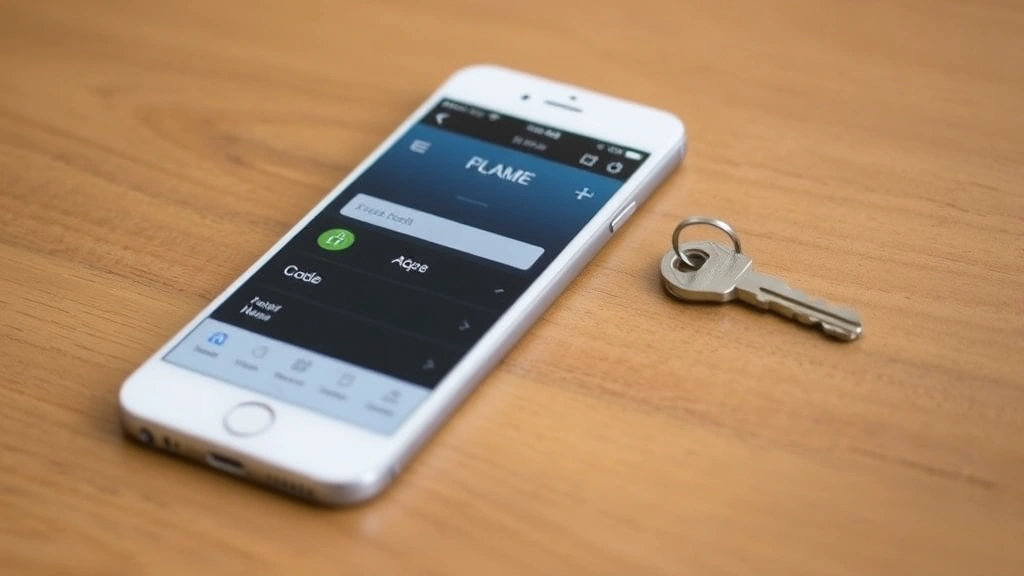
- Open the Schlage Home app on your smartphone and log into your account
- Navigate to your lock’s settings by selecting the specific lock you want to manage
- Select “Access Codes” or “Manage Users” from the menu options
- Choose “Add New Code” to create a new entry code, or select an existing code to edit it
- Enter your desired new code (typically 4-8 digits)
- Confirm the code by entering it a second time
- Set access permissions—choose whether this code should work at all times or during specific time windows
- Assign the code to a user (optional but recommended for tracking who uses which code)
- Tap “Save” or “Confirm” and wait for the app to confirm the change has synced to your lock
- Test the new code at your door to ensure it works properly
The beauty of app-based code changes is that they sync automatically to your lock over WiFi, typically within seconds. You’ll receive a notification confirming the change was successful.
For Schlage Connect Smart Deadbolts (Z-Wave)
If you have a Schlage Connect lock that uses Z-Wave technology, you’ll need a compatible hub (such as a SmartThings hub or similar Z-Wave controller). Follow this process:
- Open your Z-Wave hub’s app (SmartThings, Hubitat, or equivalent)
- Navigate to your Schlage Connect lock within the app’s device list
- Find the “User Codes” or “Access Codes” section”
- Select the user slot you want to update (typically slots 1-30 depending on your lock)
- Enter your new code in the provided field
- Confirm and save the changes through your hub’s interface
- Wait for synchronization—Z-Wave devices typically update within 30 seconds to a few minutes
- Test your new code at the door
For Schlage BE Series Keypad Locks
Older Schlage keypad models like the BE series require manual entry at the lock itself. Here’s how to change the code:
- Locate the “Program” button on the interior side of your lock (usually a small recessed button)
- Enter your current master code on the exterior keypad
- Press the Program button on the interior within 5 seconds of entering your code
- You’ll hear a beep or see a light flash indicating the lock is in programming mode
- Enter your new code on the exterior keypad
- Press the Program button again to confirm
- Exit programming mode by entering any valid code or waiting for the lock to time out (usually 10 seconds)
- Test your new code to ensure it works
For BE series locks, refer to ICC building codes when considering lock placement and accessibility requirements in commercial or multi-unit residential settings.
Troubleshooting Common Issues
Even with careful preparation, you might encounter issues when changing your Schlage code. Here are the most common problems and their solutions:
Code Won’t Save or Lock Doesn’t Respond
If your new code doesn’t seem to save, first check your lock’s battery level. A dying battery can prevent code changes from being stored in memory. Replace the batteries and try again. If you’re using a smart model, ensure your WiFi or Z-Wave connection is stable. For WiFi locks, move closer to your router and retry. For Z-Wave locks, confirm your hub is powered on and in range.
Forgotten Master Code
If you’ve forgotten your master code, most Schlage locks have a factory reset procedure. This typically involves removing the lock from your door, locating the reset button on the interior mechanism, and holding it for 10-15 seconds. Consult your specific model’s manual, as reset procedures vary. After a factory reset, you’ll need to reprogram all codes from scratch.
App Won’t Connect to Lock
For smart locks, connection issues are common. Ensure your phone is on the same WiFi network as your lock, or that your Z-Wave hub is properly configured. Try removing and re-adding the lock to your app. If problems persist, restart both your lock (by removing and reinstalling batteries) and your router or hub.
Code Works Intermittently
Intermittent functionality often indicates battery issues or a loose battery connection. Clean the battery contacts with a dry cloth and ensure batteries are properly seated. For smart locks, this could also indicate an unstable network connection, so consider your WiFi signal strength or Z-Wave mesh network stability.
For more complex smart home integration questions, our DIY Nests Hub Blog covers various home automation topics that might help troubleshoot integration issues.
Security Best Practices After Changing Codes
Changing your code is only the first step in maintaining robust home security. After you’ve successfully changed your Schlage lock code, implement these best practices:
- Document your new code securely—use a password manager rather than writing it down or storing it in obvious places
- Notify authorized users of the code change and provide them with the new code through secure channels
- Remove old codes promptly if you’re rekeying after a tenant departure or security incident
- Set up access notifications if your smart lock supports them—many Schlage locks can alert you when codes are used
- Change codes periodically—security experts recommend updating access codes every 3-6 months for maximum security
- Maintain separate codes for different users so you can track who accessed your home and when
- Avoid sharing codes via text or email—communicate them in person or through secure apps when possible
- Keep your lock’s firmware updated if it’s a smart model—check the manufacturer’s app regularly for security updates
For comprehensive home security strategies beyond just smart locks, review our guide on DIY Home Security, which addresses multiple layers of residential protection.
Consider the National Association of Home Builders resources for information about integrating smart locks into broader home security systems and best practices for residential safety standards.
FAQ
How often should I change my Schlage lock code?
Security professionals recommend changing your access codes every 3-6 months as a best practice. If you suspect unauthorized access or after a security incident, change them immediately. If you’ve shared codes with contractors, service providers, or temporary guests, update them after those individuals no longer need access.
Can I have multiple codes on my Schlage lock?
Yes, most Schlage smart locks support multiple user codes. The Encode typically allows 100+ codes, while BE series locks usually support 30 user codes plus a master code. This allows different family members, guests, or service providers to have their own unique codes while you maintain a record of who used which code and when.
What happens if I forget to change the default code?
Leaving your Schlage lock on its default code is a significant security risk. Anyone with knowledge of Schlage’s default codes could potentially access your home. Always change the default code immediately after installation. If you’ve had your lock for months without changing it, do so right away.
Do I need internet for my Schlage lock to work after changing the code?
No. Once a code is programmed into your Schlage lock, it functions independently of internet or app connectivity. Smart locks store codes locally in their memory, so even if your WiFi goes down, your codes will continue to work. However, you won’t receive notifications or be able to manage codes remotely without connectivity.
Can I change my Schlage code from anywhere, or do I need to be at the door?
It depends on your model. Smart WiFi locks like the Encode allow remote code changes from anywhere you have an internet connection. Keypad models like the BE series require you to be physically at the lock to enter programming mode and create new codes. Z-Wave locks can be managed remotely if you have a compatible hub, but the hub must be within Z-Wave range of the lock.
Is it safe to change my code myself, or should I call a locksmith?
Changing your Schlage code yourself is completely safe and straightforward—it’s one of the primary reasons manufacturers designed these locks for homeowner management. You don’t need special tools or professional training. The process typically takes 5-10 minutes. Save locksmith fees for situations where you’ve lost your master code and need professional reset assistance.
What if my new code doesn’t work after I’ve changed it?
First, verify you entered the code correctly—Schlage locks are sensitive to exact digit sequences. Ensure your lock has fresh batteries, as low power can prevent codes from functioning. For smart locks, check your app to confirm the change was actually saved and synced. Try entering the code slowly, pausing between digits. If problems persist, perform a factory reset and reprogram your codes.
Can I use the same code for multiple Schlage locks?
Yes, you can use identical codes across multiple Schlage locks. However, for security and tracking purposes, it’s better to use unique codes for each lock or at least for each location. This way, if one code is compromised, you only need to change it for that specific lock rather than updating multiple devices.


