How to Change Date Format in Excel: Expert Tips Inside
Excel is one of the most powerful tools for data management and analysis, but working with dates can be surprisingly tricky. Whether you’re managing project timelines, tracking financial records, or organizing personal data, understanding how to change date format in Excel is essential for productivity and accuracy. Date formatting affects not just how your data looks, but also how Excel interprets and calculates date values.
Many users struggle with date formatting because Excel stores dates as serial numbers behind the scenes, while displaying them in human-readable formats. This disconnect can lead to confusion when importing data from different sources, sharing spreadsheets across regions, or performing date-based calculations. In this comprehensive guide, we’ll walk you through every method to change date formats, from simple built-in options to advanced custom formatting techniques.
Understanding Excel Date Storage
Before diving into formatting techniques, it’s crucial to understand how Excel actually stores dates. Excel represents dates as serial numbers, where January 1, 1900 is day 1, and each subsequent day receives a sequential number. This system allows Excel to perform calculations with dates, such as finding the number of days between two dates or adding days to a specific date.
When you see a date like “12/15/2024” in your spreadsheet, Excel is actually storing the number 45627 internally. The formatting you apply determines how that number displays. This distinction is important because it explains why sometimes dates appear as numbers (like 45627) when you least expect it, or why certain operations might not work as intended.
Understanding this system also helps explain why formatting matters for data integrity. If your spreadsheet contains dates stored as text rather than as actual date values, Excel won’t recognize them as dates for calculation purposes. This is one of the most common issues users encounter when working with imported data or spreadsheets created in other applications.
Built-In Date Format Options
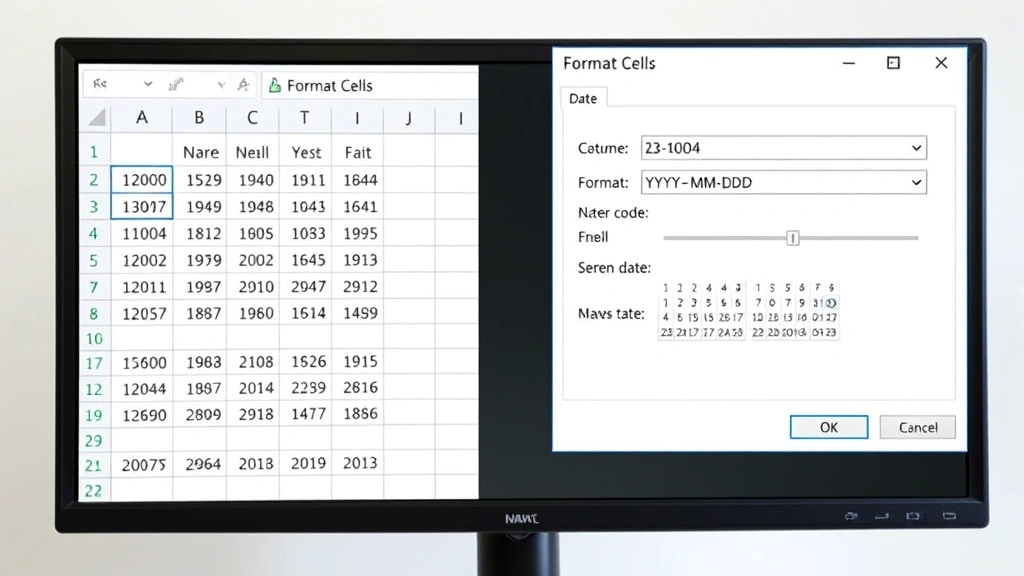
Excel provides dozens of pre-built date formats that cover most common use cases. To access these formats, select the cells containing your dates and right-click to open the context menu. Choose “Format Cells” to open the Format Cells dialog box. Alternatively, you can use the keyboard shortcut Ctrl+1 (Windows) or Command+1 (Mac) to open this dialog more quickly.
In the Format Cells dialog, navigate to the “Number” tab and select “Date” from the Category list on the left. You’ll see a comprehensive list of date format options, each showing a preview of how your selected date will appear. Some common built-in formats include:
- M/D/YYYY – American format (12/15/2024)
- DD/MM/YYYY – European format (15/12/2024)
- MMMM D, YYYY – Long format (December 15, 2024)
- MMM DD, YYYY – Medium format (Dec 15, 2024)
- YYYY-MM-DD – ISO format (2024-12-15)
- DDD, MMMM D, YYYY – Full date with day name (Sunday, December 15, 2024)
The Format Cells dialog also shows a preview of your selected dates in the chosen format, allowing you to verify the formatting before applying it. This preview feature is invaluable for catching formatting errors before they affect your entire dataset. Once you’ve selected your preferred format, click “OK” to apply it to all selected cells.
For quick formatting without opening the Format Cells dialog, you can also use the format dropdown menu in the Home tab of the Excel ribbon. While this provides fewer options than the full Format Cells dialog, it’s convenient for frequently-used formats. The ribbon method is particularly useful when you’re working quickly and don’t need to customize the format extensively.
Custom Date Formatting Codes
While built-in formats cover most needs, Excel’s custom formatting system offers virtually unlimited possibilities. Custom formatting codes allow you to create date formats that precisely match your requirements or organizational standards. This is particularly useful when you need to maintain consistency across multiple spreadsheets or when working with specialized date representations.
Custom date format codes use specific symbols that Excel interprets to display dates in particular ways. The most common codes include:
- D – Day of month as a number without leading zero (1-31)
- DD – Day of month with leading zero (01-31)
- DDD – Abbreviated day name (Mon, Tue, Wed)
- DDDD – Full day name (Monday, Tuesday, Wednesday)
- M – Month as a number without leading zero (1-12)
- MM – Month with leading zero (01-12)
- MMM – Abbreviated month name (Jan, Feb, Mar)
- MMMM – Full month name (January, February, March)
- YY – Two-digit year (24 for 2024)
- YYYY – Four-digit year (2024)
To create a custom format, open the Format Cells dialog and select “Custom” from the Category list. In the “Type” field, enter your custom code. For example, to display dates as “Tuesday, December 15, 2024”, you would enter: DDDD, MMMM DD, YYYY
You can combine these codes with text and special characters to create highly specialized formats. For instance, if you want to display dates in a format like “2024-Q4-Dec-15”, you would create the custom code: YYYY”-Q”Q”-“MMM”-“DD where “Q” is a placeholder for the quarter number (which requires a more complex formula for full automation).
Regional and Locale Settings
Excel’s date formatting is heavily influenced by your computer’s regional settings. If you’re working in a team with members in different countries, this can cause confusion when dates are interpreted differently. The United States uses M/D/YYYY format, while most European countries use D/M/YYYY format, and many Asian countries prefer YYYY/M/D.
To change your regional settings in Windows, access the Control Panel and navigate to “Region and Language” settings. In macOS, go to System Preferences and select “Language & Region.” Changing these settings will affect how Excel interprets and displays dates by default. However, be aware that modifying system-wide settings impacts all applications on your computer.
For spreadsheets shared across regions, the safest approach is to use the ISO 8601 standard format (YYYY-MM-DD), which is internationally recognized and unambiguous. This format is particularly important when sharing files with international teams or when importing/exporting data between different systems. Many data analysts and IT professionals recommend this format as a best practice for data integrity.
Converting Text to Dates
One of the most common challenges users face is working with dates that Excel has stored as text rather than as actual date values. Text-formatted dates won’t sort correctly, won’t calculate properly with formulas, and may display with a green triangle warning indicator in the cell. Identifying and converting these problematic entries is essential for maintaining data accuracy.
To identify text-formatted dates, look for cells that are left-aligned (dates are right-aligned by default) or that display with a small green triangle in the corner. You can also use the ISTEXT() function in a helper column to identify text values. For example, entering =ISTEXT(A1) will return TRUE if cell A1 contains text instead of a date value.
To convert text to dates, you have several options. The simplest method is to use the “Text to Columns” feature. Select your text-formatted dates, go to the Data tab, and click “Text to Columns.” Follow the wizard, ensuring the date format matches your data. Excel will automatically convert the text to proper date values. This method works exceptionally well and is much faster than manual conversion for large datasets.
Another approach is using the DATEVALUE() function, which converts text that looks like a date into an actual date value. For example, =DATEVALUE(“12/15/2024”) converts the text string into a date. You can also use the VALUE() function for some text date formats. After creating the formula in a helper column, copy the results and paste them back as values to replace the original text entries.
Formatting Dates in Formulas
When working with dates in formulas, sometimes you need to display dates in a specific format within a formula result. The TEXT() function is your primary tool for this task. This function allows you to apply any date format code to a date value within a formula, giving you complete control over how the result displays.
The TEXT() function syntax is: =TEXT(value, format_code). For example, =TEXT(TODAY(), “MMMM D, YYYY”) returns today’s date in the format “December 15, 2024”. This is particularly useful when creating reports or when you need to combine dates with other text in a formula result.
The TEXT() function is also essential when you need to extract specific components of dates or perform date manipulations. For instance, =TEXT(TODAY(), “YYYY”) extracts just the year, while =TEXT(TODAY(), “Q”) returns the quarter number. This approach is cleaner and more flexible than using separate YEAR(), MONTH(), and DAY() functions when you need formatted output.
Troubleshooting Common Date Issues
Even experienced Excel users encounter date formatting problems. Understanding common issues and their solutions will save you considerable time and frustration. One frequent problem is dates displaying as numbers (like 45627 instead of 12/15/2024). This typically occurs when a cell is formatted as “General” or “Number” instead of “Date.” Simply select the cells and apply a date format from the Format Cells dialog to resolve this issue.
Another common problem is dates appearing as “#####” symbols in cells. This doesn’t indicate a formatting error—it means the column is too narrow to display the formatted date. Simply widen the column by double-clicking the column border or dragging it wider. This is a display issue, not a data issue, and the dates remain properly formatted and functional.
Incorrect date calculations often result from Excel misinterpreting dates due to regional settings or mixed date formats within a single column. If you’re performing calculations with dates and getting unexpected results, verify that all dates are stored as actual date values (not text) and that they’re all in the same format. Using the DATEVALUE() function to explicitly convert text to dates can help ensure consistency.
When importing dates from external sources like CSV files or databases, dates may arrive in unexpected formats. The Text to Columns feature is your best solution here. It provides a preview of how dates will be converted and allows you to specify the exact format of your source data before conversion.
For more complex date issues, particularly when working with advanced formulas, consult the Microsoft Office support documentation which provides detailed information about date functions and their behavior across different Excel versions. Understanding the limitations and quirks of Excel’s date system helps you work around edge cases and create more robust spreadsheets.
FAQ
What’s the difference between formatting and converting dates?
Formatting changes how a date appears visually without changing the underlying value. Conversion actually changes how Excel stores the date—for example, converting text to a date value. Both are important, but they serve different purposes in spreadsheet management.
Can I change the default date format in Excel?
Yes, you can modify your system’s regional settings to change Excel’s default date format. However, this affects all applications on your computer. A better approach for spreadsheet-specific needs is to use custom formats or templates with your preferred date formatting already applied.
Why do my dates keep changing when I open files from other programs?
Different programs may store or interpret dates differently. Excel uses a serial number system, while other programs might use different date representations. Explicitly formatting dates after importing ensures they display as intended. Always verify imported dates match your expectations before using them in calculations.
Is YYYY-MM-DD format always the best choice?
The ISO 8601 format (YYYY-MM-DD) is excellent for data interchange and is unambiguous across regions. However, for user-facing reports or documents, you might choose formats that are more readable to your specific audience. Consider your spreadsheet’s purpose when selecting formats.
How do I handle dates from different countries in one spreadsheet?
Use the ISO 8601 format (YYYY-MM-DD) for consistency, or explicitly specify formats using custom formatting codes. Avoid relying on regional settings for international spreadsheets. Document your date format choice clearly so all users understand the format being used.
Can Excel handle dates before 1900 or after 9999?
Excel’s date system is limited to January 1, 1900 through December 31, 9999. For dates outside this range, you’ll need to store them as text and use custom formulas for calculations. This limitation rarely affects modern business spreadsheets but is important to know when working with historical or future-dated data.


