Find Printer IP Address: Tech Guru Tips for Network Setup
Knowing how to check your printer’s IP address is essential for anyone managing a home or office network. Whether you’re troubleshooting connectivity issues, configuring advanced settings, or setting up remote printing, accessing your printer’s IP address opens doors to better device management and network optimization. This comprehensive guide walks you through multiple methods to locate your printer’s IP address quickly and efficiently.
Your printer’s IP address is a unique identifier that allows it to communicate with other devices on your network. Think of it like a postal address for your printer—without it, your computer wouldn’t know where to send print jobs. Understanding how to find this information empowers you to take control of your printing setup and resolve common networking problems without calling technical support.
Understanding Printer IP Addresses
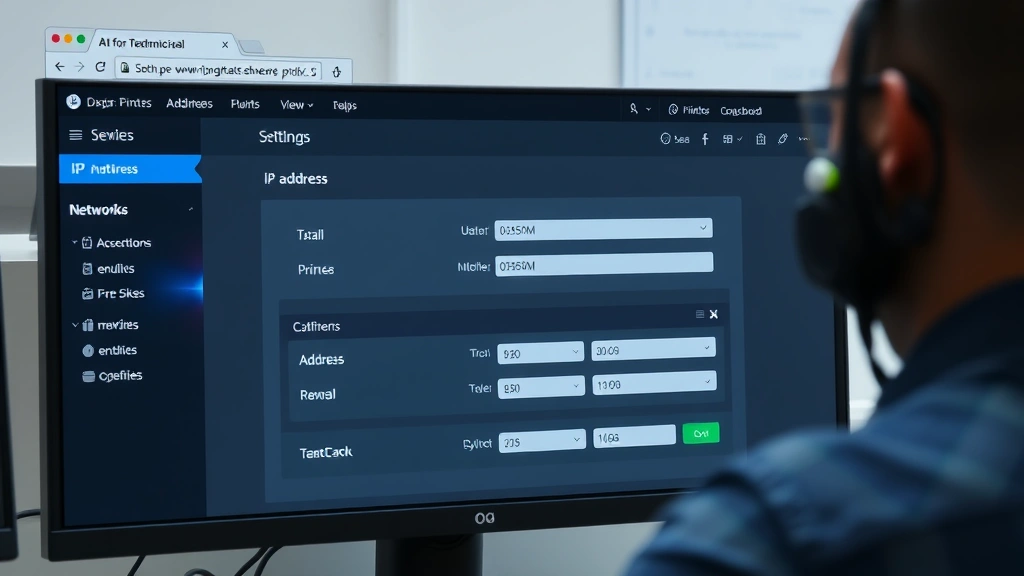
A printer IP address is a numerical label assigned to your printer on a network, formatted as four numbers separated by periods (for example: 192.168.1.100). This address enables communication between your printer and computers, smartphones, and other networked devices. Your printer receives this address either automatically through DHCP (Dynamic Host Configuration Protocol) or manually through static IP assignment.
Modern networked printers support both IPv4 and sometimes IPv6 addressing. Most home and small office environments use IPv4, which consists of four octets (numbers ranging from 0-255). Understanding this basic concept helps you recognize valid IP addresses and troubleshoot connectivity problems more effectively. When you’re learning how to check battery with multimeter or other diagnostic tools, similar systematic approaches apply to network troubleshooting.
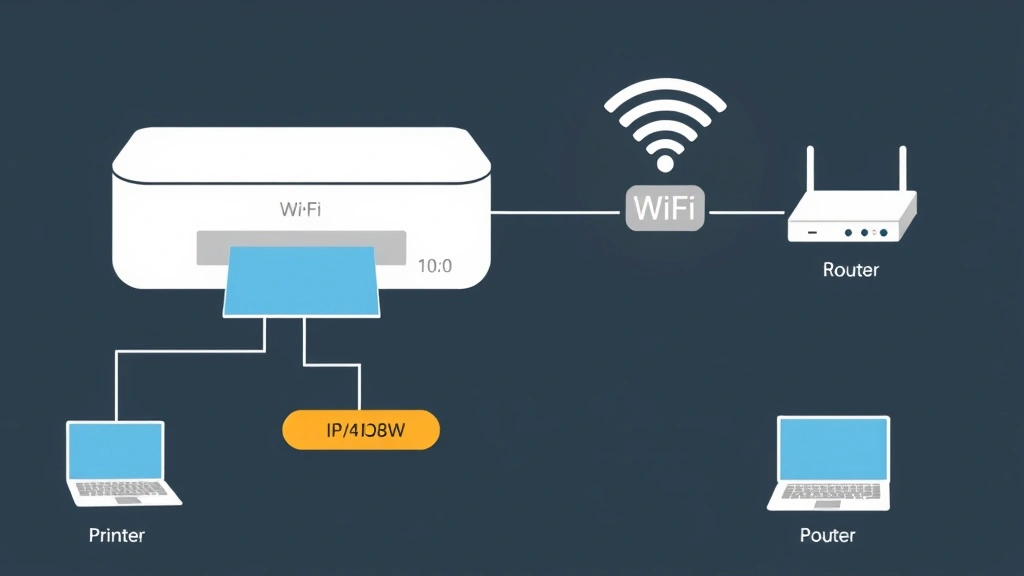
Your printer likely connects to your network wirelessly (Wi-Fi) or through an ethernet cable. The connection method doesn’t change how you find the IP address, though wireless printers require an active Wi-Fi connection to be discoverable on your network.
Check IP Address via Printer Display Panel
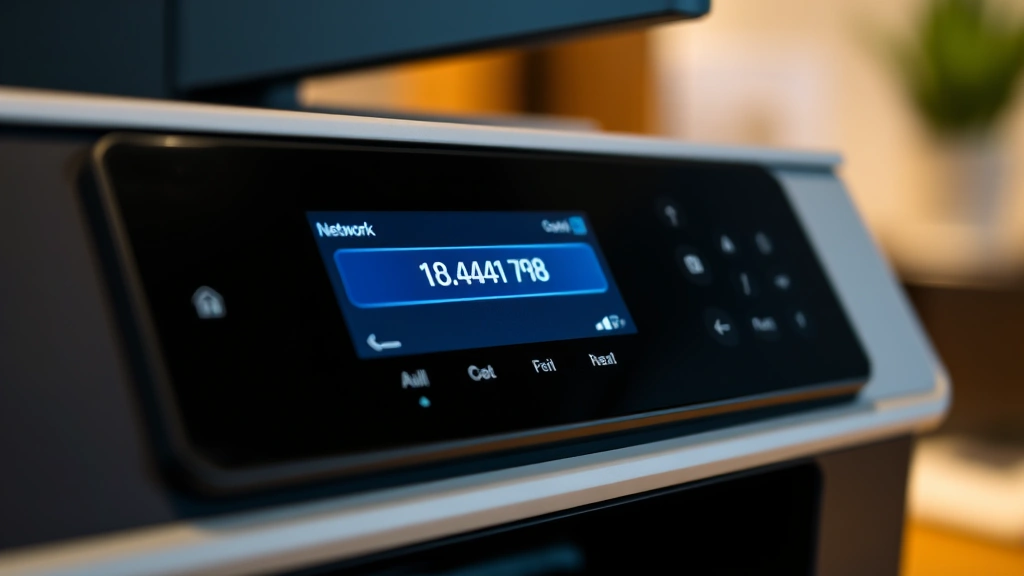
The simplest method to find your printer’s IP address is directly from the device itself. Most modern printers include a touchscreen display or control panel that shows network information.
- Locate the Menu Button: On your printer’s control panel, find and press the Menu or Settings button (usually marked with a gear icon or similar symbol).
- Navigate to Network Settings: Use arrow buttons to scroll through menu options until you find “Network,” “Settings,” or “Device Information.”
- Select Network Status or TCP/IP: Within network settings, look for options like “Network Status,” “TCP/IP Settings,” or “Connection Information.”
- View IP Address: The display will show your printer’s current IP address, along with other network details like gateway and subnet mask.
- Note the Address: Write down the IP address or take a screenshot for future reference.
This method works on most HP, Canon, Brother, Xerox, and Ricoh printers. If your printer lacks a display panel, proceed to alternative methods below. Some older or basic printers may not have network information accessible through the control panel.
Find IP Address Using Windows Settings
Windows computers provide built-in tools to discover connected printers and their IP addresses. This method works whether your printer is connected via Wi-Fi or ethernet.
Method 1: Devices and Printers
- Click the Start button and type “Devices and Printers” in the search box.
- Select “Devices and Printers” from results to open the control panel.
- Right-click on your printer name and select “Printer properties.”
- Navigate to the “Ports” tab to view the printer’s IP address in the format “IP_192.168.x.x.”
Method 2: Settings App
- Open Settings (Win + I) and navigate to “Devices.”
- Select “Printers & scanners” from the left sidebar.
- Find your printer in the list and click it to view detailed information.
- Look for the IP address in the device properties or status information.
Method 3: Command Prompt
For tech-savvy users, the Command Prompt offers a direct approach:
- Press Win + R and type “cmd” to open Command Prompt.
- Enter the command: arp -a to display all devices on your network.
- Look for your printer’s name or MAC address in the list; the corresponding IP address appears in the first column.
- Alternatively, use nslookup [printer-name] if your printer is named on the network.
These Windows-native methods require no additional software and provide reliable results for identifying your printer’s network address.
Locate IP Address on Mac Computers
Mac users can access printer IP information through System Preferences and terminal commands. The process differs slightly from Windows but is equally straightforward.
Method 1: System Preferences
- Click the Apple menu and select “System Preferences” (or “System Settings” on newer macOS versions).
- Navigate to “Printers & Scanners.”
- Select your printer from the list on the left side.
- Click the “Supply Levels” or “Printer Settings” button (varies by macOS version).
- Look for the IP address displayed in printer information or details section.
Method 2: Terminal Command
Mac’s Terminal application provides another reliable approach:
- Open Spotlight search (Cmd + Space) and type “Terminal.”
- Enter the command: arp -a to list all network devices.
- Identify your printer by name and note its corresponding IP address.
- Alternatively, use ping [printer-name].local to verify connectivity and reveal the IP address.
Mac systems automatically assign .local domain names to network printers, making them easier to identify in network listings.
Using Network Scanning Tools
Third-party network scanning applications provide comprehensive views of all connected devices, making printer discovery simple and visual. These tools are particularly useful when managing multiple printers or complex network environments.
Popular Network Scanning Tools:
- Angry IP Scanner: A free, cross-platform tool that scans IP ranges and displays active devices with hostnames.
- Advanced IP Scanner: User-friendly application offering detailed network device information and quick access to printer web interfaces.
- Nmap: Powerful open-source scanner favored by network professionals for comprehensive network mapping.
- Printer Manufacturer Apps: HP Smart, Canon PRINT, Brother iPrint&Scan, and similar official apps simplify printer discovery on your home network.
Download these tools from reputable sources like Nmap.org or official manufacturer websites. Most offer free versions suitable for home and small business use.
When using network scanning tools, ensure your printer is powered on and connected to the same network as your computer. The scanning process typically completes within seconds, displaying all active devices with their IP addresses and hostnames.
Access Printer Web Interface
Once you’ve identified your printer’s IP address, you can access its web-based management interface for advanced configuration and troubleshooting. This interface provides access to features unavailable through standard printing software.
Steps to Access the Web Interface:
- Open your web browser (Chrome, Firefox, Safari, or Edge).
- Type your printer’s IP address into the address bar (for example: http://192.168.1.100).
- Press Enter to navigate to the printer’s management page.
- If prompted, enter the default username and password (often “admin” and “admin” or blank).
- Explore settings for network configuration, security, and advanced features.
The printer web interface typically displays:
- Current network configuration and IP address details
- Wireless connectivity status and signal strength
- Printer status, toner/ink levels, and maintenance information
- Security settings and user authentication options
- Firmware version and available updates
- Print job history and network activity logs
For security reasons, change default credentials immediately upon first access. Consult your printer’s manual or manufacturer website for specific username and password requirements. Like taking a comprehensive approach to DIY home security, protecting your printer’s management interface prevents unauthorized access to your network.
Troubleshooting Connection Issues
If you cannot locate your printer’s IP address using the above methods, several troubleshooting steps can help resolve the issue.
Verify Network Connectivity:
- Ensure your printer is powered on and displays network connectivity indicators (Wi-Fi or ethernet symbol).
- Check that your printer connects to the same network as your computer (same Wi-Fi SSID or network segment).
- Restart your printer by powering it off for 30 seconds, then powering it back on.
- Verify your router is functioning properly and other devices can connect to it.
Reset Network Settings:
If your printer previously connected but now shows offline, resetting network settings may resolve the issue:
- Access your printer’s menu system.
- Navigate to “Settings” or “Network Settings.”
- Select “Reset” or “Restore Default Settings.”
- Allow the printer to restart and reconnect to your network.
- The printer will likely receive a new IP address from your DHCP server.
Check Printer Logs:
If you’ve accessed the web interface, review the printer’s event log or system log for error messages indicating network problems. These logs often reveal connection failures, authentication issues, or configuration errors.
Update Printer Firmware:
Outdated firmware can cause network connectivity problems. Visit your printer manufacturer’s support website, download the latest firmware version for your model, and follow their update instructions. Firmware updates often resolve network-related bugs and improve overall stability.
When troubleshooting proves difficult, consult the official support documentation. Most manufacturers provide comprehensive support resources including video tutorials and community forums.
Security Considerations
Your printer’s IP address is sensitive information that grants access to your device’s management interface. Protecting this information and securing your printer prevents unauthorized access to your network.
Best Practices for Printer Security:
- Change Default Credentials: Immediately update username and password from manufacturer defaults to strong, unique credentials.
- Enable Encryption: Activate WPA2 or WPA3 encryption for wireless printers to prevent network eavesdropping.
- Disable Remote Access: Turn off remote management features unless specifically required for your use case.
- Regular Updates: Keep printer firmware current to patch security vulnerabilities identified by manufacturers.
- Network Segmentation: Place printers on a separate network segment if managing multiple devices or sensitive information.
- Disable Unnecessary Services: Turn off unused network services like telnet or older protocols that lack encryption.
- Monitor Access Logs: Regularly review printer access logs for suspicious activity or unauthorized login attempts.
Understanding network fundamentals helps you make informed security decisions. Similar to how DIY beginner woodworking projects require proper tool knowledge, network management benefits from foundational security awareness.
For organizations handling sensitive documents, consider implementing more robust security measures like ISO/IEC 27001 standards for information security management, which include printer and device security protocols.
FAQ
What if my printer doesn’t have a display panel?
Use Windows Settings, Mac System Preferences, or network scanning tools to locate your printer’s IP address remotely. These methods work for all networked printers regardless of their physical interface capabilities.
Can I set a static IP address for my printer?
Yes. Access your printer’s web interface or settings menu and look for “IP Settings” or “TCP/IP Configuration.” Select “Static IP” and enter your desired IP address, subnet mask, gateway, and DNS servers. Consult your printer manual for specific instructions, as interfaces vary by manufacturer.
Why does my printer’s IP address keep changing?
Your printer likely uses DHCP, which automatically assigns IP addresses. If you need a consistent address, configure a static IP address in the printer settings or assign a DHCP reservation in your router’s admin panel. This ensures your printer always receives the same address.
Is it safe to share my printer’s IP address?
Only share your printer’s IP address with trusted individuals on your network. Avoid posting it publicly online. Treat it similarly to how you’d protect other network device information, as unauthorized access could compromise your printer and potentially your network security.
What’s the difference between IPv4 and IPv6 addresses?
IPv4 addresses use four numbers (192.168.1.100), while IPv6 uses longer hexadecimal notation (2001:0db8:85a3::8a2e:0370:7334). Most home printers use IPv4. IPv6 is emerging in newer networks but remains less common in residential settings.
How do I reset my printer’s network settings?
Access the printer’s menu, navigate to “Settings” or “Network,” and select “Reset” or “Restore Factory Settings.” This clears all network configuration and requires you to reconfigure the connection. Your router will assign a new IP address via DHCP.
Can I access my printer’s web interface remotely?
By default, most printers restrict web interface access to local network connections only. Enabling remote access requires specific configuration in the printer settings and introduces security risks. Only enable remote access if absolutely necessary and implement strong authentication measures.


