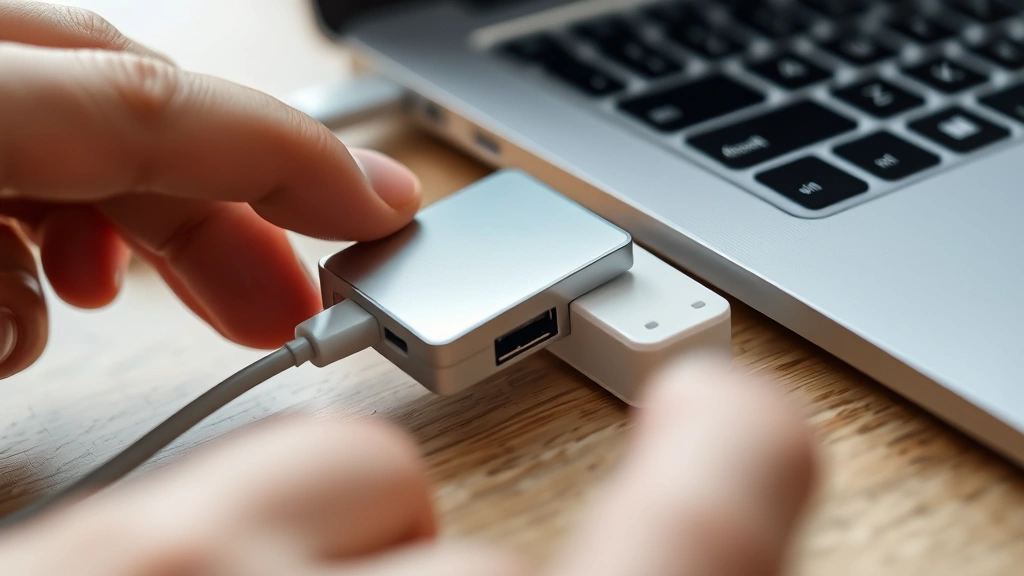
How to Clear an SD Card? Expert Tips for Safe Formatting
SD cards have become essential storage devices for cameras, drones, smartphones, and countless other digital devices. Whether you’re preparing a card for reuse, protecting sensitive data, or troubleshooting storage issues, knowing how to clear an SD card properly is crucial. Unlike simply deleting files, proper formatting ensures complete data removal and optimal card performance. This comprehensive guide walks you through safe formatting methods, best practices, and important considerations for different scenarios.
Clearing an SD card isn’t as straightforward as dragging files to the trash. Depending on your device, operating system, and security requirements, you have multiple approaches ranging from basic deletion to secure military-grade erasure. Understanding these options helps you choose the right method for your needs, whether you’re donating equipment, selling a device, or simply refreshing storage for new projects.

Understanding SD Card Formatting
Before diving into the clearing process, it’s important to understand what formatting actually does. Formatting an SD card erases the file system structure and prepares the card for fresh use. Unlike deletion, which only removes file references while leaving data recoverable, formatting removes the organizational structure that tells your device where files are located.
SD cards come in several types: SD (up to 2GB), SDHC (4GB to 32GB), and SDXC (64GB and above). Each type may support different file systems including FAT32, exFAT, and NTFS. When you format a card, you’re essentially wiping the table of contents while leaving the actual data sectors intact until overwritten—though secure formatting can overwrite data multiple times for enhanced security.
The file system matters significantly. FAT32 is widely compatible but limited to 4GB file sizes. exFAT handles larger files and works across Windows and Mac. NTFS offers better security features but limited compatibility with older devices. Understanding your card’s current format and your device’s requirements ensures successful formatting and compatibility.
Methods to Clear Your SD Card
You have several options for clearing an SD card, each with different levels of effectiveness and security. The method you choose depends on your device type, how thoroughly you need to erase data, and your technical comfort level. Whether you’re learning DIY car repairs and need to clear a dashboard camera card or managing photography equipment, these methods cover all scenarios.
Quick Format: The fastest method, quick formatting removes the file system without overwriting data. This works perfectly for reusing cards within your own devices but isn’t recommended if you’re selling or donating equipment.
Full Format: This method overwrites all data with zeros, making recovery significantly more difficult. It takes longer than quick formatting but provides adequate security for most personal use cases.
Secure Erase: Using specialized software that overwrites data multiple times (following standards like DOD 5220.22-M or Gutmann method), secure erase provides military-grade protection. This is essential when clearing cards containing sensitive information before disposal or transfer.
Card Manufacturer Tools: Many SD card manufacturers provide proprietary formatting software optimized for their products. These tools often include secure erase options and can resolve compatibility issues.
Formatting on Windows Computers
Windows offers multiple ways to format SD cards, from basic built-in tools to advanced options. The process is straightforward but requires attention to avoid accidentally formatting the wrong drive.
Using File Explorer: Insert your SD card into a card reader connected to your Windows computer. Open File Explorer, locate your SD card (usually labeled as a removable drive), right-click it, and select “Format.” A dialog appears asking for a volume label, file system selection (FAT32, exFAT, or NTFS), and allocation unit size. Leave allocation unit size as “Default” unless you have specific requirements. Check “Quick Format” for speed or leave unchecked for full format. Click “Start” and confirm the warning message. The process completes in seconds for quick format or minutes for full format.
Using Disk Management: For more control, open Disk Management (right-click “This PC,” select “Manage,” then “Disk Management”). Locate your SD card in the lower pane, right-click the volume, and select “Format.” Enter a volume label and choose your file system. This method provides the same results as File Explorer but offers more detailed information about your card’s current state.
Using Command Prompt: Advanced users can format via command line. Open Command Prompt as administrator and use the command: format X: /FS:exFAT (replace X with your card’s drive letter). This method offers maximum control and can resolve issues that GUI methods cannot.
Windows includes detailed formatting documentation for additional guidance and troubleshooting.
Formatting on Mac Computers
Mac users have access to the built-in Disk Utility application, which provides comprehensive formatting options with an intuitive interface.
Using Disk Utility: Insert your SD card and launch Disk Utility (found in Applications > Utilities). Your SD card appears in the left sidebar under “External.” Select it and click the “Erase” button in the toolbar. A dialog appears asking for a name (volume label), format (Mac OS Extended for Mac-exclusive use, or exFAT for cross-platform compatibility), and scheme (GUID Partition Map for modern Macs). Enter your preferences and click “Erase.” Disk Utility completes the process within seconds.
Secure Erase on Mac: For enhanced security, Disk Utility includes secure erase options. After selecting your card, click “Security Options” before erasing. Choose your preferred overwrite method: single-pass zero data, seven-pass Department of Defense standard, or 35-pass Gutmann method. Higher pass counts provide better security but take significantly longer. This approach is ideal when exploring DIY projects involving data-sensitive equipment.
Terminal Method: Mac power users can format via Terminal using the diskutil command: diskutil eraseDisk exFAT MyCard /dev/diskX (replace X with your disk number). Use diskutil list first to identify your card’s correct identifier. This method offers maximum control and can resolve stubborn formatting issues.
Apple’s official Disk Utility guide provides comprehensive instructions for all Mac formatting scenarios.
Clearing SD Cards on Mobile Devices
Clearing SD cards on smartphones and tablets differs slightly from computer-based methods, though the principle remains the same. Most modern devices allow direct SD card management through settings.
Android Devices: Navigate to Settings > Storage > SD Card. You’ll see options including “Format as internal storage” or “Format as portable storage.” Choose the appropriate option for your needs. Formatting as portable storage creates a removable storage option, while formatting as internal storage integrates the card into your device’s internal storage pool. The process takes a few seconds, and your device will restart if needed. Some devices require you to unmount the card first through Settings > Storage > Unmount.
iOS Devices: Unlike Android, iOS doesn’t natively support external SD cards on most devices. However, if using an external card reader with an iPad, you can manage files through the Files app. For card management, you’ll typically need to format the card on a computer first using the methods described above.
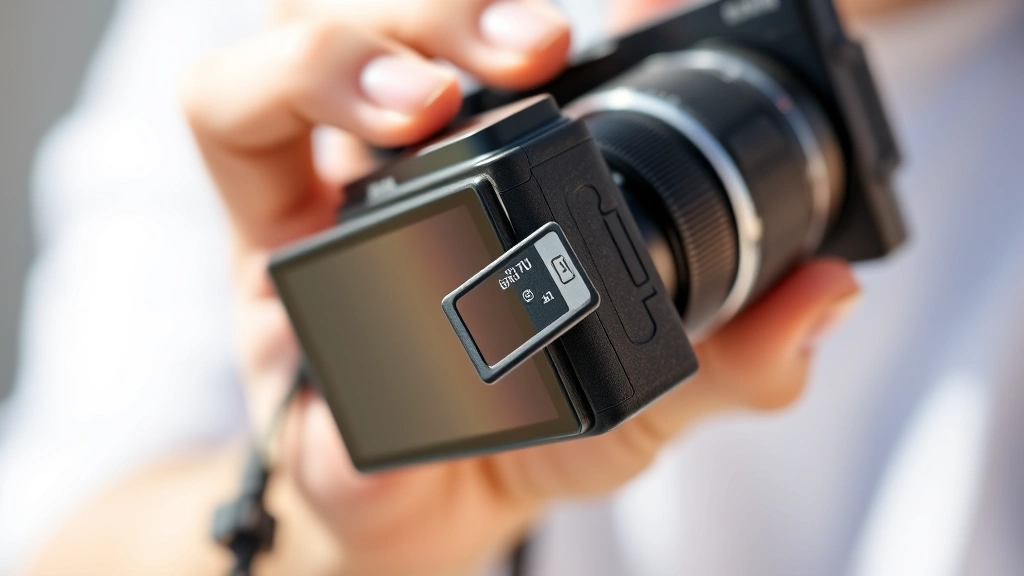
Camera Devices: Most digital cameras include built-in formatting options. Access your camera’s menu, navigate to Settings or Setup, and locate the “Format Card” option. This method is recommended for camera-specific cards as it ensures compatibility and optimal performance. Always power off the camera before removing the card to prevent corruption.
Security and Data Protection
When clearing an SD card that contained sensitive information, security should be your primary concern. Simple deletion and quick formatting leave data recoverable by specialized software, making them inadequate for protecting privacy.
Data Recovery Reality: When files are deleted or a card is quick-formatted, the data itself remains on the physical storage medium. Recovery software can reconstruct files from these remaining data traces. Only when new data overwrites the old sectors is recovery practically impossible. This is why full formatting and secure erase methods are essential for sensitive data.
Secure Erase Standards: Several internationally recognized standards govern secure data erasure. The DOD 5220.22-M standard (used by the U.S. Department of Defense) overwrites data seven times with specific patterns. The Gutmann method, considered the most thorough, performs 35 passes using various patterns designed to defeat magnetic recovery techniques. For most personal use cases, three to seven passes provide adequate security; military-grade applications may require the full Gutmann method.
Best Practices: Before clearing a card containing sensitive data, verify you have backups of any files you need to retain. Use dedicated secure erase software rather than relying on device-native formatting tools when dealing with confidential information. For cards being disposed of or transferred to others, secure erase is mandatory. Document your erasure method for compliance purposes if required by your organization or situation.
When dealing with equipment maintenance projects, similar security principles apply. Just as you would carefully clean fuel injectors to maintain performance, properly securing data during device transitions maintains your digital security. This comprehensive approach to data management ensures you’re protecting yourself throughout the lifecycle of your devices.
Troubleshooting Common Issues
Sometimes SD card formatting encounters problems. Understanding common issues and their solutions helps you resolve them efficiently.
“Card is Write Protected”: Many SD cards include a physical write-protection switch on the side. If you see this error, check for a small switch on your card’s edge and slide it to the unlocked position. If no physical switch exists, the card itself may be damaged or have a firmware issue. Try formatting on a different device or computer.
“Unrecognized Device”: If your computer doesn’t recognize the SD card, try a different card reader first—the reader may be faulty. Ensure drivers are updated on Windows (check Device Manager for unknown devices). On Mac, restart your computer with the card inserted. If the card still isn’t recognized, it may be physically damaged.
Formatting Fails Partway Through: This typically indicates a failing card. Try using the card manufacturer’s formatting utility, which often has better error handling. If formatting still fails, the card may be reaching end-of-life and should be replaced. Never attempt to use a card that won’t format reliably, as data loss is inevitable.
Card Becomes Inaccessible After Formatting: If a card worked before formatting but becomes inaccessible after, try reformatting with a different file system. Some devices have strict file system requirements. Consult your device’s manual for recommended formats. If this doesn’t resolve the issue, the card may have developed bad sectors during the formatting process.
Slow Performance After Clearing: If your card seems slower after formatting, you may have chosen an incompatible file system. Reformat using your device’s recommended file system. Additionally, filling the card nearly to capacity reduces performance. Keep at least 10-15% of the card’s capacity free for optimal speed.
For detailed technical specifications and formatting guidelines, consult the official SD Association specifications and your specific device manufacturer’s documentation.
FAQ
Can I recover data after formatting an SD card?
Yes, data recovery is possible after quick formatting or basic deletion because only the file system is erased, not the actual data. Recovery software can reconstruct files from remaining data traces. However, after full formatting with multiple overwrite passes, recovery becomes practically impossible. If you’ve accidentally formatted a card with important data, stop using it immediately and consult professional data recovery services before the card stores new data.
What’s the best file system for an SD card?
The best file system depends on your use case. FAT32 offers universal compatibility but limits file size to 4GB. exFAT provides better file size support and works across Windows and Mac. NTFS offers superior security features but has limited compatibility with older devices and non-Windows systems. For maximum compatibility, use exFAT. For Mac-exclusive use, use Mac OS Extended (HFS+). Consult your device’s manual for specific recommendations.
How long does it take to format an SD card?
Quick formatting takes just a few seconds regardless of card size. Full formatting takes longer—typically 1-5 minutes for cards up to 64GB, and 10-20 minutes for larger cards. Secure erase with multiple overwrite passes takes considerably longer: 7-pass DOD formatting might take 30-60 minutes for a 64GB card, while 35-pass Gutmann method could take several hours. Plan accordingly based on your security requirements.
Is it safe to format an SD card in a camera?
Yes, formatting an SD card in-camera is actually recommended. Cameras format cards in their native file system, ensuring optimal compatibility and performance. Always power off the camera before removing the card to prevent corruption. In-camera formatting is safer than computer formatting for camera-specific use because it accounts for the camera’s particular requirements and file structure preferences.
Can I format a write-protected SD card?
No, you cannot format a write-protected card. First, locate the physical write-protection switch on the card’s edge (usually a small sliding switch) and move it to the unlocked position. If the card has no physical switch, it may be locked at the firmware level, requiring the manufacturer’s special utility software. Some older cards develop firmware locks that can only be cleared using proprietary tools available from the card manufacturer’s support website.
What should I do with an SD card that won’t format?
First, try using the card manufacturer’s formatting utility, which often succeeds where standard tools fail. Try formatting on a different device or computer to rule out compatibility issues. If the card still won’t format, it likely has developed bad sectors and should be replaced. Using a card that won’t format reliably risks data loss and device damage. For environmental responsibility, check if your retailer or manufacturer accepts old cards for recycling.
Does formatting delete everything on an SD card?
Formatting removes the file system and makes files inaccessible, but the underlying data may remain recoverable depending on the formatting method used. Quick formatting leaves data largely intact and easily recoverable. Full formatting overwrites data once, making recovery more difficult. Secure erase with multiple passes makes data recovery practically impossible. If you need to ensure complete data destruction, use secure erase with multiple overwrite passes rather than standard formatting.


