Clear Firefox Cache: Expert-Recommended Guide
Your Firefox browser accumulates cached data every time you visit websites, download files, or stream content. This temporary storage helps pages load faster on repeat visits, but over time it can consume significant disk space and potentially slow down your browser performance. Learning how to clear Firefox cache is an essential maintenance task that takes just minutes but delivers noticeable improvements in speed and privacy protection.
Cache files contain everything from images and scripts to cookies and browsing history fragments. While useful for performance, accumulated cache can lead to outdated content displaying, increased storage usage, and privacy concerns. Whether you’re troubleshooting loading issues, freeing up hard drive space, or protecting your browsing privacy, clearing your Firefox cache regularly is a best practice that every user should understand. This guide walks you through multiple methods, from automatic scheduling to manual deletion, ensuring you maintain optimal browser health.
Think of cache clearing like tidying up your workshop—you wouldn’t leave sawdust and old materials scattered around indefinitely. Your browser deserves the same attention to detail. We’ll explore every approach available in Firefox, explain what each option does, and help you choose the method that best fits your needs and technical comfort level.

Understanding Firefox Cache and Why It Matters
Firefox cache operates as a temporary storage system that stores website components—images, stylesheets, scripts, and media files—on your computer. When you revisit a website, Firefox retrieves these cached files instead of downloading them again, resulting in faster page load times. This system works brilliantly for improving user experience, but it requires periodic maintenance just like any storage system in your home or workshop.
The cache typically occupies between 50MB to several gigabytes depending on your browsing habits. For users who frequently visit media-heavy websites, stream videos, or have been using Firefox for years without clearing cache, the accumulated data can significantly impact system performance. Additionally, cached data sometimes becomes outdated, causing websites to display old versions of pages or fail to show recent updates.
Privacy represents another critical reason for cache management. Cached files can reveal your browsing history and habits to anyone with access to your computer. If you share your device with family members or colleagues, or if you use public computers, regularly clearing cache protects your privacy. This is especially important when working on sensitive projects or accessing financial accounts, similar to how you’d want to secure your physical workspace when handling important documents.
Understanding cache also connects to broader digital maintenance. Just as you’d maintain your DIY home security systems with regular updates and checks, your browser deserves consistent attention. The Mozilla Foundation recommends clearing cache regularly as part of basic browser hygiene, similar to how you’d maintain tools in your workshop.
Method 1: Clear Cache Through Firefox Settings
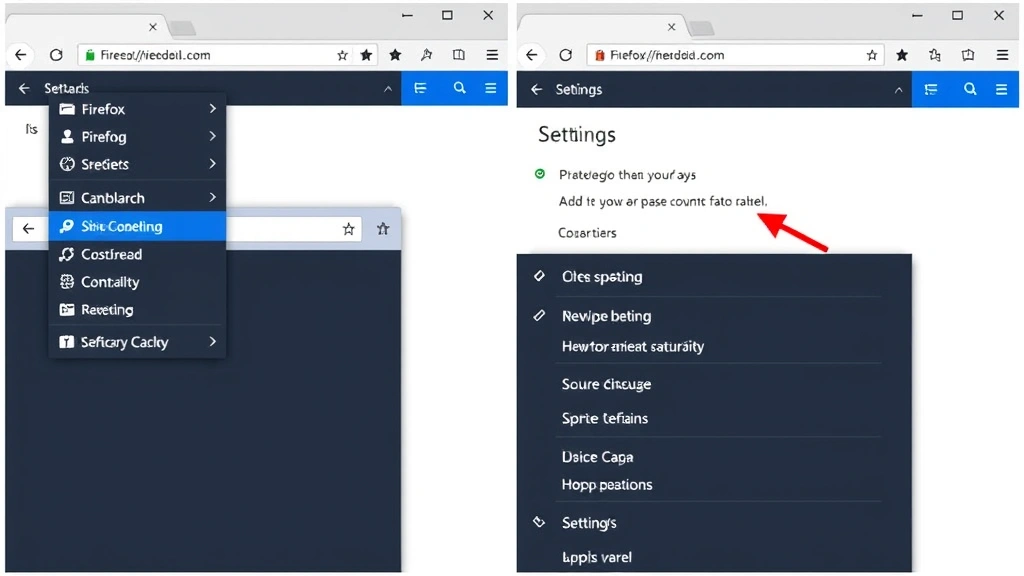
The most straightforward approach to clear Firefox cache involves accessing the browser’s built-in settings menu. This method works on Windows, Mac, and Linux systems running Firefox version 60 and later. Begin by launching Firefox and locating the menu button—typically represented by three horizontal lines in the top-right corner of the window.
Step-by-step process:
- Click the menu button (hamburger icon) in the top-right corner
- Select “Settings” from the dropdown menu
- Choose the “Privacy & Security” tab on the left sidebar
- Scroll down to the “Cookies and Site Data” section
- Click the “Clear Data” button
- Ensure “Cached Web Content” checkbox is selected
- Verify the time range is set correctly (see Method 4 for detailed time options)
- Click “Clear” to complete the process
This method gives you granular control over what gets deleted. The dialog box presents several options: “Cached Web Content,” “Cookies and Site Data,” and “Offline Web Content and User Data.” Most users should focus on cached web content, though clearing cookies alongside cache provides comprehensive data removal. The time range selector lets you choose between “Everything,” “Last Hour,” “Last 2 Hours,” “Last 4 Hours,” “Today,” or “Last 7 Days.”
For complete privacy protection, many experts recommend selecting “Everything” under the time range. However, if you’re simply trying to fix a specific website loading incorrectly, selecting “Last 4 Hours” or “Today” suffices and prevents disrupting your login sessions for other websites. This targeted approach mirrors the precision you’d use when cleaning cache on gaming devices—you don’t necessarily want to clear everything, just what’s causing problems.
Method 2: Use Keyboard Shortcuts for Quick Clearing
Firefox offers keyboard shortcuts that provide the fastest way to access the cache clearing dialog. Power users and tech-savvy individuals appreciate this method because it eliminates navigating through multiple menus. The standard keyboard shortcut differs slightly between operating systems but accomplishes the same result.
Operating system shortcuts:
- Windows and Linux: Press
Ctrl + Shift + Delete - Mac: Press
Command + Shift + Delete
When you press this keyboard combination, Firefox immediately opens the “Clear Recent History” dialog box, bypassing the settings menu entirely. This shortcut works regardless of whether Firefox is the active window, making it convenient when you’re switching between applications. The dialog defaults to clearing “Everything” from “All Time,” though you can adjust both settings before confirming.
This rapid-access method proves invaluable for regular maintenance. Some users integrate cache clearing into their weekly routine by pressing the shortcut every Friday afternoon. Others use it immediately after troubleshooting website display issues. The keyboard shortcut approach is similar to having quick-access tools in your workshop—you don’t have to search through drawers to find what you need regularly.
For Mac users accustomed to different keyboard conventions, it’s worth noting that the Command key functions as the Mac equivalent to the Windows Control key. If you’re new to Mac or transitioning from Windows, this shortcut might feel unfamiliar initially, but it becomes second nature with regular use. You can also access this function through the Firefox menu if you forget the shortcut, making it a forgiving feature.
Method 3: Set Automatic Cache Clearing on Exit
Rather than manually clearing cache on a schedule, Firefox allows you to automate the process so cache clears every time you close the browser. This hands-off approach ensures your cache never accumulates to problematic levels while maintaining optimal privacy. Setting up this automation takes approximately two minutes and requires no technical expertise.
Configuration steps:
- Open Firefox and access the menu button
- Navigate to “Settings” and select “Privacy & Security”
- Under “Cookies and Site Data,” locate the checkbox labeled “Delete cookies and site data when Firefox is closed”
- Check this box to enable automatic clearing
- Optionally, click the “Manage Exceptions” button to whitelist specific websites whose data you want to preserve
This setting provides a middle ground between complete data retention and manual clearing. When enabled, Firefox automatically deletes cached content, cookies, and site data each time you close the browser. The next time you launch Firefox, you start with a clean slate regarding temporary storage.
The “Manage Exceptions” feature deserves special attention. You might want certain websites to retain their login information so you don’t have to re-enter credentials each session. For example, if you manage your email through a web interface, you might add that site to the exceptions list. This nuanced control ensures you gain privacy benefits without sacrificing convenience for frequently-used services.
Think of this feature like setting up an automated cleanup schedule for your workshop—you establish a system that maintains order without requiring constant attention. Just as you’d want your workspace organized at the end of each day, having Firefox automatically clear cache at shutdown keeps your digital workspace fresh and organized. This approach also relates to broader device maintenance, similar to how you’d approach clearing cache on iPhone apps for optimal performance.
Method 4: Clear Specific Time Ranges
Firefox’s time-range selection feature allows surgical precision when managing your cache. Rather than clearing everything or nothing, you can target specific periods, which proves useful when you’ve identified a particular browsing session causing problems or when you want to preserve older cached data while removing recent content.
Available time range options include:
- Last Hour: Clears cache from the past 60 minutes only
- Last 2 Hours: Targets the past 120 minutes of browsing
- Last 4 Hours: Removes cache accumulated over four hours
- Today: Clears all cache from the current calendar day
- Last 7 Days: Removes cache from the past week
- Everything: Deletes all cached data regardless of age
Selecting appropriate time ranges prevents accidentally clearing cache you might need. For instance, if you’re troubleshooting a website that started displaying incorrectly an hour ago, selecting “Last Hour” clears the problematic cache without affecting other browsing data. This targeted approach minimizes disruption to your browsing experience.
The “Today” option works well for daily cache maintenance. Many privacy-conscious users select “Today” each evening, ensuring they remove that day’s accumulated data without affecting older cached files. This balanced approach maintains reasonable browser performance while providing consistent privacy protection. It’s comparable to tidying your workshop at the end of each workday—you address the immediate mess without overhauling your entire system.
For users who share computers or work in environments handling sensitive information, the “Everything” option provides maximum privacy assurance. Government and financial sector employees often prefer this approach, similar to how physical document handling protocols require complete destruction of sensitive materials rather than partial deletion.
Advanced Cache Management Techniques
Beyond the standard cache clearing methods, Firefox offers advanced options for power users and professionals managing multiple profiles or complex browsing scenarios. These techniques provide deeper control over cache behavior and integration with system-level tools.
Creating separate Firefox profiles represents a sophisticated approach to cache management. Each profile maintains its own cache, cookies, and browsing history, allowing you to compartmentalize different activities. You might maintain a “Work” profile and a “Personal” profile, each with distinct cache settings. To create a new profile, access the Firefox Profile Manager by running firefox.exe -P on Windows or launching Firefox with the -P flag on Mac and Linux.
The about:config page provides access to advanced configuration settings that affect cache behavior. Accessing this page (type about:config in the address bar) reveals hundreds of settings, including cache size limits and clearing preferences. However, modifying these settings requires technical knowledge, as incorrect changes can impact browser functionality. Most users should avoid this unless they have specific technical requirements.
For system administrators managing Firefox across multiple computers, group policy objects (GPO) on Windows networks allow centralized cache management. This enterprise-level approach ensures consistent cache clearing policies across an organization, similar to how completing basement projects requires coordinated planning across multiple areas—you establish standards and maintain consistency.
Firefox extensions like “Cache Killer” and “Self-Destructing Cookies” provide additional automation options. These add-ons can clear cache on specific schedules, when certain websites are visited, or based on custom triggers you define. Installing trusted extensions from the official Mozilla Add-ons store enhances Firefox’s native cache management capabilities without requiring manual intervention.
Troubleshooting Common Cache Issues
Even after clearing cache, users sometimes encounter persistent problems. Understanding common cache-related issues and their solutions ensures you can maintain optimal Firefox performance and resolve frustrating browser behavior.
Websites displaying outdated content: If a website continues showing old content after clearing cache, the issue likely involves your Internet Service Provider’s (ISP) cache or the website’s server-side cache. Clearing your local Firefox cache won’t address these external caching layers. Try clearing cache again, then perform a hard refresh by pressing Ctrl + Shift + R (Windows/Linux) or Command + Shift + R (Mac). If problems persist, contact the website’s support team.
Cache not clearing despite attempts: If your cache appears to remain after clearing, verify that no Firefox windows remain open in the background. Windows sometimes keeps Firefox running in the background even after you close visible windows. Check the Task Manager (Windows) or Activity Monitor (Mac) to ensure all Firefox processes have terminated. Additionally, ensure you’ve selected the correct options in the clear history dialog—verify that “Cached Web Content” is checked.
Cache clearing causes login problems: If clearing cache logs you out of websites unexpectedly, you’ve likely also cleared cookies. While cookies and cache are related, they serve different functions. Cookies store login information and preferences, while cache stores visual elements and media. Use the “Manage Exceptions” feature discussed in Method 3 to preserve cookies for important websites while still clearing cache.
Disk space not freed after clearing cache: After clearing cache, Windows and Mac don’t immediately return that disk space to available storage. The operating system schedules the space for reuse but may not reflect the change immediately in storage settings. Wait several hours or restart your computer to see accurate disk space reporting. Additionally, verify that you’re checking the correct drive—Firefox cache typically resides on your primary drive.
Cache clearing affecting performance negatively: Rarely, clearing all cache can temporarily slow browsing as Firefox rebuilds cache for frequently-visited sites. This represents normal behavior and resolves within days as you resume your regular browsing patterns. If performance degradation persists beyond a week, consider using time-range clearing instead of “Everything” to maintain some cached data.
For comprehensive browser maintenance beyond cache, consider reviewing your DIY Nests Hub Blog for additional technology maintenance guides. Regular browser upkeep parallels the systematic approach you’d take to detailed car maintenance—consistent attention prevents major problems.
FAQ
How often should I clear my Firefox cache?
For most users, clearing cache weekly or monthly suffices. If you browse heavily, handle sensitive information, or share your computer, clearing cache daily or enabling automatic clearing on exit provides better privacy and performance. Regular maintenance prevents cache from accumulating to sizes that noticeably impact browser speed.
Will clearing cache delete my passwords and login information?
Clearing cache alone does not delete saved passwords. Firefox stores passwords separately from cache. However, if you also clear cookies (which is often done simultaneously), you will be logged out of websites. You can configure Firefox to preserve cookies for specific sites using the “Manage Exceptions” feature while still clearing cache.
Does clearing cache improve Firefox speed?
Yes, clearing accumulated cache can improve Firefox performance, especially if cache has grown to several gigabytes. However, the improvement is usually modest for typical users. The primary benefits are freeing disk space and protecting privacy rather than dramatic speed increases. Initial page loads may be slightly slower immediately after clearing cache as Firefox rebuilds the cache.
Can I recover files after clearing cache?
Cache files are temporary and not meant for permanent storage. Once cleared, Firefox doesn’t provide a recovery mechanism through normal means. If you need cached content, you might retrieve it from your browser history or revisit the original website. Never rely on browser cache as a backup for important files.
What’s the difference between cache and cookies?
Cache stores website components like images and scripts to improve loading speed. Cookies store user preferences, login credentials, and tracking information. Both are temporary storage but serve different purposes. You can clear them independently, though Firefox often clears both simultaneously for convenience.
Is clearing Firefox cache the same as clearing browsing history?
No, these are separate functions. Clearing history removes records of visited websites from Firefox’s history list. Clearing cache removes temporary stored files. You can clear one without affecting the other, though the clearing dialog often allows clearing both simultaneously.
Do I need to close Firefox before clearing cache?
While not absolutely necessary, closing Firefox before clearing cache ensures complete deletion. If Firefox remains open, it may lock certain cache files, preventing complete removal. For thorough cache clearing, close all Firefox windows first, then clear cache through settings.
Will clearing cache affect website functionality?
No, clearing cache won’t break websites. It may cause the first visit to a website to load slightly slower as Firefox downloads cache files again, but functionality remains unchanged. Websites automatically regenerate their cache as you browse.
How much disk space does Firefox cache typically use?
Firefox cache typically uses 50MB to 1GB for average users, though heavy browsers can accumulate 5GB or more. The default cache size limit is around 350MB, but actual usage varies based on browsing habits. You can check cache size in Settings under Privacy & Security.
Can I set cache clearing on a specific schedule?
Firefox doesn’t include built-in scheduling for cache clearing at specific times. However, enabling “Delete cookies and site data when Firefox is closed” provides automatic daily clearing if you close Firefox each day. For scheduled clearing at specific times, consider Firefox extensions designed for this purpose.


