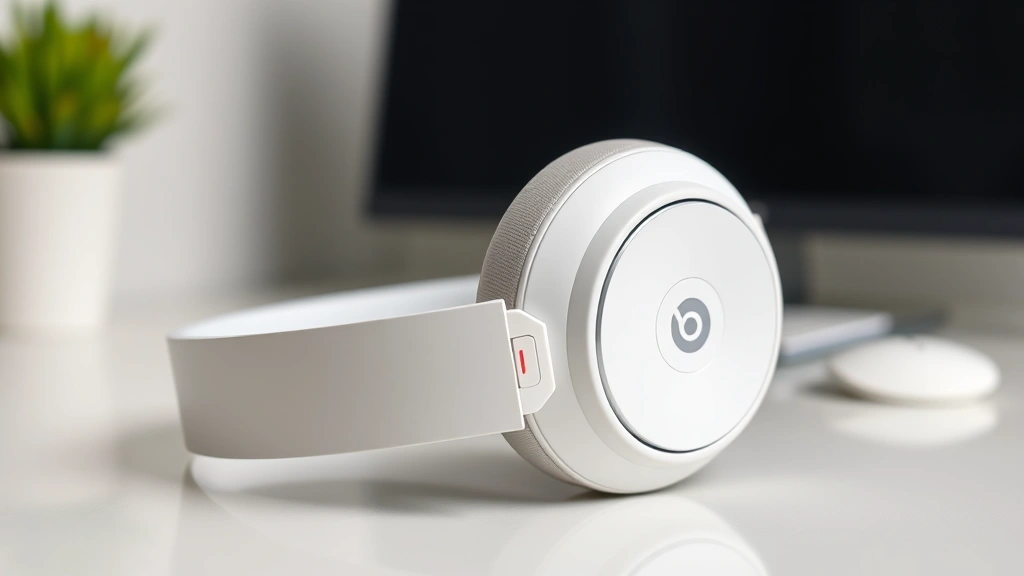
Connect Solo 3 Wireless Beats: Expert Tips Inside
The Beats Solo 3 Wireless headphones are renowned for their premium sound quality, sleek design, and impressive battery life. However, like any Bluetooth device, getting them properly connected to your device requires understanding the right steps and troubleshooting techniques. Whether you’re a first-time user or experiencing connection issues, this comprehensive guide will walk you through every aspect of connecting your Solo 3 Wireless headphones to your smartphone, tablet, or computer.
Connectivity is essential to enjoying your investment in quality audio equipment. The Solo 3 Wireless uses Bluetooth 4.0 technology paired with Apple’s W1 chip, making it one of the most reliable wireless headphones on the market. Understanding how to establish and maintain these connections ensures you get the best performance from your device and can enjoy uninterrupted listening experiences wherever you go.
Initial Setup and Preparation
Before attempting to connect your Solo 3 Wireless headphones, you need to ensure they are properly charged and ready for pairing. The first step involves checking the battery level, as low battery can prevent successful Bluetooth connections. Press and hold the power button on the right ear cup for approximately three seconds until you see the LED indicator light up. A full charge takes about two hours and provides up to 40 hours of battery life, which is exceptional in the wireless headphone market.
Next, make sure your headphones are in pairing mode. To enter pairing mode, hold down the power button for about five seconds until the LED flashes red and blue alternately. This indicates that your Solo 3 Wireless is ready to be discovered by your device. It’s important to note that the headphones will only remain in pairing mode for about 15 minutes, so you should initiate the connection on your device promptly.
Your receiving device—whether it’s an iPhone, Android phone, iPad, Mac, or Windows computer—should have Bluetooth enabled and be set to discoverable mode. On most devices, you can find Bluetooth settings in the main settings menu. For iPhones and iPads, navigate to Settings > Bluetooth and toggle it on. For Android devices, go to Settings > Connected Devices > Bluetooth. Mac users should click the Apple menu, select System Preferences, and choose Bluetooth. Windows users can access Bluetooth settings through Settings > Devices > Bluetooth & other devices.
Step-by-Step Connection Guide
For iPhone and iPad Users: Open your device’s Settings app and navigate to the Bluetooth section. Ensure Bluetooth is enabled. Your Solo 3 Wireless headphones should appear in the list of available devices as “Beats Solo 3.” Tap on this entry to initiate the pairing process. Within a few seconds, you should see a connection confirmation screen. Accept the pairing request, and your headphones will be connected. If you have an iCloud account, the headphones may automatically connect to all your Apple devices that are signed in with the same account.
For Mac Computers: Click the Apple menu in the top-left corner and select System Preferences. Choose Bluetooth and wait for your Solo 3 Wireless to appear in the list. Click the “Connect” button next to your headphones. You may be prompted to confirm the pairing. Once confirmed, your headphones will appear as a connected device, and you can adjust audio output settings through the Sound preferences.

For Android Devices: Open Settings and navigate to Connected Devices or Bluetooth settings, depending on your Android version. Turn on Bluetooth if it’s not already enabled. Your Solo 3 Wireless should appear in the list of available devices. Tap on it to initiate pairing. Some Android devices may require you to enter a PIN code, which is typically “0000” for Beats headphones. After successful pairing, the headphones will show as connected.
For Windows Computers: Open Settings and go to Devices > Bluetooth & other devices. Turn on Bluetooth if it’s off. Click “Add Bluetooth or other device” and select Bluetooth from the menu. Your Solo 3 Wireless should appear in the list of available devices. Click on it to pair. Windows will handle the connection automatically, and you should see a confirmation message once pairing is complete.
Connecting to Different Devices
One of the advantages of the Solo 3 Wireless is the ability to connect to multiple devices, though only one at a time can actively stream audio. If you’ve already paired your headphones with one device, connecting to another is simplified because the pairing information is retained.
To switch between previously paired devices, simply disable Bluetooth on the current device and enable it on the device you want to use. The headphones will automatically connect to the new device if it’s already been paired. If you’re switching to a device that hasn’t been paired before, follow the standard pairing procedure outlined above. The Solo 3 Wireless can remember up to eight different devices, making it convenient for users with multiple gadgets.
For seamless switching between Apple devices, take advantage of the home network setup that connects all your Apple devices. When your Solo 3 Wireless is connected to one Apple device, it can automatically switch to another device when you initiate audio playback on that device, provided all devices are on the same iCloud account.
If you’re experiencing issues connecting to multiple devices, consider resetting your headphones to factory settings. This clears all previous pairing information and allows you to start fresh. To reset, hold the power button and the volume down button simultaneously for about 10 seconds until the LED flashes red. After resetting, follow the standard pairing procedure for your device.
Troubleshooting Connection Issues
Even with high-quality equipment like the Solo 3 Wireless, connection problems can occasionally occur. The most common issue is the headphones not appearing in the list of available Bluetooth devices. If this happens, first verify that your headphones are in pairing mode by holding the power button for five seconds until the LED flashes red and blue. If the LED doesn’t flash, your headphones may need charging.
Another frequent problem is successful pairing followed by immediate disconnection. This typically indicates that your headphones are trying to connect to a different device. Check if Bluetooth is enabled on other devices nearby, and disable it temporarily. This prevents the headphones from attempting to connect to multiple devices simultaneously.
If your headphones are connected but producing no sound, check the volume settings on both the headphones and your device. The Solo 3 Wireless has its own volume controls via the buttons on the ear cups. Additionally, verify that audio is being routed to the headphones rather than your device’s speakers. On iPhones, swipe up from the bottom to access Control Center and ensure the audio output is set to your headphones. On Android, check the sound settings in your device’s notification panel.
Interference from other wireless devices can also cause connection problems. Bluetooth operates on the 2.4 GHz frequency, which is shared by WiFi, microwaves, and cordless phones. If you’re experiencing frequent disconnections, try moving away from these devices or temporarily turning them off to determine if interference is the issue. For more information on optimizing your wireless device connections, consult your device manufacturer’s guidelines.
If none of these troubleshooting steps resolve your issue, try performing a hard reset on your headphones. Turn them off completely, wait 30 seconds, and turn them back on. Then repeat the pairing procedure. If problems persist, contact Beats customer support or visit an authorized retailer for professional assistance.
Advanced Connection Features
The Solo 3 Wireless includes several advanced features that enhance connectivity and user experience. One notable feature is the Fast Fuel charging technology, which provides three hours of playback with just a five-minute charge. This is particularly useful if you forgot to charge your headphones before heading out.
The W1 chip integrated into the Solo 3 Wireless provides several advantages over standard Bluetooth connections. It offers improved power efficiency, resulting in the exceptional 40-hour battery life. The W1 chip also enables seamless switching between Apple devices and automatic connection prioritization, ensuring your headphones connect to your most recently used device.
For those interested in building a comprehensive home security and entertainment system, the Solo 3 Wireless can be integrated with various smart home devices. Many smart speakers and displays support Bluetooth connectivity, allowing you to use your Beats headphones with these devices for private listening experiences.
The headphones also include an on-ear proximity sensor that automatically pauses audio when you remove the headphones and resumes playback when you put them back on. This feature relies on proper connection and sensor calibration. If it’s not working correctly, ensure your headphones are fully paired and that the sensors on the ear cups are clean and unobstructed.
Another useful feature is the ability to use the headphones with multiple audio sources simultaneously through multi-device connectivity. While only one device can actively stream at a time, you can quickly switch between devices without needing to re-pair. This is invaluable for professionals who work across multiple platforms or students who use both personal and school-provided devices.
For technical specifications and detailed information about Bluetooth standards and compatibility, refer to the official Bluetooth specifications. Additionally, Apple’s official documentation on Beats product support provides manufacturer-specific guidance for connecting Solo 3 Wireless headphones to Apple devices.
Frequently Asked Questions
How long does it take to pair Solo 3 Wireless headphones?
Pairing typically takes 30 seconds to two minutes, depending on your device and any interference in the area. Ensure your headphones are in pairing mode and your device’s Bluetooth is enabled. If pairing takes longer than five minutes, try resetting both devices and starting over.
Can I connect Solo 3 Wireless to two devices at the same time?
The Solo 3 Wireless can be paired with multiple devices but can only actively stream audio from one device at a time. To switch between devices, you need to disable Bluetooth on the current device or manually disconnect the headphones through your device’s Bluetooth settings.
Why do my Solo 3 Wireless keep disconnecting?
Disconnections are usually caused by Bluetooth interference, low battery, or the headphones attempting to connect to another paired device. Ensure your headphones are fully charged, move away from potential interference sources like microwaves or cordless phones, and disable Bluetooth on other nearby devices.
How do I reset my Solo 3 Wireless headphones?
Hold the power button and volume down button simultaneously for about 10 seconds until the LED flashes red. This performs a factory reset and clears all pairing information. After resetting, you’ll need to pair your headphones again with your devices.
Is there a difference in connection quality between iOS and Android devices?
The W1 chip in Solo 3 Wireless is optimized for Apple devices, so iOS users may experience slightly better integration and faster switching between devices. However, connection quality and audio performance on Android devices are still excellent due to standard Bluetooth 4.0 compatibility.
What should I do if my headphones won’t appear in the Bluetooth list?
First, ensure your headphones are in pairing mode by holding the power button for five seconds until the LED flashes red and blue. If they still don’t appear, try restarting your device, clearing the Bluetooth cache on Android devices, or resetting the headphones to factory settings. Make sure your device’s Bluetooth is enabled and set to discoverable mode.
Can I use Solo 3 Wireless with gaming consoles?
Yes, the Solo 3 Wireless can connect to gaming consoles that support Bluetooth, such as Nintendo Switch and some others. However, PlayStation and Xbox consoles require additional adapters or specific Bluetooth dongles for wireless headphone connectivity. Check your console’s documentation for compatible devices.
For additional resources on wireless technology and best practices, consult the FCC regulations on wireless devices and manufacturer documentation. Understanding the technical aspects of your equipment helps ensure optimal performance and longevity.
Connecting your Beats Solo 3 Wireless headphones should be a straightforward process once you understand the basic steps and have access to proper troubleshooting techniques. Whether you’re enjoying music at home, at work, or on the go, these premium headphones deliver exceptional audio quality and reliable connectivity. By following this comprehensive guide and implementing the tips provided, you’ll maximize your listening experience and keep your headphones performing at their best for years to come. Remember to keep your devices updated with the latest firmware, maintain your headphones in good condition, and don’t hesitate to reach out to customer support if you encounter persistent issues.


