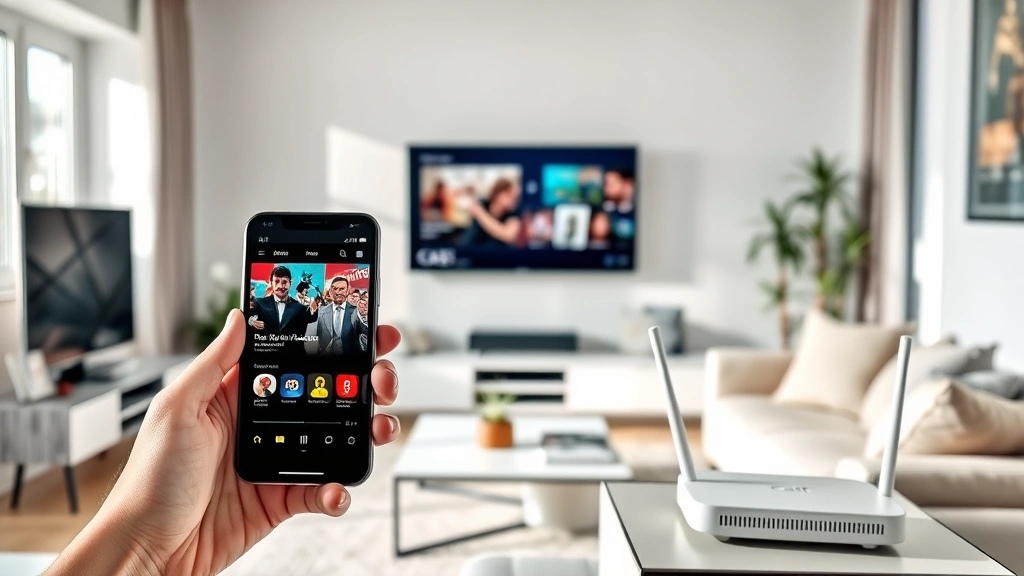
How to Connect Your Phone to TV: A Complete Tech Expert’s Guide
Connecting your smartphone to your television has become one of the most practical skills for modern homeowners and tech enthusiasts. Whether you’re streaming content, sharing photos with family, playing games, or delivering a presentation, knowing how to bridge your phone and TV opens up endless entertainment and productivity possibilities. This comprehensive guide walks you through every method available, from wireless casting to HDMI connections, ensuring you can choose the solution that works best for your specific devices and situation.
The beauty of phone-to-TV connectivity lies in its versatility. You’re no longer limited to whatever content your television provider offers or what’s pre-installed on your smart TV. Your phone becomes a powerful content source that can display anything on your larger screen. This guide covers wired and wireless options, troubleshooting common issues, and best practices for optimal performance and reliability.
Wireless Casting Methods
Wireless casting represents the most convenient way to connect your phone to your TV without managing cables. This technology has matured significantly, offering reliable, lag-free performance for most applications. The primary wireless technologies available include Google Cast, Apple AirPlay, Miracast, and proprietary manufacturer solutions.
Google Cast (Chromecast) works with both Android and iOS devices, making it the most universal wireless option. To use Google Cast, ensure your phone and TV are connected to the same WiFi network. Open any compatible app, tap the Cast icon (usually located in the upper-right corner), select your TV from the list of available devices, and your content instantly appears on the big screen. Chromecast excels at streaming video, music, and photos with minimal latency. For a deeper understanding of home network setup, review our complete guide to setting up your home network to ensure optimal WiFi performance.
Apple AirPlay offers seamless integration for iPhone, iPad, and Mac users. Ensure your Apple device and Apple TV are on the same WiFi network, then swipe down from the top-right corner of your iPhone or iPad to access Control Center. Tap Screen Mirroring and select your Apple TV. Your entire phone screen appears on the television, allowing you to display any app or content. AirPlay also supports audio streaming to compatible speakers and TVs throughout your home.
Miracast is a wireless display standard supported by many Android phones and Windows devices. This technology doesn’t require an intermediary device like Chromecast; instead, your phone connects directly to your TV if it supports Miracast. Access this feature through your phone’s display settings and look for “Wireless Display” or “Cast Screen” options. Miracast works well for presentations and screen mirroring applications.
Proprietary Solutions from manufacturers like Samsung SmartThings, LG ThinQ, and Amazon Fire TV offer ecosystem-specific benefits. If you own devices from these manufacturers, their native casting solutions often provide superior integration and additional features. Check your TV’s settings menu or download the manufacturer’s app to activate these features.
Wired Connection Options
While wireless methods dominate modern setups, wired connections offer unmatched reliability and performance. These connections eliminate WiFi dependency and latency concerns, making them ideal for gaming, presentations, and critical applications. Understanding the available wired options ensures you can make the best choice for your situation.
HDMI Connections via USB-C or Lightning Adapters provide the most direct video and audio transmission. For Android phones, purchase a USB-C to HDMI adapter and connect it to your phone’s charging port. Your TV should recognize the connection automatically. For iPhones, Apple offers the Lightning Digital AV Adapter, which similarly connects your phone to the TV via HDMI. These adapters are inexpensive (typically $15-40) and provide excellent picture quality without any wireless interference.
MHL (Mobile High-Definition Link) was an earlier standard supporting HDMI output through a phone’s USB port. While less common on modern devices, some older Android phones still support MHL with appropriate adapters. Check your phone’s specifications to confirm MHL compatibility before purchasing an adapter.
USB-C Alt Mode represents the newest wired standard, allowing modern phones to output video directly through their USB-C port. Many flagship Android devices now support this feature. Simply connect a USB-C to HDMI cable, and your phone displays on the TV. This method charges your phone simultaneously, which is beneficial during extended use.
For DIY home projects and security monitoring, wired connections provide the stability needed for continuous operation without network interruptions.

Setting Up Your Home Network for Optimal Performance
Successful wireless phone-to-TV connectivity depends heavily on a robust home network infrastructure. Before troubleshooting connection issues, ensure your WiFi network provides adequate bandwidth and coverage. Review our detailed guide to setting up your home network for comprehensive networking setup instructions.
WiFi Network Requirements for reliable casting include a 5GHz band connection (superior range and speed), minimum download speeds of 25 Mbps, and less than 50ms latency. Position your router centrally in your home, away from metal objects and dense walls that obstruct signal transmission. If your router is in the basement and your TV is upstairs, consider adding a WiFi mesh system to extend coverage throughout your home.
Dual-Band Router Configuration allows simultaneous 2.4GHz and 5GHz broadcasting. Connect your TV and casting device to the 5GHz band for superior performance, while IoT devices can use 2.4GHz. This separation reduces network congestion and improves casting reliability. Most modern routers automatically balance traffic, but manual configuration in your router’s admin panel provides additional control.
Quality of Service (QoS) Settings prioritize streaming traffic on your network. Access your router’s settings and enable QoS to give video streaming higher priority than background downloads or updates. This ensures smooth casting performance even when other devices consume bandwidth.
Proper network setup transforms your casting experience from occasionally frustrating to reliably seamless. Invest time in optimizing your WiFi infrastructure, as this single improvement impacts all wireless connectivity throughout your home.

Troubleshooting Common Connection Issues
Phone and TV Not on Same Network represents the most common connectivity problem. Verify both devices connect to the identical WiFi network by checking network names and passwords. Some homes maintain separate 2.4GHz and 5GHz networks; ensure both devices use the same band. Restart your phone’s WiFi and the TV’s WiFi connection, then attempt casting again.
Casting Starts Then Stops usually indicates WiFi signal weakness or interference. Move your router closer to the TV or use a WiFi mesh network system to strengthen signal coverage. Reduce interference from cordless phones, microwave ovens, and other 2.4GHz devices by switching to the 5GHz band.
App Won’t Show Cast Icon means the app doesn’t support casting. Check the app’s documentation or settings menu for streaming options. Many apps require specific subscriptions or permissions to enable casting features. Update the app to the latest version, as casting support is frequently added in updates.
Poor Video Quality or Lag suggests bandwidth limitations or processing constraints. Close background apps on your phone to free up processing power. Reduce video resolution in the app’s settings if available. For gaming or presentations where responsiveness matters, switch to a wired connection using USB-C to HDMI adapters.
HDMI Adapter Not Recognized requires driver installation on Windows devices. Visit the adapter manufacturer’s website and download the latest drivers. For Mac and iOS, Apple’s official adapters rarely require additional software. If using a third-party adapter, verify it supports your specific phone model and operating system version.
Audio Issues During Casting can stem from multiple sources. Verify the TV’s volume isn’t muted and input source is correct. Check the phone’s volume settings and confirm the app’s audio output is directed to the TV. Restart both devices and attempt the connection again. If using HDMI adapters, ensure the cable carries both video and audio signals.
Optimization Tips for Best Results
Update All Software Regularly ensures compatibility between your phone, TV, and casting devices. Manufacturers continuously release updates improving stability and adding features. Check for updates weekly and install them promptly, especially before using casting features for important events or presentations.
Use 5GHz WiFi for Casting whenever possible. The 5GHz band offers faster speeds, lower latency, and less interference from household devices compared to 2.4GHz. Most modern routers broadcast both bands simultaneously, so configure your phone and TV to prefer 5GHz in network settings.
Reduce Environmental Interference by identifying sources of WiFi disruption. Microwave ovens, cordless phones, baby monitors, and wireless speakers all operate on 2.4GHz frequencies. Keep these devices away from your router and casting devices. Steel filing cabinets, metal shelving, and concrete walls also weaken WiFi signals; position your router in open areas.
Enable Hardware Acceleration in compatible apps to improve video playback smoothness. This setting, found in many streaming apps’ advanced options, uses your phone’s graphics processor for video decoding, reducing CPU load and improving performance.
Close Unnecessary Background Apps before casting. Apps running in the background consume processing power and bandwidth, degrading casting performance. Close email clients, social media apps, and other services before starting a casting session. Use your phone’s app switcher to review active applications and close those you’re not actively using.
Maintain Adequate Phone Battery during extended casting sessions. Casting requires continuous processing and WiFi transmission, draining battery faster than normal use. Keep your phone plugged into a charger during important presentations or extended viewing sessions. If using a wired HDMI connection, the adapter typically includes a charging port.
Test Connections Before Important Events such as presentations or family gatherings. Run through your casting setup 30 minutes before the event begins. Verify the connection stability, check video and audio quality, and identify any issues while you still have time to troubleshoot. This proactive approach prevents embarrassing technical failures when it matters most.
For additional technology setup guidance, explore our DIY Nest Hub Blog for comprehensive home technology solutions and tutorials.
FAQ
Can I connect my Android phone to any TV?
Most modern TVs support at least one wireless casting method. Android phones support Google Cast (Chromecast), Miracast, and manufacturer-specific solutions like Samsung SmartThings. Older TVs may not have wireless capabilities, but you can add casting functionality with affordable devices like Chromecast dongles. Wired connections via USB-C to HDMI adapters work with nearly all TVs that have HDMI ports.
Is AirPlay available for Android users?
Apple’s AirPlay is exclusive to Apple devices (iPhone, iPad, Mac). Android users should use Google Cast, Miracast, or their TV manufacturer’s casting solution instead. Some third-party apps offer AirPlay-like functionality for Android, but native support remains limited to Apple’s ecosystem.
What’s the difference between screen mirroring and casting?
Screen mirroring displays your phone’s entire screen on the TV, including notifications and UI elements. Casting allows specific apps to send content to the TV while your phone’s home screen remains visible. Casting is generally preferred for streaming, as it consumes less bandwidth and allows phone use while content plays on TV. Screen mirroring works better for presentations and games where full-screen display matters.
Do I need a smart TV to connect my phone?
Smart TVs simplify wireless connections through built-in casting support, but non-smart TVs work fine with external devices. Purchase a Chromecast dongle ($30-50), Apple TV, Roku, or Amazon Fire Stick to add casting capabilities to older televisions. Wired connections via HDMI adapters work with any TV featuring HDMI ports, regardless of smart features.
Why does my casting connection keep disconnecting?
Frequent disconnections typically result from weak WiFi signals, network congestion, or device overheating. Ensure your phone and TV are within 30 feet of your router and on the same WiFi band (preferably 5GHz). Close background apps consuming bandwidth, restart your router, and allow devices to cool if they’re warm to the touch. If problems persist, switch to a wired HDMI connection for reliable performance.
Can I cast to multiple TVs simultaneously?
Google Cast supports sending the same content to multiple Chromecast devices simultaneously. Open a compatible app, tap the Cast icon, and select multiple devices before starting playback. Apple AirPlay typically mirrors to one device at a time, though newer Apple TV models may support multi-room audio. Check your specific TV and casting device documentation for multi-device capabilities.
What HDMI adapter should I buy for my iPhone?
Purchase Apple’s official Lightning Digital AV Adapter for reliable compatibility and support. Third-party Lightning to HDMI adapters exist but may experience compatibility issues with iOS updates. The official adapter costs $49 but provides guaranteed functionality and includes a charging port for simultaneous power delivery during use.
How can I improve casting video quality?
Ensure your WiFi connection provides adequate bandwidth (minimum 25 Mbps) by positioning your router optimally and reducing interference. Close background apps consuming bandwidth and processing power. In the casting app’s settings, select the highest available resolution. For critical applications, use a wired USB-C to HDMI connection, which guarantees maximum quality without wireless interference.


