
Word Editing Simplified: Accept All Changes Guide
Microsoft Word’s track changes feature is invaluable for collaborative documents, whether you’re working on basement finishing plans with contractors or home improvement specifications with team members. However, managing individual changes one by one can become tedious when you have dozens or hundreds of edits to process. Learning how to accept all changes in Word at once streamlines your workflow and ensures no modifications are overlooked.
This comprehensive guide walks you through multiple methods for accepting all changes in Microsoft Word, from the simplest approaches to advanced techniques. Whether you’re a homeowner coordinating with builders or a professional managing complex documents, mastering this skill will save you significant time and reduce the risk of accidentally rejecting important edits.
Understanding Track Changes in Word
Track Changes is a fundamental feature in Microsoft Word that records every modification made to a document. When enabled, Word marks insertions, deletions, formatting changes, and comments with different colors and formatting styles. This feature proves especially useful when multiple people contribute to the same document, such as when you’re planning home security upgrades with multiple stakeholders or coordinating house painting projects with professional painters.
Before you can accept changes, you need to understand what types of changes Word tracks. Insertions appear as underlined text in a specific color, deletions show as strikethrough text, and formatting changes display in balloons on the document margin. Comments appear as separate annotations that don’t affect the actual text. Understanding these visual indicators helps you make informed decisions about which changes to accept.
The track changes feature maintains a complete history of who made changes and when they were made. This audit trail proves invaluable for quality control and accountability. When you’re working on woodworking project specifications, having this documentation ensures everyone stays on the same page regarding modifications.
Method 1: Using the Review Tab
The most straightforward way to accept all changes in Word involves using the Review tab in the ribbon. This method works consistently across different Word versions and provides visual feedback throughout the process.
- Open your document that contains tracked changes. You’ll immediately notice the changes highlighted throughout the text with different colors and formatting indicators.
- Navigate to the Review tab in the ribbon at the top of your Word window. This tab contains all track changes functionality and appears prominently in the ribbon menu.
- Locate the Changes group within the Review tab. You’ll see several options including Accept, Reject, and Previous/Next change navigation buttons.
- Click the dropdown arrow next to the Accept button. This reveals additional options beyond accepting a single change.
- Select “Accept All Changes” from the dropdown menu. Word immediately processes all tracked changes in your document, converting them from proposed edits to permanent text.
This method provides immediate visual confirmation that all changes have been accepted. The document’s appearance changes as strikethrough text disappears and underlined insertions become normal text. All color coding associated with tracked changes vanishes, leaving you with a clean final document.

Method 2: Keyboard Shortcuts
For users who prefer keyboard navigation, Word offers keyboard shortcuts that accomplish the same goal more quickly. While Word doesn’t have a single universal shortcut for accepting all changes across all versions, you can use Alt+key combinations to access the Review menu.
For Windows users: Press Alt+R to open the Review tab, then navigate to the Accept All Changes option using arrow keys. This method works reliably in Word 2016, 2019, and Microsoft 365 versions.
For Mac users: The keyboard shortcut approach differs slightly. Use Command+Option+A to open the Review pane, then navigate to accept all changes. Some Mac versions may require using the menu system instead.
These keyboard shortcuts prove particularly useful when you’re working through multiple documents in succession. Once you develop muscle memory for these key combinations, you can process changes without touching your mouse, maintaining workflow momentum. This efficiency becomes especially valuable when managing repair documentation or other detailed project specifications.
Method 3: Accept Changes Dialog Box
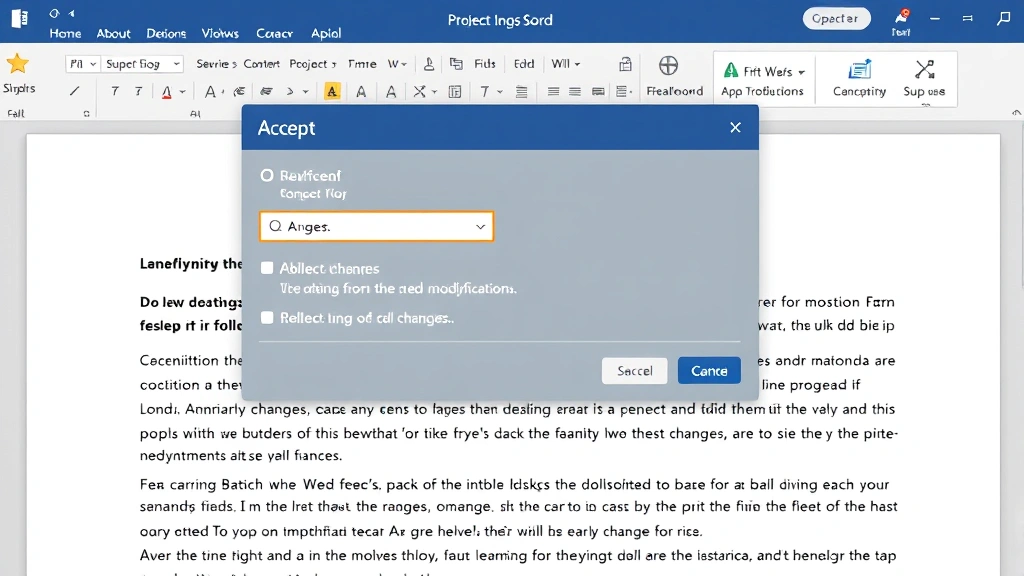
The Accept and Reject Changes dialog box provides granular control over which changes you accept, though it requires more interaction than the “accept all” shortcuts. This method becomes useful when you need to selectively review changes before accepting them.
Accessing the dialog: In the Review tab, click the dialog launcher button (small arrow) in the Changes group. This opens the comprehensive Accept and Reject Changes dialog box with advanced options.
Using Find & Replace with changes: Word allows you to search within tracked changes, which helps when you need to accept only changes matching certain criteria. This advanced feature comes in handy when working with complex documents containing hundreds of modifications.
The dialog box displays each change with context, showing what was changed, who made the change, and when they made it. You can accept changes one at a time or use the “Accept All” button within the dialog to process everything simultaneously. This approach provides transparency about what you’re accepting, which matters when following DIY best practices and maintaining proper documentation.
Managing Different Change Types
Not all tracked changes are identical, and Word allows you to manage different change types separately. Understanding these distinctions helps you accept changes strategically rather than indiscriminately.
Text insertions: These appear as underlined text in the document. Accepting insertions adds the new text permanently to your document. When collaborating on basement finishing specifications, you might accept all insertions while reviewing deletions separately.
Text deletions: Shown as strikethrough text, deletions remove content when accepted. Some users prefer to review deletions individually before accepting them, ensuring no critical information is permanently removed.
Formatting changes: These modifications affect text appearance without changing the actual content. Word tracks changes to bold, italic, font size, color, and other formatting attributes. You might accept all formatting changes while being more selective about content modifications.
Comment changes: Comments don’t actually modify the document content; they provide feedback and suggestions. You can delete comments without affecting the text itself, or you can accept them as documentation of the review process.
Word provides options to accept all changes of a specific type. In the Review tab, the Accept dropdown menu includes options to accept all changes of a particular category. This selective approach lets you maintain control while still benefiting from batch processing efficiency.
Best Practices for Change Management
Successfully managing tracked changes requires more than just knowing the technical steps. Developing good habits ensures you maintain document integrity and avoid costly mistakes.
Review before accepting: Always take time to review changes before accepting them all at once. Skim through the document and verify that the changes align with your expectations. This quick review catches unexpected modifications before they become permanent.
Make backup copies: Before accepting all changes, save a copy of the document with tracked changes intact. This backup allows you to reference the original changes if needed later. It’s similar to maintaining security documentation for future reference.
Use comments strategically: Don’t rely solely on tracked changes. Comments provide context and explanation for why changes were made. Before accepting changes, read through comments to understand the reasoning behind modifications.
Document the acceptance: Consider adding a final comment indicating that all changes were reviewed and accepted on a specific date. This creates an audit trail showing when the document reached its final approved state.
Check document properties: After accepting changes, verify that the document’s revision count resets to zero. This confirms that all tracked changes have been properly processed.
Troubleshooting Common Issues
Changes won’t accept: If you encounter an error when trying to accept changes, ensure the document isn’t in read-only mode. Check the document’s properties and permissions. Some shared documents have restrictions that prevent accepting changes. You may need administrator access or permission from the document owner.
Accept button is grayed out: This typically occurs when Track Changes is turned off or no changes exist in the document. Verify that Track Changes is enabled by checking the Review tab. If changes exist but the button remains inactive, try closing and reopening the document.
Changes reappear after accepting: If accepted changes mysteriously reappear, you may have accidentally used Undo after accepting them. Use Redo to restore the accepted state, or accept changes again.
Performance issues with large documents: Documents with thousands of tracked changes may slow down Word’s performance. Accepting all changes at once can sometimes improve responsiveness. If the process takes an unusually long time, try accepting changes in sections rather than all at once.
Version compatibility problems: Documents created in older Word versions may display tracked changes differently. Ensure everyone uses compatible Word versions when collaborating. Generally, Word 2010 and later versions handle tracked changes consistently.
FAQ
Can I undo accepting all changes?
Yes, you can undo the accept all changes action immediately after performing it using Ctrl+Z (Windows) or Command+Z (Mac). However, once you save the document, undoing becomes impossible. This is why maintaining a backup copy before accepting changes is crucial.
What happens to comments when I accept all changes?
Accepting changes doesn’t automatically delete comments. Comments remain in the document even after you accept the associated changes. You must manually delete comments if you want to remove them. This separation allows you to preserve feedback while accepting modifications.
Can I accept changes from specific people only?
Yes, Word allows filtering changes by author. In the Review tab, use the Show Markup option to filter which authors’ changes display. You can then accept only the visible changes. This proves useful when you want to accept changes from supervisors while reviewing changes from other team members.
Does accepting changes affect document formatting?
Accepting changes only finalizes the modifications that were tracked. The document’s overall formatting remains unchanged. However, if tracked changes included formatting modifications, accepting those changes will implement the new formatting.
What’s the difference between accepting and rejecting changes?
Accepting changes makes proposed modifications permanent and removes the change markup. Rejecting changes discards the proposed modifications and restores the original text. If you reject a deletion, the deleted text reappears. If you reject an insertion, the added text disappears.
Can I accept changes in a shared document?
Yes, you can accept changes in documents shared through OneDrive, SharePoint, or other collaboration platforms. However, ensure you have edit permissions. When multiple people work on the same document simultaneously, changes may accumulate as others make edits. Refresh your view to see all pending changes before accepting them.
How do I know if all changes were successfully accepted?
After accepting all changes, the Review pane should show no pending changes. The document should display normally without any strikethrough, underline, or color coding associated with tracked changes. The revision count in document properties should reset to zero, confirming all changes have been processed.


