
How to Add Line Numbers in Word: Expert Guide for Documents
Line numbers in Microsoft Word serve critical functions across professional, academic, and technical documentation. Whether you’re preparing legal contracts, manuscripts, technical specifications, or construction blueprints, adding line numbers ensures precise referencing and collaborative editing. This comprehensive guide walks you through every method to enable line numbering in Word, from basic activation to advanced customization options that suit your specific document needs.
Understanding line numbering functionality becomes essential when managing complex documents that require stakeholder review, revision tracking, or precise citation. Construction professionals, engineers, and technical writers frequently rely on line numbers to maintain clarity during the review process. Let’s explore the practical techniques that will enhance your document management workflow.
Understanding Line Numbers in Word
Line numbers appear in the left margin of your document, displaying sequential numbers for each line of text. This feature proves invaluable for several professional scenarios. When collaborating on construction documentation and planning materials, line numbers allow team members to reference specific passages without ambiguity. Legal documents, contracts, and compliance specifications benefit tremendously from this organizational tool.
Microsoft Word offers multiple approaches to implement line numbering, each designed for different document types and user preferences. The software provides flexibility in how frequently numbers appear, whether they restart per section, and how prominently they display. Understanding these options enables you to customize line numbering to match your document’s purpose and audience expectations.
Before implementing line numbers, consider your document’s final format. Some printing scenarios may require adjustment of margins to accommodate line numbers without affecting text readability. Additionally, line numbers interact differently with headers, footers, and page breaks, so planning ahead prevents formatting complications.
Basic Method: Enable Line Numbers
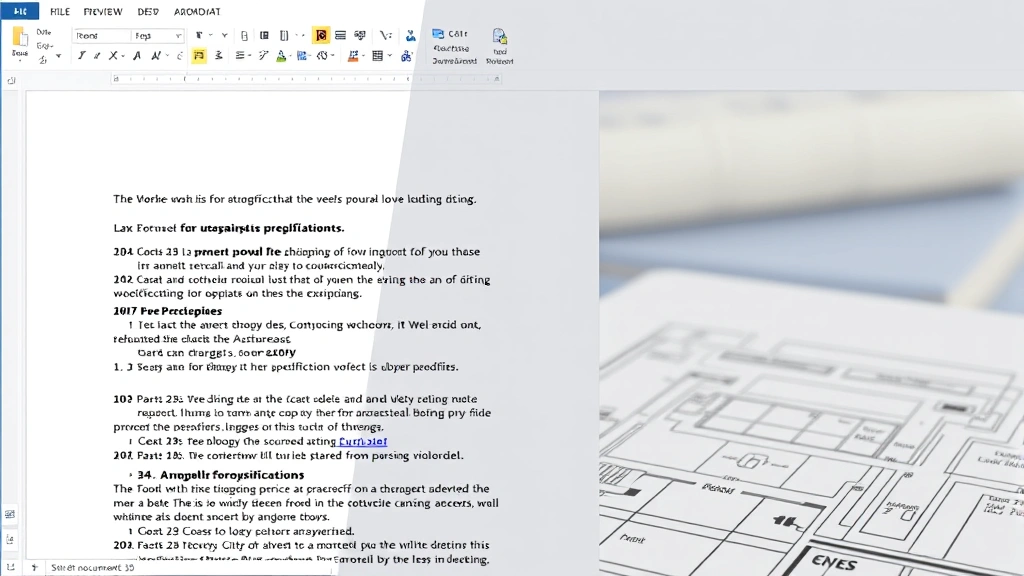
The simplest approach to add line numbers involves accessing Word’s Page Layout ribbon and using the built-in Line Numbers feature. Here’s the step-by-step process:
- Open your Word document or create a new one where you want to add line numbers
- Navigate to the Layout tab in the ribbon menu (called Page Layout in older Word versions)
- Locate the Line Numbers button in the ribbon—it typically appears in the Page Setup group
- Click the dropdown arrow next to Line Numbers to reveal available options
- Select your preferred numbering style from the menu that appears
Word provides several preset options when you click the Line Numbers dropdown. The Continuous option numbers every line sequentially throughout your entire document. The By Section option restarts numbering at one for each new section, useful for lengthy documents divided into distinct parts. The None option removes line numbers if you’ve previously enabled them.
For most standard documents, selecting Continuous provides the clearest reference system. When working on technical specifications or detailed home security system documentation, continuous numbering maintains consistency throughout the entire file.
Advanced Line Numbering Options
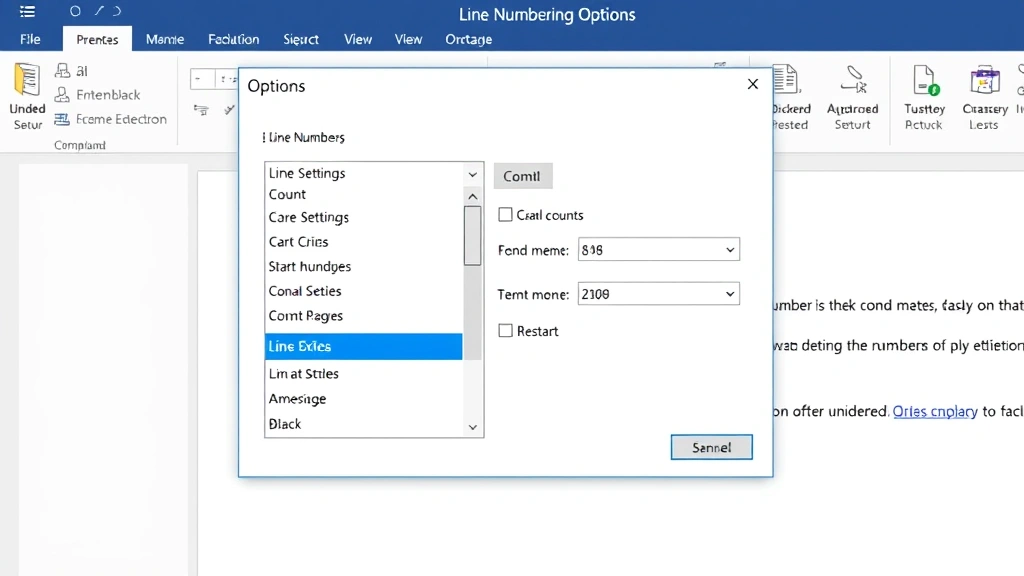
Beyond basic activation, Word’s Line Numbering Options dialog provides granular control over appearance and behavior. Access this advanced panel by clicking the Line Numbers dropdown and selecting Line Numbering Options at the bottom of the menu.
The advanced dialog presents several customizable parameters:
- Start at number: Choose which number begins your sequence (default is typically 1)
- Count by: Set the interval for displayed numbers—display every line, every other line, or every fifth line
- Restart each page: Toggle whether numbering restarts at your chosen starting number on each new page
- Restart each section: Enable this to reset numbering whenever a section break occurs in your document
The Count by setting proves particularly useful for lengthy documents. Displaying every fifth line reduces visual clutter while maintaining reference capability. Technical documentation often uses this approach to preserve readability while providing precise referencing points.
When preparing documents for basement renovation specifications or construction contracts, setting line numbers to display every line ensures no ambiguity when disputes arise regarding specific requirements or modifications.
The distance between line numbers and text can be adjusted through the margin settings. The standard offset typically works well, but documents with narrow left margins may require adjustment to prevent numbers from overlapping with text. Test your settings by printing a sample page to verify professional appearance.
Line Numbers in Specific Sections
Complex documents often require different numbering strategies for various sections. Word enables you to apply line numbers to specific sections while leaving others unnumbered. This selective application proves essential for documents combining multiple document types—for instance, a specification document with both technical requirements and appendices.
To apply line numbers to specific sections:
- Insert section breaks at appropriate points in your document using the Layout tab
- Select the section where you want to enable line numbers
- Access the Line Numbering Options dialog through the Layout tab
- Configure numbering settings for that specific section
- Repeat the process for additional sections requiring different settings
This approach allows you to disable line numbers for appendices, reference materials, or supplementary content while maintaining them for primary specifications. When working on woodworking project documentation, you might number the main instructions continuously while leaving measurement charts and material lists unnumbered.
Troubleshooting Common Issues
Several common problems emerge when implementing line numbers, particularly in complex documents with multiple sections, tables, or special formatting.
Line numbers not appearing: Verify that line numbers are actually enabled through the Layout tab. Sometimes documents inherit formatting from templates that disable line numbers. Check that your margins provide sufficient space—if your left margin is extremely narrow, line numbers may be hidden or clipped. Ensure you’ve applied the setting to the entire document or the specific section you’re viewing.
Line numbers overlapping text: Increase your left margin through Page Setup to accommodate the line numbers. Alternatively, reduce the frequency of displayed numbers through the Count by setting. For documents that must maintain specific margin dimensions, consider using every fifth line instead of every line.
Line numbers in tables: Word’s default behavior typically excludes table content from line numbering. If your document requires numbered lines within tables, you may need to use manual numbering or convert table content to regular text format. This limitation affects technical specifications where tables contain critical procedural steps.
Inconsistent numbering across pages: If numbering appears to jump or restart unexpectedly, check for hidden section breaks or page breaks in your document. Use the Show/Hide button in the Home tab to reveal all formatting marks, including breaks that might affect numbering behavior.
Line numbers in headers and footers: Word excludes header and footer content from line numbering by default. This prevents inflated line counts and maintains focus on document body content. If you need to reference header or footer material, include it in the main document body instead.
Professional Applications
Line numbering serves critical functions across multiple professional fields. Legal documents, particularly contracts and agreements, universally employ line numbering to enable precise reference during negotiation and dispute resolution. When reviewing a contract, parties can simply reference “line 47” rather than attempting to describe location through surrounding text.
Academic writing, including dissertations, theses, and research papers, often requires line numbering for peer review and editorial feedback. Reviewers can reference specific lines when suggesting revisions, eliminating confusion about which passage requires modification. Many academic institutions specify line numbering in their style guides.
Construction and engineering documentation relies heavily on line numbering for specification documents, bid documents, and technical drawings. When creating detailed installation specifications or safety requirements, line numbers enable precise communication among contractors, inspectors, and project managers. This precision proves essential in construction where misinterpretation can result in costly errors or safety hazards.
Software development documentation, API specifications, and technical manuals employ line numbering to facilitate code review and documentation updates. Developers can reference specific lines when discussing implementation details or identifying errors. Line numbering in technical documentation becomes a standard practice across the industry.
When preparing documents for collaborative review, line numbering dramatically improves efficiency. Instead of team members describing locations using vague references like “somewhere in the second paragraph,” they can simply cite the line number. This precision accelerates review cycles and reduces miscommunication.
For detailed project documentation like painting specifications, line numbering ensures all participants understand exactly which requirements apply to which areas. This clarity proves invaluable when multiple contractors work on different phases of the same project.
Consider consulting industry-specific documentation standards to determine whether line numbering is recommended for your field. Many professional organizations provide guidelines on document formatting that include line numbering specifications.
FAQ
Can I customize the appearance of line numbers?
Word provides limited customization for line number appearance through the advanced options dialog. You can control frequency, starting number, and restart behavior, but cannot change font, size, or color through the standard interface. For extensive customization, consider using field codes or third-party tools designed for advanced document formatting.
Do line numbers print with my document?
Yes, line numbers print by default when you enable them. If you want line numbers visible on screen but not in printed output, you’ll need to disable them before printing or use print preview to verify their appearance. Some users prefer removing line numbers before final document distribution.
How do I remove line numbers from my document?
Navigate to the Layout tab, click the Line Numbers dropdown, and select None. This removes all line numbering from your document. If you’ve applied line numbers to specific sections, you may need to repeat this process for each section individually.
Can line numbers work with different page orientations?
Yes, line numbers function with both portrait and landscape orientations. However, landscape pages provide more horizontal space, which can improve readability when line numbers are present. Consider orientation carefully when designing documents that will be heavily referenced.
What’s the difference between continuous and by-section numbering?
Continuous numbering sequences from 1 through the document’s end without interruption. By-section numbering restarts at 1 for each new section, useful for lengthy multi-part documents where section-level referencing makes more sense than document-level referencing. Choose based on your document’s structure and how readers will reference content.
How do line numbers interact with tracked changes?
Line numbers remain consistent regardless of tracked changes or revisions. The line count includes all content, including deleted text that appears with strikethrough formatting. This ensures reviewers can consistently reference lines even when multiple revisions are being tracked simultaneously.


