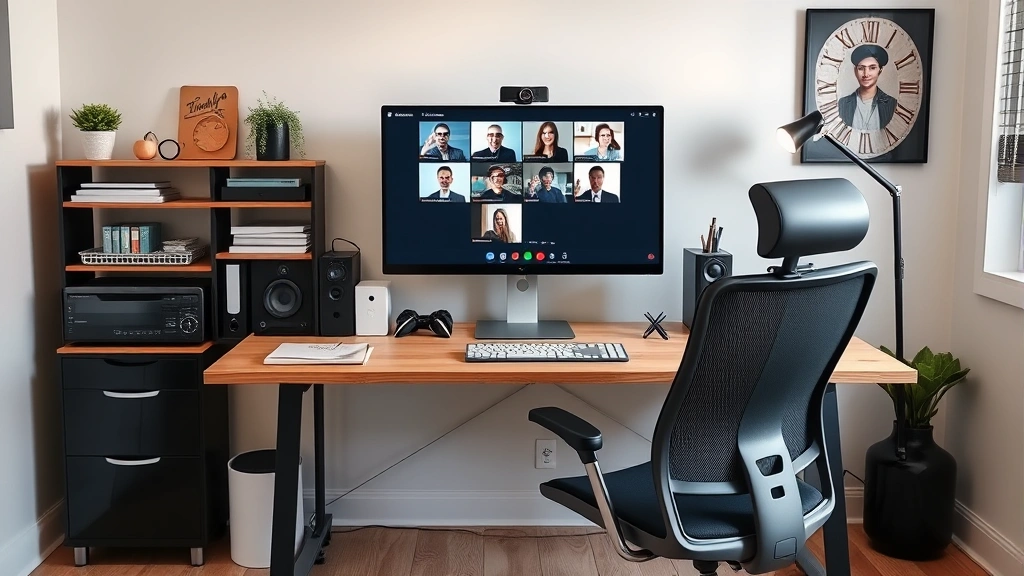
Microsoft Teams has become the go-to platform for remote work, virtual meetings, and team collaboration across countless organizations. Whether you’re joining a video call, attending a virtual presentation, or just spending hours in the Teams interface, your background can significantly impact your professional appearance and the impression you make on colleagues. Learning how to change your background in Teams is one of the most practical customization skills you can master, and it takes just seconds to implement.
The good news is that Teams offers multiple background options built directly into the platform, from professional blurred effects to custom images you can upload yourself. In this comprehensive guide, we’ll walk you through every method available, troubleshoot common issues, and explore best practices for selecting backgrounds that enhance rather than distract from your professional presence. Whether you’re working from a cluttered home office, a busy coffee shop, or anywhere in between, you’ll find solutions that work for your situation.

Why Background Settings Matter
Your Teams background is more than just a cosmetic choice—it’s a reflection of your professionalism and consideration for others in virtual meetings. When you join a video call without managing your background, colleagues might see personal items, cluttered spaces, or distracting elements that take focus away from the actual conversation. This is particularly important if you’re in client-facing roles, executive positions, or any situation where first impressions matter.
The background feature addresses several practical concerns. First, it provides privacy by obscuring your home or office environment. Second, it maintains focus during conversations by eliminating visual distractions. Third, it ensures consistency in your professional image across different meeting locations. Many professionals have discovered that taking a few seconds to set an appropriate background before important calls significantly improves how they’re perceived by peers and supervisors.
Teams offers several approaches to background management, each with specific advantages. Some users prefer the simplicity of a blur effect, while others want the professional polish of a custom background image. Understanding all available options ensures you can choose the solution that best fits your needs and technical capabilities. If you’re interested in other practical tech customizations, explore our guide on how to change battery on AirTag for similar step-by-step approaches to device management.

Step-by-Step Guide to Changing Your Teams Background
The process of changing your Teams background is straightforward and works similarly across most devices. Here’s the detailed walkthrough:
- Open Microsoft Teams on your computer or mobile device and sign in with your work or school account.
- Click your profile picture in the top-right corner of the Teams window to access account settings.
- Select “Settings” from the dropdown menu that appears.
- Navigate to “Devices” in the left sidebar, then click on “Camera” or “Background effects” depending on your Teams version.
- Look for the background settings section, which displays available background options.
- Choose your preferred background from the available options or upload a custom image.
- Apply the changes by clicking the confirmation button or selecting the background directly.
For users who want to change backgrounds during an active meeting, Teams provides a faster method. Simply click the three-dot menu (more actions) in your video preview during a call, select “Show background effects,” and choose your background without leaving the meeting. This approach is ideal when you’ve forgotten to set a background before joining an important call.
The beauty of Teams background customization is that you can change it as often as needed. Some professionals maintain multiple custom backgrounds for different types of meetings—a professional office setting for client calls, a home office backdrop for team meetings, or a branded background for presentations. This flexibility allows you to adapt your appearance to different contexts while maintaining professionalism throughout your workday.
Using Built-In Background Effects
Microsoft Teams includes several pre-designed background effects that don’t require any image uploads or additional setup. These built-in options are specifically designed for professional environments and work reliably across different internet speeds and device capabilities.
Blur Effect is the most popular choice among professionals. When enabled, this feature blurs everything behind you while keeping your face and upper body in sharp focus. The blur is sophisticated enough to completely obscure personal details while maintaining a natural appearance. This option requires minimal processing power and works well even on older computers or slower internet connections.
Teams also offers several pre-loaded professional backgrounds that simulate different office environments. These include:
- Modern office spaces with neutral tones
- Professional conference room settings
- Clean, minimalist backgrounds
- Nature-inspired scenes that convey calm and professionalism
- Branded backgrounds if your organization has created custom options
The advantage of pre-loaded backgrounds is consistency and reliability. Unlike custom images that might compress poorly or display differently depending on internet quality, Teams’ built-in backgrounds are optimized for video streaming. They load quickly, display consistently across all participants’ screens, and don’t require storage space on your device.
If you’re managing multiple devices or working across different locations, built-in effects ensure a uniform appearance regardless of which device you’re using. This consistency is particularly valuable in professional settings where you want colleagues to recognize and remember you consistently.
Uploading Custom Background Images
For users who want complete creative control over their background appearance, Teams allows custom image uploads. This feature opens numerous possibilities for personalizing your professional presence while maintaining appropriate workplace standards.
To upload a custom background image, follow these steps within your Teams settings:
- Access the background effects section as described in the previous guide.
- Look for an “Upload” or “Add new” button in the background options area.
- Select an image from your computer that meets Teams’ technical requirements.
- Preview the image to ensure it displays correctly with your video feed.
- Save the custom background to your Teams profile for future use.
When selecting custom images, keep several technical and professional considerations in mind. Teams recommends images that are at least 1920×1080 pixels for optimal quality, though the platform accepts smaller images and scales them accordingly. File size should typically remain under 5MB to ensure quick loading during meetings.
Professional image suggestions for custom backgrounds include:
- Your company’s office space or branded environment
- Professional stock photos featuring clean, uncluttered office settings
- Your actual home office if it’s well-organized and presentable
- Nature scenes that convey professionalism and calm
- Abstract designs or gradient backgrounds that don’t distract from your face
Avoid backgrounds with text, logos that might violate intellectual property, extremely busy patterns, or personal photos that aren’t appropriate for workplace settings. The goal is to enhance your professional image, not to showcase personal interests that might distract from business conversations. Much like how people customize their home security systems for practical purposes, your Teams background should serve a functional professional role.
Background Settings for Different Devices
The process for changing your Teams background varies slightly depending on whether you’re using a desktop computer, laptop, tablet, or smartphone. Understanding these device-specific differences ensures you can manage your background regardless of where you’re working.
Windows and Mac Desktop offer the most comprehensive background options. The full Teams application includes all effects, blur options, and custom upload capabilities. Desktop users benefit from the most processing power and typically experience the best background performance during video calls.
Mobile devices (iOS and Android) have more limited background options due to processing constraints. The Teams mobile app typically offers basic blur effects and may not support custom image uploads. If you frequently join calls from your phone, ensure you’re comfortable with the standard mobile background options available.
Web-based Teams accessed through your browser has varying background support depending on your browser and system specifications. Chrome and Edge generally offer better background support than other browsers. Some background features may be disabled in the web version, so desktop application users typically have access to more options.
If you’re someone who works across multiple devices—perhaps a laptop during the day and a tablet from home—consider testing your chosen background on each device before important meetings. This ensures your appearance remains consistent and professional regardless of which device you’re using to join calls.
Troubleshooting Common Background Issues
Even with Teams’ straightforward background features, users occasionally encounter technical issues. Understanding common problems and their solutions helps you maintain a professional appearance in every meeting.
Background Not Applying is the most frequent issue. If your selected background doesn’t appear when you join a call, first verify that your camera is working properly. Try restarting the Teams application, then reselecting your background. If the problem persists, check that your Teams application is fully updated to the latest version.
Blurry or Pixelated Backgrounds often result from internet connection issues or image resolution problems. If you’re using a custom image, ensure it’s at least 1920×1080 pixels. If your internet connection is unstable, the blur effect may appear less refined. Switching to a solid pre-loaded background can help if your connection is unreliable.
Performance Issues or Lag during video calls might be caused by heavy background processing. If you notice your video feed stuttering or freezing when a background is enabled, try switching to the simple blur effect or disabling the background temporarily. Older computers with limited processing power may struggle with complex custom backgrounds.
Custom Image Not Uploading typically indicates a file format or size issue. Teams accepts JPG, PNG, and BMP formats. Ensure your image is under 5MB and meets the recommended resolution specifications. If problems continue, try compressing the image using free online tools before uploading.
Background Visible on Your Screen But Not Others’ suggests a synchronization issue. Refresh your connection by briefly leaving and rejoining the meeting. This forces Teams to resynchronize your settings with the call server.
Best Practices for Professional Backgrounds
Selecting and using a Teams background effectively requires more than just clicking options—it involves strategic thinking about your professional image and workplace context.
Consider Your Industry and Role when choosing backgrounds. Client-facing professionals in finance, law, or consulting typically benefit from formal office settings or professional blur effects. Creative professionals might have more flexibility with unique custom backgrounds. Always err toward professionalism unless your company culture clearly encourages more casual approaches.
Test Your Background Before Important Meetings by joining a test call with a colleague or using Teams’ preview feature. This ensures the background displays correctly, your face is clearly visible, and there are no technical glitches. A five-minute test prevents awkward surprises during critical presentations or client meetings.
Maintain Consistency by selecting one or two backgrounds you use regularly. Colleagues will begin to recognize you by your consistent background choice, which reinforces your professional brand. Constantly changing backgrounds can appear unprofessional or indicate you’re not taking meetings seriously.
Ensure Good Lighting regardless of your background choice. A high-quality background loses its effectiveness if your face is poorly lit or shadowed. Position your light source in front of you, not behind you, to ensure clear visibility during video calls. Proper lighting matters more than any background effect.
Check Organization Policies regarding background usage. Some companies have specific guidelines about acceptable backgrounds, branded requirements, or restrictions on custom images. Reviewing your employee handbook or IT policies ensures your background choice complies with organizational standards.
For those interested in broader workplace customization and efficiency, explore our comprehensive guide on DIY Nests Hub Blog for other practical workplace improvement strategies.
FAQ
Can I use the same custom background on multiple devices?
Yes, custom backgrounds uploaded to your Teams account are stored in your profile and accessible from any device where you sign in. This ensures your background remains consistent whether you’re using a desktop computer, laptop, or tablet. However, mobile devices may have limited background support depending on your operating system.
Does using a background affect call quality or performance?
Background effects do require some processing power, but modern computers handle this efficiently. If you experience lag or performance issues, try switching to the simple blur effect rather than a complex custom image. Disabling the background during bandwidth-limited situations (slow internet) can also improve overall call quality.
What image dimensions work best for custom Teams backgrounds?
Teams recommends images that are 1920×1080 pixels or larger for optimal quality. The platform automatically scales images to fit different aspect ratios and screen sizes. Smaller images work but may appear pixelated or stretched. Keep file sizes under 5MB for fast loading during calls.
Can my organization restrict background choices?
Yes, Teams administrators can configure policies that limit background options, require branded backgrounds, or disable custom image uploads entirely. If your background options seem limited, contact your IT department to understand your organization’s specific background policies.
How do I change my background during an active meeting?
Click the three-dot menu (more options) in your video preview during the call and select “Show background effects.” This opens background options without leaving the meeting, allowing you to change backgrounds on the fly if needed.
Why does my background look different to other participants?
Background quality depends on internet speed, device processing power, and camera quality. Your view of the background may differ slightly from how others see it. Always preview your background before important meetings to ensure it displays well on your connection.
Can I use animated backgrounds or videos as Teams backgrounds?
Standard Teams background features support static images only. Animated backgrounds or video backgrounds aren’t available in the standard application, though some third-party tools claim to offer this functionality. For official functionality, stick with static image files in supported formats.


