How to Change Mac Folder Icons: Expert Tips Inside
Customizing your Mac’s folder icons is one of the simplest yet most effective ways to personalize your digital workspace and boost productivity. Whether you’re organizing a home security project folder or creating a visual filing system for your house painting plans, custom folder icons make navigation faster and more enjoyable. This comprehensive guide walks you through multiple methods to change Mac folder icons, from built-in system tools to third-party applications.
Unlike Windows systems, macOS offers native functionality for icon customization without requiring additional software downloads. You can transform bland gray folders into vibrant, themed icons that reflect your organizational style and project categories. Whether you’re managing basement renovation documents or household maintenance records, personalized icons help you locate files instantly and maintain an organized digital environment.
Understanding Mac Icon Basics
Before diving into the practical steps, it’s essential to understand how macOS handles folder icons and file formats. Mac folder icons are stored as image files, typically in .icns format, which is Apple’s native icon format. However, macOS also supports PNG, JPEG, TIFF, and PDF formats for icon customization, making it incredibly flexible for users who want to experiment with different visual styles.
The icon system on macOS operates through the Finder application, which manages all file organization and display properties. When you change a folder icon, you’re essentially replacing the default system icon with a custom image file. This change is stored in the folder’s metadata, meaning the custom icon travels with the folder if you move it to external drives or share it with other users on your Mac.
Understanding file formats is crucial for successful icon customization. The native .icns format supports multiple resolutions simultaneously (16×16, 32×32, 128×128, 256×256, and 512×512 pixels), ensuring your custom icon looks sharp at any display size. If you’re using PNG or JPEG files, ensure they’re at least 512×512 pixels for optimal clarity on modern Retina displays.
Method 1: Using Get Info Panel
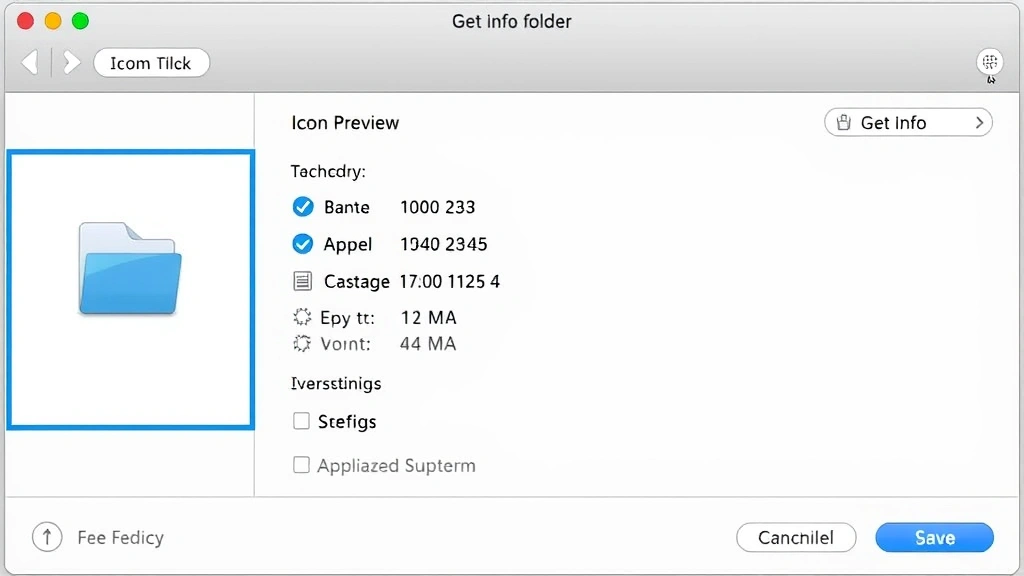
The Get Info panel is macOS’s built-in tool for managing file and folder properties, including icons. This method requires no additional software and works on all modern Mac systems. Here’s the step-by-step process:
- Locate your target folder in Finder and right-click or Control-click on it
- Select “Get Info” from the context menu (or press Command+I)
- Look for the icon preview at the top-left corner of the Get Info window
- Prepare your replacement image file (PNG, JPEG, or ICNS format)
- Drag and drop your custom image directly onto the icon preview area
- Confirm the change by closing the Get Info window
This method is remarkably intuitive and works with most image formats. The key is ensuring your image file is easily accessible on your desktop or in a folder you can quickly navigate to. Many users find this method fastest for single or small batch icon changes.
One advantage of the Get Info method is that it preserves the folder’s functionality while completely transforming its appearance. Your folder remains fully functional with all its contents intact—you’re only changing the visual representation. This makes it perfect for categorizing project folders, as mentioned in our guide on basement finishing projects.
Method 2: Drag and Drop Technique
For users who prefer minimalist approaches, the drag-and-drop method offers an even faster alternative. This technique bypasses the Get Info panel entirely and works directly from Finder.
Step-by-step process:
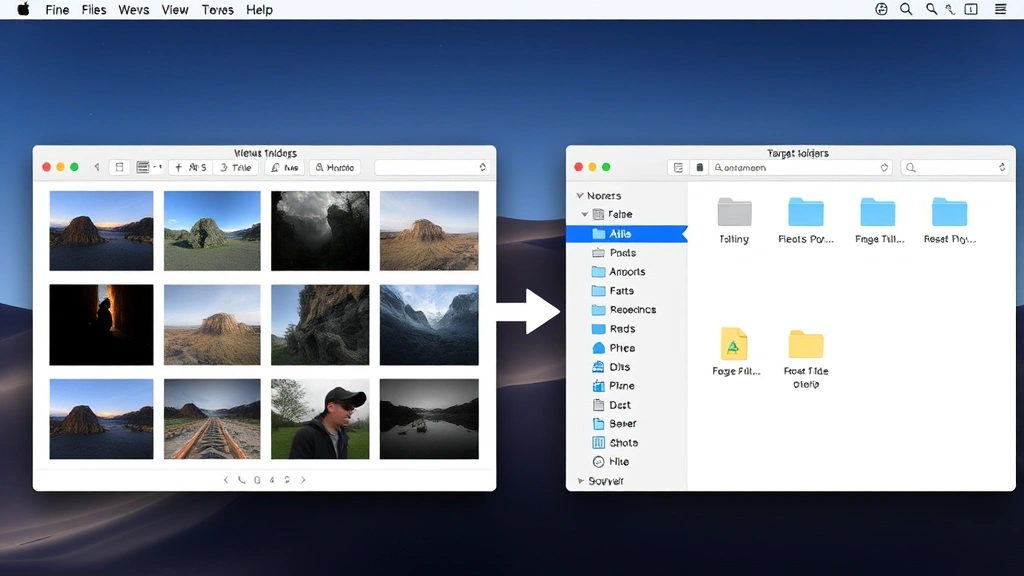
- Open two Finder windows side by side (Command+N to open a new window)
- Position your custom image file in one window
- Select your target folder in the other window
- Right-click the folder and select “Get Info”
- Click the icon preview at the top of the Get Info window to select it (it should highlight with a blue border)
- Drag your image file from the Finder window onto the highlighted icon
- Release the mouse button to complete the transfer
This method is particularly efficient when customizing multiple folders simultaneously. You can keep your icon library open in one window and work through folders in another, significantly speeding up batch customization projects.
The drag-and-drop technique also works with image files from web browsers. If you’ve downloaded custom icons from online resources, you can drag them directly from your Downloads folder into the Get Info icon preview without any intermediate steps.
Method 3: Third-Party Icon Apps
While macOS provides excellent native tools, third-party applications offer enhanced functionality for serious icon customizers. These apps provide icon libraries, editing capabilities, and batch processing features that exceed built-in system tools.
Popular third-party icon applications include:
- Folder Colorizer Pro – Offers color-coded icons and quick customization
- IconKit – Provides icon editing and creation capabilities
- Pricetag – Allows custom pricing labels and decorative icons
- Cyberduck – Features folder customization alongside file transfer tools
- LUT Robot – Enables advanced icon manipulation and effects
These applications typically offer more intuitive interfaces for users managing large numbers of folders. They often include preset icon libraries, color customization options, and the ability to apply icons to multiple folders simultaneously. For users managing complex home security documentation or extensive home improvement projects, these tools provide significant time savings.
Most third-party apps operate by modifying the same folder metadata that native methods use, so your custom icons will remain intact even if you uninstall the application. However, ensure you download from reputable sources and check user reviews before installing any new software on your Mac system.
Finding Quality Icons Online
The success of your folder customization depends largely on the quality of icons you select. Fortunately, numerous websites offer free and premium icon libraries specifically designed for macOS users.
Recommended icon resources:
- Flaticon – Extensive library with millions of customizable icons
- IconFinder – Professional-quality icons with detailed filtering options
- macOS Icons – Specifically curated for Apple ecosystem users
- Noun Project – High-quality, minimalist icon designs
- Icons8 – Comprehensive collection with Mac-specific formats
When downloading icons, verify they’re available in at least 512×512 pixel resolution for optimal display on modern Macs. Many websites allow you to customize colors and styles before downloading, enabling you to create a cohesive visual system across all your folders.
Consider creating a color-coded system for different project categories. For instance, use warm colors (reds, oranges) for urgent projects, cool colors (blues, purples) for archived materials, and neutral tones for ongoing reference folders. This visual organization significantly improves navigation speed and reduces the time spent searching for specific folders.
Advanced Customization Techniques
Once you’ve mastered basic icon changing, explore advanced techniques to create a truly personalized Mac experience. These methods involve creating custom icons from scratch and implementing sophisticated organizational systems.
Creating custom icons from personal images:
You can convert any personal photograph or design into a folder icon. Use image editing software like Preview (built into macOS) or Adobe Photoshop to resize images to 512×512 pixels. Ensure the image clearly represents the folder’s contents—this reinforces visual organization and helps you locate files faster. For example, if you’re organizing house painting project photos, use an actual photo of your painted room as the folder icon.
Color-coded folder systems:
Implement a comprehensive color system across all your folders. Assign specific colors to project types: red for urgent items, green for completed projects, yellow for in-progress work, and blue for reference materials. This system works especially well when combined with the basement finishing project organization, where multiple contractors and family members need quick visual reference.
Batch icon application:
For managing numerous folders with similar purposes, apply identical icons to multiple folders simultaneously. Select multiple folders in Finder (Command+click each one), then right-click and choose Get Info. The resulting panel will apply changes to all selected folders at once, dramatically reducing customization time for large folder structures.
Troubleshooting Icon Changes
Occasionally, icon changes may not appear immediately or might revert unexpectedly. Understanding common issues and their solutions ensures your customization efforts persist.
Icon not appearing after change:
If your new icon doesn’t display after applying it, try these troubleshooting steps:
- Force Finder refresh by pressing Command+Option+Esc and relaunching Finder
- Restart the Mac to refresh the system icon cache
- Check file format compatibility – ensure your image is PNG, JPEG, TIFF, or ICNS
- Verify image resolution – minimum 512×512 pixels for optimal display
- Check folder permissions – ensure you have write access to the folder
Icons reverting to default:
System updates sometimes reset custom folder icons. To prevent this, avoid storing custom icons in system-protected directories. Keep personal icon libraries in your Documents or a dedicated Icons folder within your home directory. Additionally, some security software may interfere with icon customization—temporarily disable security extensions if problems persist.
Performance considerations:
While folder customization doesn’t significantly impact Mac performance, using extremely large image files (over 5MB) as icons can slightly slow down Finder operations. Always optimize images to reasonable file sizes before applying them as folder icons. Most icon resources mentioned earlier provide pre-optimized downloads, so this typically isn’t an issue.
Compatibility across devices:
Custom folder icons may not display properly when accessing folders through iCloud Drive on other devices or when sharing folders with Windows users. If cross-platform compatibility is essential, maintain backup copies of original folder names and consider using consistent naming conventions alongside icon customization.
FAQ
Can I change folder icons on external drives?
Yes, absolutely. Custom icons work on external drives, USB flash drives, and SD cards. However, the folder must be formatted as Mac OS Extended (HFS+) or APFS for the custom icon to persist. Windows-formatted drives won’t retain custom icon information.
Will custom folder icons sync across my Mac devices?
Custom icons don’t automatically sync through iCloud or other cloud services. If you want identical folder icons across multiple Macs, you’ll need to apply the customizations manually on each device or use third-party sync applications.
Is changing folder icons safe for system folders?
While technically possible, it’s not recommended to customize system folder icons in protected directories like /System or /Library. Stick to user-created folders in your home directory and external drives. Modifying system folder icons could interfere with system updates or cause confusion during troubleshooting.
What’s the best image format for folder icons?
PNG format offers the best balance between quality and compatibility. It supports transparency, maintains high resolution, and works seamlessly with macOS. ICNS is Apple’s native format but requires special tools to create. JPEG works but doesn’t support transparency.
Can I use emoji as folder icons?
While macOS doesn’t natively support emoji as folder icons, you can take screenshots of emoji, convert them to images, and use those as custom icons. However, this approach creates larger file sizes than traditional icon methods.
How do I remove custom folder icons and revert to default?
Open Get Info for the folder, click the icon preview to select it, and press Delete. The folder will immediately revert to the standard gray folder icon. Alternatively, right-click the icon preview and select “Paste” if you’ve copied the original icon beforehand.
Are there keyboard shortcuts for changing folder icons?
No built-in keyboard shortcuts exist for icon customization in Finder. However, Command+I opens Get Info quickly, and you can create custom workflows using Automator or AppleScript for batch operations.
Can I change the folder icon color without changing the image?
Not directly through native macOS tools. Third-party applications like Folder Colorizer Pro allow color tinting without replacing the entire icon. Alternatively, you can create colored versions of your desired icon using image editing software.


