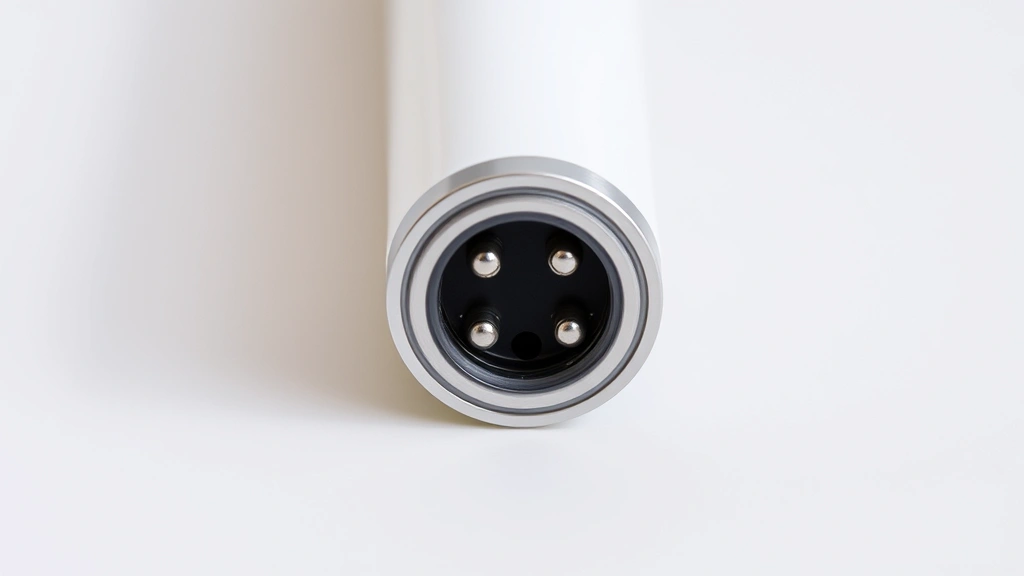
How to Charge Apple Pencil Gen 1: Expert Tips Inside
The Apple Pencil Gen 1 represents a significant innovation in digital input technology, offering iPad users unprecedented precision and responsiveness for creative work, note-taking, and design applications. However, many users find themselves confused about the proper charging procedure, which differs substantially from modern wireless charging methods used in newer generations. Understanding the correct charging technique is essential for maintaining battery health, ensuring consistent performance, and maximizing the lifespan of your investment.
Unlike the Apple Pencil Pro or Gen 2 models that utilize magnetic inductive charging, the original Apple Pencil Gen 1 employs a Lightning connector-based charging system that requires direct physical connection to your iPad. This charging method, while straightforward once understood, demands attention to detail and proper handling to avoid damage to both the stylus and your iPad’s charging port. Whether you’re a digital artist, architect, or student relying on your Apple Pencil for daily tasks, mastering the charging process will eliminate frustration and keep your device operating at peak efficiency.
Understanding Apple Pencil Gen 1 Charging Basics
The Apple Pencil Gen 1 operates on a rechargeable lithium-ion battery system that provides approximately 12 hours of continuous use on a single charge. The device charges exclusively through the Lightning connector port located at its base, which connects directly into your iPad’s Lightning port. This design choice, while enabling a slim and lightweight form factor, means you cannot charge your Apple Pencil using standard USB chargers or third-party charging solutions without purchasing additional accessories.
Apple provides the Apple Pencil with a removable Lightning adapter cap that serves a dual purpose: protecting the charging port when not in use and enabling charging through alternative iPad models or power adapters. The charging process itself is remarkably efficient, requiring only approximately 15-30 minutes to achieve a full charge from completely depleted. A quick 30-second charge will provide enough power for approximately 30 minutes of use, making the Apple Pencil exceptionally practical for users who frequently find themselves needing rapid top-ups between creative sessions.
The battery management system within the Apple Pencil Gen 1 automatically regulates charging current and voltage to prevent overcharging, which means you can safely leave your stylus connected indefinitely without degrading battery performance. However, understanding the relationship between charging frequency, battery cycles, and long-term health will help you make informed decisions about your usage patterns and device maintenance routines.
Step-by-Step Charging Instructions
Method 1: Direct iPad Charging
The most straightforward approach involves connecting your Apple Pencil directly to your iPad’s Lightning port. First, locate the Lightning connector at the base of your Apple Pencil—this is the small metallic port surrounded by a slightly recessed charging area. Remove the protective cap if your stylus includes one. Position the Apple Pencil’s Lightning connector carefully toward your iPad’s charging port, which is typically located at the bottom edge of your device. Gently insert the Apple Pencil at a slight angle, allowing the connector to slide smoothly into the port. You should feel minimal resistance; excessive force indicates misalignment. Once properly seated, your iPad’s screen will immediately display a charging indicator showing the current battery percentage and estimated charging time. Leave the Apple Pencil connected until the battery reaches 100 percent or until you achieve your desired charge level.
Method 2: Using the Lightning Adapter Cap
For users with multiple iPad models or who prefer charging through alternative power sources, the removable Lightning adapter cap provides flexibility. This small cylindrical adapter features a female Lightning port that accepts standard Lightning cables. Remove the protective cap from your Apple Pencil’s charging port. Slide the Lightning adapter cap onto the Apple Pencil’s Lightning connector until it clicks securely into place. Now you can connect any standard Lightning cable to the adapter’s port and plug the other end into your preferred power source—whether that’s an iPad, wall charger, or computer USB port. This method proves particularly useful when your iPad is already in use or when you want to charge multiple devices simultaneously.
Method 3: Charging Through USB-C iPad Models
If you own a newer iPad with USB-C connectivity, you’ll need to use the Lightning adapter cap connected to a USB-C to Lightning cable adapter. Connect your standard Lightning cable to the Lightning adapter cap on your Apple Pencil, then attach a USB-C to Lightning adapter to the opposite end of the cable. Finally, connect this assembly to your iPad’s USB-C port or any compatible USB-C power adapter. While this multi-step process seems complex, it provides the compatibility necessary for users with modern iPad devices.
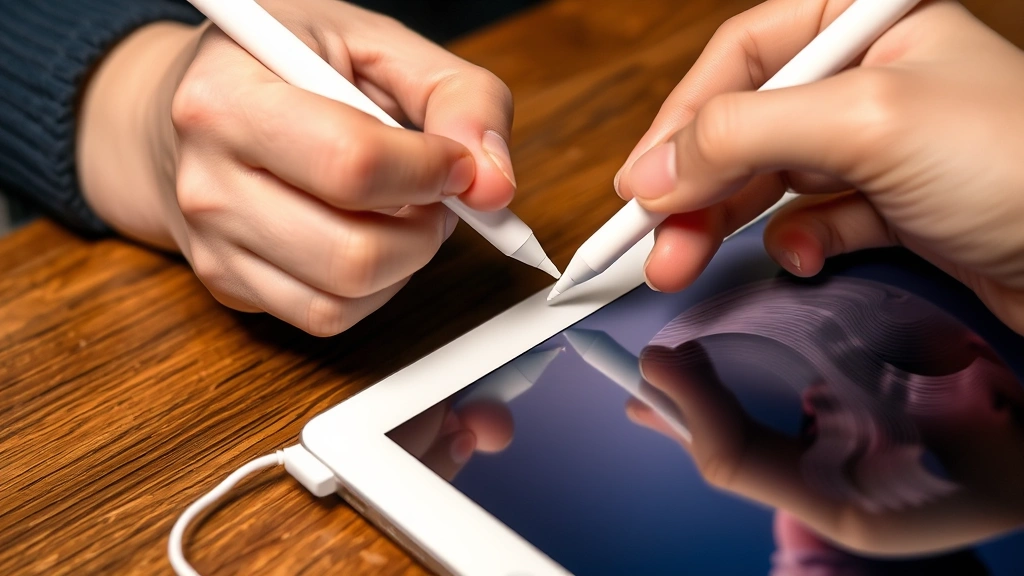
Charging Port Care and Maintenance
The Lightning connector ports on both your Apple Pencil and iPad are precision electronic components that require careful handling to maintain functionality. Dust, debris, and moisture accumulation represent the primary threats to reliable charging performance. Before each charging session, inspect both the Apple Pencil’s Lightning connector and your iPad’s charging port for visible debris. Use a soft, dry, lint-free cloth to gently wipe the connector pins on your Apple Pencil, removing any dust or dried residue that might impede proper electrical contact.
For your iPad’s charging port, exercise greater caution since you cannot easily replace this component if damaged. A small flashlight allows you to peer into the port and assess cleanliness. If you notice debris, use a wooden toothpick or plastic pick—never metal instruments that conduct electricity—to carefully dislodge particles. Alternatively, a can of compressed air directed at an angle can effectively remove dust without making physical contact. Never insert cotton swabs into the port, as fibers frequently remain behind and create future contact problems.
Moisture represents another significant concern, particularly in humid environments or after use near water sources. If your Apple Pencil or iPad has been exposed to moisture, allow both devices to air dry completely in a dry environment for several hours before attempting to charge. Charging wet devices can cause short circuits, component damage, and safety hazards. Consider using a desiccant packet or placing your devices in a sealed container with uncooked rice to accelerate moisture removal if necessary.
The charging connector itself can develop microscopic corrosion over time, especially in coastal environments with salt air or areas with high humidity. If you notice charging becoming intermittent despite clean ports, try gently rubbing the Lightning connector with a clean, dry cloth or using a small amount of isopropyl alcohol on a cloth to clean the connector pins. Allow the alcohol to evaporate completely before attempting to charge.

Battery Health and Longevity
Lithium-ion batteries, like those powering your Apple Pencil Gen 1, have finite lifespans measured in charge cycles rather than years. One complete charge cycle occurs when you deplete the battery from 100 percent to 0 percent and then recharge to 100 percent. Partial charges—such as charging from 40 percent to 80 percent—count as fractional cycles. Understanding this concept helps you optimize charging behavior to extend your device’s useful lifespan.
Battery capacity gradually diminishes with each charge cycle, typically retaining approximately 80 percent of original capacity after 500 complete cycles. To maximize longevity, avoid routinely depleting your Apple Pencil completely before charging. Instead, adopt a maintenance charging approach where you top up the battery whenever it reaches 20-30 percent remaining capacity. This practice significantly reduces cumulative stress on the battery and extends usable lifespan by several years compared to full-depletion charging patterns.
Temperature management plays a crucial role in battery health. Avoid charging your Apple Pencil in excessively hot environments (above 95°F/35°C) or cold conditions (below 50°F/10°C), as temperature extremes degrade battery chemistry and reduce charging efficiency. Ideal charging occurs at room temperature between 60-75°F (15-24°C). If your Apple Pencil has been exposed to temperature extremes, allow it to return to room temperature before charging.
Long-term storage demands special attention. If you plan to store your Apple Pencil for extended periods, charge it to approximately 50 percent capacity and store it in a cool, dry location away from direct sunlight. Complete discharge during storage can result in deep battery depletion that prevents future charging, while storing at 100 percent capacity accelerates degradation. Check your stored Apple Pencil every few months and top up the charge if needed.
Troubleshooting Common Charging Issues
Apple Pencil Won’t Charge
If your Apple Pencil fails to charge despite proper connection, first verify that your iPad itself is functioning correctly by charging it normally. A non-functional iPad’s charging port will prevent Apple Pencil charging. If your iPad charges normally, disconnect your Apple Pencil and inspect both connectors thoroughly. Clean the Lightning connector on your Apple Pencil with a dry cloth, removing any oxidation or debris. Check your iPad’s charging port for obstructions using a flashlight. If debris is visible, carefully remove it with a plastic tool rather than metal objects that could cause electrical damage.
Try charging your Apple Pencil on a different iPad if available. This determines whether the issue stems from your specific Apple Pencil or your iPad’s charging port. If the Apple Pencil charges on a different iPad, your device’s charging port likely requires professional service. If your Apple Pencil fails to charge on any iPad, the stylus battery or internal charging circuit may be defective, warranting replacement under warranty if applicable.
Slow or Incomplete Charging
Slow charging often indicates poor electrical contact between the connectors. Disconnect your Apple Pencil and clean both the stylus connector and your iPad’s port thoroughly. Sometimes slight corrosion creates resistance that slows charging current. If cleaning doesn’t resolve the issue, try using the Lightning adapter cap with a different Lightning cable to isolate whether the cable is defective.
Incomplete charging—where your Apple Pencil stops charging before reaching 100 percent—might indicate a hardware limitation if it consistently stops at the same percentage. However, temporary incomplete charging can result from using underpowered chargers that lack sufficient current output. Ensure you’re using Apple-certified chargers rated for at least 1 amp output when using the Lightning adapter cap method.
Charging Port Damage
Physical damage to the charging port represents a more serious issue. Visible bent pins, cracks, or loose components inside the port indicate hardware failure. Attempting to force-charge a damaged port risks further damage to both your Apple Pencil and iPad. Professional repair through an authorized Apple service provider is your safest option. Similar to how you might approach charging a car battery with a charger, improper technique with your Apple Pencil can cause component damage, so addressing issues promptly prevents escalation.
Safety Considerations During Charging
While Apple Pencil charging is generally safe, following basic precautions prevents accidents and device damage. Never attempt to charge your Apple Pencil near water sources, in humid bathrooms, or during rain. Moisture combined with active electrical charging creates electrocution hazards. If your Apple Pencil or iPad becomes wet, discontinue charging immediately and allow both devices to dry completely before attempting future charging sessions.
Inspect your Lightning cables regularly for damage before using them with your Apple Pencil. Frayed insulation, bent connectors, or visible internal wiring indicate cable failure. Using damaged cables risks electrical shock and device damage. Replace compromised cables with Apple-certified alternatives rather than attempting repairs.
Never leave your Apple Pencil unattended while charging in unstable positions where it might fall and damage the charging port. Protect the device from physical impacts during charging, as the protruding Lightning connector becomes vulnerable to accidental strikes when your Apple Pencil is connected to your iPad.
Avoid charging your Apple Pencil on surfaces prone to static electricity discharge, such as carpeted areas in dry climates. If you’ve been working in a static-prone environment, ground yourself by touching a metal object before handling your Apple Pencil to prevent electrostatic discharge that could damage internal components. Similar safety consciousness applies whether you’re changing the battery in a Toyota key fob or managing your Apple Pencil, as small electronic devices require identical respect for electrical safety principles.
If your Apple Pencil becomes abnormally hot during charging—noticeably warmer than your iPad—disconnect it immediately. Excessive heat indicates potential battery malfunction or internal short circuit. Allow the device to cool completely before investigating further, and consider professional service if the overheating repeats.
FAQ
How long does Apple Pencil Gen 1 take to fully charge?
A complete charge from zero to 100 percent typically requires 15-30 minutes depending on the power source amperage. Using a higher-amperage charger (2 amp or greater) facilitates faster charging than lower-amperage sources. A quick 30-second charge provides approximately 30 minutes of use, making rapid top-ups practical during work sessions.
Can I charge Apple Pencil Gen 1 with a regular USB charger?
Not directly, since the Apple Pencil Gen 1 features a proprietary Lightning connector. However, using the removable Lightning adapter cap allows you to connect standard Lightning cables to any USB power source—including third-party USB chargers, computer ports, or wall adapters equipped with Lightning cable compatibility. Ensure your charger provides at least 1 amp output for reliable charging.
Is it bad to leave Apple Pencil Gen 1 charging overnight?
No, leaving your Apple Pencil connected overnight is safe due to built-in battery management systems that prevent overcharging. However, regularly charging to 100 percent and maintaining that charge for extended periods slightly accelerates long-term battery degradation. For optimal longevity, disconnect your Apple Pencil shortly after reaching full charge.
Why does my Apple Pencil Gen 1 charge so slowly?
Slow charging typically results from poor electrical contact between connectors. Clean both the Apple Pencil’s Lightning connector and your iPad’s charging port with a dry, lint-free cloth. If cleaning doesn’t help, try a different Lightning cable or charger to rule out defective cables. Low-amperage chargers (less than 1 amp) also charge more slowly than higher-capacity power sources.
Can I use a third-party Lightning cable to charge my Apple Pencil?
Yes, third-party Lightning cables work for charging your Apple Pencil provided they meet Apple’s electrical specifications and are in good condition. However, using certified Lightning cables from reputable manufacturers ensures compatibility and safety. Damaged third-party cables present the same risks as damaged Apple cables, so inspect any cable thoroughly before using it with your devices.
What should I do if my Apple Pencil won’t hold a charge?
If your Apple Pencil charges to 100 percent but discharges unusually quickly, the battery may be nearing end-of-life after accumulating many charge cycles. Lithium-ion batteries naturally degrade over time, typically retaining 80 percent capacity after 500 cycles. If your Apple Pencil is still under warranty, contact Apple support for potential replacement. Otherwise, professional battery replacement services may be available, though costs might approach the price of a new Apple Pencil Gen 1.


