How to Check iPhone Storage: Expert Tips Inside
Managing your iPhone’s storage is essential for maintaining optimal device performance and ensuring you have space for important apps, photos, and files. Just as checking oil levels is fundamental to vehicle maintenance, monitoring your iPhone storage prevents system slowdowns and unexpected errors. Whether you’re a tech novice or experienced user, understanding how to check storage on iPhone empowers you to take control of your device’s health and longevity.
In today’s digital world, our iPhones store increasingly valuable data—from cherished memories to critical work documents. When storage becomes limited, your device struggles to function smoothly, apps crash more frequently, and you may miss capturing important moments due to insufficient space. This comprehensive guide walks you through multiple methods to check your iPhone storage, interpret the results, and implement proven strategies to free up space effectively.
Understanding iPhone Storage Basics
Your iPhone contains two distinct storage systems: device storage and iCloud storage. Device storage refers to the physical memory built into your iPhone—the capacity you selected when purchasing (typically 64GB, 128GB, 256GB, or 512GB). This local storage holds your operating system, apps, photos, videos, messages, and cached data. iCloud storage, conversely, is cloud-based space Apple provides for backing up data, syncing across devices, and storing files in the cloud.
Understanding the difference between these two storage types is crucial because they function independently. You might have abundant device storage but limited iCloud space, or vice versa. Additionally, your iPhone’s actual usable storage is always less than the advertised capacity because the iOS operating system itself consumes several gigabytes. For example, a 64GB iPhone typically offers around 55-58GB of actual usable space after accounting for the system files.
Storage issues manifest in various ways: you may receive “Storage Almost Full” notifications, experience slower app performance, encounter problems backing up to iCloud, or find that your camera won’t capture new photos. These warning signs indicate it’s time to check your storage status and take corrective action. Much like understanding your vehicle’s maintenance needs through comprehensive maintenance checks, proactive iPhone storage monitoring prevents larger problems down the line.

Method 1: Using Settings App
The most straightforward way to check iPhone storage is through the built-in Settings application. This method provides a detailed breakdown of what’s consuming your space and which apps use the most storage. Follow these step-by-step instructions:
- Open the Settings app on your iPhone
- Tap General from the menu
- Select iPhone Storage (or “iPad Storage” if using an iPad)
- Wait for the list to load—this displays your apps and data organized by size
- Review the storage capacity bar at the top showing available versus used space
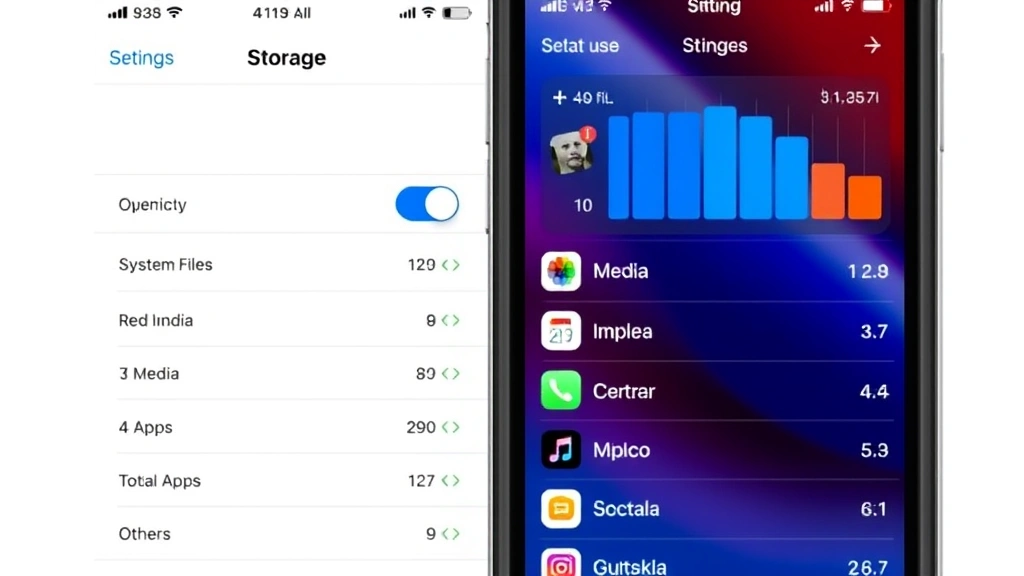
The Settings storage screen provides invaluable information. The colored bar at the top visualizes your storage usage: blue represents system files, red shows media (photos and videos), green indicates apps, yellow represents other files, and any remaining color represents available space. Below this bar, your iPhone displays the total capacity and available storage in gigabytes.
The app list below shows every application installed on your device, ranked by storage size. This ranking helps identify space hogs—apps that consume disproportionate amounts of storage. Tap any app to see additional details, including the app size itself and the data it has accumulated. Some apps, particularly social media and streaming applications, can accumulate gigabytes of cached content over time.
This method is most useful for identifying which specific apps or media categories consume the most space. If you notice a particular app using several gigabytes, you can decide whether to delete it, offload it temporarily, or clear its cached data. The offload feature removes the app while preserving its data, allowing you to reinstall it quickly later without losing preferences or information.
Method 2: iCloud Storage Check
Checking your iCloud storage is equally important, especially if you rely on cloud backups and file synchronization. Your iCloud storage is separate from device storage and requires a different approach to monitor. Here’s how to check iCloud storage status:
- Open Settings and tap your Apple ID profile at the top
- Select iCloud
- View the iCloud storage usage displayed at the top of the screen
- Tap Manage Account Storage for detailed breakdown
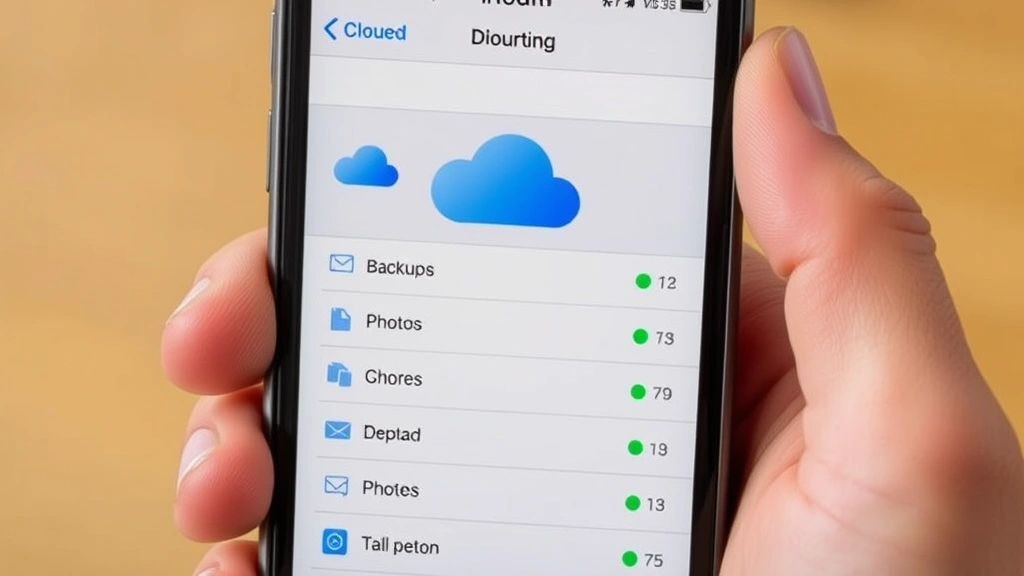
The iCloud storage screen shows your total capacity (typically 5GB free, with options to upgrade to 50GB, 200GB, or 2TB plans) and how much you’re currently using. Below this, you’ll see a breakdown by category: backups, photos, documents, mail, and other content. Each category shows its individual storage consumption.
Understanding iCloud storage helps prevent backup failures. When your iCloud storage is full, your device cannot back up new photos, messages, or app data to the cloud. This creates a vulnerability—if your device is lost or damaged, recent data may not restore properly. Checking iCloud storage monthly ensures your backups remain current and accessible.
iCloud+ subscribers (Apple’s premium iCloud service) receive additional benefits including expanded storage, Hide My Email, HomeKit Secure Video, and Private Relay. If you use multiple Apple devices, iCloud storage is shared across all of them, so a family with several iPhones, iPads, and Macs may need larger storage plans to accommodate everyone’s needs.
Method 3: Storage Analysis Tools
Beyond built-in tools, several third-party applications provide advanced storage analysis and management capabilities. These apps offer visualizations and recommendations that sometimes exceed what Apple’s native tools provide. Popular options include:
- CleanMyPhone—offers detailed storage analysis and duplicate file detection
- PhoneClean—specializes in cleaning junk files and cache
- StorageSpace—provides visual storage breakdown with management tools
- Disk Diag—delivers comprehensive storage health diagnostics
These third-party tools often feature interactive visualizations showing storage usage as bubbles, trees, or pie charts. Some apps identify duplicate photos, screenshot accumulation, old temporary files, and other hidden space consumers that the native Settings app might not highlight as clearly.
However, rely primarily on Apple’s native tools first. Third-party storage apps can be convenient, but Apple’s built-in Settings application provides accurate, complete information without requiring additional app installation. If you prefer simplicity and native functionality, the Settings approach suffices for most users. Only explore third-party tools if you want advanced analytics or specific cleaning features.
Interpreting Your Storage Data
Once you’ve checked your storage, understanding what the numbers mean helps you make informed decisions about what to keep or remove. Your iPhone’s storage breaks down into several categories:
System and iOS: The operating system and essential system files typically consume 10-15GB, depending on your iOS version. This space is necessary and cannot be reduced, similar to how engine oil changes are essential vehicle maintenance that uses necessary resources.
Apps: The total size of all installed applications combined. Large apps (games, creative suites, streaming services) can individually consume 1-5GB or more. Identify apps you rarely use and consider removing them.
Photos and Videos: Often the largest storage consumer for most users. A single 4K video can consume several gigabytes, and photo libraries accumulate quickly. If this category exceeds 40% of your total storage, managing media should be your priority.
Other Data: This category includes cached files, temporary data, message attachments, and miscellaneous files. This often represents “wasted” space that can be recovered through cleaning and management.
Available Storage: The space remaining for new apps, photos, and files. Apple recommends maintaining at least 1-2GB of available storage for optimal performance. When available storage drops below 1GB, your iPhone’s performance degrades noticeably.
Proven Strategies to Free Up Space
After checking your storage and identifying problem areas, implement these proven strategies to reclaim space:
Delete Unused Apps: Review your installed apps and remove those you haven’t used in months. Even if an app seems useful theoretically, if you haven’t opened it in six months, you probably don’t need it. You can always reinstall later from the App Store if needed.
Manage Photos and Videos: Use the Photos app to identify and delete blurry, duplicate, or unwanted images. Consider moving older photos to cloud storage like Google Photos or Amazon Photos, which offer unlimited storage for compressed media. Enable “Optimize iPhone Storage” in Settings → Photos to automatically store full-resolution versions in iCloud while keeping smaller versions locally.
Clear App Cache: Many apps accumulate cached data over time. Go to Settings → General → iPhone Storage, tap an app, and select “Offload App” to remove it while preserving data. Reinstall it afterward to clear cache. Alternatively, delete and reinstall the app directly from the App Store.
Manage iCloud Backup: If you’re not using iCloud backup, disable it to free up cloud storage. Conversely, ensure important apps are included in your backup. Go to Settings → [Your Name] → iCloud → Manage Account Storage → Backups to review what’s being backed up.
Delete Old Messages: Message threads, especially those with many attachments or photos, consume significant storage. Set messages to delete automatically after 30 days in Settings → Messages → Keep Messages.
Remove Downloaded Videos: Apps like Netflix and YouTube allow offline video downloads. Delete downloaded content you’ve already watched to reclaim space quickly.
Use iCloud Drive: Store documents and files in iCloud Drive rather than on device storage. This frees local space while keeping files accessible. Similar to organizing your workspace for efficiency, organizing your digital files improves performance.
Advanced Storage Management
For users seeking deeper control over storage, several advanced techniques provide additional optimization:
Disable Automatic Downloads: Prevent iOS from automatically downloading app updates, music, and other content. Go to Settings → App Store and disable automatic downloads and updates. This gives you control over when space-consuming updates occur.
Manage Mail Storage: The Mail app can accumulate gigabytes of message data and attachments. Go to Settings → Mail → Accounts → [Your Account] → Account, then delete attachments and old messages selectively. Consider enabling “Remove All” for older emails beyond a certain date.
Optimize Safari Data: Safari caches websites and browsing data. Go to Settings → Safari → Clear History and Website Data to remove accumulated cache. Enable “Clear History and Website Data” to automatically clear data weekly or monthly.
Review Siri Suggestions: Siri learns your usage patterns and stores suggestion data. While usually minimal, you can reset Siri data in Settings → Siri & Search if you notice unusual storage consumption.
Check Voice Memos: The Voice Memos app can accumulate large audio files. Review and delete old recordings you no longer need.
Disable Photo Streams: If you use iCloud Photo Library, ensure “Sync Photos” is properly configured. Disable features like “My Photo Stream” if you don’t actively use them, as they can accumulate redundant copies of images.
Just as adding oil to your car requires understanding proper procedures, managing iPhone storage effectively requires knowledge of available options and best practices. Taking time to implement these strategies prevents storage emergencies and maintains your device’s peak performance.
FAQ
What is considered “full” storage on an iPhone?
Your iPhone is considered full when available storage drops below 1GB. At this point, you’ll experience performance slowdowns, backup failures, and potentially inability to install updates. Ideally, maintain 2-5GB of available space for optimal operation.
Does checking storage use significant battery?
No. Checking your iPhone storage through Settings is a passive activity that uses minimal battery. It’s safe to check storage status anytime without concern for battery drain.
Can I recover deleted files from iPhone storage?
Files deleted from iPhone don’t have a traditional “Recycle Bin.” However, if you had iCloud backups enabled, you can restore deleted files through iCloud.com or by restoring from a backup. Recently deleted photos remain recoverable in the Photos app’s Recently Deleted album for 30 days.
How often should I check iPhone storage?
Check your iPhone storage monthly to monitor trends and catch problems early. If you take many photos or videos, check more frequently. Set a calendar reminder to review storage status regularly, similar to checking fuel pressure during vehicle maintenance intervals.
Why is my available storage decreasing even though I haven’t installed anything?
This typically results from app cache accumulation, system updates, temporary files, and automatic downloads. iOS also reserves space for system operations and updates. Review your largest apps and media categories to identify culprits, then implement cleaning strategies.
Should I upgrade my iPhone storage capacity?
If you consistently struggle with storage despite implementing management strategies, consider upgrading to a higher-capacity model when feasible. For most users, 128GB provides adequate space with proper management. Heavy photographers, video creators, or gamers benefit from 256GB or higher.
Does offloading apps delete my data?
No. Offloading temporarily removes an app while preserving its data. When you reinstall the app, your settings and data restore automatically. This is an excellent way to free space without losing important information associated with the app.
Can I merge iCloud storage with other family members?
Yes. Apple’s Family Sharing allows up to six family members to share a single iCloud+ storage plan. Go to Settings → [Your Name] → Family Sharing to set this up and share storage across your family’s devices.


