How to Connect Beats Solo 3: Complete Tech Expert Guide
Beats Solo 3 headphones represent a pinnacle of wireless audio technology, combining exceptional sound quality with seamless connectivity. Whether you’re a first-time user or troubleshooting connection issues, understanding the pairing process ensures you maximize your investment. This comprehensive guide walks you through every connection method, from initial Bluetooth setup to advanced pairing techniques across multiple devices.
The Beats Solo 3 utilizes Apple’s W1 chip, a proprietary wireless technology that streamlines pairing with Apple devices while maintaining robust Bluetooth compatibility with non-Apple products. This dual-compatibility approach means your headphones work universally, though the setup process varies slightly depending on your device ecosystem. We’ll cover everything you need to know to get your audio experience started correctly.

Initial Setup and Preparation
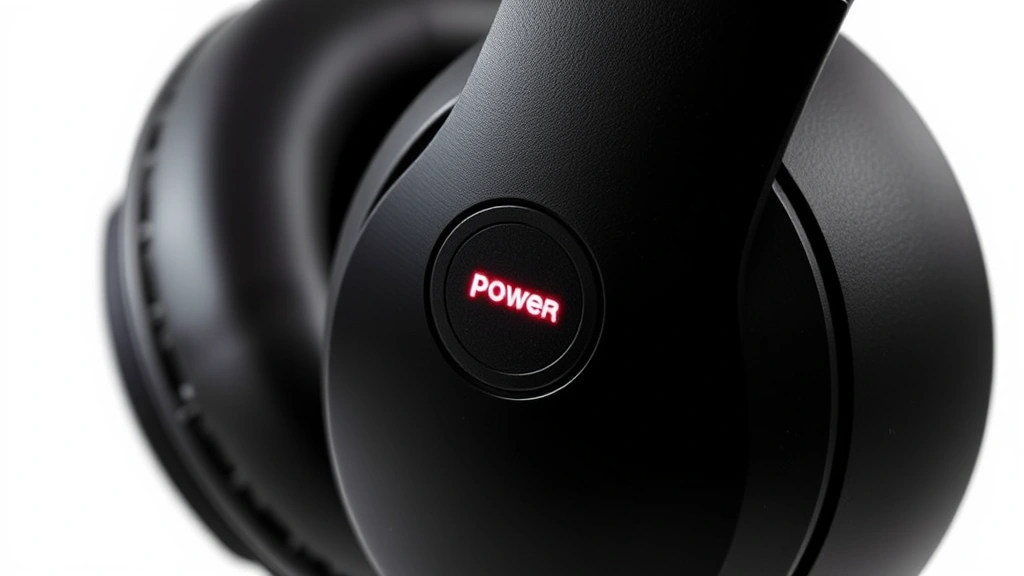
Before attempting any connection, prepare your Beats Solo 3 for pairing by ensuring the headphones have adequate battery charge. Press and hold the power button on the left ear cup for approximately 10 seconds until you see the LED indicator flash red and blue alternately. This flashing pattern indicates the headphones have entered pairing mode and are ready to discover nearby Bluetooth devices.
Check that your source device—whether iPhone, Android phone, Mac, or Windows computer—has Bluetooth enabled and is within 30 feet of your headphones. Most connection issues stem from insufficient battery power or Bluetooth being disabled on the host device. Keep your Beats Solo 3 away from other wireless interference sources like microwaves, cordless phones, or congested WiFi networks that operate on the 2.4 GHz frequency band.
The W1 chip provides superior range compared to standard Bluetooth, typically maintaining stable connections up to 100 feet in open spaces. However, physical obstacles like walls and metal structures reduce effective range. Position yourself in a clear line of sight with your device during initial pairing to ensure successful connection establishment.

Pairing with iPhone and iPad
Apple device users benefit from the W1 chip’s streamlined pairing process. Hold your unlocked iPhone or iPad near your Beats Solo 3 while they’re in pairing mode. Within seconds, an Apple setup card will appear on your screen, displaying an image of the headphones. Tap “Connect” to initiate the pairing sequence, which typically completes within 5-10 seconds.
Once paired with your primary Apple device, your Beats Solo 3 automatically synchronize across all Apple products signed into the same iCloud account. This ecosystem integration means your headphones instantly connect to your Mac, Apple Watch, and iPad without requiring manual re-pairing. This convenience represents one of the primary advantages of owning Beats products if you’re invested in Apple’s ecosystem.
To manage multiple iPhone or iPad devices, navigate to Settings > Bluetooth on your iOS device. Your connected Beats Solo 3 will appear under “My Devices.” Tap the information icon next to the headphones name to access detailed connection settings, rename the device, or forget the connection entirely if you need to re-pair with fresh settings.
If the automatic setup card doesn’t appear, manually pair through Bluetooth settings. Open Settings > Bluetooth, ensure Bluetooth is enabled, and select “Beats Solo 3” from the available devices list. Enter the pairing code (typically 0000) if prompted, though most modern Beats headphones skip this step when pairing with Apple devices.
Connecting to Android Devices
Android users must rely on standard Bluetooth pairing since the W1 chip optimization doesn’t apply to non-Apple devices. With your Beats Solo 3 in pairing mode, open Settings on your Android phone or tablet and navigate to Connected Devices or Bluetooth settings. Enable Bluetooth if it isn’t already active, then select “Scan” or “Search for Devices” to discover available Bluetooth peripherals.
Your Beats Solo 3 should appear in the available devices list as “Beats Solo 3” within 10-15 seconds. Tap the device name to initiate the pairing request. Unlike Apple devices, Android typically requires manual confirmation of the pairing request, which may include entering a PIN code (usually 0000 or 1234). Some Android devices skip this security step entirely, proceeding directly to connection.
After successful pairing, your Beats Solo 3 will appear under “Paired Devices” in your Bluetooth settings. You can now disconnect and reconnect at will by toggling Bluetooth or selecting the headphones from the paired devices list. Unlike the Apple ecosystem, Android doesn’t automatically synchronize Beats connections across multiple devices, requiring individual pairing setup for each Android phone or tablet.
For optimal Android compatibility, ensure your device runs Android 5.0 or later. Older Android versions may experience connection instability or audio quality degradation. If you experience persistent Android pairing issues, consider consulting your device manufacturer’s support documentation, as some manufacturers implement proprietary Bluetooth stacks that occasionally conflict with third-party headphones.
Pairing with Mac and Apple Devices
Mac users enjoy the same streamlined W1 pairing experience as iPhone and iPad owners. Hold your Beats Solo 3 in pairing mode near your Mac, and an Apple setup window will automatically appear. Click “Connect” to complete the pairing process, which typically takes less than 10 seconds. Your Mac will then synchronize this connection with all other Apple devices on your iCloud account.
To manage Beats Solo 3 settings on Mac, click the Apple menu > System Preferences > Bluetooth. Your headphones appear in the device list, displaying connection status and battery percentage. Right-click the Beats Solo 3 entry to access options for renaming the device, removing the pairing, or connecting/disconnecting the headphones.
Mac audio settings can be configured through System Preferences > Sound > Output. Select your Beats Solo 3 from the output device list to route all system audio through the headphones. This applies to video calls, music streaming, notifications, and all other audio sources. You can quickly switch between output devices by clicking the volume icon in the menu bar and selecting your preferred audio destination.
Apple Watch owners can pair Beats Solo 3 directly to their watch through the Watch app on iPhone. Navigate to Bluetooth settings in the Watch app, select “Beats Solo 3” from available devices, and confirm the pairing on both devices. This enables wireless audio playback directly from your watch during workouts or when your iPhone isn’t nearby.
Troubleshooting Connection Issues
If your Beats Solo 3 fail to appear in available devices during pairing mode, perform a complete reset. Press and hold the power button for 15 seconds while the headphones are powered on, ignoring the initial power-down sequence. Continue holding until the LED indicator flashes red and blue rapidly, indicating a factory reset. This clears all previous pairings and typically resolves persistent connection issues.
Bluetooth interference from other wireless devices can prevent successful pairing or cause dropped connections. Move away from WiFi routers, microwaves, wireless speakers, and other Bluetooth devices during the initial pairing process. Once successfully connected, interference typically causes audio stuttering rather than complete disconnection, but eliminating interference during setup ensures clean pairing establishment.
Battery depletion represents a common but overlooked pairing failure cause. Connect your Beats Solo 3 to a power source using the included USB-C cable and charge for at least 30 minutes before attempting pairing. The LED indicator will display orange while charging and turn green when fully charged. Attempting pairing with critically low battery often results in failed connections or automatic disconnection after brief use.
If pairing succeeds but audio doesn’t play, verify that your Beats Solo 3 is selected as the active audio output device on your source device. Many users successfully pair headphones but forget to switch the audio output from speakers to the connected headphones. Check your device’s audio settings and explicitly select Beats Solo 3 as the output destination. Additionally, check that your headphones’ volume isn’t muted by pressing the power button once (not holding) to toggle mute status.
For persistent issues across multiple devices, consider resetting your iCloud sync by signing out of your Apple account and signing back in. This forces your Apple devices to re-establish their Beats connection synchronization. On Android devices experiencing repeated disconnection, try “forgetting” the device and re-pairing from scratch, as corrupted pairing data sometimes causes intermittent connection drops.
Advanced Pairing Features
Beats Solo 3 supports simultaneous connection to multiple devices, though only one device can actively stream audio at a time. Once paired with several devices, your headphones automatically connect to whichever device last used them. This seamless switching means you can pair your headphones to your iPhone, Mac, iPad, and Android tablet simultaneously, connecting to whichever device you’re currently using.
To switch between paired devices manually, activate your device’s Bluetooth menu and select your Beats Solo 3. The headphones will immediately disconnect from the previous device and connect to the newly selected one. This process typically takes 2-5 seconds, making device switching nearly instantaneous for most users. Some applications may require manual audio output selection after switching devices.
The Beats app, available on Apple’s App Store and Google Play, provides advanced customization options including equalizer adjustments, firmware updates, and personalized audio profiles. Downloading the app enables you to fine-tune your Beats Solo 3’s sound signature, creating custom presets for different music genres or listening environments. Firmware updates through the app occasionally add new features or improve connectivity stability.
If you’re interested in optimizing your entire home technology setup beyond just audio, explore our comprehensive guide on DIY Home Security: A Comprehensive Guide, which covers smart home integration including audio systems. Additionally, understanding how to maintain your tech investments is crucial—check out our article on DIY Car Cleaning: A Complete Guide for maintenance principles applicable to electronics.
Voice assistant integration works seamlessly with Beats Solo 3. Press the center button on the inline remote (if using the cable version) or activate Siri by pressing the power button twice. This launches your device’s voice assistant, allowing hands-free control of music playback, device calls, and other voice-activated functions. Android users can similarly access Google Assistant through dedicated voice command activation.
Frequently Asked Questions
Why won’t my Beats Solo 3 connect to my device?
Connection failures typically result from low battery, disabled Bluetooth, or the headphones not being in pairing mode. Ensure your Beats Solo 3 have adequate charge, your device’s Bluetooth is enabled, and the headphones display flashing red and blue LEDs. If issues persist, perform a complete reset by holding the power button for 15 seconds.
Can I pair Beats Solo 3 to multiple devices simultaneously?
Yes, your Beats Solo 3 can pair with multiple devices, though only one device can actively stream audio at a time. Once paired with several devices, the headphones automatically connect to whichever device was most recently used. Manual switching through Bluetooth settings allows quick transitions between devices.
How do I update my Beats Solo 3 firmware?
Download the official Beats app from your device’s app store, open it, and navigate to settings for your connected Beats Solo 3. If a firmware update is available, the app will prompt you to install it. Ensure your headphones remain connected and within Bluetooth range during the update process, which typically takes 5-10 minutes.
What’s the difference between pairing and connecting?
Pairing establishes a permanent Bluetooth relationship between your headphones and device, storing connection information. Connecting activates that paired relationship, allowing audio streaming. Once paired, devices automatically connect when Bluetooth is enabled on both devices. You can disconnect without unpairing, allowing quick reconnection without re-entering pairing codes.
Why does my Beats Solo 3 keep disconnecting?
Intermittent disconnection usually results from Bluetooth interference, outdated firmware, or corrupted pairing data. Try moving away from interference sources like WiFi routers, update your firmware through the Beats app, or forget and re-pair the headphones. If disconnection occurs across multiple devices, perform a factory reset of your Beats Solo 3.
How do I know if my Beats Solo 3 are in pairing mode?
The LED indicator on your Beats Solo 3 will flash red and blue alternately when in pairing mode. This typically occurs after holding the power button for 10 seconds on powered-off headphones. The flashing pattern is the definitive indicator that your headphones are ready to discover and accept new Bluetooth pairings.
Can I pair Beats Solo 3 without the official app?
Yes, Beats Solo 3 pair through standard Bluetooth functionality without requiring any app installation. The official Beats app is optional and provides enhanced features like equalizer customization and firmware updates, but basic pairing and audio playback work through native Bluetooth settings on any compatible device.


