
How to Copy on Chromebook: Tech Expert’s Complete Guide
Chromebooks have revolutionized portable computing with their simplicity, affordability, and seamless cloud integration. However, users transitioning from traditional Windows or Mac systems often encounter confusion about basic operations like copying text and files. The copying process on Chromebooks differs slightly from conventional computers, but once you understand the mechanics, it becomes second nature. This comprehensive guide walks you through every method of copying on your Chromebook, from simple text selections to complex file operations.
Whether you’re a student managing research documents, a professional handling spreadsheets, or someone simply exploring DIY Nests Hub’s collection of how-to guides, mastering Chromebook copying functions will significantly boost your productivity. We’ll explore keyboard shortcuts, touchpad gestures, right-click menus, and advanced techniques that work across Chrome OS’s unique environment.
Understanding Chrome OS Clipboard Basics
The clipboard on a Chromebook functions identically to Windows and Mac systems—it temporarily stores copied content in your device’s memory, allowing you to paste it elsewhere. Chrome OS uses a unified clipboard system that integrates seamlessly with Google’s cloud services and local storage. Understanding this foundation helps you troubleshoot issues and use advanced features effectively.
Chromebooks sync clipboard data across your Google account when you’re signed in, meaning you can copy content on one device and paste it on another device using the same account. This cloud-connected approach distinguishes Chromebooks from traditional computers and offers unique advantages for users who switch between multiple devices regularly. The clipboard retains only one piece of content at a time unless you’re using specialized clipboard manager extensions from the Chrome Web Store.
Unlike Windows systems with extensive clipboard history, standard Chrome OS provides basic clipboard functionality. However, you can enhance this capability by installing third-party clipboard managers, which we’ll discuss in the advanced techniques section. Understanding these basics prevents frustration and helps you work more efficiently across your Chromebook ecosystem.
Keyboard Shortcuts for Copying Text
The most fundamental way to copy on any Chromebook is using the keyboard shortcut Ctrl+C. This universal command works across all Chrome OS applications, web browsers, text editors, and cloud-based productivity tools. The process is straightforward: select the text you want to copy by clicking and dragging your cursor, then press Ctrl+C. The selected content moves to your clipboard, ready for pasting.
To paste copied content, use Ctrl+V in any application where you want to insert the text. These shortcuts work identically to Windows systems, making transitions seamless for users familiar with traditional computers. If you’re accustomed to Mac’s Command key, note that Chromebooks use the Ctrl key instead—this adjustment takes minimal time to master.
Additional keyboard shortcuts enhance your copying workflow significantly. Ctrl+A selects all content in the current window or document, allowing you to copy everything at once. Ctrl+X cuts content, removing it from the original location while copying it to the clipboard. This proves invaluable when reorganizing documents or moving files between folders. Understanding these complementary shortcuts creates a complete text manipulation toolkit.
For users managing DIY projects requiring research and documentation, these keyboard shortcuts streamline the process of collecting information from multiple sources. You can rapidly copy specifications, measurements, and instructions from various websites and consolidate them in a single document.
Using Touchpad Gestures and Mouse Options
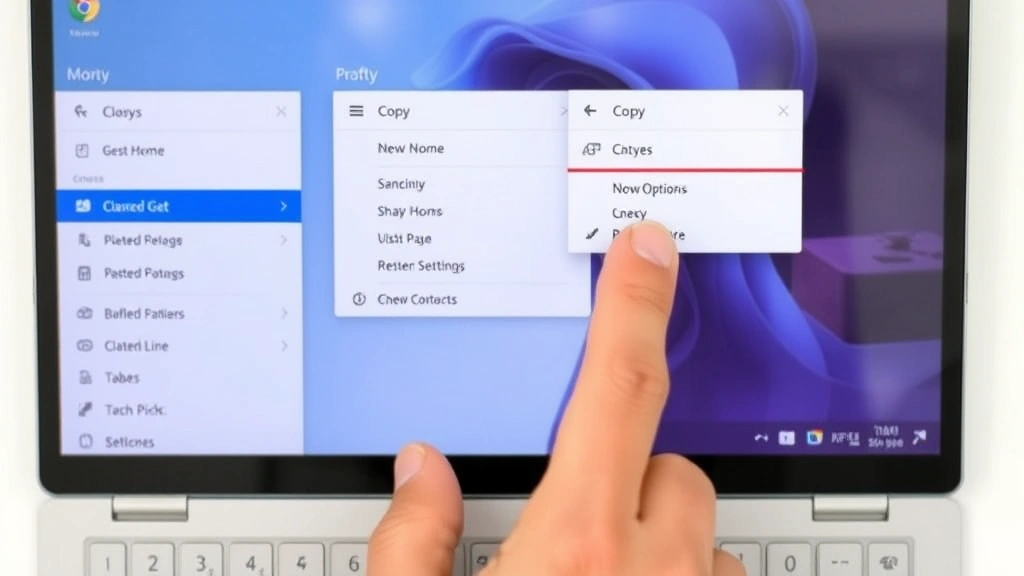
Chromebook touchpads support multiple methods for selecting and copying content without relying solely on keyboard shortcuts. A standard two-finger tap on the touchpad functions as a right-click, opening context menus that include copy options. This gesture works across all applications and provides an intuitive alternative for users who prefer mouse-based interactions.
To copy using the touchpad context menu, select your desired text by clicking and dragging, then perform a two-finger tap. A menu appears with options including Copy. Click this option to add the selected content to your clipboard. This method proves particularly useful when working on Chromebooks without external mice or when your keyboard is inaccessible.
If you’ve connected an external mouse to your Chromebook, right-clicking functions normally, displaying the standard context menu. The copy option appears prominently in this menu, making the process intuitive for anyone familiar with desktop computers. External mice also enable middle-click pasting on some applications, though this feature varies depending on the specific app you’re using.
For home security system planning and documentation, touchpad gestures allow you to quickly copy specifications and installation instructions while your hands remain on the device. This seamless interaction keeps your workflow continuous without switching between input methods.
Chromebook touchpads also support three-finger gestures for additional functionality. While not directly related to copying, understanding your touchpad’s full capability set improves overall productivity. Consult your specific Chromebook model’s documentation to learn all supported gestures, as different manufacturers implement slightly different touchpad technologies.
Copying Files and Folders
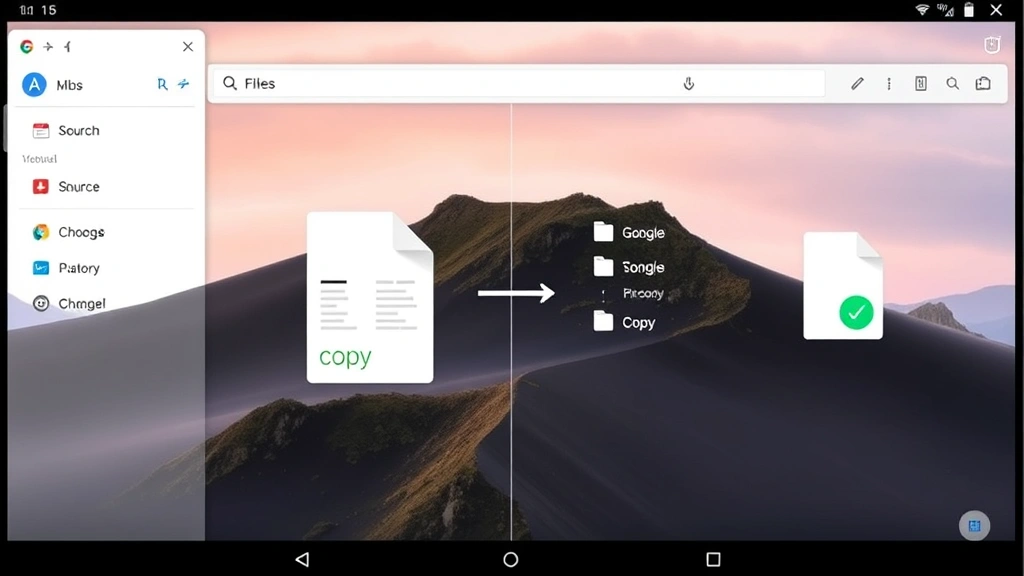
Copying files and folders on a Chromebook differs slightly from copying text, though the underlying principle remains identical. Open the Files app (also called Files by Google) to access your local storage and Google Drive integration. Navigate to the file or folder you wish to copy, then right-click to open the context menu.
The context menu displays a Copy option for individual files or folders. Select this option to add the file reference to your clipboard. You can then navigate to your desired destination folder, right-click again, and select Paste to complete the copying operation. This method works for copying files within your Chromebook’s local storage, Google Drive, or between the two locations.
Keyboard shortcuts also work for file operations. After selecting a file or folder in the Files app, press Ctrl+C to copy it. Navigate to the destination folder and press Ctrl+V to paste. This approach proves faster than using context menus when copying multiple items sequentially. You can select multiple files by holding Ctrl while clicking individual items, then copy all selected files simultaneously.
For users managing automotive maintenance documentation and DIY car care guides, the ability to copy files efficiently allows you to organize manuals, maintenance schedules, and repair instructions across multiple folders and cloud storage locations.
Dragging and dropping provides an alternative method for copying files on Chromebooks. Select a file, then drag it to your destination folder while holding down the Ctrl key. This visual feedback method helps users understand the copying process intuitively. Without the Ctrl key, dragging moves files instead of copying them—a crucial distinction when organizing your digital workspace.
Copying Content from Web Pages
Copying text from websites on a Chromebook employs the same fundamental techniques as copying local content. Click at the beginning of the text you want to copy, drag to select it, and press Ctrl+C. The selected text moves to your clipboard, ready to paste into documents, emails, or other applications.
Images on web pages can also be copied. Right-click on any image and select Copy image from the context menu. This adds the image to your clipboard, allowing you to paste it into documents, presentations, or other applications that accept image content. Some websites restrict image copying through technical protections, but standard web images copy without issues.
For copying entire web page content, use Ctrl+A to select all content on the current page, then Ctrl+C to copy it. This proves useful when archiving information or collecting research materials. However, be mindful of copyright restrictions when copying substantial portions of web content—always verify that your intended use complies with the website’s terms of service and applicable copyright laws.
Web addresses (URLs) can be copied directly from the address bar. Click on the URL bar at the top of your browser, the address highlights automatically, and press Ctrl+C to copy it. Alternatively, right-click on any link and select Copy link address to copy the URL without visiting the page. This functionality proves invaluable when sharing resources or organizing research materials.
When copying content from Google Docs, Sheets, or Slides, the same copying methods apply. Select content within these cloud-based applications and use Ctrl+C to copy. The integration with Chrome OS ensures seamless copying between Google’s productivity suite and other applications, making these tools ideal for collaborative work and content creation.
Advanced Copying Techniques
For power users requiring enhanced clipboard functionality, the Chrome Web Store offers clipboard manager extensions that store multiple copied items instead of just one. Extensions like Clipboard Manager and CopyFish create searchable histories of everything you copy, allowing you to retrieve previous clipboard entries quickly. Install these extensions from the Chrome Web Store by visiting the store, searching for clipboard managers, and clicking the Add to Chrome button.
CopyFish specifically excels at copying text from images and PDFs. This optical character recognition (OCR) tool allows you to select text within images or scanned documents and copy it as editable text. Right-click on any image and select Copy text from image to extract readable text. This feature proves invaluable for digitizing handwritten notes, capturing text from screenshots, or extracting information from image-based documents.
Google Drive’s built-in tools enhance copying capabilities for cloud-stored documents. When working with shared files, you can copy content and maintain formatting through Google’s native copy functions. The integration between Chrome OS and Google services ensures that copied content preserves styling, links, and other formatting elements that might be lost in plain text copying.
For creative DIY project planning and design documentation, advanced copying techniques allow you to compile inspiration from multiple sources while maintaining visual quality and formatting. You can copy formatted text, images, and links simultaneously, creating comprehensive project reference materials.
Android app integration on compatible Chromebooks enables copying between Chrome OS and Android applications. If your Chromebook supports Android apps, you can copy content from Android applications using the same Ctrl+C shortcut, then paste it into Chrome OS applications. This seamless integration creates a unified computing experience across Android and Chrome OS ecosystems.
Troubleshooting Common Copy Issues
If copying isn’t working on your Chromebook, several troubleshooting steps can resolve the issue. First, verify that you’ve properly selected content before attempting to copy. Ensure the selection is visible—highlighted text should appear in a contrasting color. If nothing is selected, Ctrl+C won’t copy anything, and pasting will retrieve the previous clipboard content.
Some web applications and specialized software may not support standard copying functionality. If copying fails in a specific application, try using the application’s built-in copy button if available, or check the application’s menu for export options. Web-based applications built with certain frameworks sometimes restrict clipboard access for security reasons, though most modern applications support standard copying.
Clearing your browser’s cache and cookies occasionally improves clipboard functionality, particularly if you’re experiencing issues with web-based applications. Open Chrome settings, navigate to Privacy and Security, select Clear Browsing Data, ensure the appropriate time range is selected, and click Clear Data. This removes cached files that might interfere with clipboard operations.
If clipboard functionality fails entirely across all applications, restart your Chromebook. This simple step resolves most Chrome OS issues, including clipboard problems. Press and hold the power button, select Shut Down, and power the device back on after a few seconds. Most Chromebooks restart within seconds, making this troubleshooting step quick and effective.
For persistent issues, check if you’re running the latest Chrome OS version. Open Settings, navigate to About Chrome OS, and your Chromebook automatically checks for updates. Installing the latest version often resolves bugs and compatibility issues affecting clipboard functionality. Updates typically install automatically, but manually checking ensures you have the most current version.
Extensions can sometimes interfere with copying functionality. If you’ve recently installed extensions and copying stopped working, try disabling them one at a time to identify the culprit. Open Chrome settings, select Extensions, and toggle off extensions until copying works again. The extension causing the conflict can then be uninstalled or replaced with an alternative.
Frequently Asked Questions
Can I copy files between my Chromebook and external USB drives?
Yes, you can copy files between your Chromebook and external USB storage devices. Insert the USB drive, open the Files app, and navigate to the external drive. Use the standard copying methods (Ctrl+C and Ctrl+V or right-click context menus) to copy files between your Chromebook storage and the USB drive. The process works identically to copying between folders on your Chromebook.
Does copying on a Chromebook use the same clipboard as my other Google devices?
Chrome OS includes a sync feature for some clipboard content across your Google account devices, though this functionality is limited compared to some other operating systems. Text copied in Chrome browser may sync across devices using the same Google account, but local file copying doesn’t sync automatically. For comprehensive cross-device clipboard synchronization, consider using cloud storage services like Google Drive or third-party clipboard manager apps.
What’s the difference between copying and cutting on a Chromebook?
Copying (Ctrl+C) creates a duplicate of the selected content in your clipboard while leaving the original intact. Cutting (Ctrl+X) removes the content from its original location and adds it to your clipboard. When you paste after cutting, the content moves to the new location. When you paste after copying, the original content remains unchanged while a duplicate appears at the paste location.
Can I copy content from password-protected websites?
Most password-protected websites allow copying content after you’ve logged in. Once authenticated, the website treats you as an authorized user, and standard copying functions work normally. However, some websites implement additional security measures that restrict copying specific content even after login. These restrictions are intentional security measures, and no standard method bypasses them without violating the website’s terms of service.
Why can’t I copy text from some PDF files?
PDF files created from scanned images contain no selectable text—only images of text. To copy text from these files, you need OCR software like the CopyFish extension mentioned in the advanced techniques section. Alternatively, many PDF editors and online services can convert image-based PDFs to text-selectable PDFs, enabling standard copying. Native PDFs with actual text layers copy normally using Ctrl+C.
Is there a way to see my clipboard history on a Chromebook?
Standard Chrome OS doesn’t include a native clipboard history feature. However, installing a clipboard manager extension from the Chrome Web Store provides this functionality. These extensions maintain searchable histories of everything you copy, allowing you to retrieve previous clipboard entries. Popular options include Clipboard Manager and Pasty, both available free from the Chrome Web Store.
Can I copy text while using Chromebook offline?
Yes, copying works normally when your Chromebook is offline. The clipboard is a local feature that doesn’t require internet connectivity. However, if you’re using cloud-based applications like Google Docs, you won’t be able to access those applications without internet. For offline work, use local applications or download documents before going offline to ensure copying functionality across all your tools.


