
How to Count Distinct Values in Excel: Pro Tips Inside
Excel is one of the most powerful tools for data analysis, but many users struggle with counting distinct or unique values in their spreadsheets. Whether you’re managing inventory, tracking customer lists, or analyzing project data for your home renovation project, knowing how to count distinct values efficiently can save you hours of manual work. This skill is essential for anyone working with data, from small business owners to project managers organizing complex datasets.
The challenge arises because Excel doesn’t have a single “Count Distinct” button like some other spreadsheet applications. Instead, you need to use formulas, functions, and techniques that work together to identify and count only the unique values in your dataset. This guide walks you through multiple methods, from simple to advanced, so you can choose the approach that best fits your needs and Excel proficiency level.
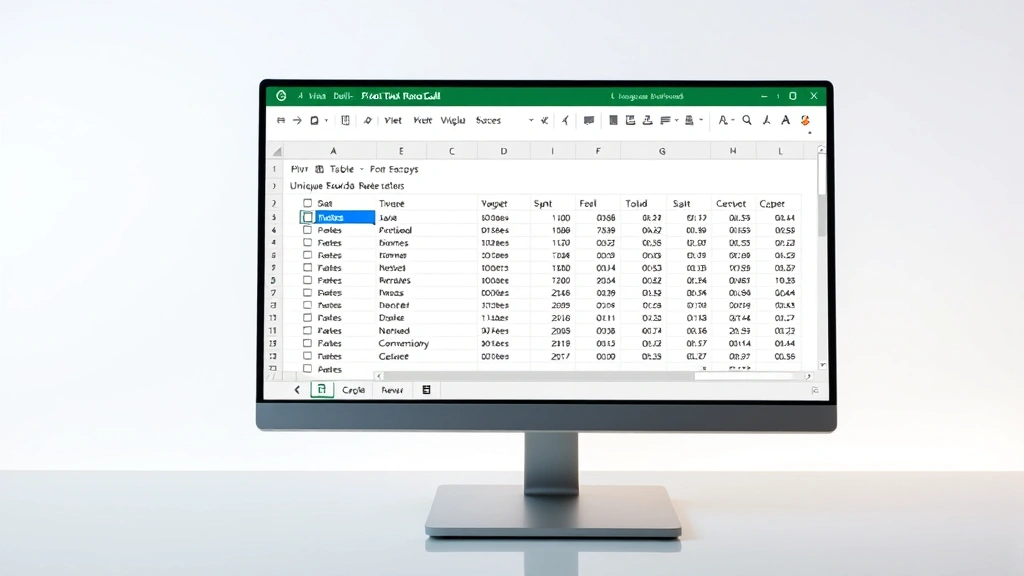
Understanding Distinct vs. Duplicate Values
Before diving into the methods, it’s crucial to understand what “distinct” means in the context of Excel data. Distinct values are unique entries in your dataset—each value is counted only once, regardless of how many times it appears. For example, if you have a list containing “Apple, Orange, Apple, Banana, Orange, Apple,” there are only three distinct values: Apple, Orange, and Banana.
This is different from simply counting all values (which would be 6) or identifying duplicates (which would show that Apple appears 3 times and Orange appears 2 times). Understanding this distinction helps you select the right method for your specific task. When you’re organizing materials for a home security installation or tracking unique components in a project, accurate distinct value counts prevent errors and oversights.
Excel handles distinct value counting differently depending on your version and the complexity of your data. Some methods work with any Excel version, while others require Excel 365 or newer. The dataset size also matters—some techniques are more efficient for small lists, while others scale better to thousands of rows.
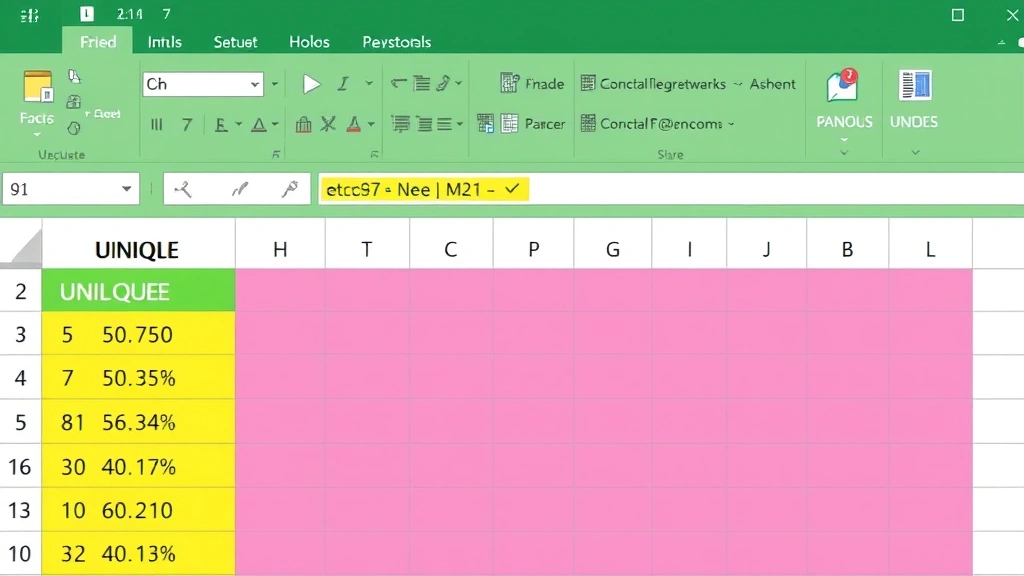
Method 1: SUMPRODUCT and COUNTIF Formula
The most reliable and widely-compatible method for counting distinct values is using a combination of SUMPRODUCT and COUNTIF functions. This formula works in virtually every Excel version and handles most data types effectively.
The Basic Formula:
=SUMPRODUCT(1/COUNTIF(A2:A100,A2:A100))
This formula works by dividing 1 by the count of each value. When a value appears multiple times, the formula adds fractions that sum to 1. For instance, if “Apple” appears 3 times, it contributes 1/3 + 1/3 + 1/3 = 1 to the total count. The result is the total number of distinct values.
Important Considerations: This formula assumes your data range contains no blank cells. If you have empty cells, you’ll receive a #DIV/0! error. To handle blanks, use this modified version:
=SUMPRODUCT((A2:A100<>“”)/COUNTIF(A2:A100,A2:A100&””))
This version filters out blank cells before counting. The formula is particularly useful when analyzing data from multiple sources, similar to how you might consolidate measurements and material counts when planning a basement finishing project.
Performance Note: This formula can be slow with very large datasets (50,000+ rows). For performance optimization with big data, consider the other methods described below.
Method 2: Using Pivot Tables for Data Analysis
Pivot Tables are Excel’s powerhouse tool for data summarization and analysis. While traditionally used for aggregating data, they’re excellent for counting distinct values, especially in large datasets. The advantage is that pivot tables are faster than formulas and provide a visual representation of your data.
Steps to Create a Pivot Table:
- Select your data range (including headers)
- Go to the “Insert” tab and click “Pivot Table”
- Choose to place the pivot table on a new worksheet
- Drag your field to the “Rows” area
- Drag the same field to the “Values” area
- The pivot table automatically counts occurrences
- Count the number of rows in the pivot table for distinct values
Pivot tables are particularly useful when you need to see both the distinct count and the frequency of each value. This method integrates well with your broader data analysis workflow, helping you make informed decisions about resource allocation, similar to planning material quantities in home improvement projects.
The visual nature of pivot tables also makes it easier to spot patterns and anomalies in your data that formulas alone might not highlight. You can easily filter, sort, and refresh your pivot table as your source data changes.
Method 3: Advanced Filter and Manual Count
For smaller datasets or when you need to see the actual distinct values (not just count them), Excel’s Advanced Filter feature provides an elegant solution.
Steps to Use Advanced Filter:
- Select your data range
- Go to “Data” tab → “Advanced” (in the Sort & Filter group)
- Check the “Unique records only” option
- Choose “Copy to another location” and specify where
- Excel creates a list of unique values
- Count the rows in the filtered result
This method has the advantage of showing you the actual distinct values, which is useful for validation and review. However, it requires manual counting or an additional formula to get the final count, making it less efficient than formula-based approaches for automation.
The Advanced Filter method is particularly helpful when auditing data or when you need to present the distinct values to stakeholders. It’s transparent and easy to understand, unlike complex formulas that might confuse others reviewing your work.
Method 4: Excel 365 UNIQUE Function
If you have access to Excel 365, Microsoft has introduced the UNIQUE function, which dramatically simplifies counting distinct values. This is the modern, recommended approach for users with current Excel versions.
The Formula:
=COUNTA(UNIQUE(A2:A100))
The UNIQUE function extracts all unique values from your range, and COUNTA counts them. This is elegant, readable, and efficient. The UNIQUE function also accepts optional parameters for handling duplicates and returning unique values from rows or columns.
Extended Syntax:
=UNIQUE(A2:A100, FALSE, FALSE)
The parameters control whether to count each occurrence and whether to search by rows or columns. This function represents Excel’s evolution toward more intuitive data analysis, reflecting how modern spreadsheet tools handle data operations.
However, keep in mind that UNIQUE function is only available in Excel 365 (Microsoft 365 subscription) and Excel 2021 and later. If you’re using older Excel versions, you’ll need to stick with the SUMPRODUCT/COUNTIF or pivot table methods.
Handling Blank Cells and Special Cases
Real-world data is messy. You’ll encounter blank cells, spaces, different text cases, and special characters that complicate distinct value counting. Here’s how to handle common scenarios:
Blank Cells: As mentioned earlier, modify your SUMPRODUCT formula to exclude blanks. The key is filtering before the COUNTIF operation runs.
Case Sensitivity: Excel’s COUNTIF function is not case-sensitive by default. If you need to count “Apple” and “apple” as different values, you’ll need to use a more complex formula involving EXACT and array formulas.
Leading/Trailing Spaces: Extra spaces can create duplicate-looking values that are technically distinct. Use the TRIM function to clean your data first:
=SUMPRODUCT(1/COUNTIF(TRIM(A2:A100),TRIM(A2:A100)))
Mixed Data Types: If your range contains both text and numbers, the formula still works, but ensure your COUNTIF criteria match the data type. Converting everything to text using TEXT function can help standardize comparisons.
These considerations are crucial when working with data imported from multiple sources or collected over time, much like tracking materials and components across different DIY projects.
Performance Tips for Large Datasets
When working with large Excel files containing tens of thousands of rows, formula performance becomes critical. Here are optimization strategies:
Use Pivot Tables for Large Data: Pivot tables are optimized for large datasets and significantly faster than array formulas. They’re built for performance and can handle hundreds of thousands of rows efficiently.
Reduce Formula Scope: If possible, limit your formula range to only necessary data. A formula checking 100,000 rows takes longer than one checking 10,000 rows. Remove empty rows and columns from your analysis range.
Implement Helper Columns: For very large datasets, create a helper column that marks first occurrences using COUNTIF with an expanding range. Then sum those markers. This is faster than counting all distinct values in one complex formula.
Use Excel Tables: Convert your data to Excel Tables (Ctrl+T). Tables have optimized calculation engines and provide dynamic ranges that adjust automatically as data changes.
Consider Alternative Tools: For datasets exceeding 1 million rows, consider using Power Query or Power Pivot, which are designed for big data analysis within Excel.
Performance optimization becomes increasingly important as your datasets grow. Testing different methods with your actual data size helps identify the best approach for your specific situation. This is similar to how planning efficiency matters in complex home renovation projects requiring water filtration systems or other technical installations.
FAQ
What’s the easiest way to count distinct values in Excel?
If you have Excel 365, use =COUNTA(UNIQUE(A2:A100)). For older versions, use =SUMPRODUCT(1/COUNTIF(A2:A100,A2:A100)). Both are straightforward once you understand how they work.
Why does my SUMPRODUCT formula give a #DIV/0! error?
This error occurs when your data range contains blank cells. Use the modified formula: =SUMPRODUCT((A2:A100<>“”)/COUNTIF(A2:A100,A2:A100&””)) to exclude empty cells from the calculation.
Can I count distinct values across multiple columns?
Yes, but it’s more complex. You can concatenate columns first using a helper column, then apply the distinct count formula. Alternatively, use =SUMPRODUCT(1/COUNTIF(A2:A100&B2:B100,A2:A100&B2:B100)) to count distinct combinations across multiple columns.
Is SUMPRODUCT faster than Pivot Tables for large datasets?
No, Pivot Tables are significantly faster for large datasets. SUMPRODUCT formulas can slow down Excel considerably with 50,000+ rows. Use Pivot Tables for performance with big data.
How do I count distinct values excluding blanks and duplicates?
Use: =SUMPRODUCT((A2:A100<>“”)/COUNTIF(A2:A100,A2:A100&””)). This formula automatically handles blanks and counts each distinct value only once.
Can I count distinct values with criteria (conditional distinct count)?
Yes, use =SUMPRODUCT((B2:B100=”Criteria”)/COUNTIF(A2:A100,A2:A100)) to count distinct values in column A where column B matches your criteria. This is useful for complex data analysis scenarios similar to tracking material types across different project phases.
What’s the difference between COUNTIF and COUNTA?
COUNTIF counts cells that meet a specific criterion, while COUNTA counts all non-empty cells. When used with UNIQUE, COUNTA counts the number of unique values returned by the UNIQUE function.
Should I use named ranges for my distinct count formulas?
Yes, using named ranges makes formulas more readable and easier to maintain. Instead of =SUMPRODUCT(1/COUNTIF(A2:A100,A2:A100)), you could use =SUMPRODUCT(1/COUNTIF(MyData,MyData)) where “MyData” is a named range.


