
Export ClickUp Table to Excel? Easy Guide Here
ClickUp has become an indispensable project management tool for teams managing complex workflows, timelines, and deliverables. However, there are moments when you need to export your carefully organized data into Excel for reporting, analysis, or sharing with stakeholders who prefer spreadsheet formats. Whether you’re a project manager coordinating a DIY basement finishing project or managing multiple construction tasks, knowing how to export ClickUp tables to Excel can save you significant time and frustration.
The process of exporting data from ClickUp to Excel is more straightforward than many users realize, but it requires understanding the various export options available and which method works best for your specific needs. This comprehensive guide walks you through every step, from basic exports to advanced customization options that ensure your data transfers cleanly and maintains its integrity.
Whether you’re tracking inventory for a DIY pallet project or managing timelines for home renovations, mastering this export function will streamline your workflow significantly.

Understanding ClickUp Export Capabilities
ClickUp provides multiple export pathways depending on your subscription tier and specific requirements. The platform recognizes that different users have different needs—some require simple snapshots of their current task lists, while others need detailed exports with custom fields, attachments, and historical data. Understanding these capabilities prevents wasted effort and ensures you select the most efficient export method for your situation.
ClickUp’s native export functionality primarily focuses on CSV (Comma-Separated Values) format, which Excel recognizes natively. This format preserves your data structure while remaining lightweight and universally compatible. For users managing DIY home security installations or complex construction schedules, this compatibility proves invaluable.
The export capabilities vary based on your view type. Table views, list views, and board views each have slightly different export options, and understanding these distinctions helps you choose the right approach. Additionally, your ClickUp subscription tier (Free, Team, Business, or Enterprise) may affect which export features are available to you.
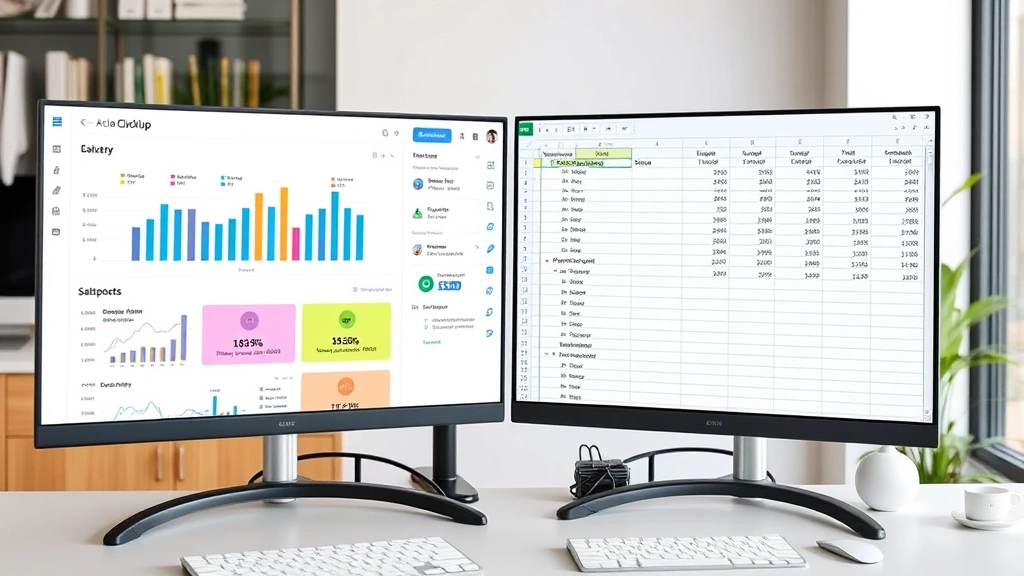
Method 1: Direct CSV Export from Views
The most straightforward method for exporting ClickUp tables involves using the built-in export function directly from your view. This method works across most ClickUp view types and requires no additional tools or technical knowledge.
Step 1: Navigate to Your Table View
Open ClickUp and locate the workspace containing the table you want to export. Select the specific view (Table, List, Board, or Calendar) that contains your data. Table views typically provide the most organized export structure, making them ideal for Excel conversion.
Step 2: Access the Export Menu
Look for the three-dot menu icon (⋮) typically located in the upper right corner of your view. This menu contains various options including sort, filter, and crucially, the export function. Click on this menu to reveal the available options.
Step 3: Select Export Option
From the dropdown menu, select “Export” or “Export as CSV.” ClickUp will present options for what data to include in your export. You can typically choose between exporting all tasks, only visible tasks, or specific filtered results.
Step 4: Configure Export Settings
Before finalizing the export, review the available configuration options. Most exports allow you to select which columns (fields) to include. Deselect unnecessary columns to create a cleaner, more focused spreadsheet. If you’re exporting data for DIY woodworking projects, you might include task names, due dates, assigned team members, and priority levels while excluding internal notes.
Step 5: Download and Open in Excel
Complete the export process by clicking the download button. Your browser will download a CSV file. Open this file directly in Excel, or import it using Excel’s data import wizard for greater control over formatting. Excel will automatically parse the CSV data into columns and rows.
Method 2: Using ClickUp API for Advanced Exports
For users requiring more sophisticated export capabilities or those managing DIY car repairs databases with complex field structures, the ClickUp API provides programmatic access to your data. This method requires some technical knowledge but offers unparalleled flexibility.
The ClickUp API allows you to retrieve your task data in JSON format, which you can then transform into Excel spreadsheets using various scripting languages or third-party tools. This approach proves particularly valuable when you need to automate recurring exports or combine data from multiple ClickUp workspaces.
To access the API, you’ll need to generate an API key from your ClickUp account settings. Navigate to Settings → Integrations → API and generate your personal access token. Document this token securely, as you’ll use it to authenticate API requests.
Popular tools like Zapier, Make (formerly Integromat), or custom Python scripts can facilitate API-based exports. These tools retrieve your ClickUp data and automatically format it into Excel files according to your specifications. For recurring exports, setting up an automated workflow through these platforms eliminates manual export work entirely.
The API method particularly benefits users maintaining comprehensive project records across multiple initiatives. You can export historical data, subtask hierarchies, and custom field values that standard CSV exports might omit or compress.
Method 3: Copy-Paste Workaround
When direct export options feel limited or you’re working with a small dataset, the copy-paste method provides a quick alternative. This approach works particularly well for exporting specific task subsets or when you need to preserve exact formatting.
Select all visible data in your ClickUp table view using Ctrl+A (Windows) or Cmd+A (Mac). Copy the selected content with Ctrl+C or Cmd+C. Open Excel and paste the data using Ctrl+V or Cmd+V. Excel will attempt to parse the copied content into cells, though formatting may require adjustment.
This method works best for smaller tables with straightforward data structures. For complex tables with nested information or extensive custom fields, the direct CSV export typically produces better results. However, the copy-paste approach offers quick results when you need rapid data transfer without navigating export menus.
Formatting Your Exported Data
Once your ClickUp data arrives in Excel, you may need to apply formatting to ensure readability and usability. CSV exports often require cleanup and reorganization to match your preferred layout.
Adjust Column Widths
CSV imports frequently result in cramped columns where text truncates or becomes difficult to read. Double-click the column separator between headers to auto-fit column widths to their content. Alternatively, manually drag column separators to your preferred width.
Apply Conditional Formatting
Use Excel’s conditional formatting features to highlight priority levels, due dates, or status categories. This visual organization helps you quickly identify critical items and track project progress. For instance, color-code tasks by priority or highlight overdue items in red.
Freeze Header Rows
For large exports, freeze the header row so it remains visible as you scroll. Select the row below your headers and use View → Freeze Panes to lock headers in place. This prevents confusion when reviewing large datasets.
Create Pivot Tables
Excel’s pivot table functionality allows you to analyze your ClickUp data from different angles. Pivot tables help you identify patterns, summarize information by assignee or status, and generate reports for stakeholder presentations. This proves invaluable when analyzing complex DIY projects requiring multiple team members and dependencies.
Add Data Validation
Implement dropdown lists for fields like Status or Priority to maintain consistency if you’ll be working with this data in Excel before importing it back into ClickUp. This prevents accidental data entry errors and ensures compatibility when re-importing.
Troubleshooting Common Export Issues
Despite straightforward processes, export issues occasionally arise. Understanding common problems and their solutions prevents frustration and data loss.
Special Characters and Encoding Problems
CSV files sometimes display special characters incorrectly, particularly when your tasks include international characters or symbols. When opening CSV files in Excel, use the Text Import Wizard (Data → From Text/CSV) and select UTF-8 encoding to ensure proper character display.
Formula and Hyperlink Preservation
ClickUp exports typically convert formulas and hyperlinks into plain text. If you need to preserve these elements, consider using the API method or manually recreating them in Excel after export. Document any critical formulas before exporting so you can reapply them in your spreadsheet.
Large File Exports Timing Out
Exporting extremely large datasets sometimes results in timeout errors. Break your export into smaller chunks by applying filters before exporting. For instance, export completed tasks separately from active tasks, or divide by date ranges. This approach also creates more manageable files.
Missing Data or Fields
Verify that you haven’t accidentally filtered your view before exporting. Filtered views export only visible items. Additionally, check that custom fields appear in your export settings—some custom fields require explicit selection to include them in exports.
File Corruption During Download
If your downloaded file appears corrupted or won’t open, try re-downloading the file. Clear your browser cache and attempt the export again. Ensure you have sufficient disk space and that your internet connection remains stable throughout the download process.
Best Practices for Data Management
Implementing sound data management practices ensures your exports remain useful, organized, and secure.
Establish Export Schedules
For ongoing projects, establish regular export schedules rather than ad-hoc exports. Weekly or monthly exports create a historical record of your project’s evolution, helping you track progress and identify patterns over time. This practice proves particularly valuable for long-term initiatives.
Maintain Version Control
When exporting multiple times, use consistent naming conventions that include dates. For example: “ProjectName_Export_2024-01-15.xlsx” clearly identifies the export date and content. This practice prevents confusion when referencing specific data snapshots.
Document Custom Fields
Create a reference document listing all custom fields used in your ClickUp workspace and their meanings. When exporting data for external stakeholders unfamiliar with your system, this documentation ensures they understand what each column represents.
Secure Sensitive Data
If your ClickUp tables contain sensitive information, implement security measures before sharing exported files. Use Excel’s protection features to password-protect sheets or workbooks. Consider whether all exported data requires inclusion or if you should exclude certain columns before export.
Test Before Large-Scale Exports
Before exporting critical data for important presentations or decisions, test the export process with a small dataset. This approach identifies formatting issues or unexpected behaviors before they affect your complete export.
Maintain ClickUp as Source of Truth
While Excel exports provide valuable analysis and reporting capabilities, maintain ClickUp as your primary data repository. Avoid making significant updates exclusively in Excel exports—instead, update ClickUp directly and re-export to maintain consistency. This prevents data divergence between systems.
FAQ
Can I export ClickUp tables with attachments included?
Standard CSV exports do not include attachment files themselves, though they may include attachment URLs. To preserve attachments, download them separately from ClickUp or use the API method combined with custom scripts to download associated files programmatically.
Does exporting ClickUp data affect my task histories or audit logs?
No, exporting data creates a snapshot of your current data without modifying task histories, audit logs, or any other ClickUp records. Your original ClickUp workspace remains completely unchanged by the export process.
How often can I export my ClickUp data?
You can export ClickUp data as frequently as needed. There are no rate limits on exports for standard users. However, if you’re using the API method, be mindful of API rate limits based on your subscription tier to avoid temporary access restrictions.
What happens to subtasks when I export a ClickUp table?
Subtasks typically appear as separate rows in CSV exports with hierarchical indicators (usually indentation or parent task references). Some export methods may collapse subtasks into the parent task or exclude them entirely—verify your export settings to ensure subtasks are included if needed.
Can I export ClickUp data in formats other than CSV?
Native ClickUp export functionality primarily offers CSV format. However, using third-party tools, automation platforms, or the ClickUp API allows you to generate exports in other formats including JSON, XML, or directly into Excel (.xlsx) format with preserved formatting.
How do I export multiple ClickUp spaces or workspaces into one Excel file?
Export each space individually as a separate CSV file, then open all files in Excel. Use multiple sheets within a single workbook (one sheet per export) or combine data using Excel’s consolidation features. For automated multi-workspace exports, the API method with custom scripting provides the most efficient approach.


