The Evoluent VerticalMouse 4 represents a significant advancement in ergonomic computing accessories, offering users a more natural hand position that reduces strain and discomfort during extended computer use. For Mac users seeking to optimize their workspace setup, establishing a reliable Bluetooth connection with this vertical mouse is essential for achieving seamless productivity and comfort.
Bluetooth pairing between your Mac and the Evoluent VerticalMouse 4 creates a wireless workspace environment that eliminates cable clutter while maintaining precise cursor control and responsiveness. Understanding the proper pairing process ensures you can quickly establish this connection and troubleshoot any connectivity issues that may arise during initial setup or daily use.
Preparation and System Requirements
Before beginning the Bluetooth pairing process, ensure your Mac system meets the necessary requirements for connecting with the Evoluent VerticalMouse 4. Your Mac should be running macOS 10.12 Sierra or later to guarantee optimal compatibility and feature support. Check your system version by clicking the Apple menu and selecting “About This Mac” to verify compatibility.
Verify that your Mac has Bluetooth 4.0 or newer capability, as this ensures stable connectivity and efficient power management. Most Mac computers manufactured after 2012 include this Bluetooth standard, but older systems may require additional hardware or updates to establish reliable connections.
Ensure your Evoluent VerticalMouse 4 is fully charged before attempting to pair. Connect the mouse to a power source using the included USB cable and allow it to charge for at least two hours. A fully charged mouse prevents connectivity interruptions during the pairing process and ensures optimal performance during initial setup.
Clear any existing Bluetooth device conflicts by removing previously paired mice or input devices from your Mac’s Bluetooth preferences. This step prevents interference and ensures your new vertical mouse receives priority during the pairing process.
Step-by-Step Bluetooth Setup Process
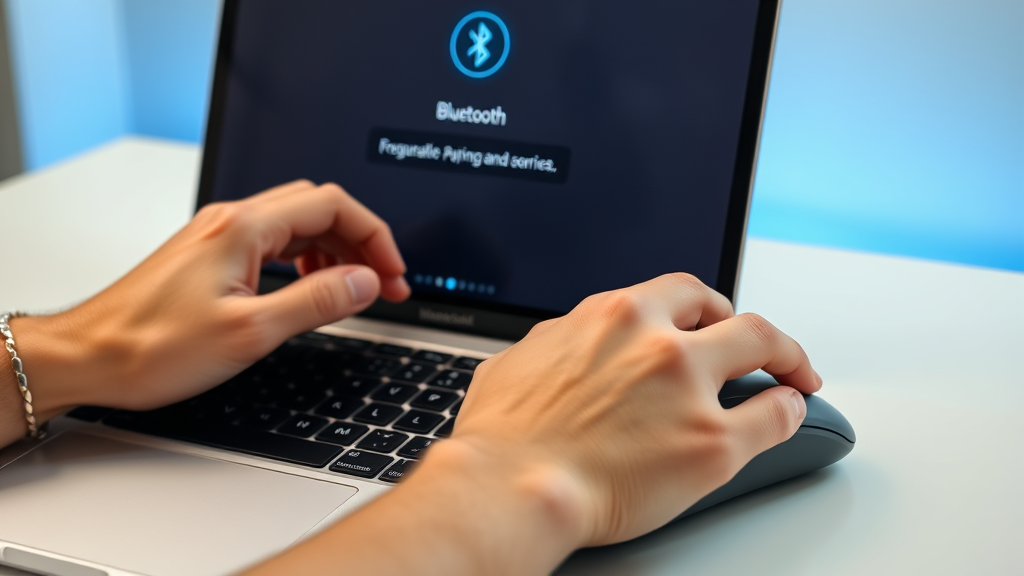
Begin by accessing your Mac’s Bluetooth settings through System Preferences. Click the Apple menu in the top-left corner of your screen, select “System Preferences,” then click on “Bluetooth” to open the Bluetooth management panel. Ensure Bluetooth is enabled by clicking the “Turn Bluetooth On” button if it appears dimmed or inactive.
Prepare your Evoluent VerticalMouse 4 for pairing by locating the power button and Bluetooth pairing button on the device. The power button is typically located on the underside of the mouse, while the pairing button may be positioned near the scroll wheel or on the side panel, depending on your specific model variation.
Press and hold the power button for three seconds to activate the mouse, then immediately press and hold the Bluetooth pairing button for five seconds until the LED indicator begins flashing rapidly. This flashing pattern indicates the mouse has entered discoverable mode and is ready to establish a connection with your Mac.
Return to your Mac’s Bluetooth preferences window and click the “Set up Bluetooth device” or plus (+) button to initiate device discovery. Your Mac will scan for available Bluetooth devices, and the Evoluent VerticalMouse 4 should appear in the list as “Evoluent VM4” or similar designation within 30 seconds of entering pairing mode.
Select your mouse from the available devices list and click “Connect” or “Pair” to establish the Bluetooth connection. Your Mac may display a pairing confirmation dialog or require you to enter a numeric code. For most Evoluent mice, simply click “Connect” without entering additional authentication credentials.
Monitor the connection status as your Mac completes the pairing process. A successful connection will display “Connected” next to your mouse in the Bluetooth preferences, and the LED indicator on your mouse will change from flashing to solid or turn off completely, depending on your model’s design specifications.
Troubleshooting Common Connection Issues
If your Evoluent VerticalMouse 4 fails to appear in your Mac’s Bluetooth device list, reset the mouse’s Bluetooth module by holding both the power and pairing buttons simultaneously for ten seconds. This action clears any stored connection data and forces the mouse to restart its Bluetooth broadcasting capabilities.
Address interference issues by moving your Mac and mouse away from other wireless devices, including Wi-Fi routers, smartphones, and other Bluetooth accessories. Electromagnetic interference can disrupt the initial pairing process, so establishing connection in a relatively isolated electronic environment often resolves connectivity problems.
Clear your Mac’s Bluetooth cache if repeated pairing attempts fail. Navigate to the Library folder in your user directory, locate the Bluetooth preferences file, and delete it to reset your system’s Bluetooth memory. Restart your Mac after deleting this file to ensure the changes take effect properly.
For persistent connection issues, consider resetting your Mac’s Bluetooth module entirely. Hold Shift + Option while clicking the Bluetooth icon in your menu bar, then select “Reset the Bluetooth module” from the dropdown menu. This comprehensive reset resolves most underlying Bluetooth connectivity problems but requires re-pairing all previously connected devices.
Similar to API handling and technical troubleshooting, systematic diagnosis and resolution approaches often yield the best results when addressing connectivity challenges.
Optimizing Mouse Settings and Performance
Access your Mac’s Mouse preferences through System Preferences to customize tracking speed, scrolling behavior, and button assignments for your Evoluent VerticalMouse 4. These settings allow you to tailor the mouse’s responsiveness to match your personal preferences and workflow requirements.
Adjust the tracking speed slider to find the optimal balance between precision and efficiency for your specific tasks. Start with a medium setting and gradually increase or decrease the sensitivity based on your comfort level and the type of work you perform most frequently on your Mac.
Configure scroll direction settings to match your preference for natural or traditional scrolling behavior. The Evoluent VerticalMouse 4’s scroll wheel can be set to scroll in either direction, allowing you to maintain consistency with your established scrolling habits or adapt to Apple’s natural scrolling paradigm.
Customize button functions if your mouse model includes programmable buttons beyond the standard left and right click options. Many Evoluent mice feature additional buttons that can be assigned to specific functions like Mission Control, Exposé, or custom application shortcuts to enhance your productivity workflow.
Install Evoluent’s proprietary driver software from the manufacturer’s official website to access advanced customization options not available through macOS’s built-in mouse preferences. This software provides enhanced button programming, sensitivity adjustment, and performance monitoring capabilities specifically designed for Evoluent vertical mice.
Maintaining Your Bluetooth Connection
Establish a regular charging routine to prevent unexpected disconnections due to low battery levels. The Evoluent VerticalMouse 4 typically provides several weeks of use on a single charge, but maintaining a consistent charging schedule ensures uninterrupted connectivity during important work sessions.
Monitor your mouse’s battery status through the Bluetooth preferences panel or the manufacturer’s driver software. Most systems display battery percentage information for connected Bluetooth devices, allowing you to anticipate when charging will be necessary before the battery becomes critically low.
Keep your Mac’s Bluetooth drivers updated by installing system updates as they become available. Apple regularly releases macOS updates that include Bluetooth improvements and bug fixes that enhance connectivity stability and performance with third-party devices like the Evoluent VerticalMouse 4.
Avoid interference by maintaining awareness of your wireless environment and positioning your Mac and mouse appropriately. Keep the devices within the recommended range of approximately 30 feet, and minimize obstacles between the mouse and computer that could weaken the Bluetooth signal strength.
Just as battery charging guide for devices emphasizes proper power management, maintaining optimal charge levels ensures consistent Bluetooth performance and device longevity.
Advanced Configuration Options
Explore Evoluent’s MouseManager software for comprehensive customization beyond standard macOS mouse preferences. This application provides detailed control over acceleration curves, button mapping, and gesture recognition that can significantly enhance your vertical mouse experience on Mac systems.
Configure multiple user profiles if you share your Mac with others or use different settings for various types of work. The MouseManager software allows you to create distinct profiles with unique sensitivity, button assignments, and scrolling preferences that can be quickly switched based on current needs or user preferences.
Set up gesture controls if your Evoluent VerticalMouse 4 model supports advanced gesture recognition. These features can replace common keyboard shortcuts with intuitive mouse movements, reducing the need to switch between input devices during complex workflows or creative applications.
Integrate your vertical mouse with productivity applications by creating custom macros and shortcuts through the manufacturer’s software. These automations can streamline repetitive tasks and provide quick access to frequently used functions within your preferred applications and workflows.
Similar to comprehensive DIY networking and connectivity setup approaches, thorough configuration ensures optimal performance and user satisfaction with your new ergonomic input device.
Consider creating backup configuration files to preserve your custom settings in case of system updates or software reinstallation. Export your preferences through the MouseManager software and store them in a secure location for easy restoration when needed.
Frequently Asked Questions
How long does the Evoluent VerticalMouse 4 battery last on a single charge?
The Evoluent VerticalMouse 4 typically provides 2-4 weeks of normal use on a single charge, depending on usage patterns and Bluetooth activity levels. Heavy users may need to charge more frequently, while occasional users can expect longer battery life. The exact duration varies based on factors such as button usage frequency, tracking sensitivity settings, and environmental conditions affecting Bluetooth signal strength.
Can I use the Evoluent VerticalMouse 4 while it’s charging?
Yes, the Evoluent VerticalMouse 4 supports simultaneous charging and operation when connected via USB cable. This feature allows you to continue working even when the battery is low or completely depleted. However, using the mouse while charging may slightly extend the charging time, and the cable connection temporarily overrides Bluetooth connectivity until disconnected.
Why does my mouse disconnect randomly during use?
Random disconnections typically result from low battery levels, Bluetooth interference, or distance limitations between the mouse and Mac. Ensure your mouse is adequately charged, position it within 10 feet of your Mac, and minimize interference from other wireless devices. Additionally, check for macOS updates that may include Bluetooth stability improvements, and consider resetting the Bluetooth connection if problems persist.
Does the Evoluent VerticalMouse 4 work with all Mac models?
The Evoluent VerticalMouse 4 is compatible with most Mac computers manufactured after 2012 that include Bluetooth 4.0 or newer technology. This includes MacBook Air, MacBook Pro, iMac, Mac mini, and Mac Pro models running macOS 10.12 Sierra or later. Older Mac systems may require USB dongles or adapters to establish Bluetooth connectivity with modern input devices.
How do I know when my mouse needs charging?
Most Mac systems display battery status information for connected Bluetooth devices in the Bluetooth preferences panel or menu bar. Additionally, the Evoluent VerticalMouse 4 may exhibit decreased responsiveness, intermittent connectivity, or LED indicator changes when the battery becomes low. Installing the manufacturer’s MouseManager software provides more detailed battery monitoring and low-power warnings.
Can I pair the same mouse with multiple Mac computers?
Yes, the Evoluent VerticalMouse 4 can be paired with multiple Mac computers, but it can only maintain an active connection with one device at a time. To switch between computers, you’ll need to disconnect from the current Mac and initiate pairing with the desired system. Some users find it convenient to maintain separate mice for different computers to avoid frequent re-pairing procedures.
What should I do if the mouse cursor moves erratically after pairing?
Erratic cursor movement often indicates tracking surface issues, sensitivity setting problems, or interference from nearby devices. Try using the mouse on a different surface, preferably a mouse pad designed for optical tracking. Adjust the tracking speed in System Preferences, and ensure no other wireless devices are interfering with the Bluetooth connection. If problems persist, clean the optical sensor and consider updating or reinstalling the mouse drivers.