
How to Add Admins to Facebook Pages: Complete Expert Guide
Managing a Facebook business page requires a solid team, and knowing how to add admins is fundamental to scaling your online presence. Whether you’re building a community around your DIY projects or promoting a service, delegating administrative responsibilities ensures your page runs smoothly around the clock. Adding admins to your Facebook page isn’t just about sharing the workload—it’s about creating a structured management system that protects your brand, maintains consistency, and enables faster response times to your audience.
Facebook page administration can feel overwhelming when you’re handling everything solo. By strategically adding admins and moderators, you distribute critical tasks like responding to comments, posting content, reviewing messages, and managing community guidelines. This guide walks you through the exact process of adding admins, setting appropriate permission levels, and best practices for maintaining security and consistency across your Facebook presence.
Understanding Facebook Page Roles and Permissions
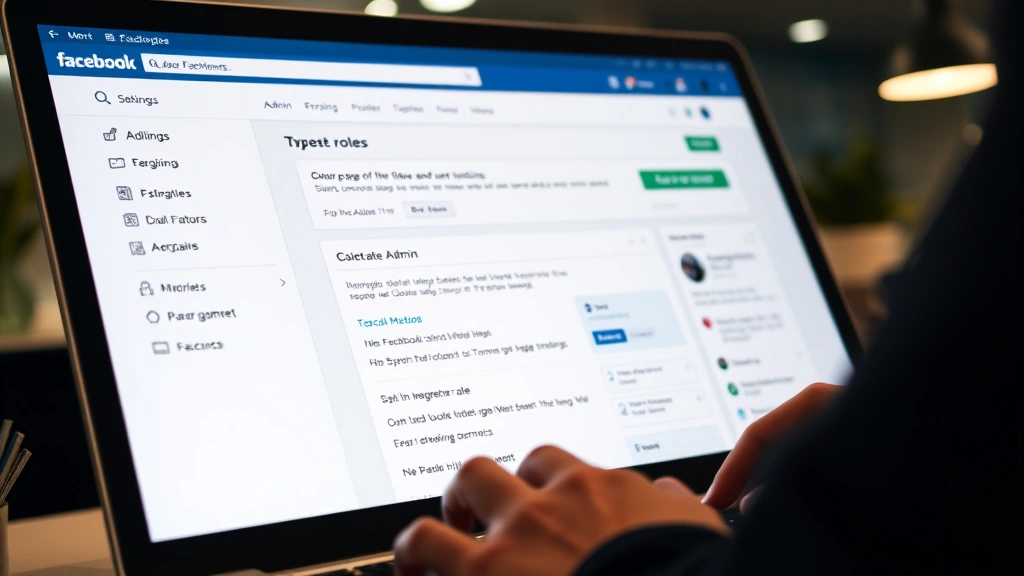
Before adding admins to your Facebook page, you need to understand the different roles available and what each role can accomplish. Facebook provides five distinct permission levels, each designed for different management responsibilities. The Admin role holds the highest level of authority and can perform virtually all page functions, including adding or removing other admins, deleting the page, and accessing page insights. This role should be reserved for trusted individuals who have deep knowledge of your brand and business objectives.
The Editor role is slightly less powerful than Admin and cannot add or remove other page members or delete the page itself. Editors can create and publish posts, respond to comments and messages, manage the page’s events and shop features, and access basic analytics. This role works well for team members who need significant control but shouldn’t have the ability to remove other team members or alter fundamental page settings. The Moderator role focuses on community management—these individuals can approve or delete comments, ban people from the page, and respond to messages, but they cannot create posts or access insights.
For your content creators and publishing team, consider the Analyst role, which allows full access to page insights and analytics but restricts the ability to publish content or manage comments. Finally, the Job Manager role is specialized for pages recruiting through Facebook Jobs and has limited permissions focused solely on job postings. Understanding these distinctions helps you assign appropriate responsibility levels and maintain security across your page management structure.
Step-by-Step Process to Add Admins
Adding an admin to your Facebook page is a straightforward process that takes just minutes. Start by navigating to your Facebook page and clicking the Settings & Privacy option, then select Settings from the dropdown menu. On the Settings page, look for the Page Roles option in the left-hand menu. This section displays all current page members and their assigned roles. To add a new admin, click the Add Page Role button, which appears prominently in this section.
A dialog box will appear asking you to enter the name or email address of the person you want to add. Type their name as it appears on their Facebook profile—the system will begin showing suggestions as you type. Select the correct person from the dropdown list to avoid accidentally adding someone with a similar name. Once you’ve selected the right person, a second dropdown menu will appear asking you to choose their role. Select Admin from the available options, then click the Add button to confirm.
Facebook will then send a notification to the person you’ve added, informing them that they’ve been assigned an admin role on your page. They’ll receive a prompt to accept or decline the role. Until they accept, they won’t have access to your page’s administrative functions. If they decline, you’ll need to repeat the process with another person or reach out to them directly to understand why they rejected the role. Once they accept, they’ll have immediate access to all admin functions, and their name will appear in your Page Roles list with an Admin designation.
It’s important to note that the person you’re adding must already have a Facebook account and be at least 18 years old. If you’re trying to add someone who hasn’t created a Facebook account yet, they’ll need to do so first. Additionally, you cannot add a Facebook page as an admin—only individual accounts can hold administrative roles. This prevents organizational confusion and ensures clear accountability for page management decisions.
Setting Permission Levels and Restrictions
After you’ve added someone to your page, you can fine-tune their permissions based on their specific responsibilities. If you initially added someone as an Admin but realize they only need to manage comments and messages, you can change their role to Moderator without removing them entirely. To adjust permissions, return to the Page Roles section in Settings and find the person whose permissions you want to modify. Click on their current role designation, and a dropdown menu will appear with all available role options.
For example, if you’re managing a basement finishing project page where different team members handle different aspects, you might assign one person as Editor to handle content creation, another as Moderator to manage community discussions, and a third as Analyst to track engagement metrics. This tiered approach ensures each person has exactly the access they need without over-privileging any single individual.
Facebook also allows you to set specific restrictions on admin actions through Business Manager if you’re using that platform. Through Business Manager, you can create custom roles with granular permissions, allowing you to restrict specific functions like page deletion, billing access, or member management. This is particularly useful for larger organizations with complex hierarchies. Access Business Manager from your main Facebook menu, navigate to your page’s settings, and select the Roles tab to create custom permission sets.
When setting permission levels, consider the principle of least privilege—each person should have only the permissions necessary to complete their assigned tasks. This approach minimizes risk if an account is compromised and prevents accidental changes that could harm your page. Document which person has which permissions and for what purpose, creating an internal reference that helps maintain consistency and accountability.
Best Practices for Admin Management
Managing multiple admins effectively requires establishing clear guidelines and maintaining regular communication. Start by creating a simple document outlining each admin’s responsibilities, the types of decisions they can make independently, and situations where they should consult with other team members before taking action. This prevents duplicate efforts, conflicting messages, and confusion about who handles specific tasks. For instance, one admin might handle customer service inquiries while another focuses on content scheduling and posting.
Implement a regular review schedule where you audit your page’s admin roster at least quarterly. Check whether each person listed still needs their role and whether their assigned permissions still match their current responsibilities. People change roles, leave organizations, or shift their focus, and outdated admin assignments create security vulnerabilities and operational inefficiencies. During these reviews, also assess whether you need additional admins to handle growing page demands or if consolidation would improve management clarity.
Communication is critical when managing a team of admins. Establish a preferred communication channel—whether that’s email, Slack, or a private Facebook group—where admins can discuss page strategy, alert others to important messages or comments that need attention, and coordinate on content calendars. Regular sync meetings, even brief ones, help align the team on brand voice, community management standards, and upcoming initiatives. This coordination becomes increasingly important as you scale your page and add more team members, much like coordinating a home security system with multiple access points.
Document all major decisions and changes made by admins, creating an audit trail that helps you understand the page’s evolution and identify any problematic patterns. Facebook’s Activity Log provides some of this information automatically, showing who posted what and when, but supplementing this with your own documentation ensures nothing falls through the cracks. This practice also protects you if disputes arise about who made certain decisions or when changes occurred.
Security Considerations and Account Protection
Adding admins to your Facebook page introduces security considerations that shouldn’t be overlooked. Each admin account represents a potential entry point for unauthorized access, so it’s crucial to add only trustworthy individuals with a demonstrated commitment to security practices. Before granting admin access, have conversations with potential admins about their password habits, whether they use two-factor authentication on their personal accounts, and their understanding of social engineering tactics.
Require all admins to enable two-factor authentication on their Facebook accounts before granting them access to your page. Two-factor authentication adds an extra security layer by requiring a second verification method—typically a code sent to their phone—in addition to their password. This dramatically reduces the risk of unauthorized access even if someone obtains their password. Facebook makes enabling two-factor authentication straightforward through Account Settings, and you should periodically verify that all active admins have it enabled.
Be especially cautious about granting Admin-level access, as this role can delete the page entirely or remove other admins. Reserve full admin privileges for only the most trusted team members, and consider using the Editor or Moderator roles for most team members instead. The Editor role provides substantial functionality without the ability to make irreversible changes like page deletion. If you do grant Admin access to multiple people, ensure they understand the serious responsibility that comes with it and establish a culture where major decisions are made collaboratively rather than unilaterally.
Monitor your page activity log regularly to track who’s making changes and what those changes are. The activity log shows all posts, comments, deletions, and role changes, providing a complete audit trail. If you notice suspicious activity—posts you didn’t authorize, comments being deleted without explanation, or role changes you don’t remember making—investigate immediately. You can remove admins instantly if you suspect their account has been compromised, and Facebook provides tools to undo recent changes if necessary.
Establish a protocol for what happens when an admin leaves your organization or changes roles. Remove their access immediately, don’t let their account linger with unused admin privileges. If they had access to sensitive information like client lists or campaign strategies, consider changing any passwords or sensitive data they might have accessed. This is particularly important for contractors or temporary team members who had admin access during a specific project.
Troubleshooting Common Admin Issues
Sometimes adding admins doesn’t go smoothly, and you’ll encounter common problems that require troubleshooting. If you’re unable to add someone as an admin, verify that their Facebook account is in good standing—Facebook accounts that have violated community standards or engaged in suspicious behavior may have restrictions preventing them from holding administrative roles. Ask the person to check their account settings and contact Facebook support if they believe their account has been restricted unfairly.
Another common issue occurs when an invited admin doesn’t receive their notification. This can happen if their notification settings filter out page-related messages or if there’s a delay in Facebook’s notification system. Have the person check their notification center and their email—Facebook sometimes sends notifications through both channels. If they still don’t see the invitation after several hours, you can remove them from the pending list and re-add them.
Sometimes admins report that certain features aren’t available to them even though their role should provide access. This occasionally happens due to Facebook’s caching system, where changes take time to propagate across their servers. Have the admin try logging out completely and logging back in, or accessing the page from a different browser or device. If the issue persists, check their role assignment in the Page Roles section to ensure it was saved correctly.
If you’ve accidentally granted someone admin access and want to remove them, simply go to Page Roles and click on their name, then select a lower role or remove them entirely. You can also send them a message explaining the change. Facebook makes it easy to adjust permissions, so don’t hesitate to correct mistakes quickly. The quicker you address role assignments that aren’t working, the better your page management will function.
For pages with a large admin team, consider implementing regular audits where you verify each person’s current role matches their responsibilities. This prevents role creep, where people accumulate permissions they no longer need, and ensures your page’s governance remains clear and effective. Tools like Facebook’s Business Manager can help automate some of these processes if you’re managing multiple pages across different business entities.
FAQ
Can I add multiple admins to my Facebook page?
Yes, you can add as many admins as needed. However, best practice suggests limiting full admin access to only 2-3 of your most trusted team members. Consider using Editor, Moderator, or Analyst roles for other team members to maintain security and prevent accidental page deletions or major unintended changes.
What’s the difference between an Admin and an Editor on Facebook pages?
Admins can add or remove other page members, delete the page, and access all page settings. Editors can create and publish content, manage comments and messages, and access basic analytics, but cannot add/remove members or delete the page. Use Editors for content creators who don’t need full administrative authority.
Can I change someone’s role from Admin to Editor after adding them?
Absolutely. Go to Page Roles in your Settings, find the person’s name, click their current role, and select a different role from the dropdown menu. Changes take effect immediately, and the person will be notified of the change.
What should I do if an admin’s account is hacked?
Remove their admin access immediately by going to Page Roles and removing them or changing their role to a lower level. Then contact the person directly to alert them to the compromise. Have them change their password and enable two-factor authentication if they haven’t already. You may also need to review your page’s activity log to see if any unauthorized posts were made while the account was compromised.
Can I see what changes each admin has made to my page?
Yes, Facebook’s Activity Log shows all changes made to your page, including who posted what, who deleted comments, and who made role changes. Access it through your page’s Settings menu under “Activity Log.” This provides complete transparency into admin actions.
Is there a limit to how many admins I can add?
Facebook doesn’t specify a hard limit on the number of admins you can add, but practical considerations suggest keeping the number manageable. Large admin teams become difficult to coordinate and increase security risks. Most successful pages operate with 3-5 admins and supplement them with Editors, Moderators, and Analysts for specific functions.
How do I remove an admin from my Facebook page?
Navigate to Page Roles in your Settings, find the admin you want to remove, and click the “X” button next to their name. Confirm the removal, and they’ll lose access to your page immediately. They’ll receive a notification that they’ve been removed from the page.
Can an admin remove other admins from the page?
Yes, any admin can remove other admins or change their roles. This is why it’s crucial to only grant admin access to people you absolutely trust. If you want to prevent this, assign most team members as Editors, Moderators, or Analysts instead, as only Admins can manage other page members.


