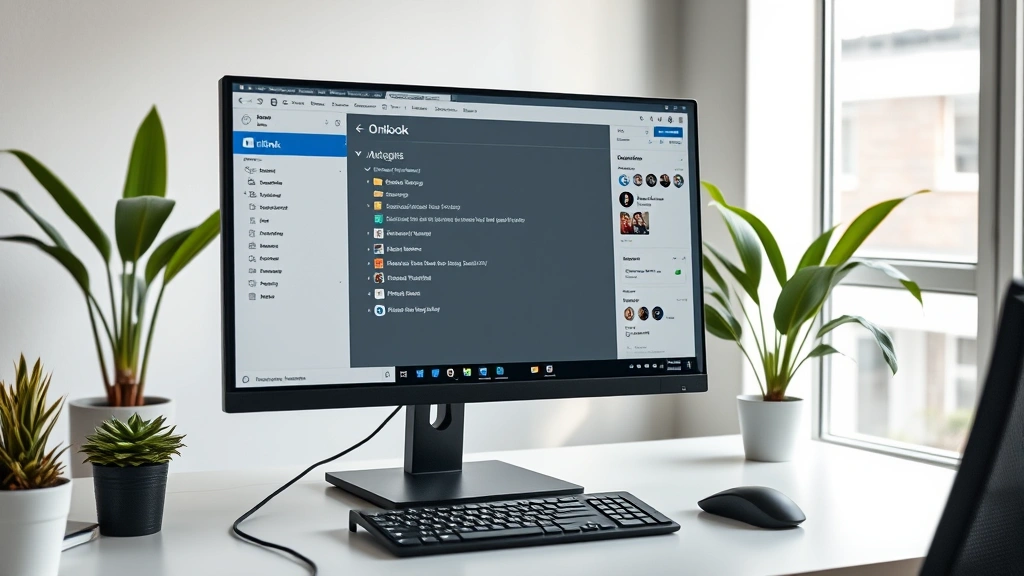
How to Add a Folder in Outlook: Expert Guide
Managing your email effectively requires proper organization, and creating folders in Outlook is one of the most fundamental skills for maintaining a clean, efficient inbox. Whether you’re drowning in messages or simply want to streamline your workflow, learning how to add a folder in Outlook is essential for any user. This comprehensive guide walks you through every method available across different Outlook platforms, from desktop applications to web-based versions.
Folders in Outlook serve as digital filing cabinets where you can categorize, store, and retrieve emails based on projects, clients, departments, or any organizational system that works for your needs. By implementing a robust folder structure early on, you’ll save countless hours searching for critical communications and maintain professional correspondence standards. This guide covers desktop Outlook, Outlook Web Access (OWA), and mobile applications with step-by-step instructions for each platform.
Understanding Outlook Folder Structure
Before diving into the mechanics of folder creation, it’s important to understand how Outlook organizes your email storage. Outlook uses a hierarchical folder system where you have a primary mailbox with default folders like Inbox, Sent Items, Drafts, and Deleted Items. Within these primary locations, you can create custom subfolders and nested folders to create a personalized organizational system.
The folder structure in Outlook operates similarly to a traditional file system on your computer. You can create parent folders with multiple child folders nested within them, allowing for sophisticated categorization schemes. This hierarchical approach means you could have a folder named “Clients” with subfolders for each individual client, and further subfolders for specific projects or years. Understanding this structure helps you plan your folder organization before creating folders, preventing the need for reorganization later.
Different Outlook versions may have slight variations in how folders are accessed and created, but the fundamental principles remain consistent. Whether you’re using Outlook 2019, Outlook 2021, Microsoft 365, or the web-based version, the core concepts of folder management stay the same. For those looking to enhance their overall digital organization, explore our guide on DIY Nests Hub Blog for additional tips on organizing your digital workspace.
Creating Folders in Desktop Outlook
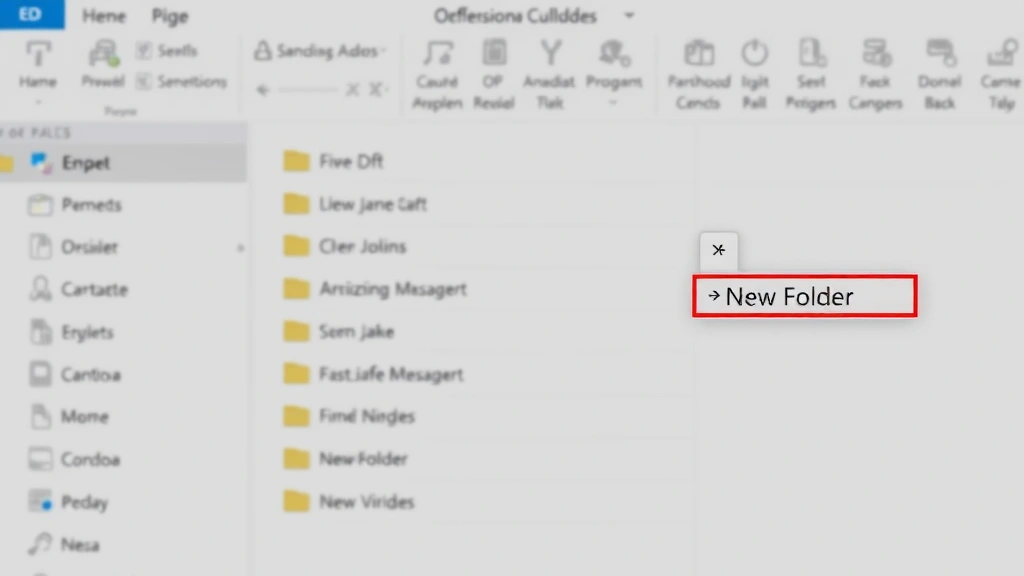
Desktop Outlook remains the most feature-rich version of the application, offering multiple methods to create new folders. The most straightforward approach involves using the folder pane on the left side of your Outlook window. To add a folder in Outlook desktop version, locate your mailbox in the folder list and right-click on it or any existing folder where you want to create a subfolder.
When you right-click on a folder, a context menu appears with several options. Select “New Folder” from this menu, which opens a dialog box prompting you to name your new folder. Enter a descriptive name that clearly indicates the folder’s purpose—for example, “Project Alpha 2024” or “Client Communications.” Avoid using special characters like asterisks, question marks, or forward slashes, as these can cause issues with folder synchronization across devices.
After naming your folder, click “OK” to create it. The folder immediately appears in your folder hierarchy, ready to receive emails. You can now drag and drop existing emails into this folder or apply rules to automatically route incoming messages to specific folders based on criteria like sender, subject line, or keywords.
Alternative Method Using the Folder Menu: If you prefer menu-based navigation, click the “Folder” tab in the ribbon menu at the top of your Outlook window. Select “New Folder” from the dropdown options. This method is particularly useful if you’re creating multiple folders in succession, as it keeps your workflow within the menu system rather than switching between right-click contexts.
For users managing multiple email accounts or shared mailboxes, understanding how to organize across these different account structures becomes crucial. You might want to create folder hierarchies specific to each account or shared resource, maintaining clear separation between different types of correspondence.
Adding Folders in Outlook Web Access
Outlook Web Access (OWA), also known as Outlook on the web, provides folder creation capabilities through a slightly different interface than desktop Outlook. The web-based version is accessible from any browser, making it ideal for users who need to manage emails while away from their primary computer. To create a folder in Outlook Web Access, look for the folder list on the left side of your screen and locate the “New Folder” option.
In most versions of OWA, you’ll find a plus icon or “New Folder” button near your mailbox name or folder list. Clicking this button opens a dialog where you can enter your folder name and select where you want the folder created. The web interface typically shows your mailbox structure in a tree format, allowing you to choose the exact location for your new folder within the hierarchy.
The process of naming folders in OWA follows the same best practices as desktop Outlook—use clear, descriptive names without special characters. After entering your folder name and confirming the location, click “Create” or the equivalent button in your OWA version. The folder appears immediately in your folder list and becomes available for organizing emails.
Accessing OWA Folder Settings: Once you’ve created folders in OWA, you can manage additional settings by right-clicking on the folder name. Options typically include renaming, deleting, moving, or marking folders as favorites for quick access. The favorite feature is particularly useful for folders you access frequently, as it pins them to the top of your folder list for easy navigation.
Web-based access offers advantages for those who frequently switch between devices or work in environments where installing desktop applications isn’t feasible. However, some advanced features available in desktop Outlook may not be available in the web version, so users managing complex folder hierarchies might prefer the desktop application for initial setup.
Mobile Folder Management
Managing folders on mobile devices running Outlook adds another dimension to email organization. The Outlook mobile app for iOS and Android provides folder creation and management capabilities, though the interface differs from desktop and web versions due to space constraints on smaller screens. To create a folder in mobile Outlook, open the app and navigate to your mailbox settings or folder list.
On iOS, swipe left on your mailbox name to reveal options, or look for a menu icon (usually three dots) that provides folder management options. On Android, similar menu options appear through the three-dot menu or by long-pressing on your mailbox name. Select the option to create a new folder and follow the prompts to name and locate your new folder within your mailbox structure.
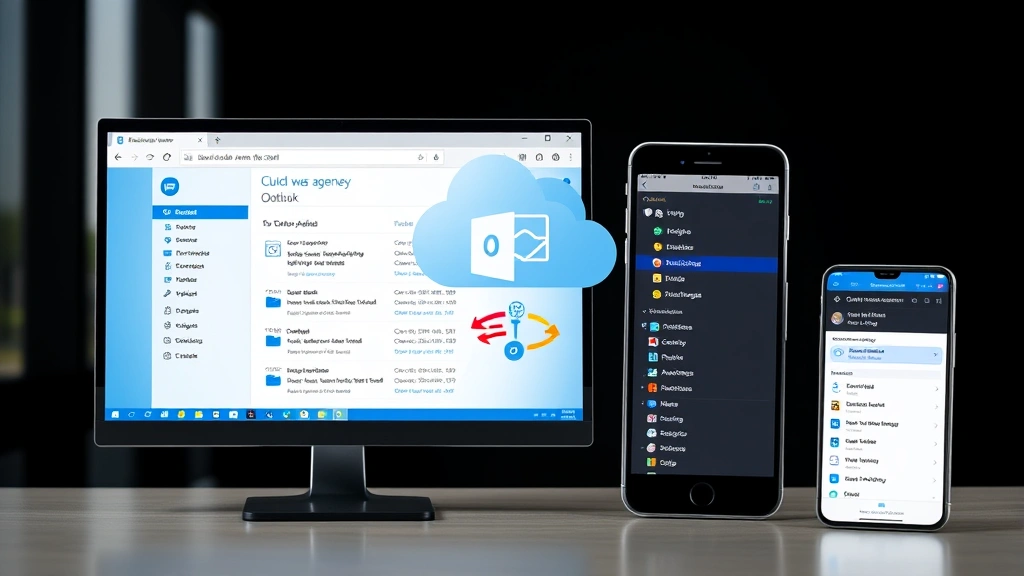
Mobile folder creation is particularly useful for users who receive and need to organize emails while on the go. You can create folders, move emails between them, and manage your inbox hierarchy directly from your smartphone or tablet. This capability ensures your email organization remains consistent across all devices you use to access Outlook.
Synchronization Across Devices: One of the advantages of using cloud-based email systems like Microsoft 365 Outlook is automatic synchronization. Folders you create on your desktop appear on your mobile device and in OWA without additional configuration. This seamless integration means your organizational system remains consistent regardless of which device you use to access your email.
Advanced Folder Organization Techniques
Beyond basic folder creation, advanced users can implement sophisticated organizational systems that dramatically improve email management efficiency. One powerful technique involves creating a hierarchical folder structure based on time periods combined with project or client names. For example, you might create a main folder for each year, with subfolders for each quarter, and further nested folders for specific projects or clients.
Another advanced technique uses color-coding in conjunction with folders to provide visual organization cues. While learning to accept all changes in Word helps with document management, applying similar organizational principles to Outlook enhances your overall digital workflow. You can assign category colors to emails and use folders to create a multi-layered organizational system.
Implementing Search Folders: Search Folders are virtual folders that display emails meeting specific criteria without actually moving them. These are particularly useful for creating dynamic views of your mailbox. For instance, you could create a Search Folder that displays all emails from a particular client received in the last month, or all unread messages from your manager. Search Folders update automatically as new messages arrive, providing real-time organization without manual intervention.
To create a Search Folder in desktop Outlook, right-click on the “Search Folders” section in your folder pane and select “New Search Folder.” Choose from predefined search criteria or create custom criteria based on sender, subject, date range, or message content. This feature is invaluable for users managing high-volume email environments where manual folder organization would be impractical.
Archive Folders and Long-Term Storage: For users managing years of email correspondence, archive folders provide a way to maintain historical records while keeping your active mailbox manageable. Outlook includes AutoArchive features that automatically move older emails to archive folders based on age criteria you specify. This keeps your primary mailbox responsive while preserving access to historical communications.
Best Practices for Folder Architecture
Creating an effective folder structure requires thoughtful planning and consistent naming conventions. The most successful folder hierarchies follow a logical organizational scheme that makes intuitive sense to the user and any colleagues who might need access to the mailbox. Begin by identifying the primary categories for your email organization—these might be clients, projects, departments, or functional areas relevant to your work.
Naming Conventions and Consistency: Establish clear naming conventions before creating your folder structure. Use consistent prefixes or formats across similar folders, making it easier to locate related items. For example, if you work with multiple clients, prefix each client folder with “CLIENT_” followed by the client name. This consistency helps with sorting and searching, particularly when using alphabetical folder listings.
Avoid creating too many top-level folders, as this can make navigation confusing. Instead, create a smaller number of main folders with multiple subfolders within them. A good rule of thumb is to limit top-level folders to between five and ten categories, with unlimited subfolders beneath them. This structure balances accessibility with organization.
Regular Maintenance and Cleanup: Folder structures benefit from regular maintenance to prevent accumulation of obsolete or rarely-used folders. Set a quarterly or bi-annual reminder to review your folder hierarchy and consolidate or archive outdated folders. This prevents folder fatigue where users struggle to find relevant folders among dozens of obsolete ones.
Consider implementing a retention policy for emails within specific folders. For instance, you might automatically delete or archive emails older than two years from certain folders while maintaining longer retention for critical client communications. This balance preserves storage capacity while maintaining access to necessary historical records.
Shared Mailbox Folder Considerations: When working with shared mailboxes, folder organization becomes even more critical since multiple users rely on the same structure. Establish and document folder naming conventions that all users follow. Consider creating a shared folder structure document that outlines the purpose of each folder and provides guidelines for email organization. This documentation ensures consistency and helps new team members quickly understand the established system.
For comprehensive organization strategies across all your digital platforms, explore our guide on DIY Home Security to understand how organizational principles apply to securing your digital workspace. Additionally, our resources on DIY Basement Finishing and DIY Car Repairs demonstrate how systematic organization improves outcomes across different domains.
FAQ
Can I create unlimited folders in Outlook?
Outlook supports creating a very large number of folders, but practical limitations exist. Most users find that maintaining hundreds of folders becomes unwieldy and defeats the organizational purpose. Microsoft recommends keeping folder hierarchies reasonably shallow and using search functionality for locating specific emails rather than relying on deep folder structures. Storage capacity on your email server or local machine may also impose practical limits on folder quantity.
What happens to emails if I delete a folder?
Deleting a folder in Outlook moves that folder and all its contents to the Deleted Items folder. The emails aren’t permanently removed until you empty your Deleted Items folder or until the folder is permanently purged by your email administrator. This safety mechanism allows you to recover accidentally deleted folders within a reasonable timeframe. Always verify folder contents before deletion, particularly for shared mailboxes where others may depend on that folder’s contents.
Can I move folders between different email accounts?
In Outlook, folders are specific to individual email accounts or mailboxes. You cannot directly move a folder from one account to another through the standard interface. However, you can copy emails between accounts by selecting messages and dragging them to folders in another account. For bulk migration of folder structures between accounts, you might need to use third-party migration tools or manually recreate your folder structure in the new account.
How do I recover a deleted folder?
If you’ve recently deleted a folder, check your Deleted Items folder first. Right-click on the deleted folder and select “Move” to restore it to its original location or choose a new location. If the folder has been permanently deleted, recovery options depend on your email system. Microsoft 365 users can contact their administrator about recovering deleted items from backup systems. Desktop Outlook users with PST file backups may recover deleted folders from those backups.
Is there a limit to folder nesting depth?
While Outlook technically supports deep folder hierarchies, practical limitations exist. Some email systems and synchronization protocols have limitations on folder path length, which can restrict how deeply you can nest folders. As a best practice, limit your folder hierarchy to three or four levels deep. This maintains both usability and compatibility across different email clients and devices.
Can I automatically move emails to folders?
Yes, Outlook’s Rules feature allows you to automatically move incoming emails to specific folders based on criteria you define. Access Rules through the Home tab in desktop Outlook or through Settings in OWA. You can create rules based on sender, subject keywords, recipient, message importance, or numerous other criteria. This automation dramatically reduces manual email organization and helps maintain folder structures without constant user intervention.


