
How to Calculate Percentage Change in Excel: Expert Tips & Formulas
Whether you’re tracking home renovation budgets, monitoring material costs, or analyzing project expenses, understanding how to calculate percentage change in Excel is an essential skill for any DIY enthusiast. Percentage change calculations help you quickly assess whether costs have increased or decreased, making it easier to manage your basement finishing projects or other home improvement initiatives within budget constraints.
Excel’s built-in formulas make percentage calculations straightforward, even for beginners. This comprehensive guide will walk you through multiple methods to calculate percentage change, from simple formulas to advanced techniques. By mastering these skills, you’ll be able to make data-driven decisions about your DIY projects and track financial performance with confidence.
The basic principle behind percentage change is comparing an old value to a new value and expressing the difference as a percentage of the original amount. Whether prices go up or down, whether your project timeline expands or contracts, or whether material quantities increase or decrease, the same fundamental formula applies across all scenarios.
Basic Percentage Change Formula Explained
The foundation of all percentage change calculations rests on a simple mathematical principle. The standard formula is: ((New Value – Old Value) / Old Value) × 100 = Percentage Change. This formula works universally whether you’re calculating percentage increases or decreases in your project costs or timelines.
In Excel, you can translate this formula directly into a cell reference format. If your old value is in cell A1 and your new value is in cell B1, the formula becomes: =(B1-A1)/A1. Excel will automatically return the result as a decimal (for example, 0.25 for a 25% increase). To display this as a percentage, simply multiply by 100 or format the cell as a percentage.
Understanding each component of this formula is crucial. The numerator (B1-A1) represents the absolute change in value. The denominator (A1) normalizes this change relative to the original value, which is why percentage change is so useful for comparing changes across different scales. For instance, a $10 increase on a $100 item represents a 10% change, while a $10 increase on a $1,000 item represents only a 1% change.
When working on home security projects or any budget-conscious endeavor, this formula helps you understand the true impact of price fluctuations. A supplier might increase prices by $5, but knowing the percentage change tells you whether this represents a minor adjustment or a significant cost burden for your project.
Step-by-Step Excel Instructions for Percentage Change
Let’s walk through creating a percentage change calculation in Excel from start to finish. First, open Excel and create a simple table with headers. In cell A1, type “Original Value,” in B1 type “New Value,” and in C1 type “Percentage Change.” These headers will help you stay organized, especially when working with multiple calculations across your project budget spreadsheets.
Next, enter your data. Suppose you’re tracking material costs for a home improvement project. Enter your original cost in A2 (for example, $250) and your new cost in B2 (for example, $300). Now click on cell C2 and enter the formula: =((B2-A2)/A2)*100. Press Enter, and Excel will immediately display the result: 20. This means the price increased by 20%.
For a cleaner approach, you can skip the multiplication by 100 and instead format your result as a percentage. Use the formula =(B2-A2)/A2 without the multiplication, then right-click the cell and select “Format Cells.” Choose “Percentage” from the format list, and Excel will automatically display your decimal as a percentage. This method is often preferred because it’s cleaner and reduces the chance of accidental multiplication errors.
To apply this formula to multiple rows of data, select cell C2 and copy it (Ctrl+C). Then select the range C3:C10 (or however many rows you have) and paste (Ctrl+V). Excel will automatically adjust the cell references for each row, saving you time and reducing errors. This approach is particularly useful when calculating multiple metrics across your project timeline.
For even greater efficiency, you can use Excel’s fill handle feature. Click cell C2 and position your cursor at the bottom-right corner of the cell until it becomes a small square. Click and drag downward to fill the formula through all your rows automatically. This method is faster than copy-paste and works intuitively for most users.

Handling Negative Numbers and Decreases
Percentage change calculations become more interesting when you’re dealing with decreases rather than increases. The same formula works perfectly for negative changes, but interpreting the results requires care. If your new value is lower than your original value, the percentage change will be negative, indicating a decrease.
For example, if material costs drop from $300 to $240, using the formula =(240-300)/300 gives you -0.20 or -20%, meaning a 20% decrease. This is mathematically correct and immediately tells you that costs have improved. However, when communicating these results, be clear about what the negative sign represents to avoid confusion with your team or stakeholders reviewing your project budget.
One important caveat: percentage change is not symmetric. A 50% increase followed by a 50% decrease does not return you to your original value. For instance, if you start with $100, increase it by 50% to get $150, then decrease by 50%, you’re left with $75, not $100. This asymmetry is important to understand when analyzing multi-year or multi-phase project costs.
When dealing with negative original values (which can occur in accounting scenarios), the interpretation becomes more complex. If you’re subtracting one negative number from another, be especially careful with your formula and consider adding explanatory notes in adjacent cells. This prevents misinterpretation when others review your calculations.
Excel’s ABS function can be helpful when you want to focus on the magnitude of change rather than direction. The formula =ABS((B2-A2)/A2) returns only the absolute percentage change without the sign. However, for most DIY project tracking, you’ll want to keep the sign to distinguish between cost increases and decreases.
Advanced Percentage Calculations for Complex Projects
Once you’ve mastered the basic percentage change formula, you can explore more sophisticated calculations that handle real-world complexity. For projects spanning multiple phases, you might want to calculate compound percentage change or average percentage change over several periods.
Compound percentage change applies when you have multiple sequential changes. For example, if material costs increase 10% in Q1, then 15% in Q2, the total change is not 25% but rather 26.5% (calculated as 1.10 × 1.15 = 1.265). In Excel, use the formula: =((Final Value / Initial Value)^(1/Number of Periods) – 1) * 100 to find the compound annual growth rate (CAGR) or equivalent metric for your project.
Another useful calculation is percentage of total or percentage of budget allocation. If your total project budget is $10,000 and you’ve spent $3,500 on materials, the percentage of budget used is simply =3500/10000 formatted as percentage, which equals 35%. This helps you track how much of your budget remains available for other phases of your DIY projects.
For tracking progress over time, you might calculate percentage completion. If you’ve completed 7 out of 10 project phases, the percentage completion is =7/10, which equals 70%. Excel’s conditional formatting can highlight these cells with color gradients, making it easy to spot which projects are on track and which need attention.
Variance analysis is another advanced technique. If you budgeted $500 for materials but actually spent $575, your budget variance is $75 over budget. The percentage variance is =((575-500)/500)*100, which equals 15%. This tells you immediately that you exceeded your budget by 15%, helping you understand whether this is a minor overrun or a significant problem.
Real-World DIY Project Examples
Let’s apply these concepts to actual DIY scenarios. Suppose you’re planning a kitchen remodel and need to track material costs. You initially estimated granite countertops at $3,000. When you get actual quotes, they’re $3,600. Using the formula =((3600-3000)/3000)*100, you get 20%, meaning costs are 20% higher than expected. This helps you decide whether to proceed, choose a different material, or adjust your overall project budget.
Another common scenario: you’re comparing prices from different suppliers. Supplier A quotes $450 for fixtures; Supplier B quotes $380. The percentage difference is =((380-450)/450)*100, which equals -15.6%. This tells you Supplier B is offering a 15.6% discount compared to Supplier A, making it easier to justify switching suppliers to your budget-conscious planning.
For timeline tracking, imagine your project was originally estimated at 12 weeks but is now projected to take 15 weeks. The percentage increase in timeline is =((15-12)/12)*100, which equals 25%. This 25% delay impacts your overall project schedule and might affect when you can move into a remodeled room or complete a renovation phase.
When managing labor costs, if your initial estimate was $2,000 for contractor work but the actual bill comes to $2,300, the percentage overrun is =((2300-2000)/2000)*100, equaling 15%. Understanding this overrun helps you budget more accurately for future projects and evaluate whether this contractor represents good value.
For material waste tracking, if you purchase 100 linear feet of lumber but only use 85 feet due to mistakes and waste, your waste percentage is =((100-85)/100)*100, which equals 15%. Tracking this helps you improve ordering accuracy on future projects and adjust your material purchasing to account for realistic waste levels.
Common Mistakes to Avoid
The most common error is reversing the formula. Some people calculate =(A2-B2)/B2 instead of =(B2-A2)/A2, which inverts the result. Remember: you’re calculating change FROM the original value, so the original value must be in the denominator. Double-check your formula before copying it across multiple cells to prevent widespread errors.
Another frequent mistake is forgetting to divide by the original value. The formula =B2-A2 gives you only the absolute change, not the percentage change. For instance, if prices increase from $100 to $110, this formula gives 10, but you need to divide by 100 to get 0.10 or 10%. Without division, your result is meaningless for comparison purposes.
Mixing up percentage change with percentage point change causes confusion. If interest rates increase from 5% to 7%, that’s a 2 percentage point increase but a 40% increase in the rate itself =((7-5)/5)*100. These represent different concepts, and using the wrong one can lead to misinterpretation of your project metrics.
Failing to handle zero or negative original values creates mathematical errors. You cannot divide by zero, and negative original values require special interpretation. If your original value is zero or negative, consider whether percentage change is the appropriate metric or if you need a different analytical approach.
Not formatting cells consistently makes your spreadsheet confusing. If some cells show 0.20 while others show 20%, it’s unclear whether they represent the same percentage. Standardize your formatting—either all decimals or all percentages—to prevent misreading your calculations.
Formatting Tips for Clarity and Professional Appearance
Excel offers numerous formatting options to make your percentage change calculations clear and professional. The most straightforward approach is selecting your result cells and applying percentage formatting. Right-click the cells, choose “Format Cells,” select “Percentage” from the category list, and specify decimal places (typically 1-2 for clarity).
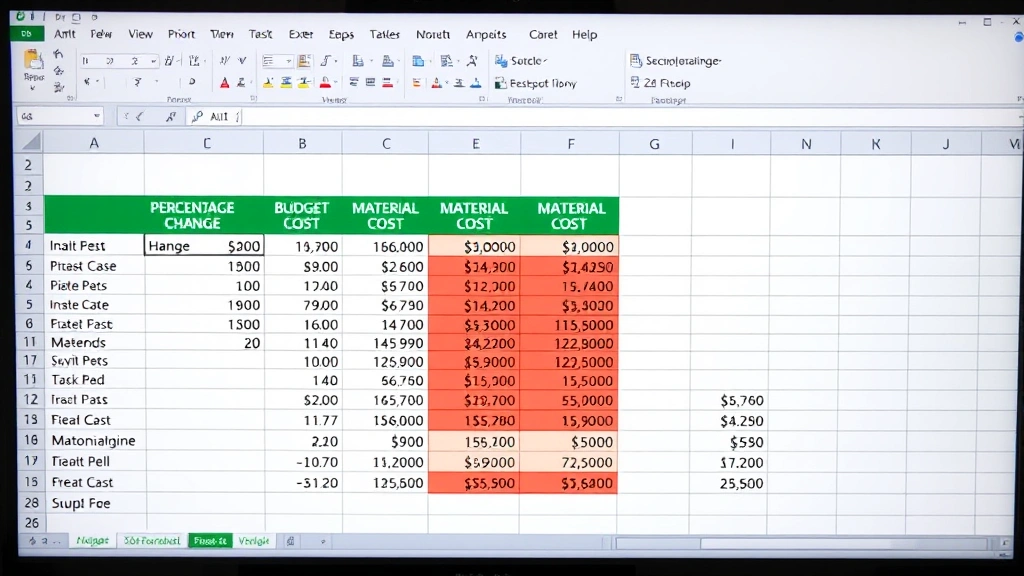
Color coding enhances visual interpretation. Use conditional formatting to highlight positive changes in green and negative changes in red, making it immediately obvious whether costs are increasing or decreasing. This visual feedback helps stakeholders quickly grasp your project’s financial status without reading every number.
To apply conditional formatting, select your percentage change cells, go to the “Home” tab, click “Conditional Formatting,” and choose “Color Scales” or “Data Bars.” These features automatically apply color gradients, with darker green indicating larger positive changes and darker red indicating larger negative changes. This visual representation is particularly useful when presenting project data to non-technical stakeholders.
Creating separate columns for absolute change and percentage change provides comprehensive information. For example, show that costs increased $100 (absolute change) and 20% (percentage change). The absolute number shows the real-world impact while the percentage shows the relative significance. This dual approach is especially helpful when comparing changes across different project phases or budget categories with different initial values.
Number formatting options like thousand separators make large numbers readable. If you’re working with project budgets in the hundreds of thousands, format as #,##0.00 to clearly separate thousands. This prevents misreading $1000000 as $1 million when it should be $10 million.
Adding descriptive labels and units improves comprehension. Instead of just showing “20%,” use a cell comment or adjacent cell to explain “Material costs increased 20% from original estimate.” This context helps anyone reviewing your spreadsheet understand what the numbers represent and why they matter for your project decisions.
Frequently Asked Questions
What’s the difference between percentage change and percentage difference?
Percentage change specifically measures how a value has changed from an original baseline (what you calculated with the standard formula). Percentage difference is typically used when comparing two values without designating one as the “original.” The formula is =ABS(B2-A2)/((B2+A2)/2)*100, using the average as the denominator. For most DIY project tracking, percentage change is more appropriate since you’re comparing current values to baseline estimates.
How do I calculate percentage change for multiple items in a single formula?
If you want to calculate the overall percentage change for an entire project (combining multiple line items), sum all original values and sum all new values, then apply the percentage change formula to these totals: =((SUM(B2:B10)-SUM(A2:A10))/SUM(A2:A10))*100. This shows whether your overall project budget has increased or decreased across all categories combined.
Can I use percentage change to compare items with different units?
No. Percentage change requires comparing values in the same units. You cannot meaningfully compare a change from 10 feet to 15 feet with a change from 5 pounds to 8 pounds using percentage change. Convert to common units first, or calculate percentage changes separately and compare those percentages instead.
How should I handle percentage changes when the original value is negative?
Negative original values create counterintuitive results. For example, changing from -$100 to $100 appears to be a 200% increase mathematically, but it’s more accurately described as moving from a loss to a profit. In these cases, consider whether percentage change is the right metric or if absolute change or trend analysis would be more meaningful.
What’s the best way to present percentage change to non-technical people?
Combine percentage change with absolute change and add clear context. Instead of just saying “20%,” say “Material costs increased by $500, which is 20% higher than the original $2,500 estimate.” Use visual aids like charts or color-coded tables. The Microsoft Office Excel charting tools can create compelling visualizations of percentage changes over time or across categories.
How do I calculate percentage change year-over-year or period-over-period?
Simply apply the basic percentage change formula comparing each period to the previous one. For year-over-year changes, compare current year values to the same period in the previous year. For example, if 2023 costs were $5,000 and 2024 costs are $5,750, the year-over-year percentage change is =((5750-5000)/5000)*100, which equals 15%. This helps you identify trends and patterns in your project expenses over time.


