
Calculate Percent Difference in Excel: Expert Method
Whether you’re tracking material costs for a renovation project, comparing budget estimates, or analyzing project performance metrics, understanding how to calculate percent difference in Excel is an essential skill for DIY enthusiasts and professionals alike. Percent difference measures the relative change between two values, expressed as a percentage—a fundamental calculation that appears across countless building and home improvement scenarios.
Unlike simple subtraction, percent difference provides context by showing how much one value has changed relative to another. This becomes invaluable when you’re evaluating whether price increases are significant, assessing measurement variations in construction, or determining if your project expenses align with initial estimates. Excel makes these calculations straightforward once you understand the core formula and its variations.
Understanding Percent Difference vs. Percent Change
Before diving into Excel calculations, it’s crucial to distinguish between percent difference and percent change—two related but distinct concepts. Percent change measures how a value has evolved from an initial point to a final point, establishing a clear before-and-after relationship. This approach assumes a directional change: starting value to ending value.
Percent difference, conversely, treats both values more symmetrically. It answers the question: “How different are these two values from each other?” rather than “How much did this value change?” This distinction matters significantly in construction and project management contexts. When comparing two supplier quotes for materials, percent difference provides a neutral comparison. When tracking your project budget over time, percent change in Excel better captures the progression.
The mathematical difference becomes apparent with negative numbers. If a value drops from 100 to 50, percent change shows -50%. But if you’re comparing 100 and 50 without directional context, percent difference calculates differently. Understanding this distinction prevents misinterpretation when analyzing project data.
The Basic Percent Difference Formula
The fundamental percent difference formula is:
Percent Difference = |Value 1 – Value 2| / ((Value 1 + Value 2) / 2) × 100
Breaking this down: you find the absolute difference between the two values (the vertical bars denote absolute value, removing any negative sign), then divide by the average of the two values, and multiply by 100 to convert to a percentage. The absolute value component is what distinguishes percent difference from percent change—it ensures the result is always positive, reflecting pure difference magnitude.
For example, if you’re comparing two lumber quotes where one supplier charges $450 and another charges $500, the calculation proceeds as follows:
- Absolute difference: |450 – 500| = 50
- Average of values: (450 + 500) / 2 = 475
- Percent difference: 50 / 475 × 100 = 10.53%
This tells you the quotes differ by approximately 10.53%, providing clear perspective on the price variance. In project planning, this context helps you decide whether the difference justifies switching suppliers or if it’s within acceptable tolerance.
Step-by-Step Excel Implementation
Implementing percent difference in Excel requires just a few steps. Start by organizing your data with values in separate cells. Let’s say you have Value 1 in cell A2 and Value 2 in cell B2.
Creating the Formula:
In an empty cell (such as C2), enter this formula:
=ABS(A2-B2)/((A2+B2)/2)*100
The ABS function handles the absolute value calculation, ensuring the result is always positive regardless of which value is larger. Press Enter, and Excel immediately calculates your percent difference.
For the lumber quote example:
- Cell A2: 450
- Cell B2: 500
- Cell C2: =ABS(A2-B2)/((A2+B2)/2)*100
- Result: 10.526315789 (approximately 10.53%)
Formatting for Clarity:
Right-click the result cell and select “Format Cells.” Choose “Number” and set decimal places to 2 for cleaner presentation. This displays your result as 10.53% rather than the lengthy decimal version. You can also apply percentage formatting directly, though the formula already multiplies by 100, so be cautious with automatic percentage formatting that might multiply by 100 again.
Applying to Multiple Rows:
If you’re comparing multiple pairs of values—perhaps different material costs across several projects or tracking expenses when finishing a basement—enter the formula in your first data row, then copy it down. Click the cell containing your formula, grab the small square at the bottom-right corner (the fill handle), and drag downward to apply the formula to all rows. Excel automatically adjusts cell references for each row.
Advanced Techniques and Variations
Creating Reusable Templates:
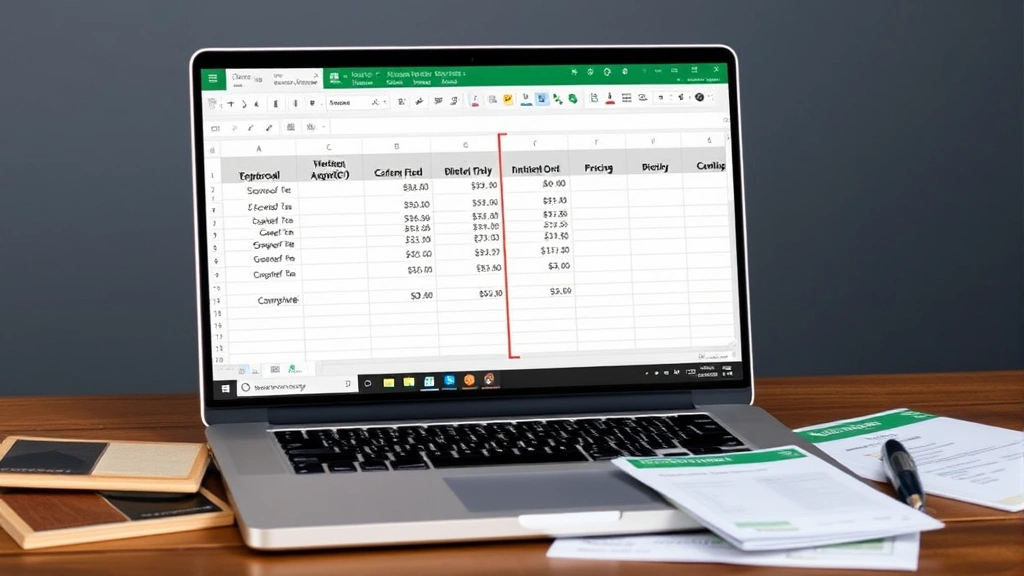
For ongoing projects requiring frequent percent difference calculations, build a template with headers and pre-formatted cells. Name your columns clearly: “Value 1,” “Value 2,” and “Percent Difference.” This organization helps when you’re managing multiple comparisons, whether you’re evaluating security system quotes or comparing material specifications.
Conditional Formatting:
Excel’s conditional formatting feature automatically highlights cells based on their values. You might color-code percent differences where variations exceed 15% in red, 5-15% in yellow, and under 5% in green. This visual approach quickly identifies significant discrepancies. Select your percent difference cells, go to “Conditional Formatting,” choose “Highlight Cell Rules,” and set your thresholds.
Using Named Ranges:
For complex spreadsheets, create named ranges for your values. Instead of writing =ABS(A2-B2)/((A2+B2)/2)*100, you might write =ABS(Quote1-Quote2)/((Quote1+Quote2)/2)*100. This makes formulas more readable and reduces errors when referencing cells. Go to the “Formulas” tab and select “Define Name” to establish named ranges.
Combining with Other Functions:
Excel’s ROUND function pairs perfectly with percent difference calculations for practical results. Use =ROUND(ABS(A2-B2)/((A2+B2)/2)*100,2) to automatically round to two decimal places, eliminating the need for separate formatting.
Handling Zero Values:
If either value is zero, your percent difference formula returns an error or infinity because you’re dividing by zero (since the average becomes zero). For real-world scenarios, you might want to use an IF statement: =IF(OR(A2=0,B2=0),”N/A”,ABS(A2-B2)/((A2+B2)/2)*100). This displays “N/A” when either value is zero, preventing calculation errors.
Common Applications in DIY Projects
Material Cost Comparisons:
When sourcing materials for home improvement or even automotive projects, you’ll often receive quotes from multiple suppliers. Calculating percent difference helps you assess whether price variations justify switching vendors. A 3% difference might be negligible; a 25% difference warrants investigation.
Measurement Verification:
In construction, you’ll take measurements multiple times—often from different people or using different tools. Percent difference helps verify consistency. If two measurements of wall length differ, calculating percent difference shows whether the variation is within acceptable tolerances (typically under 1% for critical dimensions).
Budget Tracking:
Projects rarely stay exactly on budget. Comparing estimated costs to actual expenses using percent difference provides perspective. A 5% overage on a $5,000 project ($250) differs significantly in impact from a 5% overage on a $50,000 project ($2,500), but percent difference quantifies the relative variance consistently.
Performance Metrics:
If you’re tracking project completion rates, material efficiency, or time management across multiple projects, percent difference helps normalize comparisons. Did your second project perform 10% better than the first? By what percentage did efficiency improve?
Quality Control:
When checking manufactured components or verifying specifications, percent difference helps determine if variations fall within acceptable ranges. Building codes and manufacturer specifications often define acceptable tolerances as percentages.
Troubleshooting and Best Practices
Common Formula Errors:
The most frequent mistake is forgetting the ABS function, which causes negative results when Value 2 exceeds Value 1. Remember: percent difference should always be positive because it measures magnitude of difference, not direction. Another common error involves incorrect parentheses placement—ensure you divide the absolute difference by the average, not by individual values.
Data Entry Best Practices:
Always double-check that you’re comparing like values. Don’t calculate percent difference between measurements in different units (feet versus inches) without first converting. Label your columns clearly so anyone reviewing your spreadsheet understands what’s being compared. Include units in headers: “Cost USD” rather than just “Cost.”
Decimal Place Considerations:
While two decimal places work for most DIY applications, some scenarios require more precision. Material specifications might need three decimal places; budget tracking might need only whole numbers. Choose formatting appropriate to your context and maintain consistency throughout your spreadsheet.
Validating Results:
Manually verify your first calculation to ensure the formula is correct. Use a calculator to check: if comparing 450 and 500, the difference is 50, the average is 475, so 50÷475×100 should equal approximately 10.53%. If Excel shows something different, review your formula syntax.
Documentation:
Add comments to your spreadsheet explaining what each column represents, especially if others will use it. In Excel, right-click a cell and select “Insert Comment” to add notes explaining your calculations or methodology. This proves invaluable when you return to the spreadsheet months later.
Security and Backup:
For important project tracking spreadsheets, save multiple versions and maintain backups. Excel’s AutoSave feature (if using OneDrive) provides automatic protection. Consider protecting your spreadsheet with a password if it contains sensitive cost information for client projects.
FAQ
What’s the difference between percent difference and percent change?
Percent change measures directional change from an initial value to a final value, while percent difference treats values symmetrically and always returns a positive result. Use percent change when tracking progression over time; use percent difference when comparing two values without directional context.
Why do I get a negative result with my percent difference formula?
You’re likely missing the ABS (absolute value) function. The formula should be =ABS(A2-B2)/((A2+B2)/2)*100, not =A2-B2/((A2+B2)/2)*100. The ABS function ensures the result is always positive.
Can I use percent difference to compare more than two values?
The basic formula compares two values. For multiple values, you’d need to calculate percent difference for each pair separately or use more advanced statistical methods. Create separate columns for each comparison pair.
What if one of my values is zero?
The formula will cause a division error since the average becomes zero. Use an IF statement to handle this: =IF(OR(A2=0,B2=0),”N/A”,ABS(A2-B2)/((A2+B2)/2)*100). This displays “N/A” when either value is zero.
How many decimal places should I use for percent difference?
Two decimal places work for most DIY applications. Use more decimal places for precise technical specifications, fewer for general budget comparisons. Maintain consistency throughout your spreadsheet.
Is there a built-in Excel function for percent difference?
Excel doesn’t have a dedicated percent difference function, but the formula =ABS(A2-B2)/((A2+B2)/2)*100 is straightforward and widely recognized. You could also create a custom function using Excel’s VBA if you frequently need this calculation.
Can I use this formula in Google Sheets?
Yes, Google Sheets uses identical syntax for the ABS function and mathematical operations. The formula =ABS(A2-B2)/((A2+B2)/2)*100 works identically in Google Sheets, making it easy to share spreadsheets across platforms.
What building or construction resources reference percent difference calculations?
The International Code Council (ICC) establishes building code standards that often reference acceptable tolerances as percentages. The American Institute of Architects (AIA) provides specification guidance including tolerance requirements. The Associated General Contractors of America (AGC) publishes construction cost data where percent difference helps track market fluctuations. The National Fire Protection Association (NFPA) includes tolerance specifications in safety standards. Manufacturer specification sheets frequently define acceptable measurement variations as percentages.


