How to Cancel Kindle Unlimited on Phone: Simple Step-by-Step Guide
Kindle Unlimited is Amazon’s subscription service that gives readers access to over four million books, magazines, and audiobooks for a monthly fee. While it’s a convenient option for avid readers, circumstances change—whether you’ve finished your reading list, want to save money, or simply prefer purchasing individual titles. The good news is that canceling your Kindle Unlimited subscription on your phone is straightforward and can be completed in just a few minutes.
Unlike some subscription services that make cancellation deliberately complicated, Amazon has designed a relatively transparent process for managing your Kindle Unlimited membership. Whether you’re using an iPhone or Android device, the steps are similar and require no special technical knowledge. This guide will walk you through every stage of the cancellation process, ensuring you understand exactly what happens to your library, billing, and access after you cancel.
Understanding Kindle Unlimited Before You Cancel
Before proceeding with cancellation, it’s important to understand what you’re giving up and what you’ll retain. Kindle Unlimited typically costs $11.99 per month in the United States, though pricing varies by country. The subscription provides unlimited access to a rotating catalog of millions of titles, including books across virtually every genre—fiction, non-fiction, romance, mystery, science fiction, self-help, and more.
One critical aspect to understand is that you do not own the books you borrow through Kindle Unlimited. They’re licensed for your reading pleasure while your subscription is active. Once you cancel, you’ll lose access to any Kindle Unlimited titles in your library, though you’ll retain any books you’ve purchased outright with your own money. This is an important distinction that affects your decision to cancel.
Additionally, if you’re currently in the middle of reading a Kindle Unlimited book, you’ll want to consider finishing it before canceling or deciding whether to purchase it individually. Many readers use their subscription’s final days to download and read as much as possible before their access expires.
If you’re looking to manage other subscriptions similarly, check out our guide on how to cancel Instacart subscription, which follows a comparable process. Understanding subscription management across platforms helps you maintain control of your digital services.
Step-by-Step Cancellation Process on iPhone
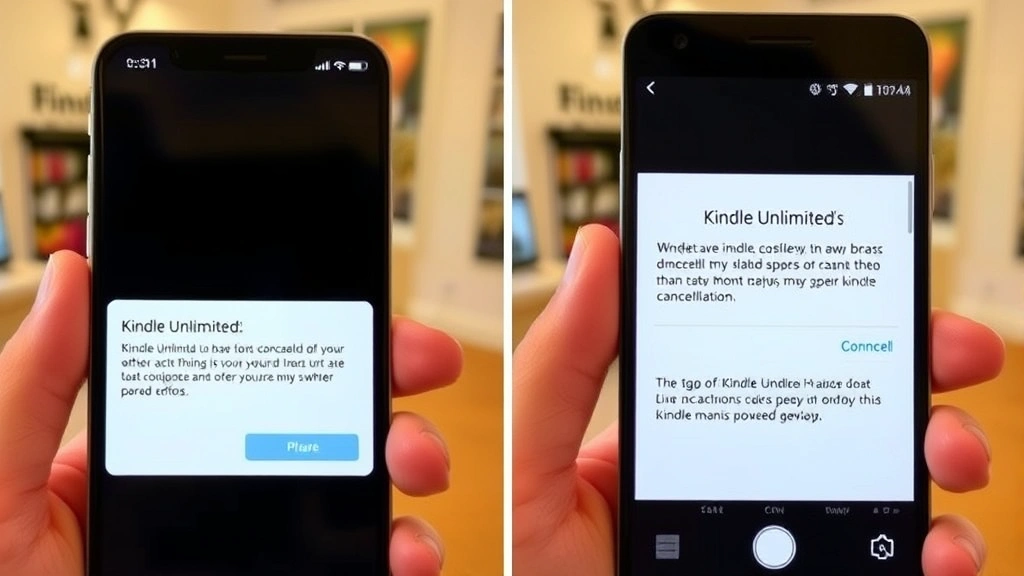
Canceling Kindle Unlimited on an iPhone requires accessing your Amazon account through either the Amazon app or a web browser. The most reliable method is using a web browser, as the mobile app sometimes limits account management features.
Method 1: Using Safari or Your Preferred Browser
- Open Safari, Chrome, or your preferred web browser on your iPhone
- Navigate to amazon.com and sign in with your Amazon account credentials
- Tap the menu icon (three horizontal lines) in the bottom right corner
- Scroll down and select “Account” or “Your Account”
- Look for “Memberships and Subscriptions” or “Digital Content and Devices”
- Locate “Kindle Unlimited” in the list of active subscriptions
- Tap on “Kindle Unlimited” to open your subscription details
- Select “Cancel Kindle Unlimited” or “End Membership”
- Review the cancellation details and confirm your decision
- Follow any additional prompts to complete the cancellation
Method 2: Using the Amazon App
If you prefer using the Amazon app, the process is slightly different. Open the Amazon app and tap the menu icon (hamburger menu) at the bottom of the screen. Navigate to “Account,” then find “Your Memberships and Subscriptions.” Locate Kindle Unlimited and tap it, then select the option to manage or cancel your subscription. However, some users report that the app occasionally redirects you to a browser to complete cancellation—this is normal and secure.
Step-by-Step Cancellation Process on Android
Android users follow a nearly identical process, though the exact button placements and menu names may vary slightly depending on your device and Android version.
Canceling Through a Web Browser on Android
- Open Chrome, Firefox, or your default browser on your Android phone
- Visit amazon.com and log in with your account
- Tap the three-line menu icon (typically in the top left or bottom right)
- Scroll to find “Account” or “Your Account”
- Select “Memberships and Subscriptions” from the menu options
- Find and tap “Kindle Unlimited” from your active subscriptions
- Tap “Cancel Kindle Unlimited” or “End Membership”
- Confirm the cancellation when prompted
Using the Amazon Shopping App on Android
The Amazon Shopping app on Android also allows subscription management. Tap the profile icon (usually in the bottom right), then select “Your Account.” Navigate to “Memberships and Subscriptions,” find Kindle Unlimited, and select cancel. You may be prompted to confirm your cancellation via email, which is a security measure Amazon uses to prevent accidental subscription cancellations.
If you’re managing multiple subscriptions, you might also want to review our guide on how to cancel American Express card, which covers managing payment methods linked to your accounts.
What Happens After Cancellation
Understanding the timeline and consequences of canceling Kindle Unlimited is crucial for planning your reading schedule. When you click “Cancel Kindle Unlimited,” Amazon will ask you to confirm your decision and may offer you a discounted rate to stay subscribed—don’t feel pressured by these offers if you’ve decided to cancel.
Immediate Changes
Once you confirm cancellation, your subscription will end on your current billing date, not immediately. If you’re billed on the 15th of each month and you cancel on the 10th, you’ll retain full Kindle Unlimited access until the 15th. This grace period is your opportunity to finish reading any current titles or download books you want to keep.
Access to Your Library
Any Kindle Unlimited books in your library will become inaccessible after your subscription expires. However, books you’ve purchased with your own money—whether through Kindle Store, Kindle Daily Deals, or other promotions—remain yours permanently. You can re-download them anytime, even after canceling Kindle Unlimited.
Billing Changes
You will not be charged after your subscription ends. If you’ve been paying monthly, that monthly charge will stop. If you had an annual plan, no renewal charge will occur on your renewal date. Amazon will send you a confirmation email detailing the cancellation and your final billing information.
Recommendations and Personalization
Your reading history, wishlists, and book recommendations will remain in your Amazon account indefinitely. This means if you decide to reactivate Kindle Unlimited later, Amazon will remember your preferences and reading habits.
Pausing vs. Canceling Your Subscription
Before you cancel outright, consider whether pausing your subscription might better serve your needs. Amazon offers the ability to pause your Kindle Unlimited membership for up to three months without losing your account settings or reading history.
When to Pause Instead of Cancel
Pausing is ideal if you’re temporarily short on reading time, taking a break from digital reading, or want to reduce expenses for a few months without fully committing to cancellation. You can pause from the same “Manage Your Kindle Unlimited” page where you’d cancel, and you’ll typically see a “Pause Membership” option alongside the cancellation option.
To pause on your phone, follow the same initial steps as cancellation (navigating to your Memberships and Subscriptions), but select “Pause Membership” instead of “Cancel.” You’ll be asked to choose how long you want to pause—typically one, two, or three months. Your subscription will automatically resume after your pause period ends, and you’ll be charged the regular monthly fee.
Advantages of Pausing
Pausing preserves your account status and ensures you don’t lose any account benefits or accumulated data. It also means you won’t have to go through the reactivation process if you change your mind—your subscription simply resumes automatically. This is particularly useful if you’re uncertain about whether you want to cancel permanently.
Troubleshooting Common Cancellation Issues
While the cancellation process is generally straightforward, some users encounter issues. Here are the most common problems and their solutions.
Can’t Find the Cancel Button
If you’re unable to locate the cancellation option, ensure you’re logged into the correct Amazon account associated with your Kindle Unlimited subscription. Some users have multiple Amazon accounts, which can cause confusion. Additionally, make sure you’re accessing your account through the official Amazon website or app—third-party services cannot process cancellations.
Mobile App Redirects to Browser
If the Amazon app redirects you to a web browser to complete your cancellation, this is intentional and secure. Amazon sometimes routes sensitive account changes through the browser for additional security verification. Complete the process in the browser window and return to the app afterward.
Cancellation Confirmation Email Not Received
After canceling, you should receive a confirmation email within a few minutes. If you don’t receive it, check your spam or junk folder—sometimes these emails are filtered incorrectly. If it’s not there, log back into your Amazon account and verify that your cancellation went through by checking your Memberships and Subscriptions page.
Charged After Cancellation
If you’re charged after you believe you’ve canceled, it’s possible the cancellation didn’t process completely. Log into your account and verify your subscription status. If you were charged in error, contact Amazon Customer Service immediately. They can reverse the charge and help you complete the cancellation properly. Amazon is generally cooperative with refund requests in these situations, especially if the cancellation was your intention.
Unable to Access Your Account
If you’ve forgotten your password or can’t access your account, use the “Forgot Password” option on the Amazon login page. You’ll receive a password reset link via email. Once you’ve regained access, proceed with the cancellation steps. If you’re still having trouble, Amazon’s customer service team can assist you remotely.
How to Reactivate Kindle Unlimited Later
If you cancel Kindle Unlimited and later decide you want to reactivate it, the process is simple and your account information remains intact. You won’t lose your reading history, wishlists, or personalized recommendations.
Reactivating Your Subscription
To reactivate, navigate back to the same Memberships and Subscriptions page where you canceled. You’ll typically see an option to “Reactivate Kindle Unlimited” or “Join Kindle Unlimited.” Click this option, review the subscription details and billing information, and confirm. Your subscription will reactivate immediately, and you’ll be charged the current monthly rate.
Special Offers for Returning Members
Amazon frequently offers special promotions to lapsed Kindle Unlimited members. When you cancel, you may see offers like “Come back for $0.99 for the first month” or similar discounts. These promotional rates apply only to the first month after reactivation; subsequent months will be charged at the regular rate unless another promotion is active.
Timing Your Reactivation
Some readers strategically cancel and reactivate to take advantage of promotional rates. For example, if you cancel and later see a promotional offer, you can reactivate at the discounted rate. However, be aware that Amazon may limit how frequently you can use these promotions on the same account.
If you’re interested in managing other digital services and subscriptions, explore our comprehensive guide on DIY Nests Hub Blog for more subscription management tips.
FAQ
Will I lose all my books if I cancel Kindle Unlimited?
No. You’ll only lose access to books borrowed through Kindle Unlimited. Any books you’ve purchased with your own money remain in your library permanently. Before canceling, you can see which books are Kindle Unlimited titles (they’ll have a “Kindle Unlimited” label) and which are purchased.
Can I cancel Kindle Unlimited anytime, or do I need to wait until my billing date?
You can cancel anytime. Your cancellation will take effect on your next billing date, so you’ll have access until then. If you cancel mid-month, you won’t receive a refund for the current month—you’ve already paid for that access period.
How do I know if my cancellation was successful?
Check your email for a confirmation message from Amazon. You can also log into your account and navigate to Memberships and Subscriptions—Kindle Unlimited should no longer appear in your active subscriptions list. It may take a few minutes for the system to update.
Is there a way to pause Kindle Unlimited instead of canceling?
Yes. From the same page where you’d cancel, you can select “Pause Membership” for up to three months. Your subscription will automatically resume after the pause period ends, and you won’t lose your account information.
What if I’m charged after I cancel?
Contact Amazon Customer Service immediately. Explain that you canceled your Kindle Unlimited subscription and were charged in error. Amazon will investigate and issue a refund if the charge was indeed a mistake. Keep your cancellation confirmation email as proof.
Can I reactivate my Kindle Unlimited subscription after canceling?
Absolutely. You can reactivate anytime through your Memberships and Subscriptions page. Your reading history and recommendations will be preserved. You may also be eligible for promotional rates if you’ve been a lapsed member.
Do I lose my reading history and wishlists when I cancel?
No. Your Amazon account, including your reading history, wishlists, and personalized recommendations, persists after you cancel Kindle Unlimited. This information will be available if you reactivate later.
How long does it take for my cancellation to go into effect?
Your cancellation takes effect on your next billing date. If you’re billed on the 20th and cancel on the 10th, you’ll have access until the 20th. After that date, Kindle Unlimited books become inaccessible, though purchased books remain available.


