How to Cancel Starz Subscription: Expert Steps for Easy Removal
Canceling a streaming subscription can feel unnecessarily complicated, but Starz makes the process straightforward when you know exactly where to look. Whether you’ve finished binge-watching your favorite series or simply want to trim your monthly expenses, this guide walks you through every method to cancel your Starz account. We’ll cover cancellation via your Starz account directly, through third-party platforms, and how to avoid common pitfalls that might prevent your cancellation from taking effect.
Managing your subscriptions is an essential part of household budgeting in the digital age. Like other streaming services, Starz charges recurring monthly or annual fees that can quickly add up when combined with other subscription cancellations you might need to handle. The good news is that Starz doesn’t require long-term contracts or early termination fees, meaning you can cancel anytime without financial penalties. This comprehensive guide ensures you won’t miss any crucial steps or encounter unexpected charges after cancellation.
Understanding Your Starz Subscription
Before you proceed with cancellation, it’s important to understand the type of subscription you have and how your billing works. Starz offers both standalone subscriptions through their official website and bundled options through various third-party platforms. Your cancellation method will depend entirely on how you originally signed up and where your recurring charges originate. Checking your billing statements and account details first prevents confusion and ensures you cancel through the correct channel.
Starz subscriptions typically renew automatically on your billing date each month or annually, depending on your plan choice. The streaming service operates on a simple model: no contracts, no hidden fees, and cancellation effective at the end of your current billing period. This means if you cancel mid-month, you’ll retain access to all content until your next billing date arrives. Understanding this timing helps you maximize your remaining subscription value and plan your viewing accordingly.
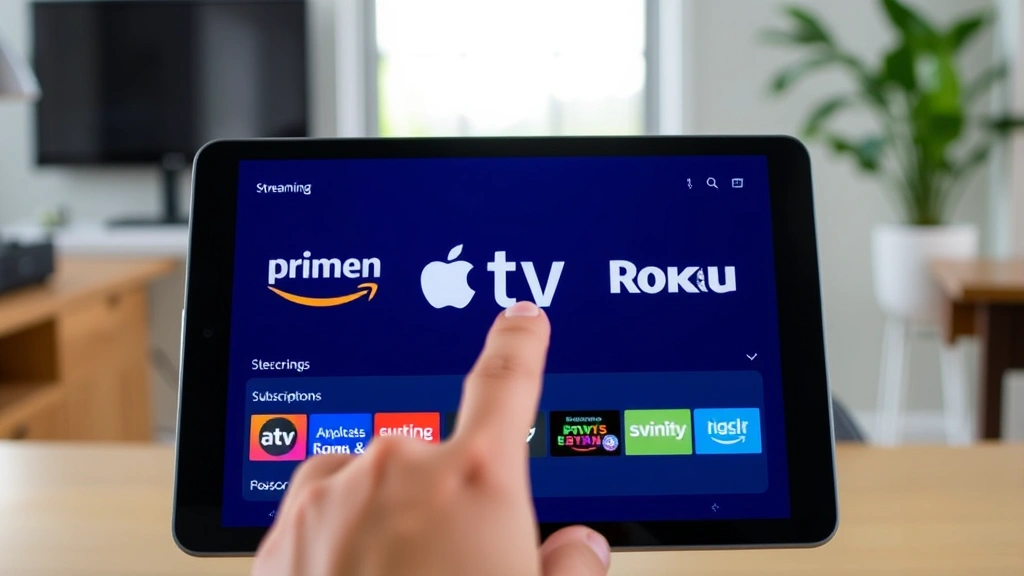
Take a moment to locate your original sign-up confirmation email or check your payment method’s transaction history. This documentation shows whether you subscribed directly through Starz or through a bundled service like Amazon Prime Video, Apple TV Channels, or the Roku Channel. Direct Starz subscriptions and third-party subscriptions require different cancellation processes, so identifying your subscription type is your first critical step.
How to Cancel Starz on Your Account
If you signed up directly through the Starz website, canceling your subscription requires logging into your account and navigating to your subscription settings. Start by visiting Starz.com and clicking the “Sign In” button in the top right corner. Enter your email address and password associated with your Starz account. If you’ve forgotten your password, use the “Forgot Password” link to reset it before proceeding.
Once logged in, locate your account settings by clicking on your profile icon or account menu, typically found in the upper right corner of the page. Look for options labeled “Account,” “Settings,” or “Profile.” Within your account settings, you should find a section titled “Subscription,” “Billing,” or “Manage Subscription.” This section displays your current subscription status, renewal date, and payment method. Click on the option to manage or modify your subscription to access cancellation controls.
You’ll see a “Cancel Subscription” or “Cancel Membership” button within your subscription management area. Click this button to initiate the cancellation process. Starz may present you with a retention offer, such as a discounted rate for the next few months or free trial extensions. These offers are optional, and you’re under no obligation to accept them. If you’re certain about canceling, proceed through the confirmation screens and follow any additional prompts to complete your cancellation request.
After clicking the final confirmation button, Starz will display a cancellation confirmation message with your cancellation date and effective end date. Save this confirmation or take a screenshot for your records. You should also receive a confirmation email at the address associated with your account within a few minutes. This email serves as proof of your cancellation and should be kept for at least 30 days in case billing disputes arise.
Canceling Through Third-Party Platforms
Many users subscribe to Starz through bundled services rather than directly, which requires a different cancellation approach. If you access Starz through Amazon Prime Video Channels, you must cancel through Amazon, not through Starz directly. Similarly, subscriptions through Apple TV Channels, Roku Channel, or other aggregation platforms require cancellation management through those respective services.
Canceling via Amazon Prime Video Channels: Log into your Amazon account and navigate to “Your Account” and then “Prime Video.” Select “Manage Your Prime Video” and look for “Channel Subscriptions” or “Manage Channels.” Find Starz in your active channels list and select it. Choose “Cancel Channel” and confirm your cancellation. Amazon will immediately stop charging you for Starz, with access ending on your next billing date.
Canceling via Apple TV Channels: On your Apple device, open the Settings app and tap your name at the top. Select “Subscriptions” and find Starz in your active subscriptions list. Tap Starz and choose “Cancel Subscription.” You’ll receive confirmation immediately, and your access will end on your current billing cycle’s final date. This method works on iPhone, iPad, and Mac devices.
Canceling via Roku Channel: Within the Roku Channel app or on your Roku device, navigate to “My Subscriptions” or account settings. Locate Starz and select “Manage” or “Cancel.” Follow the on-screen prompts to complete cancellation. You can also manage Roku subscriptions through their website at Roku.com by signing into your account and accessing subscription management options.
Canceling via Other Platforms: If you subscribe through the Google Play Store, Apple App Store, or other platforms, cancellation typically happens within that platform’s subscription management area. Android users should open the Google Play Store app, tap their profile icon, select “Manage subscriptions,” find Starz, and choose “Cancel Subscription.” Always verify the cancellation through the platform where you originally subscribed.
Verifying Your Cancellation
After completing your cancellation request, verification is crucial to ensure the process took effect properly. Check your email inbox for the cancellation confirmation message from either Starz or your third-party platform. This email should clearly state your cancellation date and the final date you’ll have access to Starz content. If you don’t receive this confirmation within 24 hours, log back into your account to verify the cancellation status.
Return to your account settings and navigate back to your subscription information. The status should now display “Cancelled,” “Inactive,” or “Pending Cancellation,” along with your effective cancellation date. Some accounts may show “Active until [date]” to indicate that you retain access through the end of your current billing period. This is normal and expected—you haven’t been denied access; you’ve simply stopped the automatic renewal process.
Review your payment method’s statement during your next billing cycle to confirm that no new Starz charges appear. If you see a charge after your stated cancellation date, this indicates a processing error that requires immediate attention. Contact Starz customer support or your third-party platform’s support team with your cancellation confirmation email and billing statement screenshots to resolve the issue.
What Happens After Cancellation
Understanding what occurs after you cancel your Starz subscription prevents confusion and manages your viewing expectations. Your account doesn’t disappear immediately; instead, it transitions to an inactive or cancelled status. You’ll retain access to all Starz content until your current billing period ends, meaning if you cancel on the 15th of the month but your renewal date is the 30th, you can continue watching until the 30th. This grace period allows you to finish watching shows or movies before losing access.
After your final access date passes, attempting to open the Starz app or website will prompt you to resubscribe. Your viewing history and watchlist may be preserved if you reactivate your account within a certain timeframe, though Starz doesn’t guarantee this. If you think you might resubscribe in the future, take note of shows you were watching so you can resume them if you return.
Canceling your Starz subscription doesn’t affect other services bundled with it. For example, if you cancelled Starz through Amazon Prime Video Channels but maintain your main Prime membership, your Prime benefits remain active. Only the Starz channel specifically stops working. Similarly, if you’re bundling Starz with other channels through a platform like Roku, canceling Starz doesn’t affect your other channel subscriptions.
Troubleshooting Cancellation Issues
Occasionally, cancellations don’t process as expected, leaving users confused about their account status or continuing to see charges. If you encounter issues, systematic troubleshooting resolves most problems quickly. Start by confirming that you cancelled through the correct platform. Many users mistakenly attempt to cancel through Starz directly when they actually subscribed through a third-party service, or vice versa. Double-check your original confirmation email to identify exactly where you signed up.
If you’re certain you cancelled correctly but still see charges appearing, contact customer support immediately. Starz offers support through their website’s contact form, email, and phone lines. When reaching out, provide your account email, the date you attempted cancellation, your cancellation confirmation number (if you have it), and screenshots of your account showing cancellation status. Explaining the issue clearly and providing documentation significantly speeds up resolution times.
For third-party platform cancellations, contact that platform’s support team rather than Starz directly. Amazon, Apple, Google, and Roku each maintain their own support channels and can investigate why your cancellation didn’t process. They can force-process a cancellation and issue refunds if charges continued after your requested cancellation date. Keep all confirmation emails and screenshots as evidence of your cancellation request.
If you cancelled through a third-party service but the service claims they have no record of your cancellation, check your account settings one more time. Sometimes cancellations appear to complete but don’t actually save if you close the browser or app before reaching the final confirmation screen. Attempting to cancel again usually works on a subsequent attempt. If the same issue persists, it may indicate a technical glitch with the platform, warranting a support ticket.
For users experiencing billing disputes, contact your bank or credit card company if Starz or the third-party platform refuses to issue a refund for unauthorized charges. Provide your cancellation confirmation email and billing statements showing charges after your cancellation date. Your financial institution can dispute the charges and recover your money if you followed proper cancellation procedures.
FAQ
Can I cancel Starz anytime without penalties?
Yes, Starz allows cancellation at any time without early termination fees or penalties. You’re not locked into a contract, and cancellation takes effect at the end of your current billing period. You’ll retain access to all content until your next renewal date would have occurred.
Will I lose access immediately after cancelling?
No, your access continues through the end of your current billing cycle. If you cancel on the 10th of the month but your renewal date is the 30th, you can watch Starz content until the 30th. After that date, you’ll need to resubscribe to regain access.
Can I get a refund for my unused subscription time?
Starz typically doesn’t issue refunds for partial billing periods, though their policy may vary. However, since you retain access through your renewal date, you’re not losing service time. If you were incorrectly charged after cancellation, you can request a refund from Starz or your payment provider.
What if I accidentally cancelled and want to resubscribe?
Resubscribing is simple—just log back into your Starz account or return to the third-party platform where you originally subscribed and select the subscription option again. You may be able to activate your account immediately or resume during your next billing cycle, depending on the platform.
How do I cancel if I forgot my password?
Use the “Forgot Password” option on the Starz login page to reset your password via email. Once you’ve reset it, log in and proceed with the cancellation steps outlined in this guide. If you can’t access your email, contact Starz support with proof of account ownership to assist with cancellation.
Does cancelling Starz affect my other streaming subscriptions?
Cancelling Starz only affects your Starz subscription. Other services remain active and unaffected. However, if you’re bundling Starz with other channels through a platform like Amazon Prime Video Channels or Roku, cancelling Starz specifically removes only that channel.
How long does it take for my cancellation to take effect?
Cancellations are typically effective immediately in your account, though your access continues through your current billing period. You should receive a confirmation email within minutes to hours. If you don’t receive confirmation within 24 hours, log into your account to verify the cancellation status.
Can I pause my Starz subscription instead of cancelling?
Starz doesn’t currently offer a pause feature. Your options are to maintain an active subscription or cancel entirely. If you think you’ll return soon, cancelling and resubscribing later is the most cost-effective approach, as you won’t be charged during the inactive period.


