Switch Outlook to Dark Mode? Expert Tips Inside
Microsoft Outlook has become one of the most essential communication tools for professionals and home users alike. Whether you’re managing work emails, personal correspondence, or both, spending hours staring at a bright white interface can cause significant eye strain and fatigue. Dark mode has emerged as a game-changing feature that not only reduces visual stress but also preserves battery life on mobile devices and creates a more modern, sleek appearance for your workspace.
The shift toward dark interfaces across software applications reflects a growing understanding of digital wellness. Outlook’s dark theme implementation is particularly well-designed, offering multiple customization options to suit your preferences and work environment. This comprehensive guide will walk you through every method to enable dark mode in Outlook across different platforms, troubleshoot common issues, and maximize your experience with this powerful feature.
Whether you’re using Outlook on Windows, Mac, or mobile devices, we’ve covered all the bases. You’ll discover not just the basic steps, but also advanced settings that let you fine-tune your dark mode experience to perfection. If you’re already comfortable making adjustments to your digital environment, you might also appreciate our guide on how to change out a light switch, which demonstrates the same methodical approach to making practical improvements in your home.
Enabling Dark Mode on Outlook for Windows
The Windows version of Outlook offers straightforward dark mode activation through the application settings. Start by launching your Outlook application and locating the menu options. In the top-left corner of your window, you’ll find the File menu—this is your gateway to all account and application settings. Click on File, then navigate to Options at the bottom of the dropdown menu.
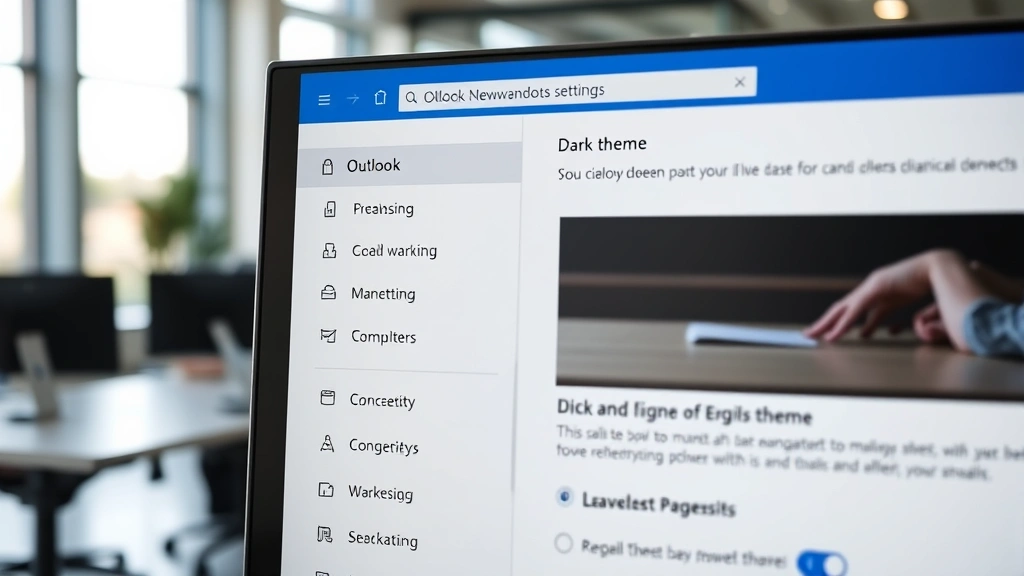
Once the Outlook Options dialog opens, you’ll see a list of categories on the left side. Look for and click on General. Within this section, you’ll discover the Personalization area, which houses all your visual theme settings. Microsoft provides several theme options including the default light theme, dark gray, and pure dark black. Select the dark option that appeals to you most—many users find the dark gray option offers the best balance between contrast and eye comfort.
After selecting your preferred dark theme, click the OK button to apply these changes. Outlook will immediately transform your interface. The email reading pane, folder list, and all menu options will shift to dark backgrounds with light text. This change applies across all your Outlook windows and persists even after you close and reopen the application.
For users running Microsoft Outlook on Windows 10 or later, you might notice that the system-wide dark mode setting in Windows Settings doesn’t automatically force Outlook into dark mode. You must manually adjust the setting within Outlook itself. This gives you flexibility—your Outlook can be in dark mode while other applications remain in light mode, or vice versa.
If you’re working with multiple Outlook profiles on the same computer, each profile maintains its own theme preference. This means you can have your personal email account in dark mode while keeping your work account in light mode if needed. Switch between profiles in Outlook by clicking File > Account Settings > Manage Profiles.

Dark Mode Setup for Mac Outlook Users
Mac users have a slightly different path to dark mode, though the process remains intuitive. Open Outlook on your Mac and locate the Outlook menu in the top menu bar (next to the Apple logo). Click Outlook, then select Preferences from the dropdown menu. This opens the Outlook Preferences window where you can customize numerous settings.
In the Preferences window, locate and click on General. You’ll see a Appearance section that controls your theme settings. Mac Outlook offers options to use your system appearance settings or override them with specific theme choices. If you want Outlook to automatically follow your Mac’s system-wide dark mode setting, select Use system setting. This ensures that when you toggle dark mode in macOS System Preferences, Outlook updates accordingly without requiring manual adjustment.
Alternatively, if you prefer to control Outlook’s theme independently from your system settings, choose Dark directly from the appearance options. This allows you to run Outlook in dark mode even if your Mac is set to light mode system-wide. The flexibility is particularly useful for professionals who work across multiple applications with different theme requirements.
Mac users should note that dark mode in Outlook for Mac provides excellent support for HTML-formatted emails, though some older email designs might not render perfectly against dark backgrounds. The application intelligently handles this by sometimes displaying email content with adjusted contrast levels to maintain readability. If an email appears difficult to read, you can temporarily switch to light mode, read that specific message, then return to dark mode.
Activating Dark Theme on Mobile Devices
Mobile Outlook users on both iOS and Android devices benefit from native dark mode support. On iPhone or iPad, open the Outlook app and tap the menu icon (three horizontal lines) at the bottom right of the screen. Navigate to Settings, then scroll down to find Display or Theme options. Select Dark to activate dark mode. iOS Outlook also offers an option to Use system setting, which synchronizes with your device’s system-wide dark mode preference.
For Android devices, the process mirrors the iOS approach. Open Outlook, tap the menu button (three horizontal lines or three dots depending on your device), select Settings, then find Display or Theme. Choose Dark from the available options. Android Outlook similarly offers synchronization with your system’s dark mode setting, allowing seamless integration with your device preferences.
Mobile dark mode provides significant battery savings on OLED screens, which power most modern smartphones and tablets. Since OLED displays use individual pixels that emit their own light, dark pixels consume substantially less power than bright ones. This means enabling dark mode on your mobile Outlook can extend your device’s battery life by 10-20 percent depending on your usage patterns and screen brightness.
The mobile dark mode experience in Outlook is particularly polished. Touch targets remain easily accessible, text remains highly readable, and the dark interface reduces glare during evening work sessions or in low-light environments. Many professionals find that switching to mobile dark mode eliminates the harsh blue light exposure that can interfere with sleep patterns when checking emails before bedtime.
Outlook Web Access Dark Mode
If you primarily access Outlook through your web browser using Outlook Web Access (OWA), dark mode is equally accessible. Navigate to Outlook.com and sign in with your credentials. Once logged in, look for your profile picture or initials in the top-right corner of the interface. Click on it to open a dropdown menu.
From the dropdown menu, select Settings (represented by a gear icon). In the Settings page, navigate to General in the left sidebar. Look for the Theme section, which offers options for light, dark, or automatic theme selection. Choose Dark to immediately transform your web-based Outlook experience. The change applies instantly without requiring a page refresh.
The web version of Outlook implements dark mode comprehensively across all interface elements. Your inbox, calendar, contacts, and task lists all shift to dark backgrounds with high-contrast text. This consistency across all Outlook modules creates a unified, professional appearance. The web version also remembers your theme preference, so dark mode persists across sessions and devices when you access Outlook from different computers.
Web-based Outlook dark mode is particularly valuable for professionals who work across multiple devices. Your theme preference syncs automatically, ensuring that whether you’re checking email on your office computer, home laptop, or tablet, you maintain the same visual experience. This consistency reduces cognitive load when switching between devices.
Troubleshooting Dark Mode Issues
Despite Outlook’s robust dark mode implementation, users occasionally encounter visual glitches or unexpected behavior. If your dark mode isn’t applying correctly, the first troubleshooting step is to restart Outlook completely. Close all Outlook windows and reopen the application. This simple action resolves many temporary display issues caused by rendering glitches or cached settings.
If dark mode applies to most of Outlook but certain elements remain in light mode, you may need to update your application. Microsoft continuously improves dark mode compatibility across different Outlook components. Check for updates by clicking File > Office Account > Update Options > Update Now on Windows, or by checking your Mac App Store or Android/iOS app store for pending updates.
HTML-formatted emails sometimes display incorrectly in dark mode, with text becoming illegible against dark backgrounds. This occurs when email designers hardcoded colors without considering dark mode compatibility. If you encounter this issue, temporarily switch to light mode to read that specific email, or contact the email sender to request they use better email formatting practices. Many modern email templates now include dark mode CSS media queries to handle this automatically.
If you’re experiencing dark mode issues across multiple devices, verify that your Microsoft account is properly synced. Sign out of your account completely and sign back in. This refreshes your account settings and often resolves synchronization problems. Additionally, clearing your browser cache (for web-based Outlook) or clearing app data (for mobile Outlook) can eliminate display inconsistencies caused by corrupted cached settings.
For Windows users, occasionally the Outlook Options dialog fails to save theme changes. If this occurs, close Outlook, navigate to your Documents folder, find the Outlook.xml file, and delete it. Restart Outlook, and reconfigure your theme settings. This forces Outlook to recreate its configuration file with fresh settings that should properly apply dark mode.
Advanced Customization Options
Beyond simply enabling dark mode, Outlook offers advanced customization options that let you fine-tune your experience. In the Outlook Options dialog (Windows) or Preferences (Mac), you can adjust additional display settings that work in concert with dark mode. Font sizes can be increased for better readability, and reading pane settings can be optimized for your preferred layout.
For users managing multiple email accounts, Outlook allows per-account theme customization in some versions. This means you could potentially set different themes for different accounts, though most users find a consistent theme across all accounts reduces visual confusion. Explore your account-specific settings under File > Account Settings > Account Settings to discover available options.
Outlook’s dark mode works seamlessly with accessibility features. Users with visual impairments benefit from dark mode’s reduced glare and can further customize contrast levels through system-wide accessibility settings. Combine Outlook’s dark mode with Windows High Contrast mode or macOS accessibility features for maximum visibility and comfort.
For those interested in customizing other aspects of their digital workspace, the same methodical approach applies to physical home improvements. Just as you’d carefully plan Outlook customizations, you might consider DIY basement finishing projects that transform your home office environment into an optimal workspace.
Advanced users can also explore Outlook’s XML configuration files to create custom themes beyond the standard options. However, this requires technical knowledge and carries risks of configuration corruption. Most users find the built-in dark mode options more than sufficient for their needs.
FAQ
Does Outlook dark mode work with all email providers?
Yes, Outlook’s dark mode applies to all email accounts configured within the application, regardless of the provider. Whether you use Microsoft accounts, Gmail, Yahoo, or corporate email servers, dark mode functions consistently across all configured accounts.
Will dark mode affect how my emails appear to recipients?
No, dark mode is purely a display setting on your device. It doesn’t change how you compose emails or how recipients see messages you send. Your email content remains identical; only your viewing experience changes.
Can I schedule dark mode to turn on automatically at specific times?
Outlook itself doesn’t offer scheduled dark mode, but you can achieve this through your operating system. Windows 10 and later, macOS, iOS, and Android all support scheduled dark mode at the system level. When you set Outlook to use system settings, it automatically follows these schedules.
Does dark mode slow down Outlook performance?
No, dark mode has no negative impact on Outlook’s performance. In some cases, it may slightly reduce power consumption on OLED screens, but processing speed and responsiveness remain unchanged.
Why do some emails look strange in dark mode?
Emails designed with specific light-mode colors sometimes display poorly against dark backgrounds. This results from older email templates that didn’t include dark mode CSS support. Modern email designers now account for dark mode compatibility.
Can I use different themes for different Outlook profiles?
Yes, each Outlook profile maintains its own theme preference. You can have your personal profile in dark mode and your work profile in light mode by configuring each profile’s settings independently.
Is there a way to force specific elements to light mode while keeping the rest dark?
Outlook doesn’t offer granular per-element theme control. Your theme applies system-wide across the entire application. However, adjusting reading pane settings and layout options can help optimize visibility for specific content types.
Do mobile apps support dark mode scheduling?
Mobile Outlook respects your device’s scheduled dark mode settings when you choose the “Use system setting” option. This provides automatic dark mode scheduling on iOS and Android devices.
What should I do if dark mode makes my emails unreadable?
First, check if the email uses custom colors that conflict with dark backgrounds. You can temporarily switch to light mode to read that specific email. If the issue persists across many emails, verify your Outlook installation is updated and consider adjusting your theme to a lighter dark option if available.
Does Outlook dark mode work offline?
Yes, dark mode applies to locally cached emails even when Outlook operates in offline mode. Your theme preference persists whether you’re connected to the internet or not.


