How to Charge PS5 Controller: Complete Gamer-Approved Guide
The PlayStation 5 DualSense controller is one of the most advanced gaming peripherals ever created, featuring haptic feedback, adaptive triggers, and built-in speakers that elevate your gaming experience. However, keeping your controller charged is essential for uninterrupted gameplay sessions. Unlike previous PlayStation controllers, the PS5 controller uses a USB-C connection for charging, which offers faster power delivery and greater compatibility with modern devices.
Whether you’re a casual gamer enjoying story-driven adventures or a competitive esports enthusiast grinding ranked matches, understanding the proper charging methods and best practices will extend your controller’s lifespan and ensure peak performance. This comprehensive guide covers everything you need to know about maintaining your DualSense controller’s battery health, troubleshooting charging issues, and optimizing your gaming setup.
Understanding PS5 Controller Battery Specifications
The PlayStation 5 DualSense controller houses a 1560mAh lithium-ion rechargeable battery, which differs significantly from the PS4’s controller specifications. This battery capacity provides approximately 4 to 8 hours of continuous gameplay on a single charge, depending on usage patterns and feature intensity. Games utilizing extensive haptic feedback and adaptive trigger functionality will drain the battery faster than titles with minimal controller feedback.
The battery operates at 3.7 volts and supports fast charging through its USB-C port. When connected to appropriate power sources, the controller can charge from completely depleted to 100% in approximately 2 to 3 hours. Understanding these specifications helps you plan gaming sessions effectively and prevents unexpected power loss during critical moments. The controller’s LED indicator provides visual feedback about charging status, displaying orange when charging and white when fully charged.
If you’re looking to maintain multiple controllers for extended gaming marathons, familiarizing yourself with battery capacity helps you rotate devices efficiently. Similar to how you’d manage power tools in home security systems with backup power, keeping multiple charged controllers ensures seamless gameplay continuity.
Charging Methods and Equipment
The PS5 controller supports several charging methods, each with distinct advantages depending on your gaming setup and lifestyle. The primary charging method uses the included USB-C cable connected directly to your PlayStation 5 console. This approach offers convenience since your gaming device serves dual purposes as both entertainment hub and charging station.
USB-C Cable Charging
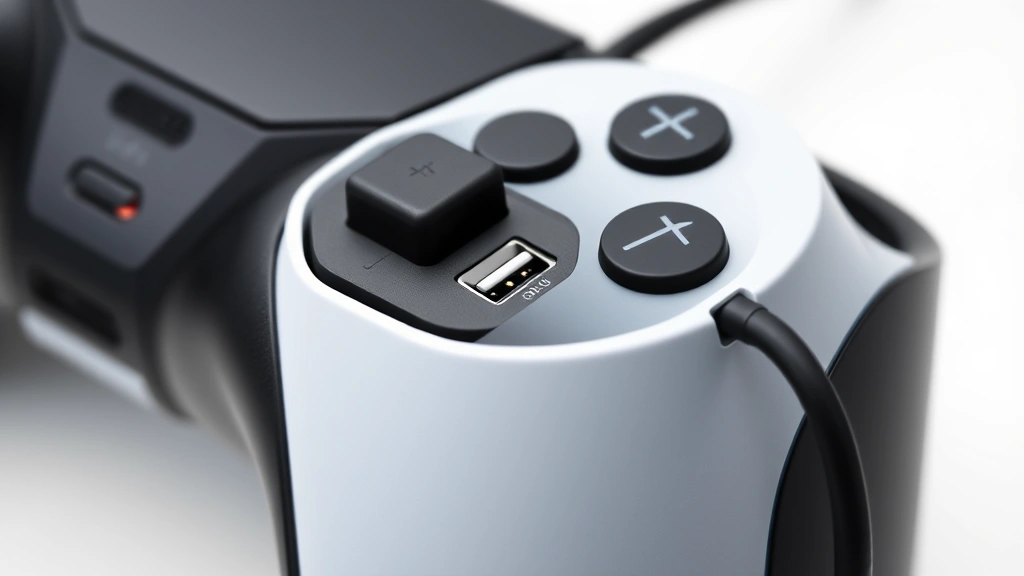
The standard method involves connecting the included USB-C to USB-A cable to the controller’s port located on the top edge. Insert the cable firmly until you feel slight resistance, ensuring proper connection. The console’s USB ports provide sufficient power delivery for charging, and this method requires no additional equipment beyond what Sony provides in the box.
Third-Party Charging Solutions
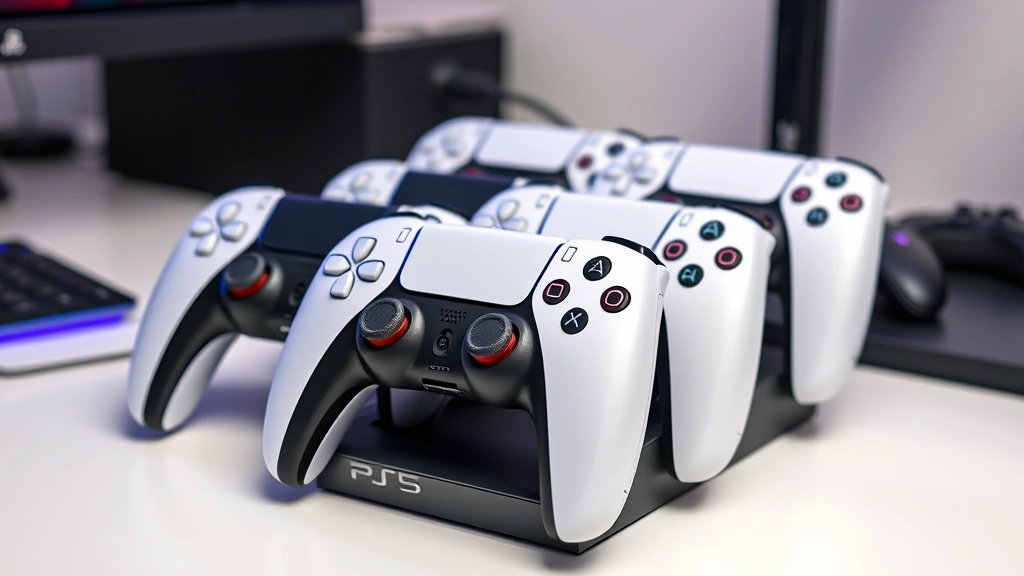
Numerous manufacturers produce dedicated charging docks and stands designed specifically for DualSense controllers. These solutions offer ergonomic advantages and can charge multiple controllers simultaneously, making them ideal for households with several gamers. Look for certified accessories that comply with official PlayStation specifications to ensure safety and compatibility.
Computer and Mobile Charging
Since the PS5 controller uses standard USB-C technology, you can charge it using any compatible USB-C power adapter, including those designed for smartphones, tablets, and laptops. This versatility means you’re not limited to console charging when traveling or away from your gaming setup. Ensure any adapter provides at least 1.2 amps of current for optimal charging speed, though higher amperage won’t damage the controller thanks to built-in protection circuits.
Power Bank Charging
Portable USB-C power banks offer excellent solutions for charging on the go. This method proves particularly valuable for gamers attending tournaments, visiting friends, or taking controllers to social gaming events. Select power banks with USB-C output and sufficient capacity to fully charge your controller multiple times.
Step-by-Step Charging Instructions
Follow these detailed steps to properly charge your PS5 controller and establish healthy charging habits:
Method 1: Console Charging
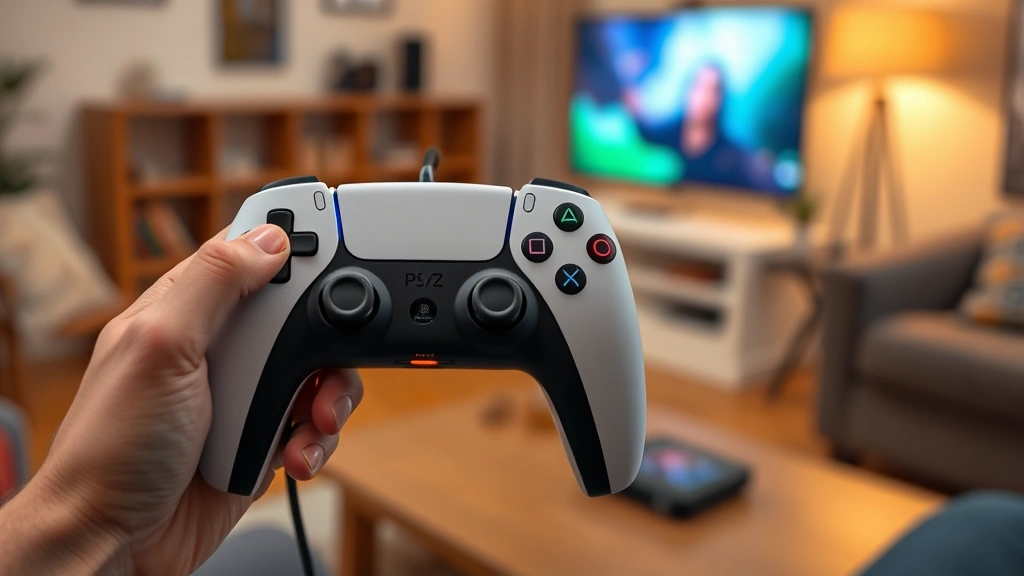
- Locate the USB-C port on the top edge of your DualSense controller, between the two trigger buttons
- Take the included USB-C to USB-A cable and connect the USB-A end to an available USB port on your PlayStation 5 console
- Insert the USB-C connector into the controller’s charging port with the port opening facing downward
- Push gently until you feel the connection secure
- Observe the controller’s LED indicator light, which should display orange to confirm charging has begun
- Allow 2 to 3 hours for a complete charge cycle from empty to full
- When the LED turns white, your controller has reached full battery capacity
Method 2: Third-Party Dock Charging
- Connect the charging dock’s power cable to an appropriate electrical outlet
- Verify the dock is powered on (most docks include indicator lights)
- Position your DualSense controller in the designated charging slot
- Ensure the controller sits firmly in the dock with proper contact
- Monitor the dock’s indicator lights to confirm charging has initiated
- Leave the controller undisturbed for the recommended charging duration
Method 3: USB-C Power Adapter Charging
- Obtain a USB-C power adapter rated for at least 1.2 amps output
- Connect the adapter to an appropriate electrical outlet
- Plug the USB-C cable into the adapter’s output port
- Connect the other end to your PS5 controller’s charging port
- Verify the orange LED indicator appears on the controller
- Allow adequate time for charging completion
For comparison to other electronic device maintenance, charging procedures for Apple Pencil devices follow similar principles of respecting manufacturer specifications and using appropriate power sources.
Battery Health and Longevity Tips
Lithium-ion batteries, like those in your PS5 controller, degrade over time through normal use. However, implementing proper charging practices significantly extends battery lifespan and maintains optimal performance throughout the controller’s life.
Avoid Deep Discharge Cycles
Regularly allowing your controller to completely discharge before charging can stress the battery and reduce overall lifespan. Instead, charge your controller when it reaches 20% battery capacity. This practice prevents the battery management system from entering stress conditions and maintains healthier charge cycles.
Don’t Overcharge Regularly
While modern controllers include protection circuits preventing damage from extended charging, regularly leaving your controller plugged in for excessive periods still generates heat that gradually degrades battery chemistry. Unplug the controller within 30 minutes of reaching full charge when possible. If you typically charge overnight, consider using a charging dock with auto-shutoff features that stop power delivery once full charge is reached.
Maintain Optimal Temperature Conditions
Lithium-ion batteries perform best in moderate temperature environments between 50°F and 95°F (10°C to 35°C). Avoid charging or storing your controller in excessively hot or cold locations. Never charge your controller immediately after extended gaming sessions when the electronics are still warm. Allow a 15-minute cooling period before initiating charging to prevent thermal stress.
Rotate Multiple Controllers
If you own several DualSense controllers, rotating between them during gaming sessions distributes battery stress across multiple devices. This approach reduces the cumulative degradation of any single controller’s battery. Most serious gamers maintain at least two controllers for this reason, similar to how professionals rotate tools to extend equipment life.
Store with Proper Charge Levels
If you’re storing a controller for extended periods, maintain the battery at approximately 50% charge. Storing fully charged or completely depleted batteries accelerates degradation during idle periods. Check stored controllers monthly and top up the charge if necessary.
Think of battery maintenance similarly to how you’d approach regular vehicle maintenance schedules – consistent preventive care yields superior long-term results.
Troubleshooting Charging Problems
Despite manufacturers’ quality standards, charging issues occasionally arise. These troubleshooting steps address common problems and help restore normal functionality.
Controller Won’t Charge
If your PS5 controller refuses to charge, first inspect the USB-C port for debris, lint, or corrosion. Use a flashlight to peer into the port and carefully remove any visible obstructions with a small brush or compressed air. Never insert metal objects into the port. If the port appears clean, try charging with a different USB-C cable to determine if the cable is faulty. Test the controller with multiple power sources, including different USB ports on your console, a computer, or a power adapter.
Slow Charging Speed
If your controller charges much slower than the normal 2 to 3-hour timeframe, the power source may be inadequate. Console USB ports sometimes provide reduced power output, especially if multiple devices are connected simultaneously. Try charging directly from a dedicated USB-C power adapter rated for at least 2 amps. Additionally, close background applications on your PS5 console to reduce power consumption, freeing more current for controller charging.
Battery Drains Rapidly
If your fully charged controller depletes quickly during normal use, the battery may be aging naturally, which is typical after 300 to 500 charge cycles (roughly 1 to 2 years of regular use). Disable haptic feedback and adaptive trigger features in game settings, as these consume significant battery power. Reduce speaker volume and brightness settings if your controller includes adjustable features. As a final option, contact PlayStation Support about battery replacement or warranty coverage.
LED Indicator Not Appearing
When you connect your controller to charge, the LED should display within seconds. If no light appears, ensure the charging connection is fully seated. Disconnect and reconnect the cable, applying firm but gentle pressure. If the LED still doesn’t appear after trying multiple cables and power sources, the controller’s battery management system may have failed, requiring professional service or replacement.
Controller Overheating During Charging
Mild warmth during charging is normal, but excessive heat indicates a problem. Disconnect the controller immediately and allow it to cool completely before investigating further. Check that your power source isn’t providing excessive voltage. If the controller consistently overheats during normal charging, discontinue use and contact manufacturer support, as the internal battery may be damaged.
Charging Safety Considerations
While PS5 controllers are engineered with multiple safety features, following proper charging practices protects both the device and your surrounding environment.
Use Approved Power Sources
Always charge your controller using power sources that meet established safety standards. Look for USB power adapters certified by appropriate regulatory bodies such as UL (Underwriters Laboratories) in North America or CE marking in Europe. Avoid counterfeit or extremely cheap power adapters, which may lack proper protection circuits and pose electrical hazards.
Inspect Cables Regularly
Examine your USB-C charging cable monthly for signs of damage, including fraying, kinks, or exposed wiring. Damaged cables can cause electrical shorts or inadequate power delivery. Replace compromised cables immediately with certified replacements. Proper cable storage prevents unnecessary wear – coil cables gently rather than wrapping them tightly, which can damage internal conductors.
Avoid Liquid Exposure
Keep your controller and charging equipment away from liquids, moisture, and humid environments. Never attempt to charge a wet controller. If your controller comes into contact with liquid, allow it to dry completely for at least 48 hours in a dry location before attempting to charge. Moisture in the USB-C port can cause short circuits and permanent damage.
Charge in Appropriate Locations
Designate a stable, heat-resistant surface for charging your controller. Avoid charging on soft surfaces like beds or couches, which can trap heat and potentially cause fires if the device malfunctions. Choose well-ventilated areas and keep the controller away from flammable materials. Never charge unattended for extended periods, particularly overnight, without using docks equipped with automatic shutoff features.
Monitor for Swelling or Deformation
Lithium-ion batteries can swell if damaged or defective, potentially deforming the controller’s casing. If you notice your controller feeling bloated, appearing warped, or developing gaps in the casing, stop using it immediately. Remove the battery if possible (though most modern controllers have sealed batteries) and dispose of it according to local regulations for electronic waste. Never attempt to repair a swollen battery yourself.
For additional context on device safety practices, review our guide on maintaining secure electronics, which covers similar safety principles.
FAQ
How long does it take to fully charge a PS5 controller?
A PS5 DualSense controller typically requires 2 to 3 hours to charge from completely depleted to 100% capacity when using appropriate power sources. Charging time varies based on the power adapter’s amperage rating and whether the controller is actively in use during charging. Using the console’s USB ports may charge slightly slower than dedicated power adapters.
Can I charge my PS5 controller with my phone charger?
Yes, you can charge your PS5 controller using any USB-C phone charger, provided it delivers at least 1.2 amps of current. Most modern smartphone chargers meet this requirement. Verify your charger’s specifications before connecting it to your controller. Higher amperage chargers won’t damage your controller thanks to built-in protection circuits.
Is it safe to charge my PS5 controller overnight?
Overnight charging is generally safe due to built-in protection circuits, but it’s not optimal for long-term battery health. Extended charging periods generate heat that gradually degrades lithium-ion battery chemistry. If you must charge overnight, use a dock with automatic shutoff features that stop power delivery once full charge is reached, or set a reminder to unplug the controller within 30 minutes of charging completion.
Why is my PS5 controller blinking orange?
An orange LED indicates your controller is actively charging. The blinking or solid orange light means power is flowing to the battery. Once charging completes, the LED changes to white or turns off depending on your console settings. If the orange light persists for more than 4 hours, disconnect and investigate potential charging issues.
Can I use my PS5 controller while charging?
Yes, you can use your PS5 controller while it’s charging, though this extends the charging duration since the battery is simultaneously being drawn upon. For optimal charging speed, avoid using the controller during charging sessions. However, this flexibility allows you to continue gaming with a charged backup controller while another one charges.
How often should I charge my PS5 controller?
Charge your PS5 controller when the battery reaches approximately 20% capacity to maintain optimal battery health. Most users charge their controllers daily or every other day depending on gaming frequency. Avoid allowing the battery to completely drain before charging whenever possible.
What’s the lifespan of a PS5 controller battery?
PS5 controller batteries typically remain in good condition for 300 to 500 charge cycles, equivalent to approximately 1 to 2 years of regular gaming use. After this period, you may notice gradual battery capacity reduction. Battery replacement is possible through Sony’s service channels or certified repair centers.
Are third-party charging docks safe for my PS5 controller?
Reputable third-party charging docks designed specifically for DualSense controllers are generally safe when manufactured by established companies with positive reviews. Verify that docks are certified and meet safety standards. Avoid extremely cheap knockoffs from unknown manufacturers, which may lack proper protection circuits.
Does the PS5 controller support fast charging?
The PS5 controller doesn’t support ultra-fast charging like some modern smartphones, but it does support reasonably quick charging through USB-C. Providing higher amperage (up to 2 amps) speeds up charging compared to lower-power sources. The controller’s built-in circuitry optimizes charging speed based on available power.
Can extreme temperatures damage my controller’s battery?
Yes, extreme temperatures significantly impact battery health and charging efficiency. Avoid charging in locations below 50°F (10°C) or above 95°F (35°C). Cold temperatures reduce charging speed, while excessive heat accelerates battery degradation. Store your controller in climate-controlled environments whenever possible.
For additional DIY guidance on electronic device maintenance, explore our comprehensive DIY Nests Hub Blog for articles covering various equipment care topics. Whether you’re interested in woodworking projects or maintaining gaming equipment, our resources provide expert guidance.


