How to Check Blocked Voicemails: Expert Tips & Solutions
Blocked voicemails can be frustrating when you’re trying to stay connected with important callers. Whether you’ve accidentally blocked someone, want to review messages from restricted numbers, or need to manage your voicemail settings, understanding how to access and retrieve blocked voicemails is essential in today’s connected world. This comprehensive guide walks you through multiple methods to check blocked voicemails across different phone platforms and service providers.
Blocked voicemails aren’t permanently lost—they’re simply filtered by your phone’s blocking system or your carrier’s network. By following the right steps, you can retrieve these messages, unblock callers, and regain control of your communication channels. We’ll explore solutions for iPhone, Android, and various carrier-specific approaches to help you recover those important messages.
Understanding Blocked Voicemails and Where They Go
When you block a caller on your smartphone, their calls typically go straight to voicemail, but those messages are often hidden from your regular voicemail inbox. The behavior varies depending on whether you’re using device-level blocking (blocking through your phone’s settings) or carrier-level blocking (blocking through your service provider like Verizon, AT&T, or T-Mobile).
Device-level blocking prevents the call from ringing your phone entirely. The caller hears a busy signal or is sent to voicemail, but you won’t see a notification. Carrier-level blocking operates at the network level and provides similar results but with additional filtering capabilities. Understanding this distinction is crucial because it determines where blocked voicemails are stored and how you’ll retrieve them.
Blocked messages don’t disappear—they’re stored in a separate folder or archived section of your voicemail system. Many users don’t realize these messages are accessible because they’re not displayed in the standard voicemail interface. Depending on your phone type and carrier, you may need to access a dedicated blocked messages folder or adjust your voicemail settings to view them.
How to Check Blocked Voicemails on iPhone
Method 1: Checking the Blocked Voicemail Folder in Phone App
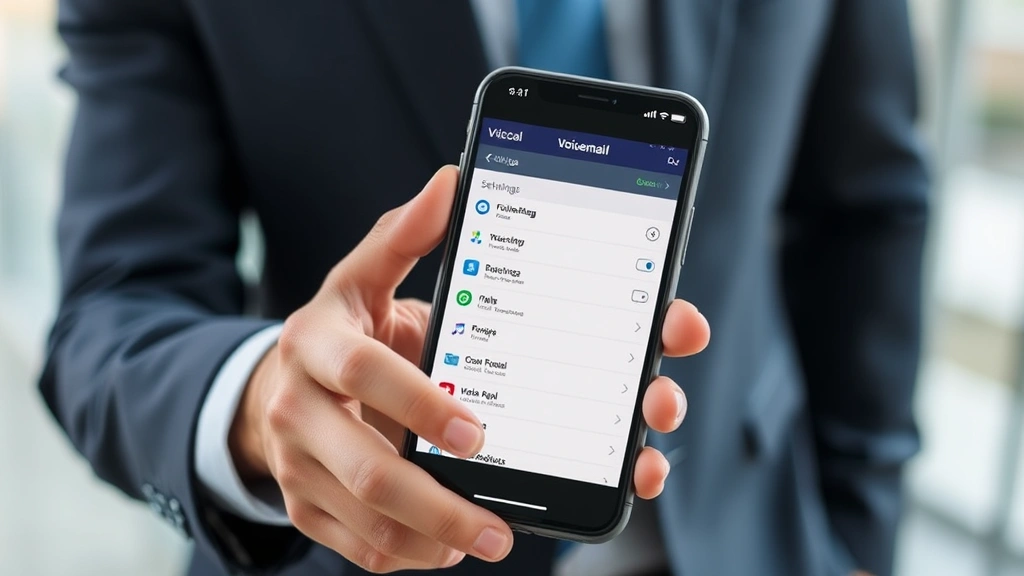
On iPhone, blocked voicemails are typically stored in the Phone app’s Voicemail section. Follow these steps:
- Open the Phone app on your iPhone
- Tap the Voicemail tab at the bottom right
- Look for a Blocked Messages or Filtered Messages section (this may appear as a separate folder)
- Select the folder to view blocked voicemails
- Tap any message to listen or read the transcript
If you don’t see a separate blocked messages folder, your voicemails may be filtered differently. Some iPhone models display blocked messages in the standard voicemail list with a small blocked icon indicator next to the caller’s name.
Method 2: Accessing Blocked Contacts Through Settings
To see who you’ve blocked and potentially unblock them:
- Open Settings
- Scroll down and tap Phone
- Select Blocked Contacts
- Review your blocked list
- Swipe left on any contact and tap Unblock to restore their messages
Once you unblock a contact, their future voicemails will appear in your regular inbox. However, previously blocked messages may remain in the blocked folder unless you manually move them.
Method 3: Using Visual Voicemail Premium Features
If you subscribe to Apple’s Visual Voicemail service, you can access enhanced voicemail management. This service displays voicemail transcripts and allows you to organize messages more effectively. Premium Visual Voicemail also includes features to see blocked message details and manage your communication preferences.
Retrieving Blocked Voicemails on Android Devices
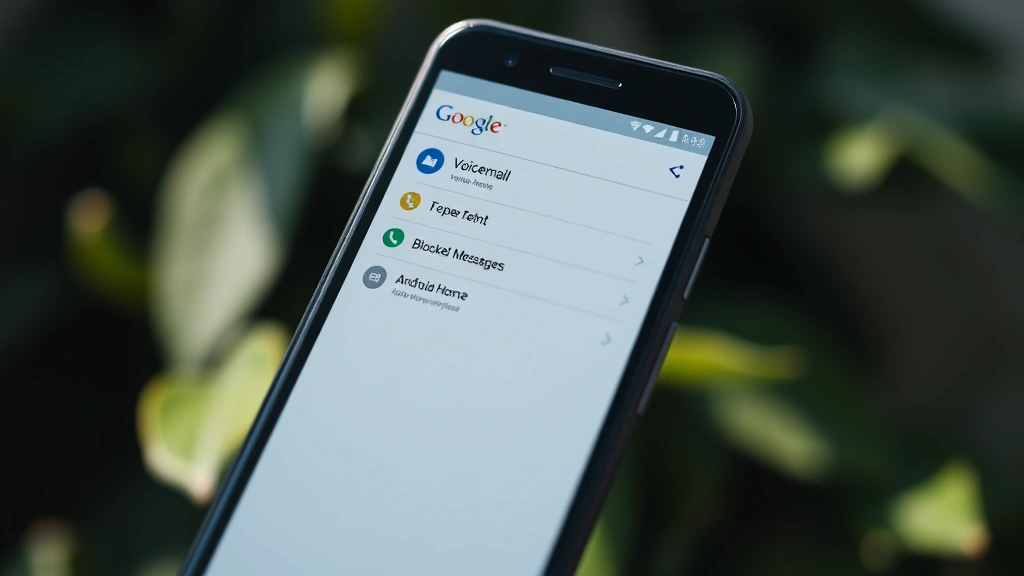
Method 1: Checking Google Phone App Blocked Messages
Android users with Google’s Phone app can access blocked voicemails through:
- Open the Phone app
- Tap the Voicemail or Messages tab
- Look for Blocked or Spam folder options
- Select blocked messages to review
- Tap any message to listen or read the transcript
The Google Phone app includes intelligent spam and call filtering, which automatically routes suspicious calls to a blocked folder. You can customize these settings to be more or less aggressive in filtering.
Method 2: Samsung Voicemail Access
Samsung device users should:
- Open the Phone app
- Navigate to Voicemail
- Select Voicemail Settings or Call Settings
- Look for Blocked Calls or Spam Protection options
- Access the blocked messages folder
Samsung phones often include built-in spam and call blocking features that work alongside your carrier’s network-level filtering. These dual layers of protection can make it harder to find blocked messages, but they’re typically accessible through the settings menu.
Method 3: Third-Party Voicemail Apps
Many Android users rely on third-party voicemail applications like Google Voice, which provides comprehensive voicemail management. Google Voice stores all voicemails in a searchable archive and clearly indicates blocked or filtered messages. You can access these messages from any device with internet access, making it convenient for retrieving blocked content.
Carrier-Specific Methods for Accessing Blocked Messages
Your mobile carrier may offer additional tools and services for managing blocked voicemails. These methods work alongside your device’s built-in blocking features.
Verizon Blocked Voicemail Access
Verizon customers can:
- Call 611 from your Verizon phone or contact customer service
- Ask about accessing blocked voicemails through the Verizon app
- Open the My Verizon app and navigate to Voicemail settings
- Look for Call Filter or Block/Allow List options
- Access blocked message archives through your online Verizon account
Verizon’s support portal provides detailed instructions for managing blocked calls and retrieving filtered voicemails through their network-level filtering system.
AT&T Blocked Voicemail Management
AT&T users should:
- Open the AT&T Mobile Security app or AT&T Smart Family app
- Navigate to Call Blocking or Block List
- Review blocked contacts and their voicemail messages
- Access your AT&T account online for additional voicemail management options
- Contact AT&T customer service at 611 for help retrieving specific messages
T-Mobile Blocked Message Access
T-Mobile customers can:
- Use T-Mobile Scam Shield app to manage blocked calls
- Open the T-Mobile app and select Account > Voicemail Settings
- Access your blocked list and review filtered messages
- Call 611 from your T-Mobile phone for customer support assistance
T-Mobile’s support resources include detailed guides for managing call blocking and retrieving voicemails from blocked callers.
Using Visual Voicemail Features
Visual voicemail systems transcribe your voicemails into text, allowing you to read blocked messages without listening to audio. This technology is invaluable when dealing with blocked voicemails because you can quickly scan messages and identify important ones.
Most carriers now offer visual voicemail as a standard feature or premium service. When you check blocked voicemails using visual voicemail, you’ll see:
- Caller name or phone number
- Date and time of the call
- Automatic transcription of the message content
- Accuracy indicators showing transcription confidence
- Options to listen, delete, or save messages
Visual voicemail is particularly helpful for reviewing blocked messages because you can quickly determine if the blocked contact was important before deciding whether to unblock them. The transcription feature also helps you understand what the caller wanted without having to listen to the entire message.
Managing Your Block List and Prevention Tips
Regularly Audit Your Blocked Contacts
Prevention starts with maintaining awareness of who you’ve blocked. Set a monthly reminder to review your blocked contacts list and remove anyone you no longer need to block. This prevents accidentally missing important voicemails from people you may have blocked during a moment of frustration.
Implement Smart Filtering Instead of Complete Blocking
Rather than permanently blocking callers, consider using your carrier’s call filtering services which route suspicious calls to a separate folder instead of blocking them entirely. This approach allows you to review messages later without losing potential important communications.
Use Whitelist Features for Priority Contacts
Most modern phones allow you to create a whitelist of important contacts who always reach you, regardless of other filtering settings. This ensures that key people in your life—family, work contacts, or emergency services—never get blocked accidentally.
Document Your Blocking Decisions
Keep a simple note of why you blocked specific numbers. This helps you remember whether the block was temporary (during a specific situation) or permanent. If you’re unsure about a block after several months, your notes will help you decide whether to unblock.
Understand Carrier Network Filtering
Beyond your device’s blocking features, your carrier maintains its own network-level filtering for spam and fraud calls. Familiarize yourself with these tools through your carrier’s support resources and adjust settings to match your communication preferences. This dual-layer approach provides better protection while keeping legitimate messages accessible.
FAQ
Can I recover permanently deleted blocked voicemails?
Once you delete a voicemail, even if it was blocked, recovery becomes difficult. However, some carriers maintain backup systems for a limited time. Contact your carrier’s customer service immediately if you need to recover a deleted message. They may be able to restore it within 24-48 hours.
Will unblocking someone restore their old voicemails?
Unblocking a contact only affects future calls and messages. Previously blocked voicemails typically remain in the blocked folder even after you unblock the contact. You’ll need to manually move or retrieve them from the blocked messages section.
How long do carriers store blocked voicemails?
Most carriers store voicemails for 30-60 days before automatic deletion. Blocked messages follow the same retention policy, so it’s important to retrieve them promptly if you need to access them. Check your specific carrier’s voicemail retention policy for exact details.
Can I block calls but still receive their voicemails?
This depends on your carrier and phone type. Some systems allow you to block calls while still accepting voicemails, while others block both. Contact your carrier to learn about partial blocking options that suit your needs.
What’s the difference between blocking and filtering?
Blocking prevents a contact from reaching you entirely, while filtering routes their calls to a separate folder. Filtering is less aggressive and allows you to review messages later, making it useful for suspected spam that you want to keep as evidence.
Why don’t I see a blocked messages folder on my phone?
Not all phones display a dedicated blocked messages folder by default. Check your voicemail settings or carrier app for options to display blocked messages. You may need to enable a specific setting or use your carrier’s website to access blocked voicemails.


