
How to Cite Pictures in PowerPoint: Expert Tips Inside
Proper citation of images in PowerPoint presentations is essential for academic integrity, professional credibility, and legal compliance. Whether you’re creating a DIY project presentation or delivering a formal business proposal, understanding how to correctly attribute visual sources demonstrates respect for intellectual property and enhances your presentation’s authority. Many presenters overlook this critical step, inadvertently violating copyright laws or misrepresenting information sources.
Citations serve multiple purposes in PowerPoint presentations. They provide transparency about where your visual content originates, allow your audience to verify information independently, and protect you from potential legal issues related to copyright infringement. Whether dealing with photographs, illustrations, screenshots, or diagrams, each image type may require slightly different citation approaches depending on its source and the citation style your institution or organization requires.
This comprehensive guide walks you through various methods for citing pictures in PowerPoint, from inserting citations directly on slides to creating detailed reference slides. You’ll learn industry-standard practices, discover tools that streamline the citation process, and understand the specific requirements of major citation styles including MLA, APA, and Chicago format.
Understanding Image Citation Requirements
Before diving into specific citation methods, it’s crucial to understand why and when you need to cite images. The fundamental principle is straightforward: any image you use that you did not create yourself requires attribution. This includes photographs, stock images, diagrams, maps, charts, and illustrations sourced from websites, databases, books, or other materials.
Academic institutions typically require citations for all visual content in student presentations, while professional environments may have varying expectations depending on industry standards and internal policies. Legal requirements become particularly important when using copyrighted material. Understanding fair use doctrine can help you determine whether you need explicit permission or citations for specific images.
Different image sources have different citation requirements. Photographs from personal collections require different treatment than images from Creative Commons licenses, which differ from images in academic journals. Images obtained from government websites often fall into the public domain and may have minimal citation requirements, while images from commercial stock photo sites require specific attribution formats.
The presentation context matters significantly. An academic thesis presentation requires more rigorous citation practices than an internal company meeting. However, maintaining consistent attribution practices across all presentations establishes professional credibility and demonstrates ethical communication standards. This practice becomes especially important when creating presentations related to DIY home improvement projects where safety-related images demand clear sourcing.
Citation Styles for PowerPoint Images
Different academic disciplines and professional fields prefer specific citation styles. The three most common formats used in presentations are MLA (Modern Language Association), APA (American Psychological Association), and Chicago style. Each has distinct requirements for image citations that you should understand and apply consistently throughout your presentation.
APA Style requires citations in the format: (Creator Last Name, Year). On the slide itself, you’d include a brief in-text citation, with the full citation appearing on your references slide. For example: “(Smith, 2021)” appears near the image, while the full citation reads: “Smith, J. (2021). [Image description]. Retrieved from [URL].” APA style emphasizes the creator’s name, publication year, and source location, making it ideal for academic presentations where temporal accuracy matters.
MLA Style uses a different format emphasizing the creator and source. A typical MLA image citation appears as: Creator. “Title of Image.” Website Name, Publication Date, URL. Accessed Date. On your slide, you might simply include the creator’s name and source, with the complete citation on your works cited slide. MLA style is particularly common in humanities and literature courses, and it emphasizes accessibility and ease of source verification.
Chicago Style offers two citation systems: notes-bibliography and author-date. The notes-bibliography system uses footnotes or endnotes for citations, while the author-date system resembles APA format. Chicago style provides more flexibility for complex citations and is often preferred in history and some professional presentations. For images, Chicago style might read: “Creator Name, ‘Image Title,’ Website or Publication, Date, URL.”
Beyond these three major styles, some organizations use specialized citation formats. Legal presentations might require specific patent or trademark citation formats. Scientific presentations sometimes use specialized formats from discipline-specific journals. When in doubt, check with your institution’s style guide or your organization’s communication standards.
Methods for Adding Citations to Slides
You have several practical options for incorporating citations directly into your PowerPoint slides, each with distinct advantages depending on your presentation context and design preferences. The method you choose affects both the visual presentation and the clarity of your attribution.
Method 1: Caption Below Images represents the most straightforward approach. Simply add a text box beneath each image containing the citation information. This method keeps attribution immediately visible and associated with the specific image. The caption might read: “Photo by Sarah Johnson, 2022” or include the full citation depending on space constraints and citation style requirements. This approach works particularly well for presentations with substantial white space or when images are displayed prominently.
Method 2: Slide Notes provides a less visually intrusive option. PowerPoint’s notes section allows you to include detailed citation information that appears in presenter notes but not on the actual slide during presentation. This method suits presentations where you want minimal visual clutter but still need to maintain careful documentation. You’d include complete citations in the notes while perhaps including a brief attribution on the slide itself.
Method 3: Text Overlay involves placing citation text directly on the image using semi-transparent text boxes. This method maintains design aesthetic while ensuring attribution travels with the image if slides are shared or repurposed. However, overlaid text can impact image readability, so use this method selectively and ensure text remains legible against the image background.
Method 4: Hyperlinked Citations leverage PowerPoint’s interactive features. You can format image captions as hyperlinks that lead to the source website or a detailed reference slide. This approach works excellently for digital presentations, particularly when presenting to tech-savvy audiences. Attendees can click through to verify sources independently, enhancing your presentation’s credibility.
Method 5: Reference Slide Approach consolidates all citations on dedicated reference slides. This method mirrors academic paper formatting and works well for formal presentations with numerous images. Each image receives a simple number or letter designation on the slide itself, with complete citations compiled on reference slides at the presentation’s end. This approach maintains visual clarity while ensuring comprehensive documentation.
When implementing citation methods similar to documentary citations, maintain consistency throughout your presentation. Choose one primary method and apply it uniformly. If combining methods—for instance, captions for key images and a reference slide for others—establish clear patterns so your audience understands your attribution system.
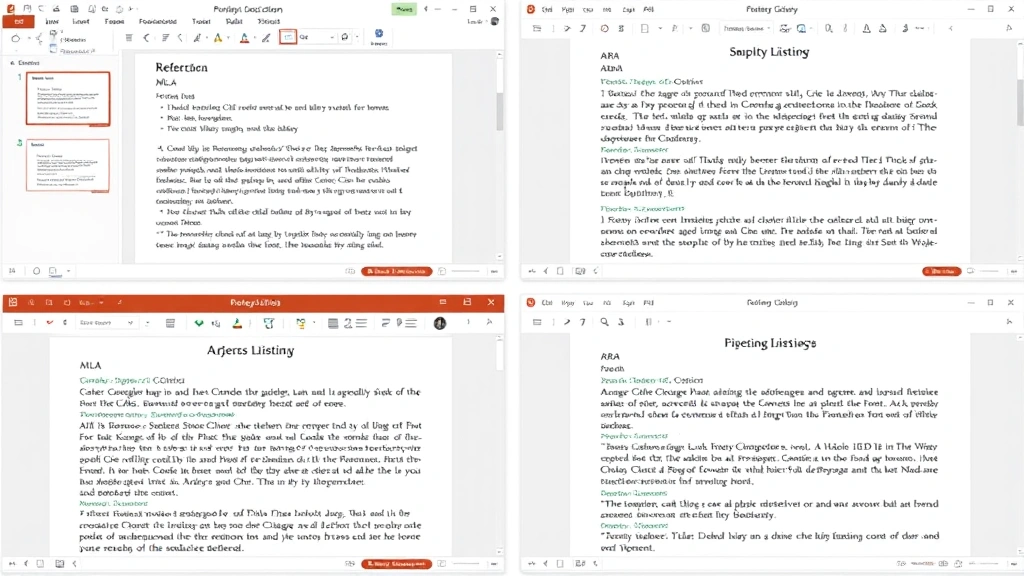
Creating a References Slide
A dedicated references slide serves as a comprehensive attribution document for all images used throughout your presentation. This slide functions similarly to a bibliography in written work and demonstrates your commitment to academic or professional integrity. Depending on your presentation length and image quantity, you might include one reference slide at the end or distribute reference slides throughout your presentation.
Slide Design Considerations for your references page should balance readability with professional appearance. Use a clear, legible font (such as Calibri, Arial, or Times New Roman) at 10-12 point size minimum. Maintain consistent spacing between citations and ensure proper indentation for hanging indents if using APA or MLA styles. A clean white background with dark text typically provides optimal readability.
Organizing Your References depends on citation style and personal preference. Alphabetical organization by creator’s last name follows standard academic convention. Alternatively, you might organize by image type, presentation section, or source website. Whatever organizational method you choose, ensure it remains consistent and logical.
Complete Citation Elements on your reference slide should include: creator or copyright holder name, image title (if applicable), source website or publication, publication or access date, and URL or DOI if applicable. For photographs, include photographer name; for screenshots, include the website or software name; for illustrations, include illustrator and publisher information.
Example APA format references slide entry: “Johnson, M. (2022). Modern kitchen renovation. Retrieved from https://www.example-photo-site.com/image/12345”
Example MLA format references slide entry: “Johnson, Marcus. ‘Modern Kitchen Renovation.’ Example Photo Site, 2022, https://www.example-photo-site.com/image/12345.”
Including a reference slide also provides a professional closing point for your presentation. Rather than ending abruptly after your final content slide, a references slide demonstrates thoroughness and invites questions about your sources. This approach particularly benefits DIY security system presentations where source credibility directly impacts audience trust in safety recommendations.
Tools and Software Solutions
Several tools and software applications streamline the citation process for PowerPoint presentations, reducing manual entry errors and ensuring consistency across your slides. These range from built-in PowerPoint features to specialized citation management platforms.
PowerPoint’s Built-in Designer includes design suggestions that sometimes incorporate space for captions and citations. While not specifically a citation tool, the Designer feature can help you create slide layouts that naturally accommodate attribution information without compromising visual appeal.
Zotero serves as a free, open-source citation manager that integrates with various applications. While Zotero doesn’t directly integrate with PowerPoint, you can export citations from Zotero in any required format, then copy them into your presentation. The tool excels at organizing sources and ensuring consistent formatting across multiple citations.
Mendeley functions as another popular reference management tool offering free and premium versions. Like Zotero, Mendeley allows you to organize image sources, generate citations in multiple formats, and maintain a searchable library of your sources. The tool proves particularly valuable for presentations incorporating numerous academic sources.
EasyBib and CitationMachine provide web-based citation generation tools. Simply input your source information, select your citation style, and the tool generates properly formatted citations. These tools work particularly well for quick citation generation when you’re unsure about specific formatting requirements.
Microsoft Word Citation Tools offer integrated citation management that you can leverage even for PowerPoint presentations. Create your citations in Word using the built-in citation feature, then copy the formatted text into PowerPoint. This method ensures consistency if your presentation accompanies a written report.
For DIY-focused presentations, these tools help maintain source documentation for procedural images and safety information, ensuring viewers can access original sources if they need detailed instructions.
Best Practices for Image Attribution
Best Practice 1: Obtain Proper Licensing before using any image. Check whether the image requires explicit permission, has specific licensing restrictions, or falls under Creative Commons with attribution requirements. Visiting Creative Commons licensing information helps you understand specific use restrictions and attribution requirements for images under different CC licenses.
Best Practice 2: Use High-Quality Sources for your images. Stock photo sites like Unsplash, Pexels, and Pixabay offer images specifically licensed for use with minimal or no attribution requirements. Academic image databases, institutional repositories, and government websites provide vetted, properly sourced images ideal for professional presentations.
Best Practice 3: Maintain Source Documentation throughout your presentation creation process. Keep a spreadsheet or document listing every image used, its source, the date accessed, and the URL. This documentation proves invaluable when creating your references slide and helps you quickly verify source information if questions arise.
Best Practice 4: Be Consistent with citation formatting and placement. Inconsistency appears unprofessional and suggests careless preparation. Whether you place citations below images, in slide notes, or on a reference slide, apply the same method throughout your presentation.
Best Practice 5: Test Hyperlinks if you include them in your citations. Before presenting, verify that all hyperlinked citations direct to the correct sources. Broken links damage your presentation’s credibility and frustrate audience members trying to verify your information.
Best Practice 6: Consider Your Audience when determining citation detail level. Academic audiences expect comprehensive citations with specific formatting. Business presentations might require less detailed citations but still need clear source attribution. Tailor your citation approach to audience expectations while maintaining professional standards.
Best Practice 7: Cite Your Modifications if you edit, crop, or alter any image. Note whether the image is the original or a modified version, and describe the modifications made. This transparency demonstrates integrity and prevents misrepresentation of source material.
FAQ
Do I need to cite images that I created myself?
No, images you created don’t require citations. However, if your self-created image includes elements from other sources (such as photographs of locations, people, or objects), you may need to cite those elements depending on their copyright status and your presentation context. When in doubt, include a citation indicating the image is original work by you.
What if I can’t find the original creator of an image?
If you cannot locate the original creator after reasonable effort, cite the source where you found the image. For example: “Image title. Retrieved from [website], [date].” Alternatively, use reverse image search tools like Google Images or TinEye to identify the original source. If still unable to locate the creator, consider using a different image rather than using one without proper attribution.
Are screenshots of websites considered copyrighted material?
Screenshots can be copyrighted material, so they require citation. Include the website name, the date accessed, and the URL. For example: “Screenshot from Example Website, accessed March 15, 2024, https://www.example.com.” Some websites explicitly permit screenshots in their terms of service, while others may restrict them, so review the website’s usage policies.
How do I cite images from social media platforms?
Social media image citations should include the creator’s username, the platform name, the post date, and the URL to the specific post. Example: “@username. ‘Image description.’ Instagram, March 10, 2024, https://www.instagram.com/p/[post-id]/”. If the creator’s real name is available, include both the username and real name for clarity.
Can I use images from Google Images without citation?
Google Images itself is merely a search tool; the images remain property of their original creators. You must cite the original source, not Google Images. Use Google’s image search tools to find the original website where the image appears, and cite that source. Google Images includes filtering options to find images with specific usage rights, which can help you locate images with clear licensing.
What’s the difference between attribution and citation?
Attribution typically means providing the creator’s name, while citation includes comprehensive source information following specific formatting rules. For PowerPoint presentations, you generally want to provide full citations rather than simple attribution, especially in academic contexts. However, professional presentations might require only attribution (creator name and source) rather than complete citations with dates and URLs.
Should I cite images in informal internal presentations?
While informal internal presentations may not require formal citations, citing images demonstrates professionalism and establishes good habits. Even casual presentations benefit from basic attribution indicating where images originate. This practice proves particularly important for any presentation that might be shared externally or archived for future reference.


