
How to Close Full Screen on Mac: A Tech Expert’s Complete Guide
Full screen mode on macOS can be incredibly useful for focused work, immersive gaming, or distraction-free writing. However, many Mac users find themselves temporarily stuck when they need to exit full screen and return to their normal desktop view. Whether you’re using a MacBook Air, MacBook Pro, iMac, or Mac mini, closing full screen is a straightforward process once you understand the available methods. This comprehensive guide walks you through every technique available, from keyboard shortcuts to trackpad gestures, ensuring you’ll never feel trapped in full screen mode again.
Understanding how to efficiently navigate macOS features is part of mastering your device, much like learning proper DIY home security setup and management requires knowing all available controls. We’ll explore multiple methods to exit full screen, troubleshoot common issues, and provide pro tips for managing your workspace more effectively.

Keyboard Shortcuts Method
The fastest and most reliable way to close full screen on Mac is using keyboard shortcuts. This method works across virtually all applications and requires minimal effort. The primary shortcut is Control + Command + F (often written as ⌃⌘F), which toggles full screen mode on and off. Simply press these three keys simultaneously while in a full screen application, and your window will instantly return to normal windowed mode.
For users who prefer alternative shortcuts, F11 can also exit full screen in certain applications, though this varies depending on the app. Some users find the Control + Command + F combination easier to remember because it directly corresponds to the “F” in “Full screen.” This shortcut works in Safari, Mail, Notes, Preview, and most third-party applications available on the Mac App Store.
Another useful keyboard method involves pressing Escape key, which exits full screen in many applications including Safari, Photos, and Preview. However, this method is less universal than Control + Command + F, so it’s best to try the primary shortcut first. The Escape key works particularly well in media viewing applications and browser tabs.
If you’re working with multiple full screen applications simultaneously, you can navigate between them using Control + Up Arrow to open Mission Control, then click the full screen app you want to switch to. This method keeps you in full screen mode while changing applications, which is different from closing full screen entirely but useful for multitasking scenarios.
Trackpad Gestures Method
Mac trackpads support intuitive gestures that make closing full screen both natural and satisfying. The most common gesture is the four-finger swipe down, which exits full screen and returns you to the desktop or your previous window arrangement. This gesture feels particularly smooth on MacBook trackpads and works consistently across most applications.
To perform this gesture, place four fingers on your trackpad and swipe downward in one fluid motion. Your application will smoothly transition out of full screen mode. This method is especially helpful if you’re already comfortable with macOS gestures and prefer visual, tactile interactions over memorizing keyboard combinations.
Another effective trackpad method involves the four-finger pinch gesture, which can be customized in System Preferences to exit full screen. To enable this, open System Preferences, navigate to Trackpad, then select the Gestures tab. Look for the option labeled “Pinch to close full screen” and ensure it’s enabled. This gesture requires pinching all four fingers together on the trackpad surface.
For users with Magic Mouse, the two-finger swipe down can exit full screen in supported applications. Magic Mouse gestures differ slightly from trackpad gestures due to the different surface area and sensor technology. Experimenting with these gestures helps you discover which feels most natural for your workflow.
Using the Menu Bar
When you enter full screen mode, the menu bar typically hides automatically but remains accessible. To close full screen using the menu bar, first move your cursor to the top of the screen to reveal the hidden menu bar. Once visible, look for the application menu (usually the app name) and click it to reveal a dropdown menu.
In the dropdown menu, you’ll find an option that says “Exit Full Screen” or simply shows the full screen icon with a label. Click this option to immediately exit full screen mode. This method is particularly useful when you’re uncertain about keyboard shortcuts or prefer using your mouse or trackpad exclusively.
The menu bar method also provides access to other full screen-related options depending on your application. Some apps include “Zoom” or “Resize Window” options in the same menu, giving you additional control over your workspace. This approach is more intuitive for new Mac users who are still learning the system.
Mission Control Approach
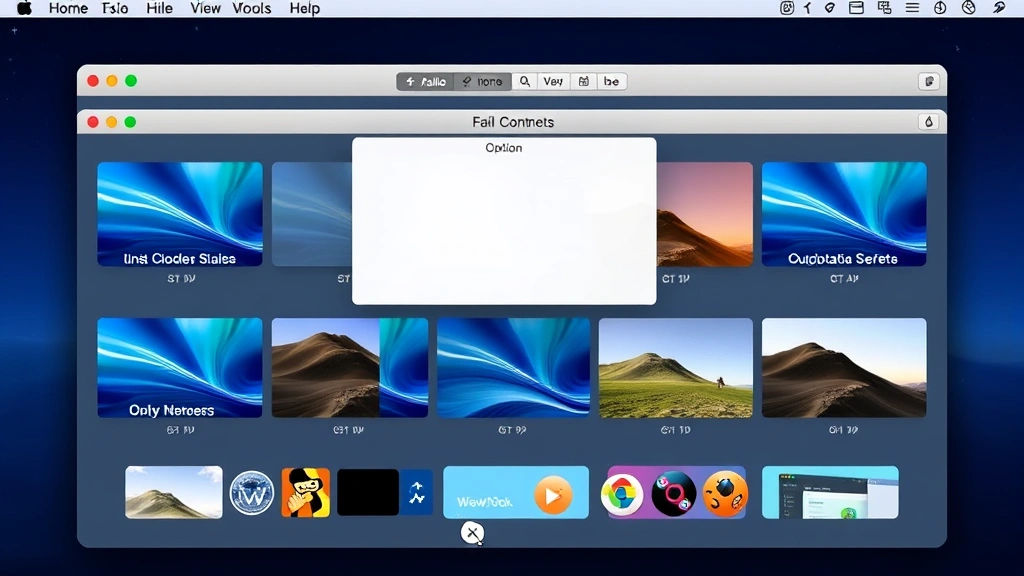
Mission Control is macOS’s powerful workspace management tool that displays all open windows and full screen applications simultaneously. To access Mission Control, press F3 or Control + Up Arrow (you can also customize this in System Preferences). When Mission Control opens, you’ll see thumbnails of all your open applications and full screen spaces arranged in a grid.
To close full screen using Mission Control, locate the full screen application you want to exit. In the top-right corner of that application’s thumbnail, you’ll see a small “X” button. Click this button to close the full screen space and return the application to normal windowed mode. This method is excellent when you have multiple full screen applications open and need to manage them visually.
Mission Control also allows you to drag windows between spaces, rearrange your workspace, and see an overview of everything running on your Mac. Once you become familiar with this tool, it becomes an invaluable part of your daily workflow, similar to how learning proper DIY beginner woodworking techniques streamlines your projects.
Application-Specific Methods
Different applications sometimes have unique ways of handling full screen mode. In Safari, you can close full screen by clicking the green full screen button in the top-left corner of the window (when in full screen, hover over the top area to see controls). Alternatively, use the keyboard shortcut Control + Command + F or press Escape.
In Preview, which is macOS’s built-in image and PDF viewer, the Escape key is often the quickest exit method. However, the Control + Command + F shortcut also works reliably. Preview’s full screen mode is particularly useful for viewing documents without distractions, making it important to know how to exit quickly when needed.
For Finder, the full screen mode can be toggled using Control + Command + F. The Finder window will smoothly transition between normal and full screen states. This is useful when managing large file structures or performing detailed file organization tasks, much like organizing your workspace for a DIY home security installation.
Third-party applications like video players, photo editing software, and games often implement full screen modes with their own controls. Always check the application’s menu bar or documentation for specific full screen exit instructions. Most professional applications display an on-screen prompt when entering full screen that indicates which key to press to exit.
Troubleshooting Full Screen Issues
If you’re unable to close full screen using standard methods, first try Force Quit the frozen application. Press Command + Option + Escape to open the Force Quit Applications window. Select the problematic application and click “Force Quit.” This method should be used only when other options fail, as it may cause unsaved work to be lost.
Another troubleshooting step involves restarting your Mac. Sometimes full screen mode can become stuck due to software glitches. A simple restart often resolves these issues. Additionally, ensure your macOS is updated to the latest version by going to System Preferences > Software Update, as Apple regularly releases patches for full screen-related bugs.
If full screen keyboard shortcuts aren’t working, check your System Preferences to ensure keyboard shortcuts aren’t disabled. Go to System Preferences > Keyboard > Shortcuts and verify that the full screen shortcut isn’t conflicting with other system shortcuts. You can also customize these shortcuts here if needed.
For persistent issues with specific applications, try reinstalling the application. Delete the app from your Applications folder and download a fresh copy from the Mac App Store or the developer’s website. This resolves issues caused by corrupted application files. If the problem persists across all applications, consider resetting the NVRAM on your Mac, which can resolve deeper system-level issues.
Advanced Tips and Tricks
Power users can customize full screen behavior through System Preferences. Navigate to System Preferences > Mission Control and look for options related to full screen and spaces. You can configure whether new windows open in full screen by default, how many spaces are created, and whether full screen applications share the same space as windowed applications.
Creating keyboard shortcuts for frequently used applications can save time. Open System Preferences > Keyboard > Shortcuts, then select App Shortcuts. Click the “+” button and create a custom shortcut for your most-used applications. While you can’t directly override the full screen shortcut, you can create shortcuts for other functions within your favorite apps.
For those managing multiple monitors, understanding how full screen behaves across displays is crucial. When you enter full screen on a Mac with multiple monitors, the application typically fills only one display, and the other displays remain accessible. This configuration is helpful for multitasking, allowing you to reference information on one monitor while working full screen on another.
Consider using Split View as an alternative to full screen when you need to focus on two applications simultaneously. Split View allows two applications to occupy half the screen each, providing focused work without the full screen limitations. This feature is particularly useful for comparing documents or references while working on your primary task, similar to how you might compare plans when undertaking a DIY house painting project with reference materials nearby.
Mastering full screen mode and its alternatives helps you work more efficiently on macOS. Whether you prefer keyboard shortcuts, gestures, or menu-based approaches, having multiple methods available ensures you can always exit full screen comfortably. The key is finding the method that feels most natural for your workflow and practicing it until it becomes second nature.
FAQ
What is the fastest way to close full screen on Mac?
The fastest method is using the keyboard shortcut Control + Command + F (⌃⌘F). This works across almost all applications and requires only a single key combination. If you’re already using your keyboard, this is significantly faster than reaching for your trackpad or mouse.
Why won’t my Mac exit full screen mode?
If your Mac won’t exit full screen, the application may be frozen or experiencing a glitch. Try pressing Command + Option + Escape to force quit the application, then restart it in normal windowed mode. If this doesn’t work, restart your Mac entirely. Ensure your macOS is fully updated, as full screen bugs are often addressed in system updates.
Can I use the Escape key to exit full screen on all Mac applications?
The Escape key works for many applications, particularly Safari, Photos, and Preview, but it’s not universal. The most reliable method across all applications is Control + Command + F. Different applications may implement full screen differently, so the Escape key may not work in every situation.
How do I exit full screen on a Mac without using keyboard shortcuts?
You can exit full screen using trackpad gestures (four-finger swipe down), accessing the menu bar by moving your cursor to the top of the screen and clicking the exit full screen option, or using Mission Control to click the X button on the full screen application’s thumbnail. These methods work without keyboard shortcuts.
Is there a way to prevent applications from automatically entering full screen mode?
Yes. In System Preferences > Mission Control, you can disable the option “Displays have separate Spaces,” which limits full screen behavior. Additionally, you can customize individual application preferences in System Preferences > Dock by right-clicking an application and selecting Options to control whether it opens in full screen by default.
What’s the difference between full screen mode and Split View on Mac?
Full screen mode fills your entire display with a single application, hiding the menu bar and other windows. Split View, activated by holding the full screen button, allows two applications to share your screen side-by-side. Split View is useful when you need to reference two applications simultaneously without switching between them.


