How to Automatically Generate a Table of Contents in Google Slides: Expert Tips Inside
Creating professional presentations requires organization, and a well-structured table of contents serves as your roadmap. Google Slides doesn’t offer a built-in automatic table of contents feature like Microsoft PowerPoint, but several proven methods can help you generate one efficiently. Whether you’re building a comprehensive project proposal, a detailed home renovation presentation, or a step-by-step guide, mastering this skill saves time and impresses your audience.
This guide reveals expert techniques for creating dynamic, functional tables of contents in Google Slides. You’ll discover both manual approaches and creative automation strategies that work within Google’s ecosystem. We’ll explore how to link your TOC to slide content, maintain consistency as your presentation evolves, and implement best practices used by professional presenters and DIY educators.
Understanding Google Slides Limitations and Opportunities
Google Slides operates differently from traditional presentation software. Unlike Microsoft PowerPoint’s automatic table of contents feature, Google Slides requires more manual intervention. However, this limitation opens creative possibilities for customization and interactivity that surpass standard implementations.
The platform’s strength lies in its cloud-based collaboration, real-time editing, and integration with Google’s ecosystem. When presenting DIY basement finishing projects or detailed home improvement guides, a strategic table of contents becomes your navigation hub. Understanding these limitations helps you choose the right method for your specific needs.
Google Slides supports hyperlinks, which form the foundation of interactive tables of contents. This capability, combined with strategic slide naming and organization, enables you to create functional navigation systems that rival more complex alternatives. The key is planning your presentation structure before adding the TOC.
Method 1: Manual Table of Contents with Hyperlinks
The most straightforward approach involves creating a manual table of contents slide and adding hyperlinks to each section. This method works reliably and requires no coding knowledge, making it ideal for most users.
Step-by-step process:
- Create a new slide early in your presentation—typically slide two or three, after your title slide
- Title this slide “Table of Contents” or “Contents”
- List all major sections and subsections using bullet points or numbered lists
- Format your text consistently with appropriate heading styles and sizing
- Select each line item and insert a hyperlink using Ctrl+K (Windows) or Cmd+K (Mac)
- Choose “Slide in this presentation” from the hyperlink dialog
- Select the corresponding slide from the dropdown menu
- Test each link before finalizing your presentation
This approach works exceptionally well for presentations covering structured topics. If you’re documenting DIY house painting projects, your TOC might include sections like preparation, primer application, paint selection, technique, and cleanup. Each becomes a clickable link navigating viewers directly to relevant content.
The manual method offers advantages: complete control over formatting, flexibility in organizing content, and compatibility with all Google Slides features. However, updating the TOC when adding or removing slides requires manual intervention. This becomes cumbersome for presentations exceeding 30-40 slides.
Pro tip: Add a “Back to Contents” link at the bottom of each major section slide. This creates a loop allowing viewers to return to your TOC and navigate to different sections efficiently. Use consistent formatting—perhaps a small text box with a subtle background color—to maintain professional appearance throughout.
Method 2: Using Google Apps Script for Automation
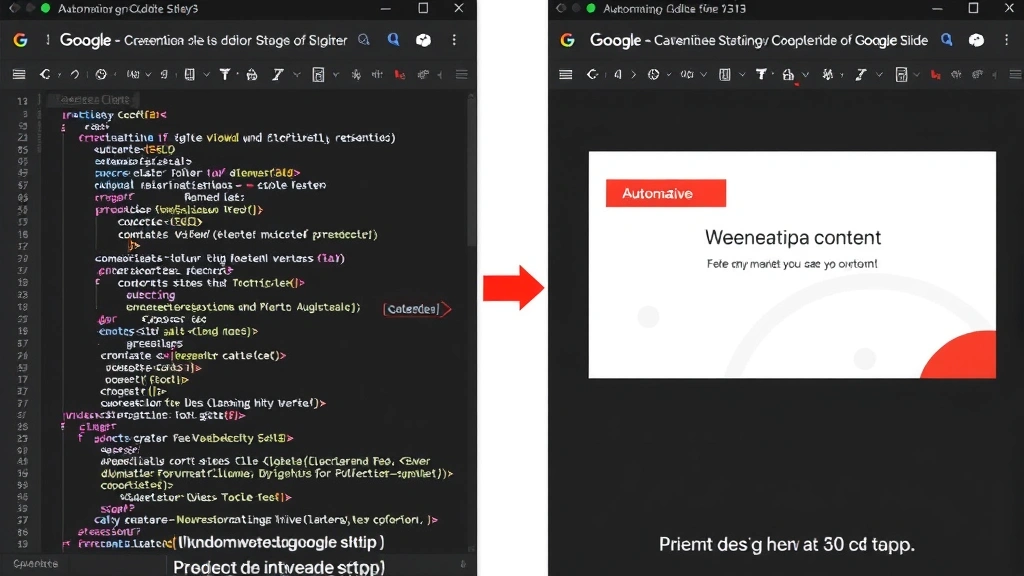
For those comfortable with basic coding, Google Apps Script offers true automation. This JavaScript-based tool integrates directly with Google Slides, enabling you to generate a table of contents dynamically based on your slide titles.
Setting up Google Apps Script:
- Open your Google Slides presentation
- Navigate to Tools > Script Editor
- Delete any default code and paste a custom script (readily available through Google’s documentation and developer communities)
- Run the script from the editor
- Authorize the necessary permissions when prompted
- The script automatically generates a TOC slide with hyperlinks
A basic script reads through your presentation, identifies slide titles, and creates a formatted table of contents with automatic hyperlinks. When you add new slides with clear titles, running the script again updates your TOC instantly. This approach scales beautifully for lengthy presentations or presentations you update frequently.
Script customization options include:
- Excluding specific slides from the TOC (useful for title slides or appendices)
- Creating nested hierarchies based on slide title formatting
- Adjusting fonts, colors, and styling to match your presentation theme
- Generating multiple TOC slides for different presentation sections
- Automatically numbering sections and subsections
Refer to Google Apps Script documentation for Slides for detailed implementation guides and code examples. The learning curve is moderate—even beginners with basic programming exposure can modify existing scripts to suit their needs.
Method 3: Leveraging Add-ons and Extensions
Google Workspace Marketplace offers several add-ons specifically designed to enhance presentation functionality. These third-party tools simplify table of contents creation without requiring coding.
Popular add-ons for table of contents include:
- Table of Contents for Slides: Automatically generates formatted TOC with clickable links based on slide titles. Updates dynamically as you modify your presentation.
- Presentation Outliner: Creates visual outlines and navigational aids, particularly useful for complex presentations with multiple sections.
- SlidesCarnival Templates: Provides professionally designed presentation templates with built-in TOC structures you can customize.
Installing add-ons is straightforward: click the plus (+) icon in Google Slides, search “Add-ons,” browse the marketplace, and install your chosen tool. Most reputable add-ons offer free versions with optional premium features.
Advantages of using add-ons:
- No coding required—user-friendly interfaces guide the process
- Professional formatting options built-in
- Automatic updates as presentation content changes
- Integration with other Google Workspace tools
- Regular updates and customer support from developers
When selecting an add-on, check user reviews, verify the developer’s credibility, and ensure the tool aligns with your specific needs. Some add-ons offer more customization than others, affecting their suitability for particular project types.
Best Practices for Maintaining Your Table of Contents
Regardless of your chosen method, certain practices ensure your table of contents remains effective as your presentation evolves. These guidelines apply whether you’re creating a crown molding installation guide or a comprehensive home security system overview.
Organizational structure: Plan your presentation architecture before creating the TOC. Identify major sections and subsections logically. For DIY projects, this typically means: introduction, materials and tools, preparation, step-by-step instructions, troubleshooting, and conclusion. Clear structure makes your TOC intuitive and useful.
Consistent naming conventions: Use descriptive, parallel titles for slides. Instead of “Stuff,” “Things,” and “Items,” use “Materials Required,” “Tools Needed,” and “Safety Equipment.” Consistency aids both navigation and professional appearance. This becomes especially important when using automated methods that depend on slide title formatting.
Strategic placement: Position your TOC early in the presentation—typically slide two or three. This allows viewers to understand your presentation structure immediately and navigate to sections of interest. For lengthy presentations, consider adding mini-TOCs at major section breaks.
Link testing: Before sharing your presentation, test every link in your table of contents. Verify that links navigate to correct slides and function smoothly. Broken or incorrect links undermine credibility and frustrate viewers.
Regular updates: If you add slides after creating your TOC, update the table of contents accordingly. With manual methods, add new items and corresponding links. With automated methods, re-run your script or add-on to regenerate the TOC. Outdated TOCs confuse viewers and suggest careless preparation.
Advanced Customization Techniques
Once you’ve mastered basic table of contents creation, explore advanced techniques that elevate your presentations. These strategies work particularly well for detailed instructional content like DIY flooring installation guides.
Interactive navigation elements: Beyond simple text links, incorporate visual indicators. Use icons next to sections, color-code different parts of your presentation, or create a visual map showing where viewers are in the presentation flow. These elements enhance user experience and make navigation intuitive.
Nested hierarchies: For presentations with multiple levels of content, create hierarchical TOCs showing main sections and subsections. Use indentation and formatting to show relationships between topics. This approach works well for complex projects requiring detailed explanations of multiple components.
Searchable presentations: While Google Slides doesn’t offer built-in search, you can create a “Quick Links” slide containing links to commonly referenced sections. This serves as an alternative navigation method for viewers seeking specific information quickly.
Animated reveals: Use Google Slides’ animation features to reveal TOC items sequentially. This technique works well for live presentations, maintaining audience attention by controlling information flow. You can set animations to trigger on click or automatically after specific intervals.
Multi-section presentations: For very lengthy presentations, create multiple TOC slides—one master TOC at the beginning and mini-TOCs at major section breaks. This approach helps viewers maintain orientation within large documents while allowing quick navigation between related sections.
Responsive design: Ensure your TOC displays correctly on various screen sizes. Test your presentation on tablets, laptops, and projector displays. Font sizes should remain readable, and hyperlinks should be easily clickable without accidentally selecting adjacent items.
For reference on creating engaging presentations with proper structure, consult DIY Nests Hub’s blog for additional presentation and documentation strategies used in home improvement contexts.
Frequently Asked Questions
Can Google Slides automatically generate a table of contents like PowerPoint?
Google Slides lacks a built-in automatic TOC feature equivalent to PowerPoint’s. However, you can achieve similar functionality using Google Apps Script or third-party add-ons. These tools read slide titles and generate formatted TOCs with hyperlinks, updating automatically when slides are added or modified.
How do I add hyperlinks to my table of contents in Google Slides?
Select the text you want to link, press Ctrl+K (Windows) or Cmd+K (Mac), choose “Slide in this presentation,” and select the target slide from the dropdown. Test the link to ensure it navigates correctly. This process works for both manual TOCs and those created with add-ons.
What’s the best method for presentations exceeding 50 slides?
For lengthy presentations, use Google Apps Script or a dedicated add-on. These automated approaches handle large presentations efficiently and update quickly when content changes. Consider creating multiple TOC slides for different presentation sections, allowing viewers to navigate without overwhelming them with a single massive list.
Can I customize the appearance of my automatically generated table of contents?
Yes. Most add-ons offer customization options for fonts, colors, sizing, and formatting. Google Apps Script scripts can be modified to match your presentation theme exactly. Even with automated generation, you maintain control over the final appearance of your TOC.
How do I maintain my table of contents when I revise my presentation?
With manual TOCs, update entries and links whenever you add, remove, or significantly modify slides. With automated methods, re-run your script or add-on to regenerate the TOC based on current slide titles. Establish a habit of updating your TOC as part of your revision process to maintain accuracy.
Are Google Slides add-ons safe to use?
Reputable add-ons from established developers are generally safe. Before installing, check user reviews, verify the developer’s identity, and review permissions requested. Avoid add-ons with excessive negative reviews or from unknown developers. Google’s marketplace includes safety checks, but exercising caution remains wise.
Can I use a table of contents in presentations I share with others?
Absolutely. Hyperlinks and navigation features function for all viewers, whether accessing your presentation through Google Drive, via shared links, or in presentation mode. Ensure collaborators have appropriate viewing or editing permissions based on your sharing settings.


