Clear iPhone App Cache? Tech Expert’s Guide to Boosting Performance
Your iPhone’s app cache is like the dust that accumulates in your home—invisible at first, but eventually it builds up and causes problems. Just as you’d maintain your living space with regular home maintenance and upkeep, your iPhone needs routine digital housekeeping to run smoothly. Cache files are temporary data that apps store to load faster next time you use them. However, when cache grows too large or becomes corrupted, it can slow down your device, drain battery life, and consume valuable storage space.
Understanding how to clear cache on iPhone apps is one of the most effective DIY tech maintenance tasks you can perform. Unlike more complex device repairs, cache clearing is simple, safe, and requires no technical expertise. This comprehensive guide walks you through multiple methods to clean up your apps, explains why cache accumulation happens, and shows you how to prevent excessive buildup in the future. Whether you’re experiencing sluggish app performance or just want to optimize your device’s storage, you’ll find practical solutions here.
What Is App Cache and Why Does It Matter?
App cache consists of temporary files, images, and data that applications store on your device to improve loading times and overall performance. When you use an app, it downloads certain information—like profile pictures, article text, or video thumbnails—and saves these files locally. The next time you open the app, it retrieves this cached data instead of downloading everything again, which makes the experience faster and requires less internet bandwidth.
This system works well in theory, but cache files accumulate over time. A single app might store hundreds of megabytes or even gigabytes of cached data, especially apps that handle lots of media content like social networks, streaming services, or news applications. Just as clutter builds up in a garage or storage area when you don’t regularly organize, app cache grows unchecked without intervention. Over months and years, this can significantly impact your device’s performance.
Cache problems manifest in several ways. Your iPhone might lag when switching between apps, take longer to launch applications, display outdated information, or show significantly reduced available storage space. Some users also notice increased battery drain because the device works harder to manage excessive cache files. Clearing cache is similar to the deep cleaning you’d do when preparing your home for seasonal changes—it’s preventative maintenance that keeps everything running optimally.
The important distinction is that cache is different from app data. Cache contains temporary files that can be safely deleted without losing any important information. App data, by contrast, includes your preferences, login information, and personal settings. When you clear cache, you’re only removing temporary files; your actual app data and functionality remain intact.

Method 1: Clear Cache Through iPhone Settings
The most straightforward way to clear cache on iPhone apps is through the device’s built-in Settings application. This method works for individual apps and requires just a few taps. Here’s the step-by-step process:
- Open the Settings app on your iPhone
- Scroll down and tap General
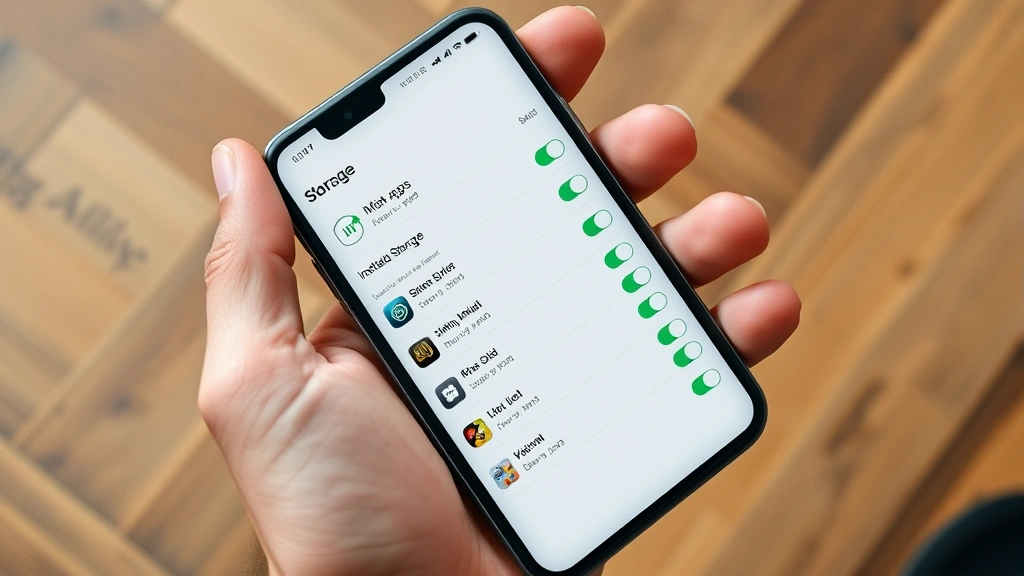
- Select iPhone Storage (or iPad Storage if using an iPad)
- Wait for the list of apps to load—this shows your installed applications sorted by storage size
- Tap on the specific app whose cache you want to clear
- Select Offload App to temporarily remove the app while keeping its data, or choose Delete App for complete removal
- Reinstall the app from the App Store
This process effectively clears all cached data because you’re removing and reinstalling the app. The system rebuilds the app fresh, which eliminates corrupted or excessive cache files. Your login credentials and user preferences typically remain intact if you chose “Offload App,” though some apps may require you to log back in.
For apps that consume the most storage, this method is particularly effective. The iPhone Storage screen shows exactly how much space each app uses, making it easy to identify the biggest cache offenders. Just as you’d tackle the largest clutter items first when organizing your home, prioritize clearing cache from the apps using the most storage space. This approach delivers the most noticeable performance improvements.
One advantage of this method is that it’s completely safe—you cannot accidentally delete important data because cache files are temporary by definition. If an app behaves unexpectedly after cache clearing, simply restart your iPhone or log back into the app. The app will rebuild its cache as you use it normally.
Method 2: Delete and Reinstall Apps
Deleting and reinstalling apps is the most thorough way to eliminate cache buildup. This method completely removes the app and all associated temporary files, then installs a fresh version from the App Store. Follow these steps:
- Long-press the app icon on your home screen
- Select Remove App
- Choose Delete App from the popup menu
- Confirm by tapping Delete
- Open the App Store and search for the app by name
- Tap Get or the cloud icon if you’ve purchased it before
- Wait for installation to complete
- Launch the app and log in if necessary
This method is ideal for apps that are misbehaving or consuming excessive storage. It’s equivalent to the thorough cleaning you’d perform when deep cleaning your home—you’re starting completely fresh. The fresh installation often resolves performance issues caused by corrupted cache or conflicting temporary files.
Some users hesitate to delete apps because they worry about losing data. However, as long as your account credentials are saved (which they usually are with major apps), you won’t lose anything important. Your photos in cloud storage, messages, and saved preferences remain safe because they’re stored on the app’s servers, not just on your device. When you reinstall and log back in, all your data reappears automatically.
For frequently used apps, consider performing this maintenance quarterly or whenever you notice performance degradation. Just as regular vehicle maintenance keeps your car running smoothly, periodic app reinstallation maintains optimal iPhone performance. Set a calendar reminder to check your most-used apps and clear their cache every three months.
Method 3: Use Built-In App Management Tools
Apple provides several built-in tools within Settings that help manage app cache without requiring deletion and reinstallation. These methods are less aggressive than removing apps entirely, making them good options for quick cache clearing.
Offload Unused Apps: This feature automatically removes apps you haven’t used recently while preserving their data. To enable it, go to Settings → General → iPhone Storage → Enable “Offload Unused Apps.” The system will reinstall the app when you need it again, with cache cleared in the process. This is like having an automatic maintenance schedule for your digital space—similar to how organizing storage spaces keeps your home efficient.
Low Power Mode: While not directly clearing cache, enabling Low Power Mode reduces background app activity and cache generation. Go to Settings → Battery → Enable “Low Power Mode.” This setting limits which apps can refresh data in the background, resulting in less cache accumulation over time.
App Library Organization: Organizing apps into the App Library (swipe to the rightmost home screen) doesn’t clear cache but helps you track which apps you actually use regularly. Apps you never open can be safely deleted, eliminating unnecessary cache buildup from rarely-used applications.
These built-in tools work together to create a comprehensive cache management system. You’re not forced to choose one method—instead, combine them for optimal results. Enable Offload Unused Apps for automatic maintenance, use Low Power Mode during heavy usage periods, and manually clear cache from your most-used applications monthly.
Method 4: Clear Safari and Browser Cache
Safari and other browsers accumulate their own cache separate from individual apps. Clearing browser cache is essential because these files can consume significant storage and may contain outdated website data.
Clear Safari Cache:
- Open Settings
- Scroll down and tap Safari
- Scroll down to find Clear History and Website Data
- Tap this option
- Confirm by tapping Clear History and Data
This removes Safari’s cache, cookies, and browsing history. Note that you may need to log back into websites you frequently visit, as cookies that store login information are also deleted. This is a small inconvenience for the significant storage space and performance improvement you’ll gain.
Clear Chrome or Firefox Cache: If you use alternative browsers, access their settings and look for “Clear Browsing Data” or similar options. The process is nearly identical—you’ll find cache clearing in the browser’s main settings menu. Just as you’d use the same cleaning techniques throughout your home regardless of which room you’re in, you can apply the same cache-clearing principles across all your browsers.
Browser cache clearing should be part of your regular maintenance routine. Schedule this task monthly, or whenever you notice your device running slowly. Combined with app cache clearing, this creates a comprehensive digital maintenance plan that keeps your entire iPhone optimized.
Prevention Tips and Best Practices
While clearing cache is important, preventing excessive accumulation is even better. Implement these best practices to minimize cache buildup:
Regular Cache Clearing Schedule: Establish a monthly routine to clear cache from your most-used apps. Mark it on your calendar, just as you would for home maintenance tasks like painting or repairs. This prevents cache from reaching problematic levels.
Monitor Storage Usage: Check iPhone Storage (Settings → General → iPhone Storage) monthly to identify apps consuming excessive space. Apps using more than 1GB of storage warrant investigation and likely cache clearing.
Update Apps Regularly: Developers frequently release updates that improve cache management and performance. Keep all apps current by enabling automatic updates in the App Store settings. These updates often include fixes for cache-related issues.
Limit Background App Refresh: Go to Settings → General → Background App Refresh and disable this feature for apps that don’t need it. Fewer background activities mean less cache generation. This is preventative maintenance that reduces the workload on your device.
Use iCloud for Storage: Enable iCloud Photos, iCloud Drive, and other cloud services to reduce local storage demands. When your device doesn’t need to store everything locally, cache accumulation becomes less problematic. Cloud storage acts as an overflow area, similar to how proper storage organization prevents clutter in physical spaces.
Restart Your iPhone Regularly: A weekly restart clears temporary data and helps the operating system manage memory more efficiently. This simple action prevents cache from fragmenting and becoming problematic.
Troubleshooting Common Cache Issues
App Crashes After Cache Clearing: If an app crashes immediately after you clear its cache, force-close it by swiping up from the bottom of the screen (or using App Switcher) and swiping the app away. Then reopen it. If crashes persist, reinstall the app completely. The issue likely isn’t cache-related but rather a software bug that reinstallation will resolve.
Login Information Lost: If you can’t log into an app after clearing cache, don’t panic. Your account wasn’t deleted—the app simply forgot it. Log in again using your username and password. If you’ve forgotten your password, use the app’s “Forgot Password” feature to reset it. Your actual account data remains safe on the app’s servers.
Storage Space Still Full After Clearing: If clearing cache doesn’t free up significant space, other factors are consuming storage. Check Settings → General → iPhone Storage for large files, videos, or photos. Consider visiting our DIY Nests Hub Blog for additional device optimization tips. You might also need to delete old messages, clear photos, or remove unused apps.
Apps Running Slowly Even After Cache Clearing: Slow app performance might stem from issues beyond cache. Check your internet connection, restart your iPhone, or update the app to its latest version. If problems persist, the app itself might have compatibility issues with your iOS version. Check the App Store for updates or reviews mentioning performance problems.
Can’t Find Apps in Settings to Clear Cache: Not all apps appear in the iPhone Storage list if they use minimal cache. Only apps consuming more than a few megabytes typically display there. If an app isn’t listed but you want to clear its cache, delete and reinstall it instead. This ensures complete cache removal regardless of whether the app appears in Storage settings.
FAQ
Is it safe to clear app cache on iPhone?
Yes, absolutely. Cache consists of temporary files that apps can safely delete and rebuild. You won’t lose any important data, login information, or settings. Cache clearing is one of the safest maintenance tasks you can perform on your device. It’s equivalent to cleaning dust from your home—you’re only removing temporary buildup, not anything essential.
How often should I clear iPhone app cache?
Clear cache from your most-used apps monthly, and perform a full device cache clearing every three months. If you notice your iPhone running slowly or storage becoming limited, clear cache immediately. The frequency depends on your usage patterns—heavy users might benefit from weekly cache clearing, while light users might only need quarterly maintenance.
Will clearing cache delete my photos and messages?
No. Cache clearing only removes temporary files that apps use for performance optimization. Your photos, messages, contacts, and all other personal data remain untouched. This data is stored separately from cache and isn’t affected by cache clearing operations.
Why do apps have cache if it causes problems?
Cache exists to improve performance by reducing download times and internet bandwidth usage. It serves a useful purpose—the problem only arises when cache accumulates excessively over time. The system works well when cache is cleared regularly, just as your home stays organized when you clean regularly.
Can I clear cache for all apps at once?
There’s no single setting that clears cache for every app simultaneously. However, you can accomplish this by offloading or deleting apps in bulk through Settings → General → iPhone Storage, then reinstalling them. Alternatively, enable “Offload Unused Apps” to have the system automatically clear cache from apps you haven’t used recently.
What’s the difference between clearing cache and clearing data?
Cache is temporary data that apps use for performance—it’s safe to delete. Data includes your preferences, login information, and personal settings—deleting data means losing these things. When you clear cache, data remains intact. When you delete an app entirely, both cache and data are removed, which is why you might need to log back in when reinstalling.
Does clearing cache improve battery life?
Yes, clearing excessive cache can improve battery life. When your device has less cache to manage, the processor and storage system work more efficiently, consuming less power. The improvement is usually modest unless your cache was extremely excessive, but combined with other optimization techniques, cache clearing contributes to better battery performance.
Why is my iPhone storage still full after clearing cache?
Cache is only part of storage usage. Photos, videos, messages, and app data also consume significant space. If clearing cache doesn’t free up much space, focus on deleting old photos and videos, archiving messages, or removing unused apps. Check iPhone Storage settings to identify what’s consuming the most space and prioritize deleting the largest items first.


