
Add Presets to Lightroom: Expert Guide for Photo Editing Success
Adobe Lightroom presets are powerful tools that can transform your photography workflow by applying consistent, professional-quality edits with a single click. Whether you’re a hobbyist photographer or someone looking to streamline your creative process, understanding how to add presets to Lightroom is essential. Presets save time, maintain editing consistency across your photo library, and help you develop a signature visual style. This comprehensive guide will walk you through every method of installing presets in Lightroom Classic, Lightroom CC, and Lightroom mobile, ensuring you can enhance your images regardless of which version you use.
The beauty of Lightroom presets lies in their versatility. You can purchase professionally-designed presets from renowned photographers, download free community creations, or build your own custom presets from your favorite editing settings. Adding presets is straightforward once you understand the technical requirements and file structure. This guide covers everything from locating preset files to troubleshooting common installation issues, so you’ll be applying stunning filters to your photos in minutes.
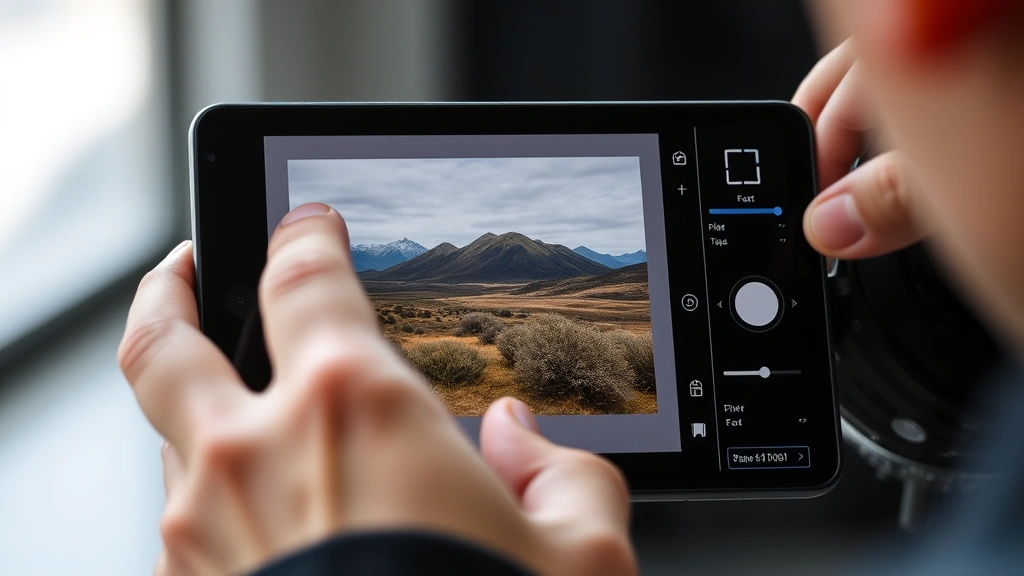
Understanding Lightroom Presets and File Formats
Before you begin adding presets to Lightroom, it’s important to understand what presets are and the file formats you’ll encounter. Lightroom presets are saved editing settings that contain specific adjustments to exposure, contrast, highlights, shadows, color grading, and other parameters. When you apply a preset to a photo, Lightroom instantly applies all these predefined adjustments, creating a consistent look across your images.
Lightroom uses different file formats depending on the version you’re using. Lightroom Classic uses .lrtemplate files, while newer versions of Lightroom CC and Lightroom mobile use .xmp (Extensible Metadata Platform) files or .lrpreset files. Understanding these distinctions is crucial because attempting to install a Classic preset file in Lightroom CC will result in an error. Adobe has made significant changes to how presets work across their ecosystem, so confirming your Lightroom version before downloading presets prevents compatibility headaches.
When purchasing or downloading presets, always check the compatibility information. Many preset creators now offer bundles that include files for multiple Lightroom versions. Free preset repositories and premium marketplaces clearly indicate which version each preset supports. Taking thirty seconds to verify compatibility saves frustration and ensures you’re installing the correct files for your specific Lightroom installation.
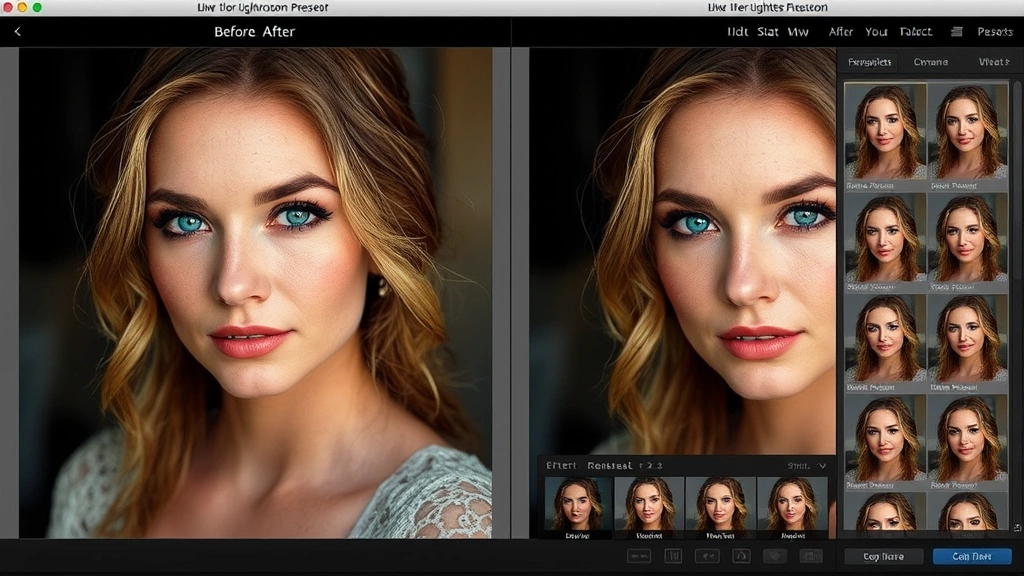
How to Add Presets to Lightroom Classic
Adding presets to Lightroom Classic involves accessing the Presets panel and locating your preset files. Start by opening Lightroom Classic and navigating to the Develop module where you’ll see the Presets panel on the left side of your screen. If the Presets panel isn’t visible, go to the Window menu and select Panels > Show Left Panels to ensure all panels are displayed.
The most direct method involves right-clicking in the Presets panel and selecting “Import Presets.” A file browser window will open, allowing you to navigate to where your preset files are stored. You can download presets from various sources—professional photographers’ websites, Adobe’s official preset marketplace, or community sharing platforms. Locate your .lrtemplate files and select them. You can select multiple preset files at once by holding Ctrl (Windows) or Command (Mac) and clicking each file.
After selecting your preset files, click “Import” and Lightroom will automatically organize them into the appropriate folders. The presets will appear in your Presets panel, grouped by folder if they came organized that way. You can now apply any of these presets to your photos by simply clicking on them in the panel. Each preset will instantly apply its full collection of adjustments to your selected image.
An alternative method involves manually placing preset files into Lightroom’s preset folder. Access this by going to Edit > Preferences (Windows) or Lightroom > Preferences (Mac), then clicking the Presets tab. Click “Show Lightroom Presets Folder” to open your computer’s file explorer directly to the correct location. You can then copy and paste .lrtemplate files directly into the Lightroom Presets folder. After restarting Lightroom, your new presets will appear in the Presets panel. This method works well if you’re organizing large collections of presets or managing presets across multiple computers.
For those interested in more advanced customization, you might also explore how to add crown molding to your workspace setup, or check out our guide on DIY house painting if you’re redesigning your photography studio space.
Installing Presets in Lightroom CC and Cloud
Lightroom CC (also called Lightroom with Cloud Sync) handles preset installation differently than Lightroom Classic. Adobe redesigned the preset system to work seamlessly across desktop, web, and mobile devices. To add presets in Lightroom CC on your desktop, open the application and navigate to the Presets panel on the left side of the screen.
In Lightroom CC, you’ll see a plus icon (+) at the top of the Presets panel. Click this icon and select “Import Presets” from the dropdown menu. A file browser will open where you can navigate to your preset files. Lightroom CC accepts .xmp files and .lrpreset files specifically designed for the newer Lightroom versions. Select your desired preset files and click “Import.” Lightroom CC will then convert these presets into its cloud-compatible format and synchronize them across all your devices.
One significant advantage of Lightroom CC is that presets automatically sync to your Lightroom account through Adobe Cloud. This means if you import a preset on your desktop computer, it will automatically appear on your mobile device, laptop, and web browser within a few minutes. This seamless synchronization is particularly valuable if you work across multiple devices or want to maintain consistent editing styles whether you’re working on your main computer or editing on the go.
You can also access presets directly through Lightroom’s marketplace. Within the Presets panel, look for the “Browse All” option that connects you to Adobe’s curated preset collection. Many of these presets are available for free or purchase, and importing them through this method automatically handles version compatibility and cloud syncing. This approach eliminates the need to manually manage files and ensures you’re always getting presets in the correct format for your Lightroom CC installation.
Adding Presets to Lightroom Mobile
Lightroom mobile on iOS and Android devices provides a streamlined preset experience optimized for touch interfaces. If you’ve already synced presets to your Lightroom CC desktop installation, they automatically appear on your mobile device—no additional setup required. Your mobile app pulls presets from your cloud-synced Lightroom library, making them instantly available for editing photos on your smartphone or tablet.
To access presets on Lightroom mobile, open the app and select a photo you want to edit. Tap the Presets icon (usually represented as three horizontal lines or a filter icon, depending on your device and app version). Your available presets will display as a scrollable list. Tap any preset to apply it instantly to your image. You can then make additional adjustments using the editing controls if desired, or apply the preset as-is for quick, consistent edits.
If you want to purchase or download additional presets specifically for mobile use, you can browse presets directly within the Lightroom mobile app. Tap the Presets panel and look for the “Browse” or “Explore” option. This connects you to Adobe’s mobile preset marketplace where you can preview and install presets. Any presets installed through the mobile app will also sync back to your desktop Lightroom CC installation and other connected devices.
For users working exclusively on mobile devices, this cloud-based approach means you never need to worry about file formats or manual installation. The Lightroom mobile app handles all the technical aspects transparently, allowing you to focus on editing your photos. This is particularly useful for photographers who shoot and edit primarily on their phones, whether you’re a travel photographer, content creator, or someone who prefers mobile-first workflows.
Creating and Saving Custom Presets
Beyond installing existing presets, creating your own custom presets allows you to build a personalized editing toolkit that reflects your unique style. This process is straightforward and works similarly across Lightroom versions. Start by editing a photo in the Develop module, adjusting all the parameters until you achieve the exact look you want. Modify exposure, contrast, highlights, shadows, whites, blacks, clarity, vibrance, saturation, and any color adjustments to create your desired aesthetic.
Once you’re satisfied with your edits, save these settings as a preset. In Lightroom Classic, right-click in the Presets panel and select “Create New Preset.” A dialog box will open asking you to name your preset and choose which adjustment categories to include. You can select specific adjustments (for example, saving only color grading changes while excluding exposure adjustments) or include all modifications. This flexibility allows you to create presets with varying levels of impact depending on your needs.
In Lightroom CC, the process is similar. Click the plus icon in the Presets panel and select “Create New Preset.” Name your preset and choose which adjustments to include. Lightroom CC will automatically save your new preset to your cloud account, making it available across all your devices. This is particularly powerful because it means you can create a preset on your desktop and immediately use it on your mobile device without any additional steps.
When naming presets, use descriptive names that clearly indicate the preset’s effect. Instead of “Preset 1,” try names like “Warm Golden Hour,” “Moody Blue Shadows,” or “High Contrast Black and White.” This naming convention makes it much easier to find the right preset when editing large photo batches. Many photographers organize their custom presets into folders by category—such as “Portraits,” “Landscapes,” “Black and White,” or “Social Media”—creating a logical structure that speeds up the editing process.
You can also learn more about organizing your creative space by checking our DIY Nests Hub Blog for tips on setting up an efficient photography workspace.
Troubleshooting Preset Installation Issues
Even with straightforward installation processes, preset issues occasionally arise. The most common problem is attempting to install presets in the wrong version of Lightroom. If you download a Lightroom Classic preset (.lrtemplate) and try to import it into Lightroom CC, you’ll receive an error message. Always verify that your preset files match your Lightroom version before attempting installation. Check the file extension and the creator’s compatibility information.
Another frequent issue involves presets not appearing after installation. In Lightroom Classic, try restarting the application entirely—sometimes Lightroom needs to refresh to recognize newly imported presets. If presets still don’t appear, verify that you’ve imported them to the correct location. Go to Edit > Preferences > Presets tab and confirm you’re looking in the correct Lightroom Presets folder. You can also manually navigate to this folder and confirm that your preset files are actually present.
For Lightroom CC users experiencing sync issues, ensure you’re logged into your Adobe account. Presets won’t sync across devices if you’re not connected to the cloud. Check your internet connection and verify that cloud syncing is enabled in your preferences. Sometimes signing out of your Adobe account and signing back in resolves synchronization problems. If presets imported on your desktop aren’t appearing on mobile, wait a few minutes and refresh the mobile app—cloud syncing can take a few moments to complete.
Corrupted preset files can also cause installation failures. If a specific preset consistently fails to import, try downloading it again from the source or obtaining it from an alternative location. Some preset files become corrupted during download, particularly if the download was interrupted. Additionally, ensure your Lightroom installation is fully updated. Adobe regularly releases updates that improve preset compatibility and fix known issues. Outdated Lightroom versions sometimes have trouble with newer preset formats.
If you’re having difficulty with file organization, consider reviewing our guide on how to add oil to car for insights on systematic maintenance approaches that apply to digital asset management as well. For broader DIY guidance, our DIY car repairs beginner’s guide demonstrates methodical problem-solving that translates well to technical troubleshooting.
Mac users sometimes encounter permission issues when trying to manually place preset files in the Lightroom Presets folder. If you receive an error message indicating insufficient permissions, right-click the preset file, select “Get Info,” and verify that your user account has read and write permissions for that file. Windows users should similarly ensure that their user account has appropriate permissions for the Lightroom Presets folder.
FAQ
Can I use Lightroom Classic presets in Lightroom CC?
Lightroom Classic presets (.lrtemplate files) are not directly compatible with Lightroom CC. However, Adobe provides conversion tools and many preset creators now offer dual versions of their presets designed for both versions. If you have a preset you love in Classic format, you can manually recreate the adjustments in Lightroom CC, or check if the creator offers an updated version for the newer software.
Where do I find my Lightroom Presets folder?
In Lightroom Classic, go to Edit > Preferences (Windows) or Lightroom > Preferences (Mac), click the Presets tab, and click “Show Lightroom Presets Folder.” This opens your system’s file explorer to the correct location. On Windows, presets are typically stored in C:\Users\[Your Username]\AppData\Roaming\Adobe\Lightroom\Presets. On Mac, they’re usually in /Users/[Your Username]/Library/Application Support/Adobe/Lightroom/Presets.
Can I share presets I’ve created with other Lightroom users?
Yes, you can export your custom presets and share them with others. In Lightroom Classic, right-click your preset and select “Export.” This creates a .lrtemplate file that you can email or upload for others to import. In Lightroom CC, presets can be shared by exporting them as .xmp files. Always respect copyright and licensing when sharing presets, and credit original creators appropriately.
How many presets can I install in Lightroom?
There’s no hard limit to the number of presets you can install, but extremely large preset collections can slow down Lightroom’s performance. Most users find that 500-1000 presets is a comfortable working range. If you have thousands of presets, organize them into folders and consider disabling or removing presets you don’t regularly use.
Do presets work on all photos?
Presets apply the same adjustment values to every image, but results vary based on the original photo’s exposure, color, and composition. A preset that looks perfect on a bright outdoor portrait might need adjustment when applied to a dark indoor photo. This is why presets are best used as starting points—apply the preset, then make additional adjustments to suit each specific image.
Are free presets as good as paid presets?
Quality varies significantly among both free and paid presets. Many professional photographers offer excellent free presets as samples of their work. However, paid preset collections often include more variety, better technical quality, and customer support. Try free presets first to understand what you like, then invest in paid collections from creators whose aesthetic resonates with your style.


