How to Attach a PDF to a Word Document: Easy DIY Guide
Whether you’re organizing home renovation plans, storing building permits, or compiling project documentation, knowing how to attach a PDF to a Word document is an essential skill for DIY enthusiasts. This comprehensive guide walks you through multiple methods to embed, link, or attach PDFs directly within your Word documents, ensuring all your project materials stay organized and accessible in one convenient location.
For homeowners managing construction projects, contractor estimates, or design specifications, having everything in a single document streamlines communication and keeps critical information at your fingertips. Modern Word processors offer several straightforward approaches to incorporate PDF files, from simple embedding to creating interactive links that maintain file integrity and formatting.

Understanding PDF Attachment Methods
Before diving into specific techniques, it’s important to understand the different approaches available for incorporating PDFs into Word documents. Each method has distinct advantages depending on your needs, file size constraints, and intended use. The primary distinction lies between embedding (which increases file size but keeps everything contained) and linking (which maintains smaller file sizes but requires source files to remain accessible).
When working on home security projects or other construction work, you might need to attach multiple reference documents. Understanding these methods helps you choose the most efficient approach for your specific situation. Large PDF files, such as architectural blueprints or detailed contractor specifications, may require different handling than smaller permit documents or material safety data sheets.
The choice between methods also depends on whether you’re sharing documents with others. If you’re emailing the Word file to contractors or consulting DIY resources, embedded files ensure recipients have access to all materials without broken links. Conversely, linked files work better for collaborative projects where multiple team members access shared network folders.
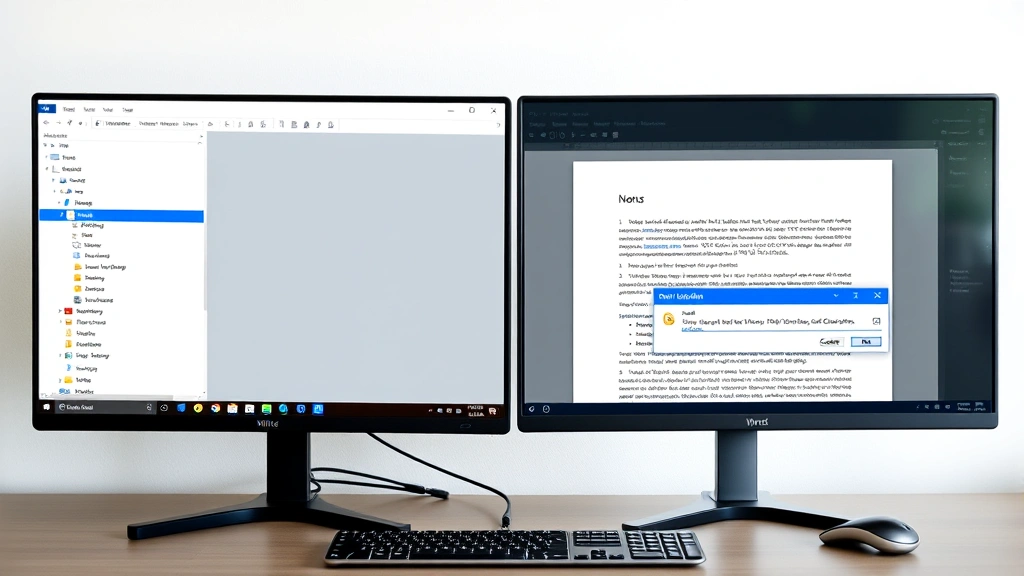
Method 1: Embedding PDFs as Objects
Embedding PDFs as objects is the most comprehensive approach, creating a self-contained document where the PDF becomes part of the Word file itself. This method works exceptionally well for archival purposes or when you need to guarantee that all reference materials stay with the document.
Step-by-step embedding process:
- Open your Word document and position the cursor where you want the PDF to appear
- Navigate to the Insert tab in the ribbon menu
- Click on Object (usually found in the Text group)
- In the dialog box that appears, select the Create from File tab
- Click Browse and locate your PDF file
- Check the Display as Icon checkbox if you prefer a clickable icon rather than embedded content preview
- Click Insert to complete the embedding
When embedding PDFs, Word creates an icon or displays a preview of the first page depending on your settings. Users can double-click the embedded object to open it in their default PDF viewer. This method is particularly useful when documenting finishing touches like crown molding installation, where you might want to include manufacturer specifications or installation guides directly in your project notes.
The embedded file size increases your Word document’s overall size, which is an important consideration for email transmission. A typical PDF of 5-10 MB will significantly impact your Word document’s file size, potentially creating issues with email limitations or cloud storage synchronization.
Method 2: Inserting PDF as a Link
Linking to a PDF rather than embedding it keeps your Word document lean while maintaining easy access to reference materials. This approach works best when you have control over the storage location and can ensure the PDF remains accessible to all document users.
Creating a hyperlink to a PDF:
- Select the text or object in your Word document that will serve as the link anchor
- Press Ctrl+K (Windows) or Command+K (Mac) to open the hyperlink dialog
- In the Address field, enter the full file path to your PDF
- For network locations, use the format: \\servername\foldername\filename.pdf
- For local files, use: C:\Users\YourName\Documents\filename.pdf
- Click OK to create the hyperlink
When recipients click the hyperlink, their default PDF viewer opens the file automatically. This method is excellent for projects where you’re organizing multiple documents, such as when compiling resources for flooring installation guides or building code references. The linked approach also facilitates easy updates—if you need to modify the PDF, simply replace the source file and the link automatically points to the updated version.
However, linking requires that both the Word document and the PDF file travel together or remain in accessible locations. If you email the Word document without the PDF, or if the PDF moves to a different folder, the link breaks and users receive an error message.
Method 3: Converting PDF to Image
For smaller PDFs or when you want maximum compatibility across all Word versions, converting the PDF to an image format and inserting it directly works effectively. This approach eliminates file size concerns and ensures the content displays consistently regardless of the recipient’s software version.
Image conversion process:
- Open your PDF in Adobe Acrobat or a free tool like SmallPDF or ILovePDF
- Export or convert each PDF page to JPG or PNG format
- In your Word document, go to Insert tab and select Pictures
- Choose your converted image files and click Insert
- Resize and position the images as needed within your document
Converting PDFs to images works particularly well when you’re creating a comprehensive project portfolio that combines text, images, and reference materials. For instance, when documenting house painting projects, you could convert paint specification PDFs to images and insert them alongside your progress photos and notes.
The primary limitation of this method is that you lose the searchability of text within the original PDF. If the PDF contains important specifications or building code references you might need to search later, converting to an image makes that functionality unavailable. Additionally, multi-page PDFs require converting each page separately and inserting them individually.
Method 4: Using Package Feature
Microsoft Word’s Package feature (available in Word 2010 and later) creates a compressed folder containing your Word document and any linked files, ensuring everything stays together when sharing.
Packaging your document:
- Open your Word document with attached or linked PDFs
- Click File menu and select Info
- Click Check for Issues and choose Inspect Document
- After inspection, return to File and select Save As
- In the Save dialog, click the Tools dropdown and select Save Options
- Check the option to Copy linked files into the package
- Choose Word Document with Macros or appropriate format and save
The Package feature is particularly valuable when collaborating with contractors or consultants who need access to all project materials without worrying about broken links. This method maintains file organization while ensuring portability across different computers and networks.
Best Practices for Document Organization
Regardless of which attachment method you choose, implementing solid organizational practices ensures your documents remain functional and accessible over time. Create a dedicated folder structure for each project, keeping all related PDFs, images, and Word documents in logical groupings.
Organization strategies:
- Naming conventions: Use descriptive, date-stamped filenames like “2024-01-15_Basement_Renovation_Permits.pdf” to quickly identify documents and track versions
- Folder hierarchy: Organize by project type, then by phase (planning, permits, construction, completion)
- Version control: Maintain a master version and clearly mark draft or outdated documents
- Backup systems: Store copies on cloud services like OneDrive, Google Drive, or Dropbox to prevent data loss
- Metadata: Add properties to Word documents noting attachment locations and creation dates
When managing complex projects that span months or years, consistent naming and organization prevent the frustration of hunting through dozens of similarly-named files. This is especially important for DIY projects requiring permits and inspections, where you may need to quickly reference official documents.
Troubleshooting Common Issues
Even with careful attention to these methods, you may encounter problems when attaching PDFs to Word documents. Understanding common issues and their solutions saves time and prevents document corruption.
File size problems: If your Word document becomes too large to email or upload, consider using cloud storage links instead of embedding. Services like Microsoft OneDrive allow you to share documents without size limitations.
Broken links: When links to PDFs stop working, verify that source files haven’t moved or been renamed. Use absolute file paths rather than relative paths for better reliability. If sharing documents, package everything together using the methods described above.
Compatibility issues: Older Word versions may not support all embedding features. If recipients use legacy software, convert PDFs to images or use hyperlinks instead of embedded objects for better compatibility.
Permission problems: Some PDFs contain security restrictions preventing copying or embedding. If you own the PDF, open it in your PDF editor and remove restrictions. If it’s a third-party document, contact the creator for an unrestricted version.
Display issues: Embedded PDFs may not preview correctly depending on your Word version and operating system. Test the document on the intended recipient’s computer before finalizing, or use the “Display as Icon” option to ensure functionality.
FAQ
Can I attach multiple PDFs to a single Word document?
Yes, absolutely. You can embed, link, or insert multiple PDFs using any of the methods described. Simply repeat the process for each PDF file you want to include. For large numbers of files, consider organizing them with clear section headings and a table of contents to maintain document readability.
What’s the maximum file size for embedding PDFs in Word?
While Word doesn’t have a strict technical limit, practical limitations emerge around 100-200 MB total document size. Most email systems and cloud storage have smaller limits (typically 25-50 MB), so embedding multiple large PDFs may cause transmission issues. For large files, use linking instead.
Will embedded PDFs work if I email the Word document?
Yes, embedded PDFs travel with the Word document and remain accessible to recipients. Linked PDFs only work if the source files are also provided or accessible via network paths, so embedded files are better for email distribution.
How do I edit a PDF that’s embedded in Word?
Double-click the embedded PDF to open it in your default PDF viewer, make edits there, and save. The changes won’t automatically update in Word—you’ll need to delete the old embedded file and insert the updated version.
Can I password-protect attached PDFs in Word?
Word itself doesn’t directly password-protect embedded PDFs. However, you can password-protect the entire Word document through File > Info > Protect Document. For PDF-specific protection, password-protect the PDF file before embedding it.
What’s the best method for sharing documents with contractors?
For contractor collaboration, embedding PDFs or using the Package feature ensures they receive all necessary documents without broken links. If your files are very large, provide a cloud storage link where contractors can access both the Word document and supporting PDFs together.


