How to Change Keyboard Color: A Tech Expert’s Complete Guide
Whether you’re building a custom gaming setup, upgrading your workspace, or simply want to personalize your keyboard, understanding how to change keyboard color opens up endless customization possibilities. Modern keyboards come equipped with RGB lighting technology that allows you to transform your typing experience with vibrant colors, dynamic effects, and synchronized lighting patterns. This comprehensive guide walks you through every method available, from software-based controls to hardware modifications.
Keyboard color customization has evolved significantly from simple single-color backlighting to sophisticated multi-zone RGB systems. Whether your keyboard features mechanical switches, membrane keys, or wireless connectivity, you’ll find practical solutions tailored to your specific hardware. We’ll explore both the easiest software approaches and more advanced physical modifications for those seeking complete control over their keyboard’s appearance.
Understanding RGB Keyboard Technology
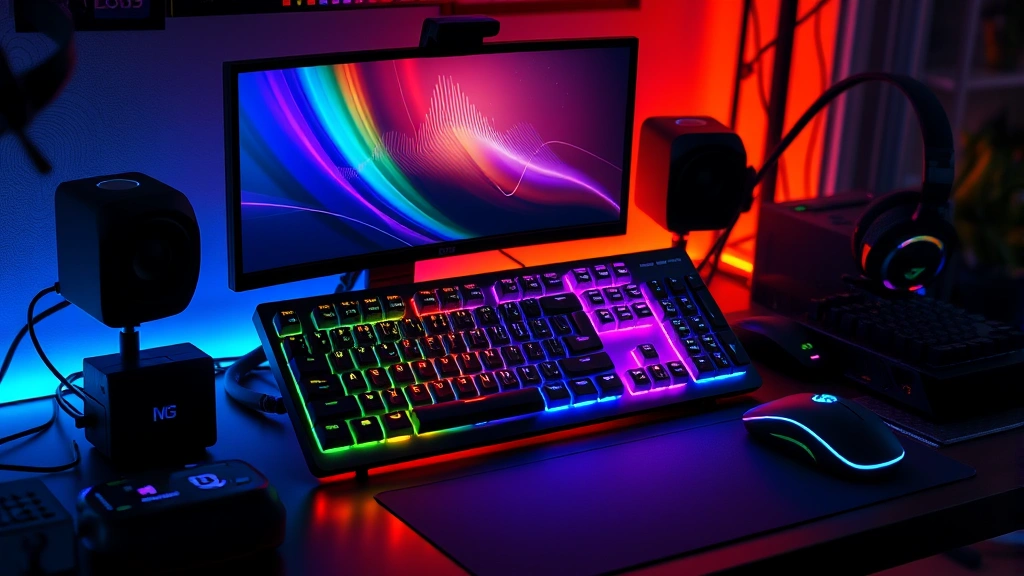
RGB (Red, Green, Blue) keyboard lighting represents the foundation of modern keyboard color customization. These systems use individual LED lights positioned beneath or within keyboard switches, allowing precise color control through software interfaces. Each key can display millions of color combinations by blending red, green, and blue light channels at different intensity levels.
Most gaming and premium keyboards utilize one of three RGB implementation types. Full RGB keyboards feature individual LED lights under every single key, providing maximum customization potential. Zone-based RGB systems divide the keyboard into sections—typically three to five zones—where each section shares the same color settings. Single-color backlit keyboards offer limited customization but remain affordable options for budget-conscious users.
Understanding your keyboard’s specific RGB architecture is crucial before attempting color changes. Check your keyboard’s manual or manufacturer specifications to identify which system your device uses. This information determines which software tools and customization methods will work effectively with your hardware.
Software-Based Color Control Methods
The most straightforward approach to changing keyboard color involves using dedicated software provided by your keyboard manufacturer. These applications typically install on your computer and communicate with your keyboard via USB connection or wireless receiver.
Begin by visiting your keyboard manufacturer’s official website and locating their support or downloads section. Search for software labeled as RGB control software, lighting manager, or customization suite. Download the version compatible with your operating system—most manufacturers provide Windows and Mac versions, with some supporting Linux.
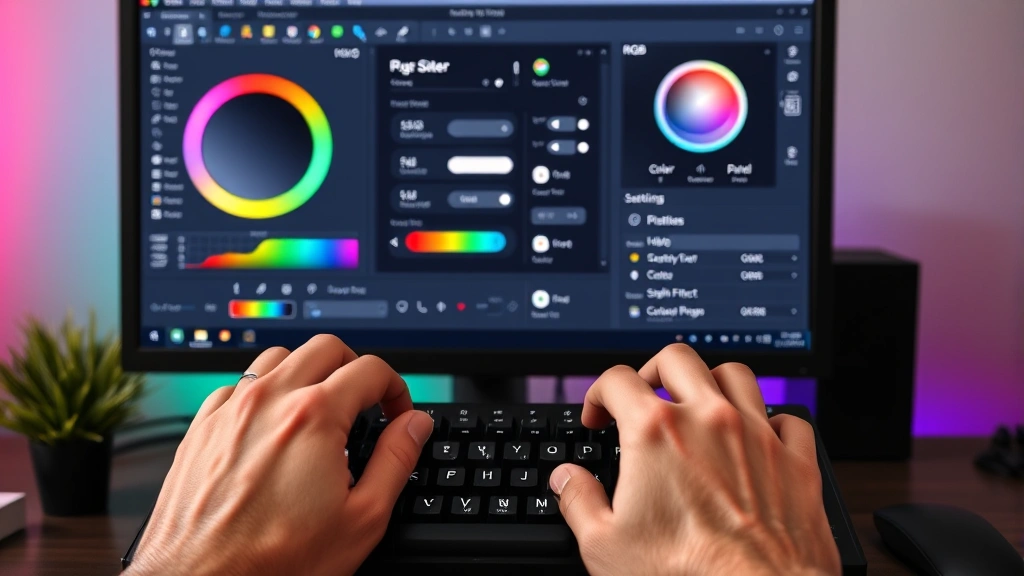
After installation, connect your keyboard directly to your computer using a USB cable if it’s wired, or ensure your wireless receiver is properly connected. Launch the manufacturer’s software application. Most interfaces display a virtual keyboard representation where you can click individual keys or zones to apply colors. Use the color picker tool to select from a palette or input specific RGB values (0-255 for each channel).
Many keyboard software platforms allow you to create multiple color profiles and assign them to different applications. For example, you might set a professional blue theme for work applications and a vibrant gaming color scheme for entertainment software. Save these profiles within the application for quick switching.
Manufacturer-Specific Applications
Different keyboard manufacturers implement their own proprietary software ecosystems, each with unique features and interfaces. Understanding your specific manufacturer’s approach streamlines the customization process.
Corsair iCUE represents one of the most comprehensive RGB control platforms available. This software manages not only keyboard lighting but also mice, headsets, and case fans, allowing synchronized lighting across your entire setup. The interface features preset lighting effects, profile creation tools, and integration with popular games for dynamic in-game lighting responses. Visit Corsair’s official download page to access the latest iCUE version.
Razer Synapse offers similar comprehensive control for Razer peripherals. This platform enables color customization, effect timing, and macro programming. The cloud-based nature of Razer Synapse allows your profiles to sync across multiple computers. Access Razer Synapse through Razer’s official Synapse page.
SteelSeries Engine provides RGB control for SteelSeries keyboards alongside other gaming peripherals. This software features per-key customization, effect libraries, and game integration. Download the latest version from SteelSeries Engine’s official site.
Logitech G HUB manages RGB keyboards from Logitech’s gaming division. The interface includes preset lighting effects, color cycling options, and integration with Logitech’s other gaming peripherals. Access G HUB through Logitech’s gaming platform.
ASUS Aura controls RGB lighting across ASUS ROG gaming products. This software features advanced lighting effects, per-key customization, and synchronization capabilities with other ASUS RGB devices.
If you’re unsure which software your keyboard requires, check the documentation that came with your keyboard or search for your keyboard model combined with “RGB software” online. Installing the correct manufacturer software is essential—attempting to use another brand’s software with your keyboard will not function properly.
Advanced Customization Techniques
Beyond basic color selection, advanced customization techniques allow you to create sophisticated lighting effects and dynamic patterns. Most manufacturer software includes preset effects like breathing, wave, rainbow cycling, and reactive modes that respond to keystrokes.
Breathing effects gradually fade colors in and out, creating a relaxing pulsing appearance. Wave effects move colors across the keyboard in rippling patterns, ideal for creating dynamic visual interest. Rainbow cycling automatically transitions through the full color spectrum continuously. Reactive modes change colors when you press keys, adding interactivity to your typing experience.
Many software platforms allow timing adjustments for these effects, letting you control animation speed from subtle slow transitions to rapid flashing patterns. Experiment with different speeds to find the aesthetic that best suits your preferences and working environment.
Advanced users can access scripting capabilities in some software platforms, enabling custom effect creation. These tools require basic programming knowledge but allow unlimited customization possibilities. You might create effects synchronized to your system’s CPU temperature, network activity, or custom game integrations.
For users interested in broader workspace customization, consider exploring DIY home security setup integration that coordinates lighting across your entire workspace, or review our DIY projects blog for additional tech customization guides.
When customizing keyboard lighting for productivity environments, remember that excessive brightness or rapidly flashing colors can cause eye strain and reduce focus. Professional settings typically benefit from subtle, static color schemes or slow breathing effects.
Troubleshooting Color Issues
If your keyboard’s color isn’t changing despite software adjustments, several troubleshooting steps can resolve the issue. First, verify that your keyboard is properly connected to your computer. USB keyboards should connect directly to the computer; wireless keyboards require a functioning receiver and fresh batteries.
Restart both your keyboard and the RGB control software. Many connection issues resolve with a simple power cycle. Power off your keyboard, wait thirty seconds, then reconnect and relaunch the software application.
Check that your keyboard firmware is current. Manufacturers frequently release firmware updates that improve RGB functionality and compatibility. Access your keyboard manufacturer’s support website to download the latest firmware version for your specific model. Follow the provided instructions carefully to update your keyboard’s firmware.
Verify that your software version matches your keyboard model. Installing software designed for a different keyboard model will not control your device. Uninstall any incompatible software and reinstall the correct version for your specific keyboard.
Some keyboards feature hardware switches or buttons that control RGB settings independently of software. Check your keyboard for any physical switches labeled “RGB,” “Light,” or with lighting symbols. These hardware controls might override software settings or need adjustment before software customization takes effect.
If your keyboard uses USB connection, try different USB ports on your computer. Some USB ports provide insufficient power for RGB lighting. Connecting to a powered USB hub can resolve power-related lighting issues with wireless keyboards.
Update your computer’s operating system and graphics drivers. Outdated drivers sometimes interfere with RGB software communication. Visit your computer manufacturer’s support website to check for available system updates.
Physical LED Modifications
For users seeking ultimate customization beyond software capabilities, physical LED modifications offer advanced options. These modifications require comfort with electronics and careful attention to electrical safety. Always disconnect your keyboard from power before beginning any physical modifications.
Some keyboards feature removable keycaps that expose the underlying switch mechanism and LED. Gently pry off keycaps using a keycap puller tool—never use excessive force that might damage the switch stem. Once removed, you may access the LED beneath the keycap. Some keyboards allow LED bulb replacement, though this requires desoldering the old LED and soldering a new one in place.
This approach requires soldering experience and proper equipment including a soldering iron, solder, desoldering braid, and appropriate safety gear. Improper soldering can permanently damage your keyboard’s circuit board. If you lack soldering experience, practice on scrap circuit boards first before attempting keyboard modifications.
Alternatively, some enthusiasts create custom LED strips that mount around the keyboard’s perimeter, controlled by separate RGB controllers. These external modifications don’t alter the keyboard itself but enhance the overall aesthetic of your setup.
When performing physical modifications, document each step with photographs before disconnecting any components. This documentation helps you reassemble the keyboard correctly and troubleshoot any issues that arise. Take particular care with delicate ribbon cables that connect different keyboard sections.
For those interested in comprehensive workspace modifications, explore basement finishing projects to create a dedicated gaming or work space where your custom keyboard fits perfectly into your overall environment design.
Frequently Asked Questions
Can I change keyboard color without software?
Many keyboards include hardware buttons or switches that control RGB lighting without requiring software installation. Check your keyboard for dedicated RGB control buttons, usually located on the function key row. These physical controls typically cycle through preset colors and effects independently of software. However, software provides far more customization options than hardware controls alone.
Will changing keyboard colors affect typing performance?
No, adjusting keyboard colors through software has no impact on typing performance, responsiveness, or reliability. RGB lighting operates independently from the keyboard’s electrical switches and input mechanisms. Your typing speed and accuracy remain completely unaffected by color customization.
Can I sync my keyboard color with other devices?
Yes, many manufacturer software platforms support device synchronization. Corsair iCUE, Razer Synapse, and SteelSeries Engine allow you to synchronize lighting across keyboards, mice, headsets, and other RGB devices. This unified lighting approach creates cohesive aesthetic across your entire setup. Check your specific software’s synchronization features to enable multi-device coordination.
What if my keyboard doesn’t have RGB lighting?
Keyboards without built-in RGB lighting cannot be modified through software. However, you have two alternatives: purchase an external keyboard with RGB capabilities, or add external RGB lighting around your non-RGB keyboard. External RGB strips with independent controllers can mount beneath your keyboard or around your desk perimeter, creating similar visual effects without modifying the keyboard itself.
Does RGB lighting reduce keyboard lifespan?
No, RGB lighting has negligible impact on keyboard longevity. Modern LEDs are extremely reliable and generate minimal heat. Keyboards are designed to safely operate with RGB lighting continuously enabled. The keyboard’s mechanical switches and circuitry will outlast the RGB lighting system in most cases.
Can I customize individual key colors?
Full RGB keyboards with per-key lighting allow individual key color customization. Zone-based keyboards limit customization to predetermined zones. Check your keyboard’s specifications to determine if it supports per-key customization. Most gaming keyboards in the mid-to-premium price range offer this feature.
Why isn’t my keyboard lighting working?
Common causes include outdated software, incorrect USB connection, insufficient power delivery, disabled RGB settings in the firmware, or incompatible software for your keyboard model. Follow the troubleshooting steps outlined in the “Troubleshooting Color Issues” section above. If problems persist, contact your keyboard manufacturer’s technical support team with your keyboard model number.


