Boost IMVU FPS: Expert-Backed Settings Guide
IMVU, the immersive 3D social platform, demands significant processing power to render avatars, environments, and real-time interactions smoothly. Many users experience frustrating frame rate drops that diminish the social experience and create lag during conversations and activities. Whether you’re running an older system or simply want to optimize your current setup, understanding how to change IMVU FPS settings can dramatically improve your gameplay performance and overall enjoyment.
Frame rate directly impacts how smoothly your character moves, how quickly the environment loads, and how responsive your interactions feel with other players. A low FPS creates stuttering, delayed animations, and can even make navigating virtual spaces feel sluggish and unresponsive. This comprehensive guide walks you through every setting available to boost your IMVU performance, from basic graphics adjustments to advanced configuration tweaks that experienced users employ.
Understanding IMVU FPS and Performance Metrics
Frame rate, measured in frames per second (FPS), represents how many individual images your graphics card renders each second. IMVU typically targets 60 FPS on modern systems, though many users experience lower rates depending on their hardware and settings. Understanding the relationship between FPS and visual quality helps you make informed decisions about which settings to adjust.
The human eye perceives smooth motion around 30 FPS, but serious performance enthusiasts and competitive users prefer 60+ FPS for the most responsive experience. In IMVU’s social environment, even moderate FPS drops from 60 to 45 become noticeable when moving through crowded areas or during avatar interactions. Low FPS manifests as stuttering, where animations appear jerky and unnatural, making conversations and social interactions feel awkward.
Your system’s GPU (graphics processing unit) handles most IMVU rendering tasks, while your CPU (processor) manages physics calculations, avatar positioning, and network communications. A balanced approach to optimization ensures neither component becomes a bottleneck. Many users mistakenly focus only on graphics settings while ignoring CPU-intensive processes running in the background.
Accessing Graphics Settings in IMVU
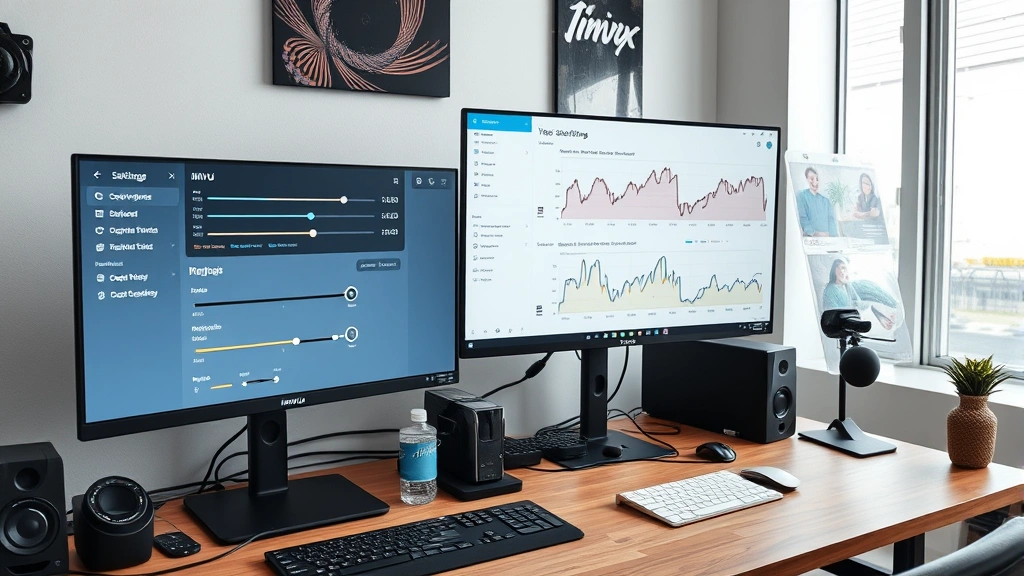
Learning how to change IMVU FPS settings begins with locating the graphics menu. Launch IMVU and look for the settings icon, typically represented as a gear or wrench symbol in the top-right corner of the interface. Click this icon to open the main settings panel where you’ll find graphics, audio, and network options.
Within the graphics section, you’ll see multiple tabs or categories including rendering quality, avatar detail, and environmental settings. The exact layout varies slightly depending on your IMVU client version, but the fundamental options remain consistent. Take time to explore each category before making changes, as understanding what each setting controls prevents counterproductive adjustments.
Many performance improvements come from the “Graphics” or “Video” tab, where you’ll find resolution, texture quality, shadow rendering, and particle effect settings. Some options appear as sliders allowing fine-tuned control, while others present simple on/off toggles. Before adjusting anything, note your current settings—this allows you to revert changes if performance worsens rather than improves.
Core Graphics Adjustments for FPS Improvement
Resolution Reduction offers the most immediate FPS boost for struggling systems. Lowering your display resolution from 1920×1080 to 1280×720 or 1600×900 significantly reduces the number of pixels your GPU must render each frame. While visual clarity decreases, the performance gain often justifies this trade-off for users experiencing severe stuttering. This adjustment typically provides 20-40% FPS improvement depending on your GPU.
Your DIY Nests Hub Blog covers numerous optimization topics, and similar systematic approaches apply to IMVU performance tuning. Start with resolution adjustments before tackling more complex settings, establishing a performance baseline that you can build upon.
Texture Quality Settings directly impact both visual appearance and performance. IMVU offers texture quality options ranging from “Low” to “Ultra High.” Lower settings use simplified, compressed textures that load faster and consume less VRAM (video memory). Switching from Ultra to Medium or Low can yield 15-25% performance improvements, particularly noticeable when loading crowded rooms or avatars with detailed clothing.
Shadow Rendering represents one of the most GPU-intensive features in IMVU. Real-time shadows require complex calculations for each light source in a scene. Disabling shadows entirely or reducing their quality provides substantial FPS gains. Many users find that eliminating shadows causes minimal visual degradation while improving performance by 10-20%, especially in outdoor environments with multiple light sources.
Particle Effects and Visual Enhancements include bloom, glow, and ambient occlusion—fancy lighting effects that enhance realism but demand GPU resources. Reducing particle effect quality or disabling them entirely frees up processing power. Users in crowded rooms with many avatars wearing particle-heavy accessories notice dramatic improvements when these settings are minimized.
Avatar Detail Levels control how many polygons render for other players’ avatars. Higher detail settings display complex clothing, accessories, and customizations with full fidelity, while lower settings use simplified models. Since IMVU rooms often contain dozens of avatars simultaneously, reducing avatar detail from “High” to “Medium” or “Low” substantially improves FPS in populated areas. Your own avatar’s appearance remains unaffected by this setting—only how others’ avatars appear changes.
Advanced Performance Optimization Techniques
For users still experiencing performance issues after basic adjustments, advanced techniques provide additional improvements. Draw Distance settings control how far into the environment your client renders. Reducing draw distance means your GPU stops rendering objects and avatars beyond a certain distance, reducing processing demands. This proves particularly effective in large outdoor environments.
Much like how how to change a tire on a car requires systematic steps in proper order, IMVU optimization works best when applied methodically. Start with one adjustment, test performance, then proceed to the next change. This approach identifies which settings provide the most benefit for your specific hardware.
V-Sync (Vertical Synchronization) synchronizes your frame rate with your monitor’s refresh rate. While V-Sync prevents screen tearing (visual artifacts where different portions of the screen display different frames), it can also limit FPS if your GPU struggles to maintain your monitor’s refresh rate. Disabling V-Sync allows uncapped frame rates but may introduce tearing. Experiment with both settings to find your preference.
Anti-Aliasing Settings smooth jagged edges on 3D objects, improving visual quality but requiring additional GPU processing. IMVU offers options like FXAA (Fast Approximate Anti-Aliasing) and MSAA (Multi-Sample Anti-Aliasing). Disabling anti-aliasing improves FPS, though edges appear slightly rougher. Many users find the performance gain worth minor visual compromises.
Ambient Occlusion adds subtle shadows in crevices and corners, enhancing visual depth and realism. This feature demands significant GPU resources, particularly in complex environments. Disabling ambient occlusion provides noticeable FPS improvements with minimal visual impact for most users.
System-Level Optimization for IMVU
Optimizing IMVU FPS extends beyond in-game settings to encompass system-wide adjustments. Background Process Management proves crucial—applications running in the background consume CPU and RAM resources that IMVU needs. Close unnecessary programs before launching IMVU, including web browsers with many tabs, media players, and cloud synchronization services.
Similar to how how to change coolant in car requires attention to system maintenance, computer optimization demands regular upkeep. Update your graphics drivers to the latest version—manufacturers like NVIDIA and AMD release driver updates that improve game performance. Outdated drivers often cause compatibility issues and suboptimal performance.
GPU Driver Settings themselves offer optimization opportunities. Access your graphics card’s control panel (NVIDIA Control Panel or AMD Radeon Settings) and create a custom profile for IMVU. Within this profile, prioritize performance over visual quality by enabling “Performance Mode” and disabling unnecessary features like triple buffering.
RAM and Virtual Memory impact system performance significantly. IMVU loads avatars, textures, and environments into RAM. Systems with insufficient RAM (less than 8GB) experience slowdowns as the system relies on virtual memory (hard drive storage), which operates much slower than RAM. If you’re running IMVU on a system with 4GB or less RAM, upgrading to 8GB or 16GB provides dramatic improvements.
Storage and Hard Drive Health affect loading times and system responsiveness. IMVU stores cache files on your hard drive. Ensure your drive has at least 5-10GB free space for cache operations. Additionally, defragmenting your hard drive (on traditional HDDs) or checking solid-state drive health improves overall system performance. Refer to DIY Car Repairs: A Beginners Guide for similar systematic maintenance principles applicable to computer optimization.
Overclocking Considerations appeal to advanced users seeking maximum performance. Carefully overclocking your GPU or CPU can provide 10-20% performance gains, but requires technical knowledge and risks hardware damage if done incorrectly. Only attempt overclocking if you understand the process and have adequate cooling solutions.
Monitoring and Testing Your FPS Changes
Effective optimization requires measuring performance before and after changes. IMVU includes a built-in FPS counter accessible through the settings menu. Enable this counter to monitor real-time frame rates as you adjust settings. Visit the same location with consistent avatar density to ensure fair comparisons—testing in an empty room versus a crowded social space produces vastly different results.
Document your baseline FPS before making changes, then adjust one setting at a time and measure the impact. This methodical approach identifies which settings provide the greatest benefit for your system. Some settings might seem important but provide minimal FPS improvement for your specific hardware configuration.
External monitoring tools like MSI Afterburner or GPU-Z provide detailed performance metrics including GPU usage, temperature, and memory consumption. These tools help identify whether your GPU or CPU represents the performance bottleneck. If GPU usage remains below 90% while FPS is low, your CPU likely needs optimization. Conversely, consistently high GPU usage indicates graphics settings need reduction.
Visit various IMVU locations during testing—crowded social rooms, outdoor environments, and avatar-heavy areas reveal performance under different conditions. Your optimized settings should maintain acceptable FPS (30+ minimum, 60+ ideal) across diverse scenarios. Some settings optimizations benefit crowded areas while potentially harming performance in simple environments, requiring balanced adjustments.
FAQ
What FPS should I target in IMVU?
Aim for minimum 30 FPS for acceptable smoothness, though 60 FPS provides significantly better responsiveness and visual fluidity. Most modern systems should achieve 60+ FPS with proper optimization. Users with older hardware may need to accept 30-45 FPS as their realistic target.
Will lowering resolution significantly affect visual quality?
Resolution reduction does impact clarity, particularly noticeable on high-resolution monitors. However, most users find that maintaining 60 FPS with 1600×900 resolution provides better overall experience than stuttering at 1920×1080. You can experiment to find your personal quality-versus-performance sweet spot.
Should I disable all visual effects for maximum FPS?
Disabling all effects maximizes FPS but creates a visually bland experience. Instead, selectively disable the most GPU-intensive features like shadows and ambient occlusion while maintaining texture quality and avatar detail. This balanced approach preserves visual appeal while improving performance.
How often should I update my graphics drivers?
Check for driver updates monthly, or immediately when manufacturers release updates addressing game performance. Subscribe to your GPU manufacturer’s update notifications to stay current. Driver updates often include IMVU-specific optimizations.
Can insufficient RAM cause low FPS in IMVU?
Yes, systems with less than 8GB RAM may experience FPS drops due to virtual memory reliance. If your system has 4GB or less RAM and struggles with IMVU performance, RAM upgrade provides the most significant improvement. Check your current RAM usage while IMVU runs to confirm this bottleneck.
What’s the difference between V-Sync on and off?
V-Sync synchronizes frame rate with monitor refresh rate (typically 60Hz), preventing screen tearing but potentially capping FPS at 60. Disabling V-Sync allows higher FPS but may introduce tearing artifacts. Most users prefer V-Sync on for smooth, tear-free gameplay.
External Resources:
- Official IMVU Website
- NVIDIA Graphics Drivers
- AMD Radeon Software
- TechPowerUp GPU Database
- PC Gaming Hardware Reference
Explore additional DIY Home Security: A Comprehensive Guide and how to add oil to car resources for similar optimization and maintenance principles applicable across various systems and technologies.


