Closing Apps on Apple Watch: Expert Tips for Optimal Performance
Apple Watch is a powerful wearable device that puts computing directly on your wrist, but like any computer, it requires proper app management to maintain peak performance. Many users struggle with closing apps on their Apple Watch, leading to battery drain, sluggish performance, and unnecessary notifications. Whether you’re a first-time Apple Watch owner or an experienced user looking to optimize your device, understanding how to properly close apps is essential knowledge that can significantly improve your daily experience.
The process of closing apps on Apple Watch differs from traditional iPhones and iPads, which can confuse newcomers to the ecosystem. Apple’s wearable operating system, watchOS, uses a unique app management system designed specifically for the limited screen real estate and battery constraints of a wrist-worn device. Learning the correct techniques for app closure will help you maintain your device’s responsiveness and extend battery life between charges.

Understanding Apple Watch App Management
The fundamental difference between Apple Watch and iPhone app management stems from watchOS’s design philosophy. Apple Watch operates with severe hardware constraints compared to iPhones—limited processing power, minimal storage, and battery capacity measured in hours rather than days. This reality shapes how apps are managed on the device. Unlike iPhones where you might swipe up from the bottom to close apps, Apple Watch uses a different approach altogether.
Most apps on Apple Watch don’t need to be manually closed in the traditional sense. The watchOS system automatically manages app memory and processes intelligently, terminating background processes when necessary to preserve battery life. However, there are situations where an app might freeze, become unresponsive, or consume excessive resources. In these cases, you’ll need to know how to force-close the problematic application. Understanding when and how to do this is crucial for maintaining your device’s health and performance.
The DIY Nests Hub Blog covers various technology optimization topics that apply similar principles of device management across different platforms. Just as you might optimize your smart home devices for efficiency, optimizing your Apple Watch requires understanding its unique operating system.

Primary Method: Force-Closing Apps on Apple Watch
The most direct way to close an app on Apple Watch is through the force-close method. This technique is particularly useful when an app becomes unresponsive or behaves erratically. To force-close an app, you’ll press and hold the side button (also called the digital crown’s companion button) until the power-off slider appears on your screen. However, this method closes everything, not just the problematic app.
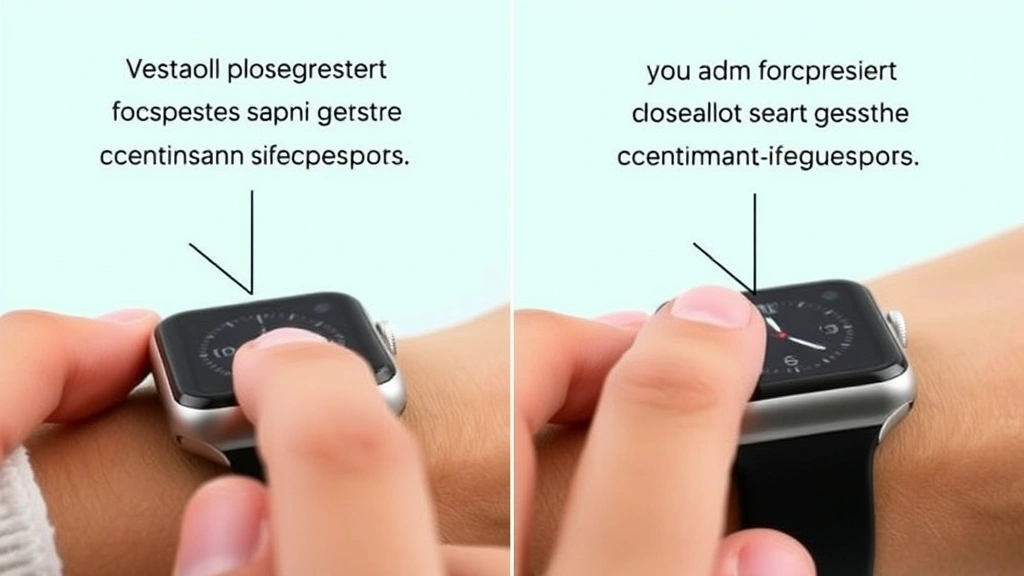
A more targeted approach involves using the app switcher. While your app is running, press the digital crown (the rotating button on the side of your Apple Watch) twice rapidly. This action brings up the app switcher interface, which displays thumbnails of recently used applications. From this view, you can swipe left or right to navigate through your open apps. Once you’ve located the app you want to close, swipe upward on its thumbnail. This gesture removes the app from memory and effectively closes it without powering down your entire device.
This method is particularly effective for managing resource-hungry applications that might be draining your battery unnecessarily. By regularly closing apps you’re not actively using, you ensure that watchOS can allocate more resources to the applications you need in the moment. The process is intuitive once you understand the gesture mechanics, though it takes practice to develop the muscle memory for consistent execution.
The digital crown serves multiple functions on your Apple Watch, much like how multi-functional tools are essential in DIY car cleaning and maintenance, where efficiency and proper tool usage prevent problems before they start.
Using the Dock for Quick App Access
The Apple Watch Dock functions as your customizable hub for frequently used applications. Unlike the home screen, which displays all installed apps in a grid format, the Dock shows only your most essential applications. This limitation isn’t a disadvantage—it’s actually a feature designed to streamline your Apple Watch experience. By strategically populating your Dock with apps you use regularly, you can minimize the time spent navigating your device.
To access the Dock, press the digital crown once while on any home screen. The Dock displays up to 10 apps by default, though this number can be adjusted based on your preferences. These apps remain easily accessible without cluttering your entire interface. When you open an app from the Dock, it launches just like any other app, but you can close it using the same upward swipe gesture in the app switcher.
Managing your Dock effectively reduces unnecessary app switching and helps maintain better battery performance. Apps that you open frequently but don’t need to keep running in the background should be closed properly after use. This practice is similar to the organizational principles used in DIY home security system setup, where strategic placement and organization of components ensure optimal functionality and monitoring.
You can customize your Dock by going to the Apple Watch app on your iPhone, navigating to Dock settings, and selecting which apps appear there. This customization ensures that your most-used applications are always just one digital crown press away, reducing the need to search through multiple screens.
Background App Refresh Settings
One of the most important aspects of app management on Apple Watch involves controlling background app refresh. This setting determines which apps can update content and run processes while they’re not actively displayed on your screen. By default, some apps have background refresh enabled, which can significantly impact battery life if left unchecked.
To manage background app refresh, open the Apple Watch companion app on your iPhone, navigate to General, then select Background App Refresh. From this menu, you can toggle background refresh on or off for individual apps. Most users benefit from disabling this feature for apps that don’t require real-time updates, such as games, productivity tools, or entertainment applications.
Apps that genuinely need background refresh include fitness trackers, messaging applications, and health monitoring tools. These applications provide value precisely because they update information in the background, allowing you to see notifications and data without explicitly opening them. However, disabling background refresh for less critical apps can extend your Apple Watch battery life by several hours, making this one of the most impactful optimization strategies available.
The principle of selective background processing applies across all smart devices. Just as you might optimize DIY beginner projects by focusing on essential steps first, optimizing your Apple Watch means prioritizing the features and apps that genuinely enhance your experience.
Preventing Unnecessary App Launch
Prevention is more effective than cure when it comes to managing apps on your Apple Watch. By understanding what causes apps to launch unexpectedly, you can prevent unnecessary app activity before it occurs. Siri suggestions, for example, automatically launch apps based on your usage patterns and time of day. While this feature can be convenient, it can also lead to unexpected battery drain if you’re not actively managing it.
To disable Siri suggestions, go to the Apple Watch app on your iPhone, select Siri, and toggle off “Suggestions on Watch Face.” This prevents watchOS from automatically launching apps based on predicted usage. You can still access Siri and launch apps manually, but you’ll maintain greater control over when apps run.
Notifications also contribute to unnecessary app launches. When an app sends a notification and you interact with it by tapping the notification badge, the app opens automatically. Managing your notification settings prevents constant app launches throughout the day. In the Apple Watch app on your iPhone, navigate to Notifications and customize which apps can send alerts to your watch. Disable notifications for apps that aren’t time-sensitive or critical to your daily routine.
Complications—the small app widgets that appear on your watch face—also consume resources as they update periodically. Limiting the number of complications and choosing those with infrequent update intervals helps reduce background activity. This approach mirrors the efficiency principles used in DIY house painting preparation, where strategic planning prevents wasted effort and resources.
Performance Optimization Strategies
Beyond simply closing apps, several comprehensive strategies can optimize your Apple Watch’s overall performance. Regular device restarts, similar to restarting your computer or phone, can resolve lingering performance issues. To restart your Apple Watch, press and hold both the digital crown and the side button until the power-off slider appears. Drag the slider to power off the device, wait a few seconds, then press and hold the digital crown again to power it back on.
Storage management plays a crucial role in Apple Watch performance. Unlike iPhones with gigabytes of storage, Apple Watches typically have only a few gigabytes available for apps and data. Removing apps you don’t actively use frees up valuable storage space and reduces the device’s overall processing load. To uninstall apps, open the Apple Watch app on your iPhone, navigate to the app you want to remove, and select “Remove App.”
Keeping your watchOS software updated ensures you have the latest performance improvements and bug fixes. Apple regularly releases watchOS updates that optimize app management and battery efficiency. To check for updates, open the Apple Watch app on your iPhone, go to General, then select Software Update. Install any available updates when connected to power and WiFi.
These optimization strategies combine to create a significantly more responsive and efficient Apple Watch experience. Much like how DIY pallet projects require proper planning and maintenance, your Apple Watch requires ongoing attention to maintain peak performance.
Troubleshooting Unresponsive Apps
Despite your best efforts at management and optimization, you may occasionally encounter an app that becomes completely unresponsive or frozen. In these situations, the force-close method becomes essential. If an app is frozen and won’t respond to taps or gestures, use the app switcher method described earlier: press the digital crown twice to access recently used apps, then swipe upward on the problematic app’s thumbnail.
If the app switcher itself becomes unresponsive, you’ll need to perform a hard reset of your Apple Watch. This is different from a normal restart and should only be used when the device is completely frozen. Press and hold both the digital crown and the side button for approximately 10 seconds, even after the power-off slider appears. Continue holding until the Apple logo appears on the screen, indicating a hard reset is in progress. This process forces all apps and processes to close immediately.
After force-closing or hard-resetting, give your Apple Watch several minutes to fully restart and stabilize before using it again. Open the problematic app fresh to see if the issue has resolved. If the app continues to malfunction, consider deleting and reinstalling it, as this often resolves persistent software issues.
For apps that crash repeatedly, check the Apple Support documentation for known issues with specific apps or watchOS versions. Apple’s support site provides detailed troubleshooting steps for common problems.
FAQ
Do I need to close apps on Apple Watch manually?
Not necessarily. watchOS automatically manages app memory and closes background processes intelligently. However, manually closing apps that are unresponsive, battery-draining, or no longer needed can improve performance and battery life. The automatic management system is generally sufficient for normal use, but active management provides additional optimization opportunities.
Will force-closing apps damage my Apple Watch?
No, force-closing apps is a safe operation that won’t damage your device. Apple designed watchOS to handle app termination gracefully. Force-closing is actually a recommended troubleshooting step when apps become unresponsive. The only potential drawback is that you might lose unsaved data within the app if it’s in the middle of an operation.
How often should I close apps on my Apple Watch?
Close apps as needed based on performance. If your watch feels sluggish or you notice rapid battery drain, close unused apps to free up resources. For most users, closing apps once or twice per day is sufficient. If you’re experiencing consistent performance issues, you may need to close apps more frequently or reassess your app selection and settings.
Does background app refresh significantly impact battery life?
Yes, background app refresh can substantially impact battery life, particularly if enabled for many apps. Disabling background refresh for non-essential apps can extend battery life by 2-4 hours or more, depending on which apps you disable. This is one of the most effective optimization strategies available.
What’s the difference between closing an app and uninstalling it?
Closing an app stops it from running but keeps it installed on your device, ready to launch again. Uninstalling removes the app entirely from your Apple Watch, freeing up storage space. Close apps when you want to stop them temporarily; uninstall when you no longer need them.
Can I close multiple apps at once?
The native watchOS interface doesn’t provide a direct way to close multiple apps simultaneously. However, you can close apps quickly one after another using the app switcher method. Alternatively, a hard reset closes all running apps at once, though this should only be used when necessary.
For additional technical guidance, consult the official watchOS information from Apple’s main website. You can also reference Apple’s developer resources for in-depth technical details about how watchOS manages applications. The Apple Watch support center provides comprehensive troubleshooting guides and user manuals.


